






How to Fix C Drive Out of Space Issue on Intune Managed Windows Devices
How to Fix C Drive Out of Space Issue on Intune Managed Windows Devices ! There is an issue on Windows devices managed through Intune where the C: drive (250 GB HDD) frequently runs out of available space. This problem is occurring across multiple systems, impacting performance and daily operations.
After performing the disk cleanup or using other storage management tools, the available space on the C: drive does not remain consistent. Devices show a temporary increase in free space, but it soon decreases again without any significant user activity or large file downloads.
The fluctuation in C: drive space occurs because certain background processes and system activities automatically consume storage after cleanup. Windows creates temporary files, update caches, and diagnostic logs during regular operations.
These files can accumulate quickly, reducing the available disk space even after running cleanup tools. Additionally, devices managed through Intune may generate management or diagnostic logs that contribute to this issue. As a result, the available storage keeps increasing and decreasing frequently, causing noticeable fluctuations on the C: drive.

Table of Contents
How to Fix C Drive Out of Space Issue on Intune Managed Windows Devices
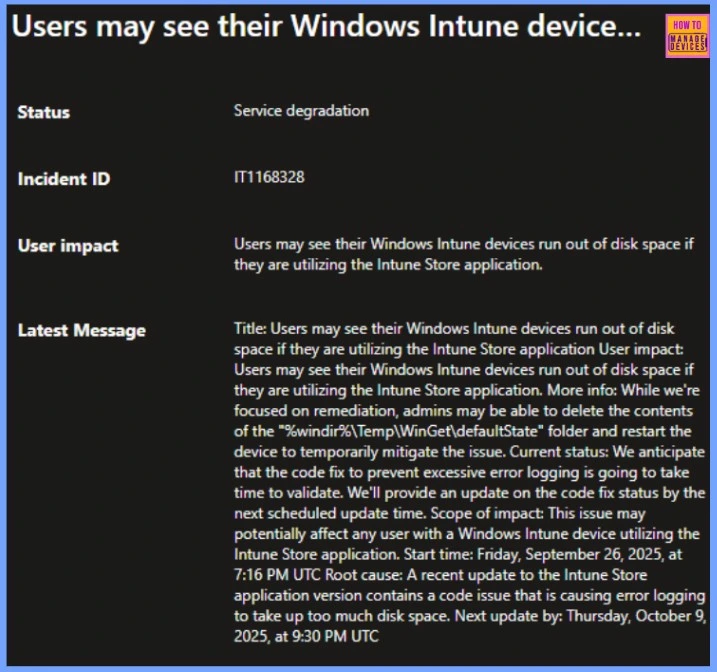
The issue began on Friday, September 26, 2025, at 7:16 PM UTC and is caused by a recent update to the Intune Store application, which contains a code error that leads to excessive error logging and rapid disk space consumption. This problem can potentially affect any user with a Windows Intune device running the Intune Store application.
| Status | Incident ID | User impact |
|---|---|---|
| Service degradation | IT1168328 | Users may see their Windows Intune devices run out of disk space if they are utilizing the Intune Store application. |
- How Intune Inventory Helps to Monitor Logical Drives on Windows Devices
- Windows 11 Disk Cleanup Shows Incorrect Space Available for Cleanup Known Issue and Fix
- Top 83 Windows 11 Desktop Admin Interview Questions
- Clear Windows Update Cache | 5 Easy Methods
- 2 Methods To View Reserved Storage Size In Windows
Workaround for C: Drive Filling Issue on Intune-Managed Windows Devices
Windows devices managed through Intune may experience C: drive space consumption due to excessive log and temporary file generation, particularly in the C:\Windows\Temp\WinGet\defaultState folder. This can make devices nearly unusable if not addressed promptly.
| Workaround for C: Drive Filling Issue | Details |
|---|---|
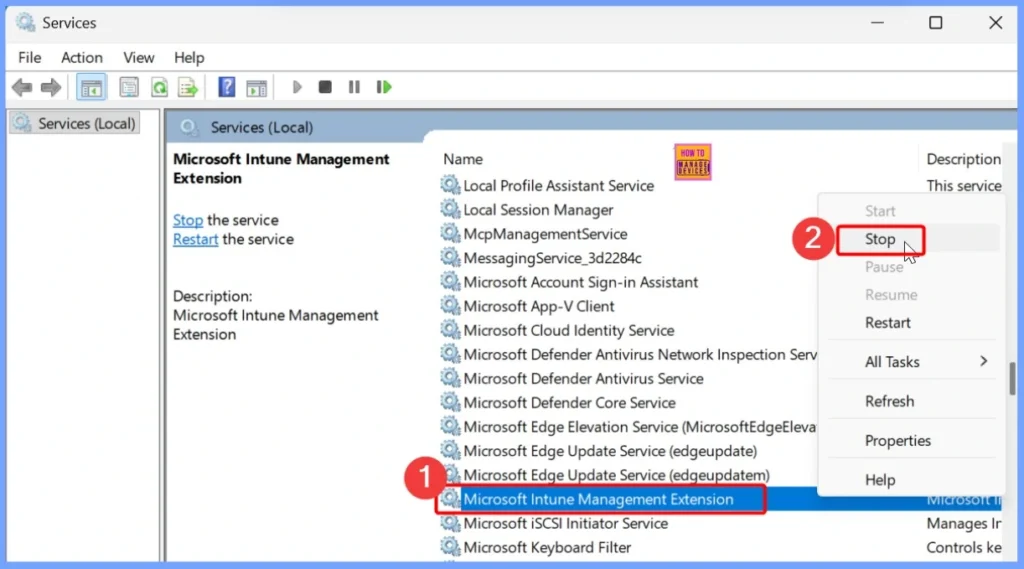
| Stop the Intune Management Extension Service | You can open services.msc and locate Microsoft Intune Management Extension, right-click, and select Stop. This prevents files from being in use while deleting them. |
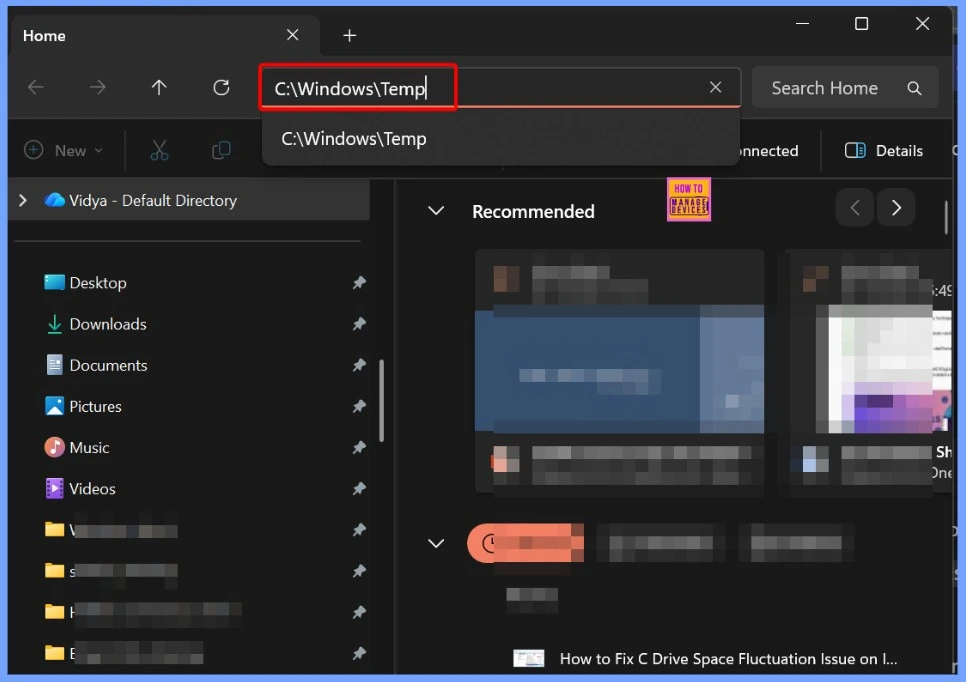
| Delete the problem files | You can navigate to C:\Windows\Temp and C:\Windows\Temp\WinGet\defaultState, and delete all contents inside these folders. Do not delete the folders themselves. |
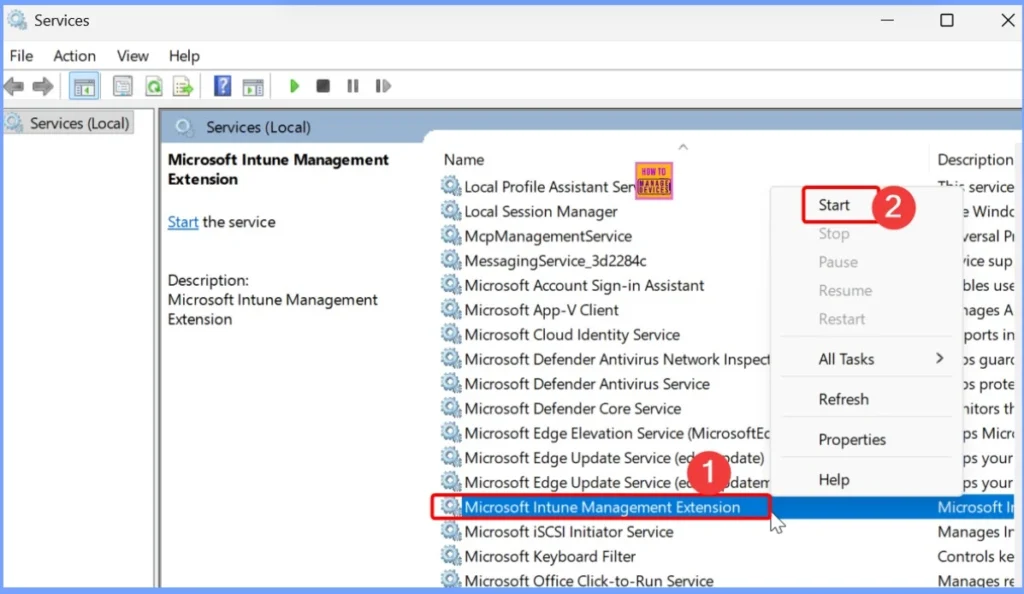
| Restart the Intune Management Extension Service | Return to services.msc, right-click the service, and select Start. |
| Restart the device | Rebooting ensures all changes take effect and frees up disk space. |
| Optional Automation | For ongoing mitigation, deploy PowerShell detection and remediation scripts via Intune. The detection script checks if the folder exceeds 2GB, and the remediation script clears its contents automatically, reducing the need for manual intervention. |
Stop Intune Management Extension Service
To stop the Microsoft Intune Management Extension service, first right-click on the Start button to open the WinX Menu and select Run. In the Run dialog box, type services.msc and press Enter to open the Windows Services Manager. In the Services Manager, locate Microsoft Intune Management Extension, right-click on it, and select Stop.
Delete the Problem Files
To delete the contents of the folders without removing the folders themselves, first open File Explorer by pressing Win + E. Navigate to C:\Windows\Temp and C:\Windows\Temp\WinGet\defaultState. Inside each folder, select the problem folder or right-click the selection and choose Delete.
Be careful not to delete the Temp or defaultState folders themselves only their contents. You may need administrator permissions to delete some files; if prompted, click Continue or provide the required admin credentials.
Restart Intune Management Extension Service
To restart the Microsoft Intune Management Extension service, press Win + R to open the Run dialog box, type services.msc, and press Enter to open the Windows Services Manager. In the list of services, locate Microsoft Intune Management Extension, right-click on it, and select Start.
Need Further Assistance or Have Technical Questions?
Join the LinkedIn Page and Telegram group to get the latest step-by-step guides and news updates. Join our Meetup Page to participate in User group meetings. Also, Join the WhatsApp Community to get the latest news on Microsoft Technologies. We are there on Reddit as well
Author
Anoop C Nair has been Microsoft MVP from 2015 onwards for 10 consecutive years! He is a Workplace Solution Architect with more than 22+ years of experience in Workplace technologies. He is also a Blogger, Speaker, and Local User Group Community leader. His primary focus is on Device Management technologies like SCCM and Intune. He writes about technologies like Intune, SCCM, Windows, Cloud PC, Windows, Entra, Microsoft Security, Career, etc


Discussion