






How to Improve SCCM Task Sequence Progress Bar End User Experience | ConfigMgr
Today, I will discuss how to Improve the SCCM Task Sequence Progress Bar End-User Experience | ConfigMgr. This post shows you how to improve the SCCM Task Sequence Progress Bar for the End-user experience.
The task sequence progress window uses the existing text by default. If you make no changes, it will continue to work the same way as in Configuration Manager version 1910 and earlier.
A task sequence in SCCM is used to execute multiple command-line steps and deploy operating systems without user interference.
Starting in Configuration Manager version 2002, the task sequence progress window includes improvements such as showing the current step number, total number of steps, and percent completion and Increasing the window’s width to give you more space to show the organization’s name in a single line.

Table of Contents
SCCM Task Sequence Progress
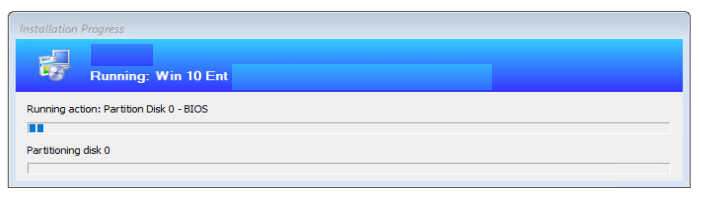
When the task sequence runs, it displays the Installation progress window:
- The organization’s name is displayed at the top of the window.
- Running action: The first line shows the name of the current task sequence step. The progress bar below shows the overall completion of the task sequence.
- The second line only shows some steps that provide more detailed progress.
- Use the task sequence variable TSProgressInfoLevel to show the new progress information in the progress window when the task sequence runs.
- Best Guide to Deploy Windows 11 22H2 using SCCM Task Sequence | ConfigMgr
- Deploy Windows 11 23H2 using SCCM Step-by-Step Guide
- Easy Steps to Extend Task Sequence Error Prompt Duration
Add Task sequence Variable
Use the following steps to modify an existing task sequence to show the new progress information in the task sequence progress bar –
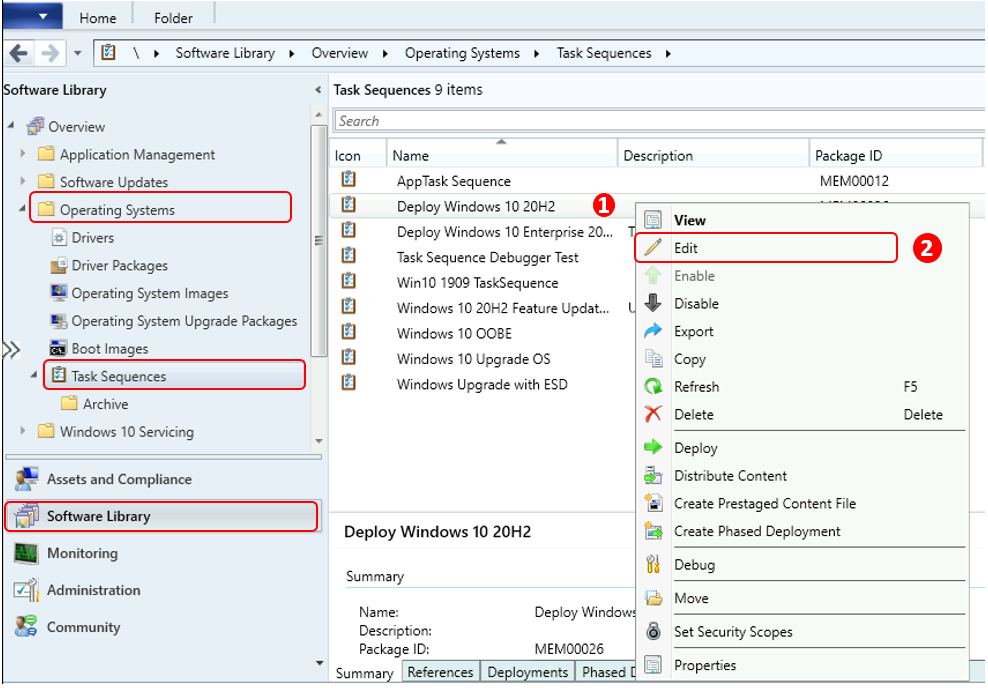
- In the Configuration Manager console, go to the Software Library workspace, expand Operating Systems, and select the Task Sequences node.
- Select the task sequence you want to edit in the Task Sequence list. Select Edit to modify.
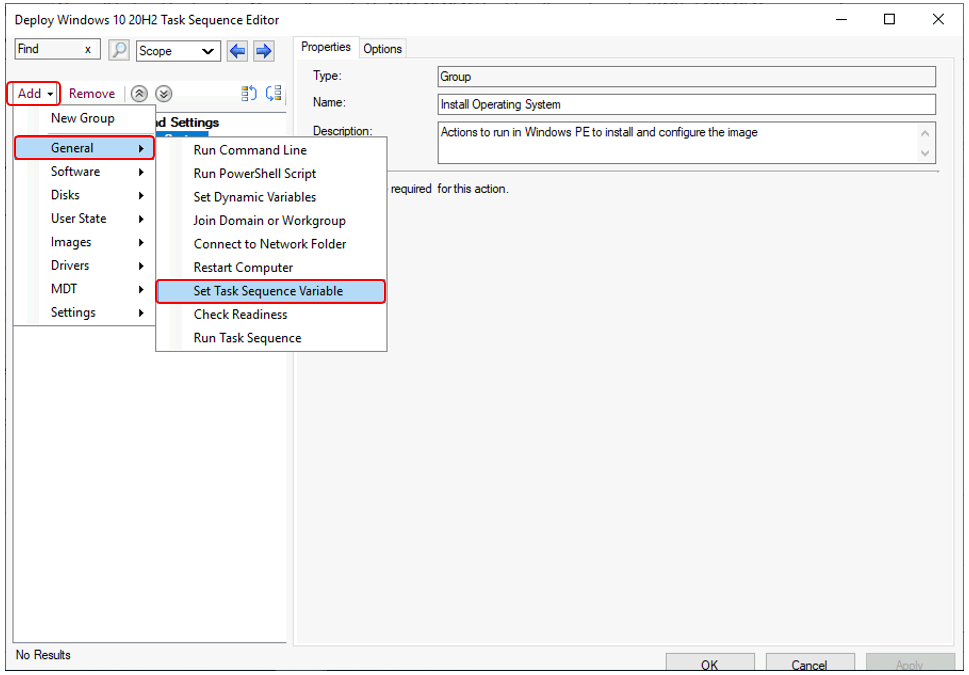
Add Set Task Sequence Variable step –
- Select Add, choose the General category and then select Set Task Sequence Variable. This action adds the step after the currently selected step.
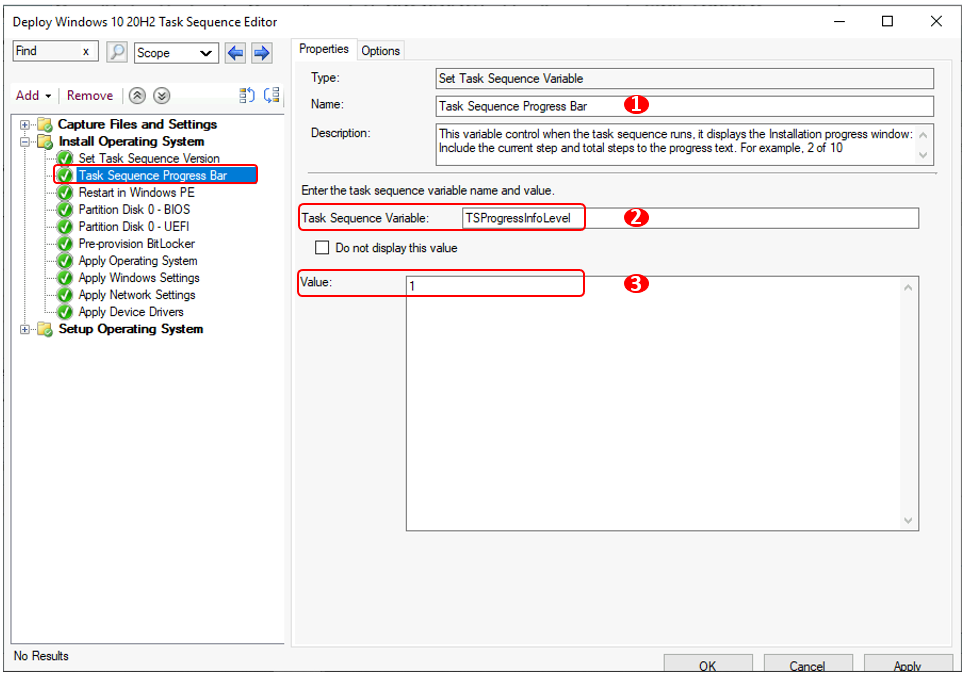
Specify the task sequence variable TSProgressInfoLevel to control the information when the task sequence displays the progress. It’s best to set these Task Sequence steps at the start or in case of any issue. You can reorder.
- Task Sequence Variable Name – <Steps Name>
- Task Sequence Variable – TSProgressInfoLevel
- Value – Use the values below
1: Include the current step and total steps to the progress text. For example, 2 of 10.
2: Include the current step, total steps, and percentage completed. For example, 2 of 10 (20% complete).
3: Include the percentage completed. For example, (20% complete).
Select Apply and OK to save your changes and close the window.
Note – You can disable or remove the steps to go back to the default task sequence progress window experience.
End-User Experience
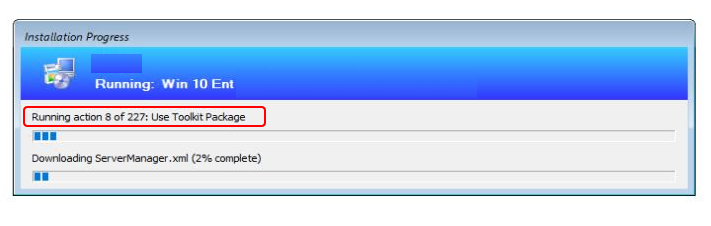
Option 1
When the task sequence runs, it displays the Installation progress window with value 1. In the progress text, include the current step and total step number. For example, “Running action 8 of 227.”
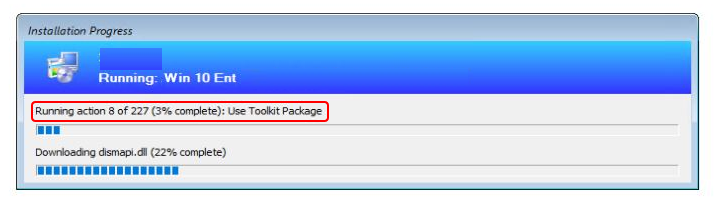
Option 2
When the task sequence runs, it displays the Installation progress window with value 2, Including the current step, total steps number, and percentage completed. For example, Running action 8 of 227 (3% complete).
The count of total steps doesn’t include the following items in the task sequence:
- Groups. This item is a container for other steps, not a step itself.
- Instances of the Run task sequence step. This step is a container for other steps.
- Steps that you explicitly disable. A disabled step doesn’t run during the task sequence.
- Starting in Configuration Manager version 2006, it doesn’t count enabled steps in a disabled group. In Configuration Manager version 2002, enabled steps in a disabled group are still included in the total count.
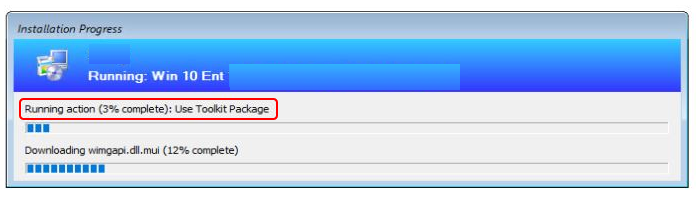
Option 3 –
When the task sequence runs, it displays the Installation progress window with value 3, Including the percentage completed. For example, Running action (3% complete).
Resources
- SCCM Task sequence variable reference
- Easy Steps to Run SCCM Task Sequence with High Performance Power Plan | ConfigMgr
- Deploy Windows 10 Feature Update Using SCCM Task Sequence | ConfigMgr
We are on WhatsApp. To get the latest step-by-step guides and news updates, Join our Channel. Click here –HTMD WhatsApp.
Author
Jitesh, Microsoft MVP, has over six years of working experience in the IT Industry. He writes and shares his experiences related to Microsoft device management technologies and IT Infrastructure management. His primary focus is Windows 10/11 Deployment solution with Configuration Manager, Microsoft Deployment Toolkit (MDT), and Microsoft Intune.




Great find. Thank you.
Looks like it should be “TSProgressInfoLevel”
https://github.com/MicrosoftDocs/memdocs/blob/master/memdocs/configmgr/osd/understand/task-sequence-variables.md#TSProgressInfoLevel
StaffYes, Its – Thanks for the heads up.
Awesome ! thx !