






How to Install IBM Aspera Connect using Intune Enterprise App Catalog App
Hey there, today we will learn how to Install IBM Aspera Connect in Intune using the Enterprise App Catalog App. The Enterprise App Management feature in Intune enables users to easily locate, install, and update applications from the catalog.
IBM Aspera Connect is a free, on-demand application designed to integrate seamlessly with your web browser, enabling high-speed downloads from IBM Aspera transfer servers. Whether you’re transferring large files or managing extensive data sets, IBM Aspera Connect ensures that your downloads are not only swift but also secure and reliable.
By utilizing IBM Aspera’s innovative FASP (Fast Adaptive Secure Protocol) transfer technology, this application provides remarkable download speeds that can be hundreds of times faster than conventional methods like FTP (File Transfer Protocol) or HTTP (Hypertext Transfer Protocol).
Once installed, Connect automatically runs in the background when you transfer content using one of the Aspera web apps. In Aspera on Cloud, Connect typically operates silently instead of being visible like in many other Aspera web applications.

Table of Contents
What are the Procedure for Installing IBM Aspera Connect?
And remove all previous Connect installers before downloading the new installer.
How to Install IBM Aspera Connect using Intune Enterprise App Catalog App
IBM Aspera Connect is a free, lightweight application that enables high-speed transfers. Aspera Connect is one of the two methods that allow users to transfer files to and from their desktops efficiently. This post provides step-by-step instructions for the deployment process.
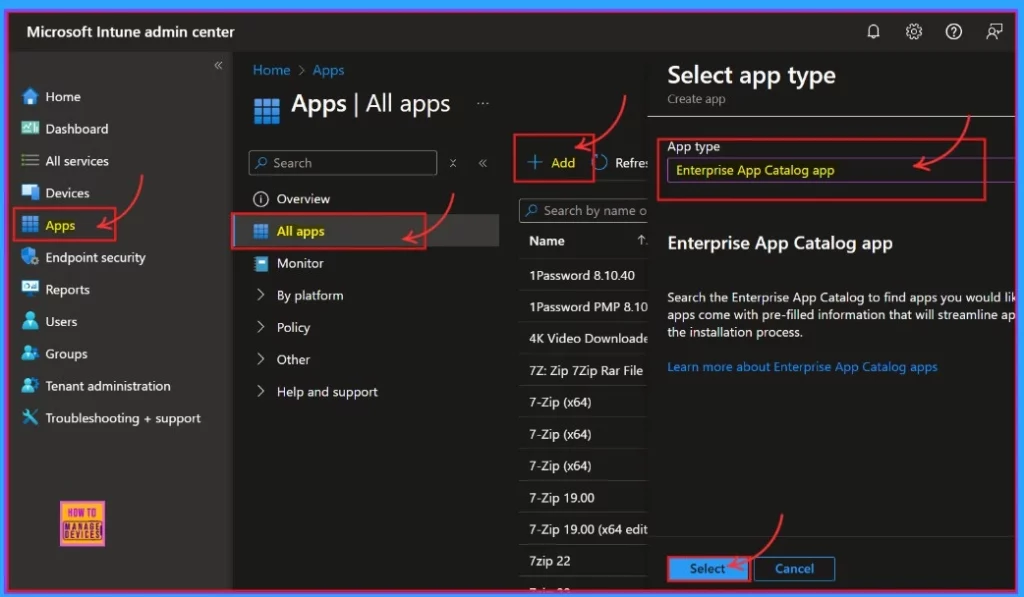
- Sign in to the Microsoft Intune Admin portal.
- Apps > All apps > Add > Enterprise App Catalog app.
- Enterprise App Catalog Expands from 600 to 3000 Applications Coming Soon to Microsoft Intune
- 6 Exciting Features coming to Intune Enterprise App Management
- Update 3rd Party Apps using Intune Windows Catalog App
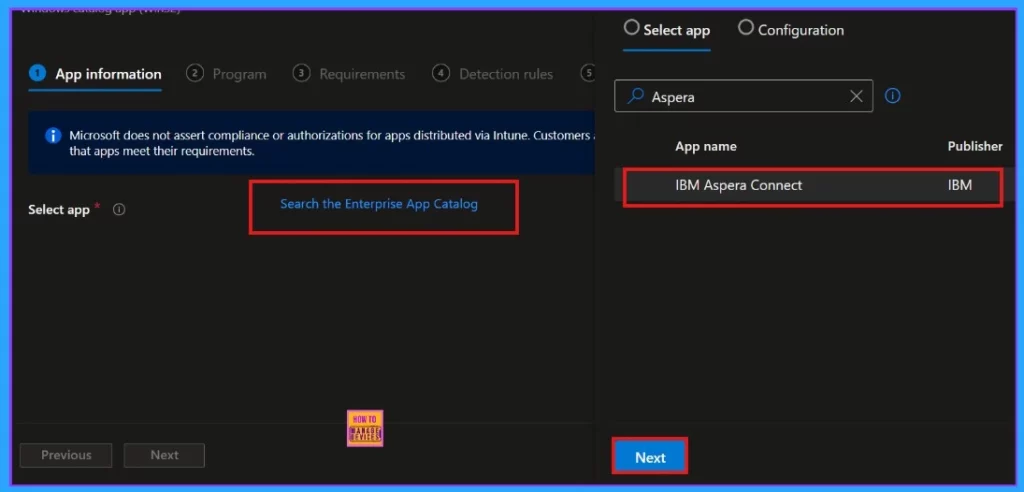
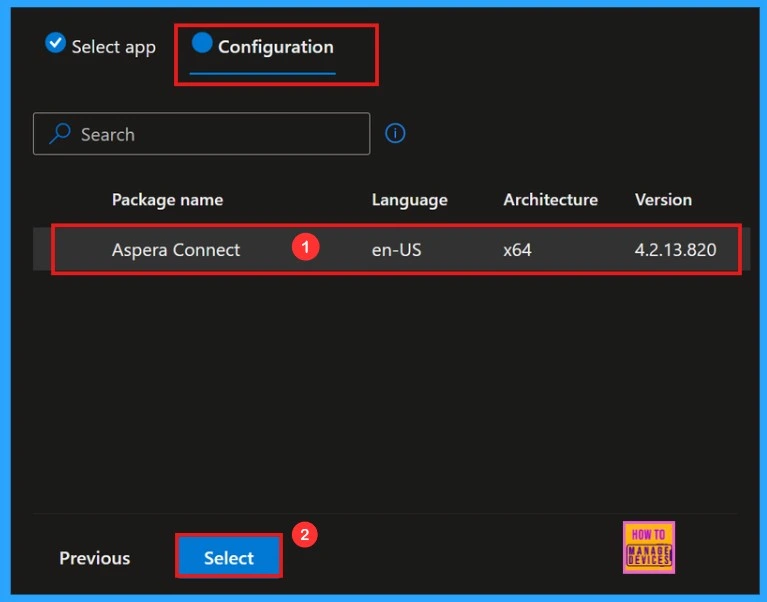
The app we selected is shown on the next page. There are two more settings: Select App and Configuration. The Configuration Tab gives us the details of the selected app.
Configuration
When we click “Next,” we will be now on to the Configurations tab. In this tab, we will see the available versions of Aspera Connect. Currently, only one version is displayed, so we can select it and click “Select.”
App Information
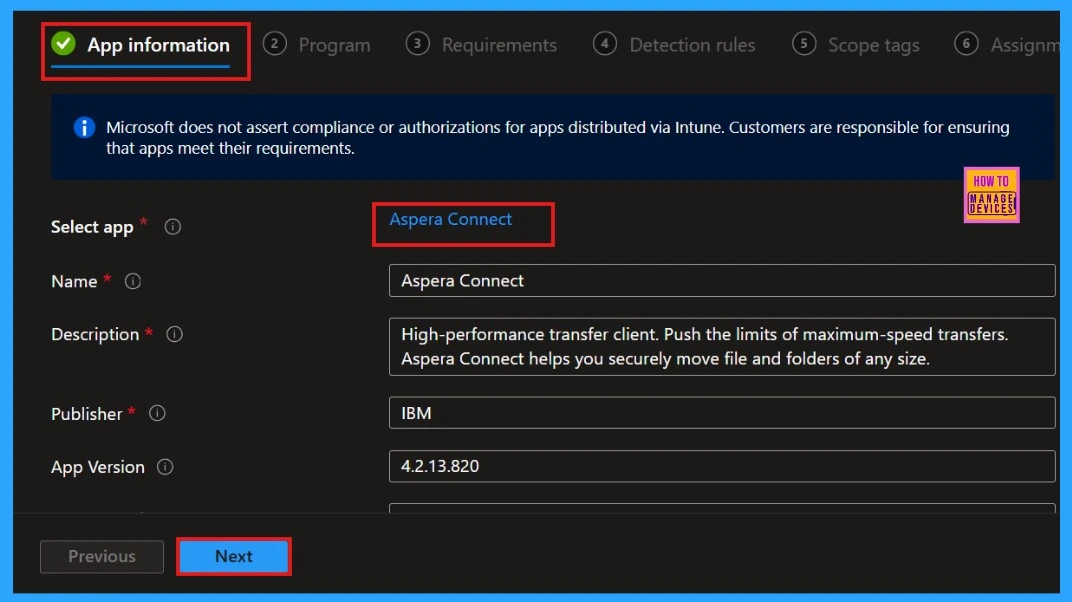
The app information includes details such as the app’s name, description, publisher, version, category, and more. Once we verify this information, we can proceed by clicking the Next button.
After that, we can add our app’s logo. To do this, click on “Select Image,” which will take you to the logo upload section. From there, we can browse for the logo in your file explorer. Once we’ve selected the logo, a notification will pop up on the screen saying, “Upload Complete.”
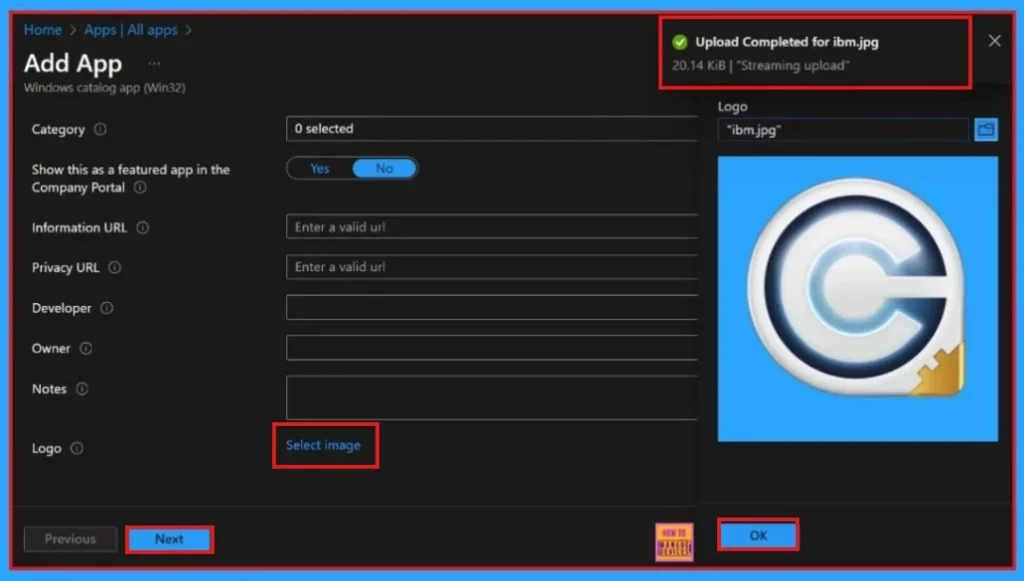
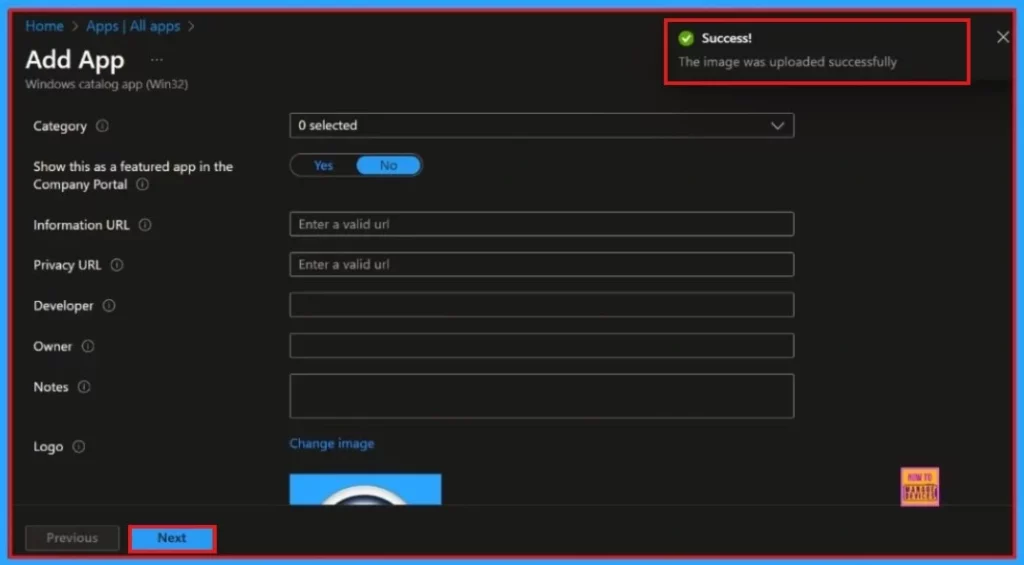
After selecting the logo, it will be displayed on the app information page, and we can choose from there. We need to click the OK button to continue, then click the Next button. We will then get a notification on the portal that the Upload has been completed successfully.
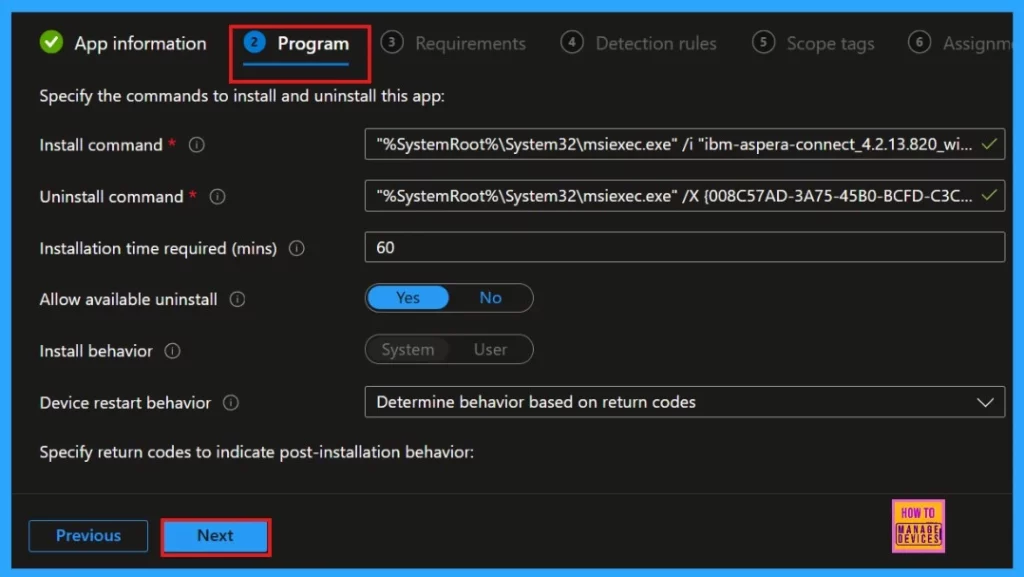
Program
The Program settings provide details about app installation and uninstallation, including installation time. Users can choose to allow or cancel available installations.
- Deploy Windows Catalog App type using Intune Enterprise Application Catalog
- Step-by-Step Guide Install Docker Desktop with Intune Enterprise App Catalog App
- 2406 Microsoft Intune New Features June Update
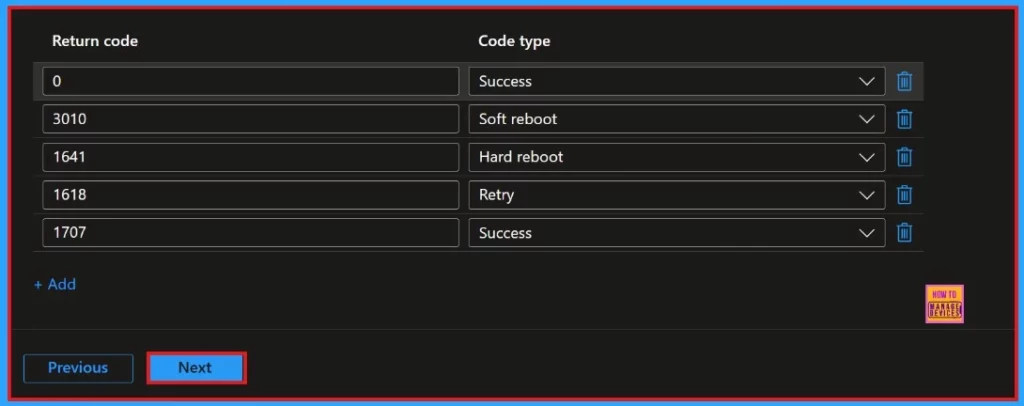
We can gain a deeper understanding of the specific return codes that signify different behaviours following the installation process. For more comprehensive information, please refer to the detailed table provided below.
| Return Code | Code Type |
|---|---|
| 0 | Success |
| 3010 | Soft reboot |
| 1641 | Hard reboot |
| 1618 | Retry |
| 1707 | Success |
Requirements
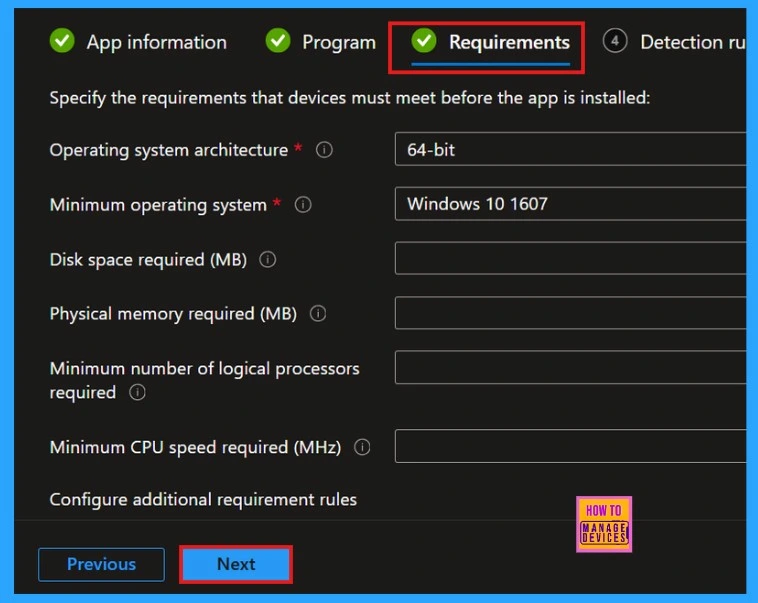
In the Requirements settings, we can specify the criteria that devices must meet before installing the app. This includes the operating system architecture and the minimum operating system. Click the Next button to proceed.
Detection Rules
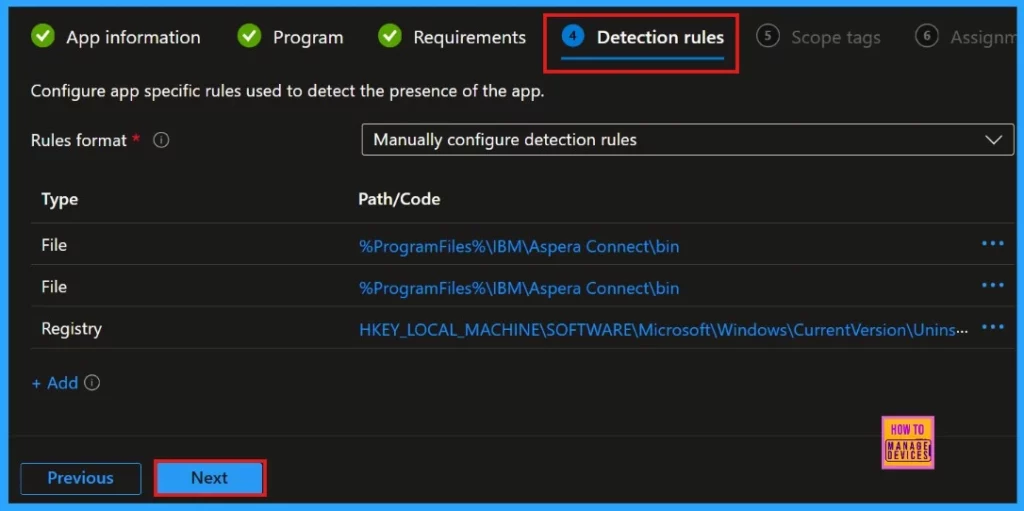
The Detection Rule tab enables you to set up rules specific to an app for detecting its presence. You do not need to make any changes to this tab. The Microsoft Intune Enterprise App Catalog allows you to install apps without altering the detection rules.
Scope Tag and Assignments
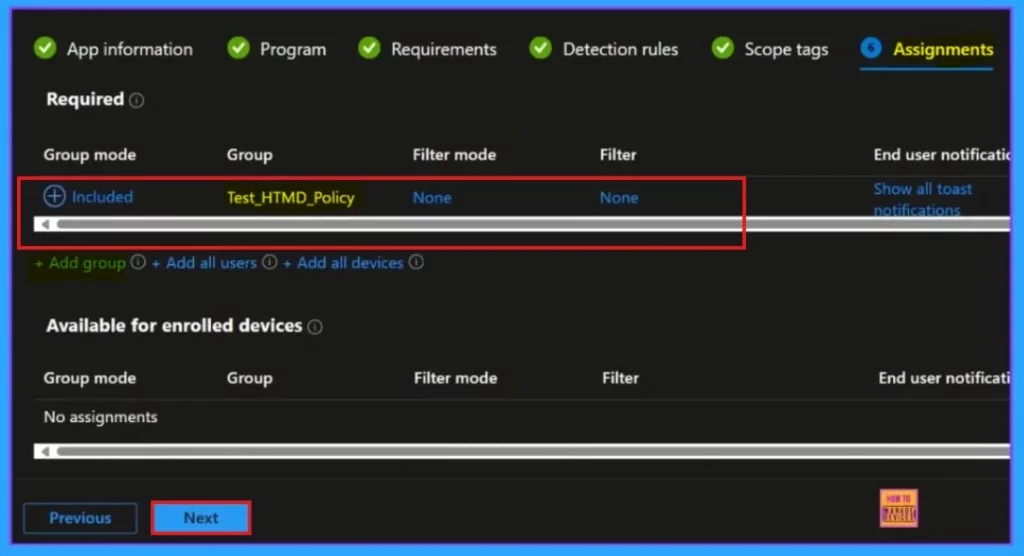
We can skip the scope tags tab. Adding scope tags is optional, click Next to continue. Then, on the Assignment tab, select groups for the policy by clicking the “Add Groups” button in the Included Groups section. Choose your groups from the list and click “Select.” The selected groups will appear on the tab. Then, click “Next” to proceed.
- Assignment < Add group < Select < Next
Review + Create
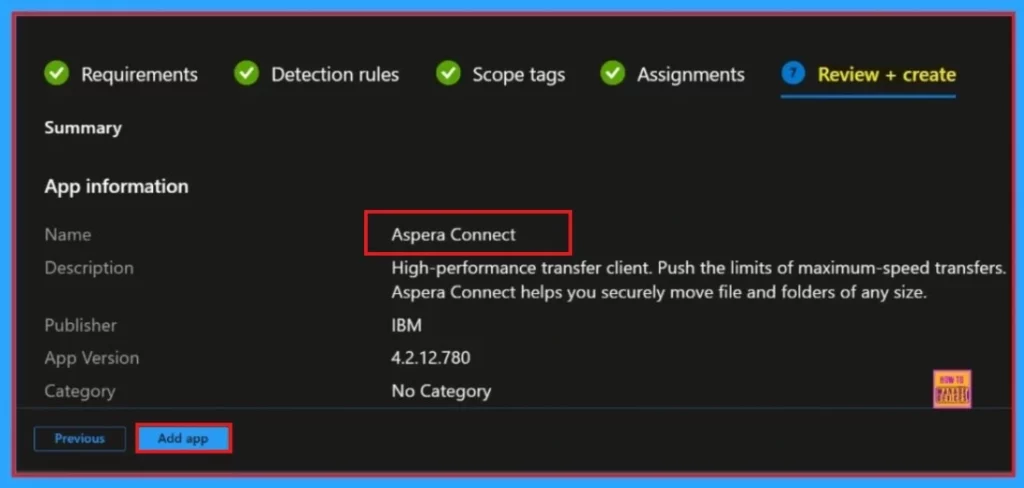
The Review + Create tab provides a comprehensive overview of all relevant information regarding the selected app. Within this tab, users can explore detailed specifications, features, and any necessary requirements associated with the app. Before proceeding with the installation, it is important to carefully review all the available details organized in the various tabs to ensure that the app meets your needs and expectations.
- Click Add App
Installation Status
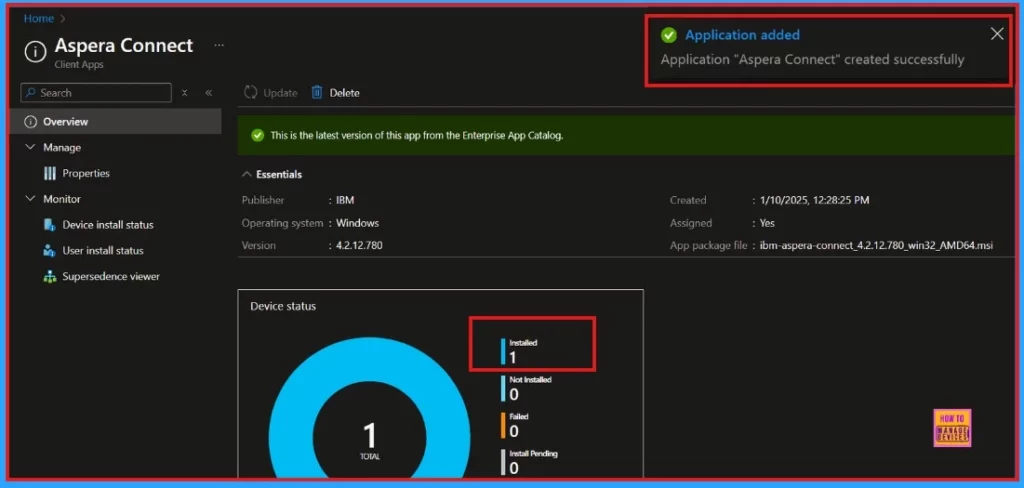
After selecting the “Add app” option, a notification will appear on the Intune Portal indicating that the application has been successfully added. We can then monitor the app’s installation status on the portal.
End User Experience
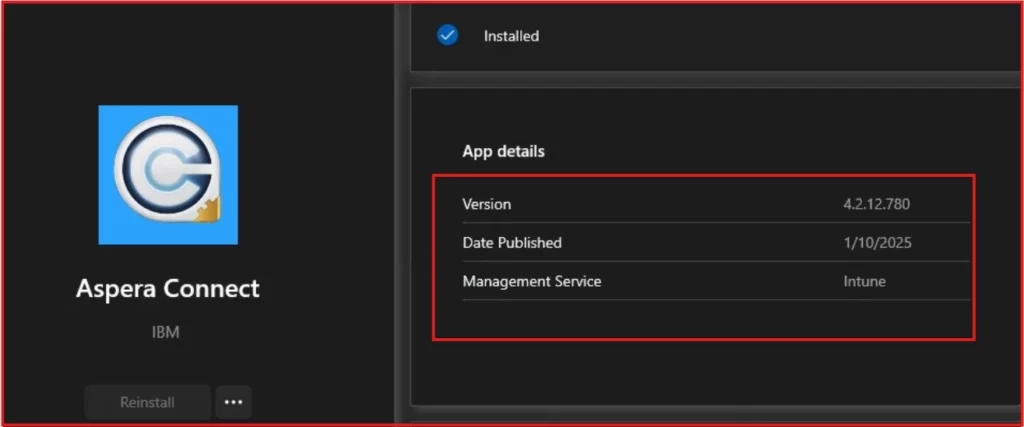
After we deploy the IBM Aspera Connect app, it will automatically install on your workstation. Open the Company Portal on your workstation to check if it is installed. Go to the “Downloads & Updates” section and look for the IBM Aspera Connect application in the list.
Need Further Assistance or Have Technical Questions?
Join the LinkedIn Page and Telegram group to get the latest step-by-step guides and news updates. Join our Meetup Page to participate in User group meetings. Also, Join the WhatsApp Community to get the latest news on Microsoft Technologies. We are there on Reddit as well.
Author
Anoop C Nair has been Microsoft MVP from 2015 onwards for 10 consecutive years! He is a Workplace Solution Architect with more than 22+ years of experience in Workplace technologies. He is also a Blogger, Speaker, and Local User Group Community leader. His primary focus is on Device Management technologies like SCCM and Intune. He writes about technologies like Intune, SCCM, Windows, Cloud PC, Windows, Entra, Microsoft Security, Career, etc.


Discussion