






Enforce Minimum OS Version Requirements for Security Using Filters and Conditional Launch in Microsoft Intune
Let’s discuss using Enforce Minimum OS Version Requirements for Security Using Filters and Conditional Launch in Microsoft Intune. As you all know, securing devices with different operating systems is essential. In that case, Microsoft Intune plays a major role. Microsoft Intune plays an important role in controlling the OS version of devices within the organization by using filters and app conditional launch settings.
Do you know that Controlling the OS version is sometimes much needed in the case of any vulnerability that happens to older OS versions? Vulnerable OS versions are not suitable for devices. Utilizing filters and app conditional launch settings in Microsoft Intune effectively manages device operating system versions.
Ensure that devices run the minimum required OS version, which helps applications function smoothly. Filters and app conditional launches are crucial components of Microsoft Intune. Filters allow administrators to select specific devices based on device details and OS versions.
App conditional launch settings enhance security by allowing and denying applications access based on the device’s health and compliance status. This post will examine how conditional launch and filters work together and their steps.

Table of Contents
Enforce Minimum OS Version Requirements for Security Using Filters and Conditional Launch in Microsoft Intune
We discussed extensively using filters and app conditional launches to manage the previous version in Microsoft. Additionally, there are some important points to consider. It’s essential to understand how to create filters and develop a target app using those filters. So, let’s begin with that.
- How to Use Intune Assignment Filters Comparison Property gt ge lt le with OS Version.
- Set Minimum Encryption Key Size for Bluetooth in Intune via Setting Catalog
- Microsoft Going to End Support for Old VPN Protocols PPTP and L2TP | Use SSTP and IKEv2 for Security
How to Create Filters
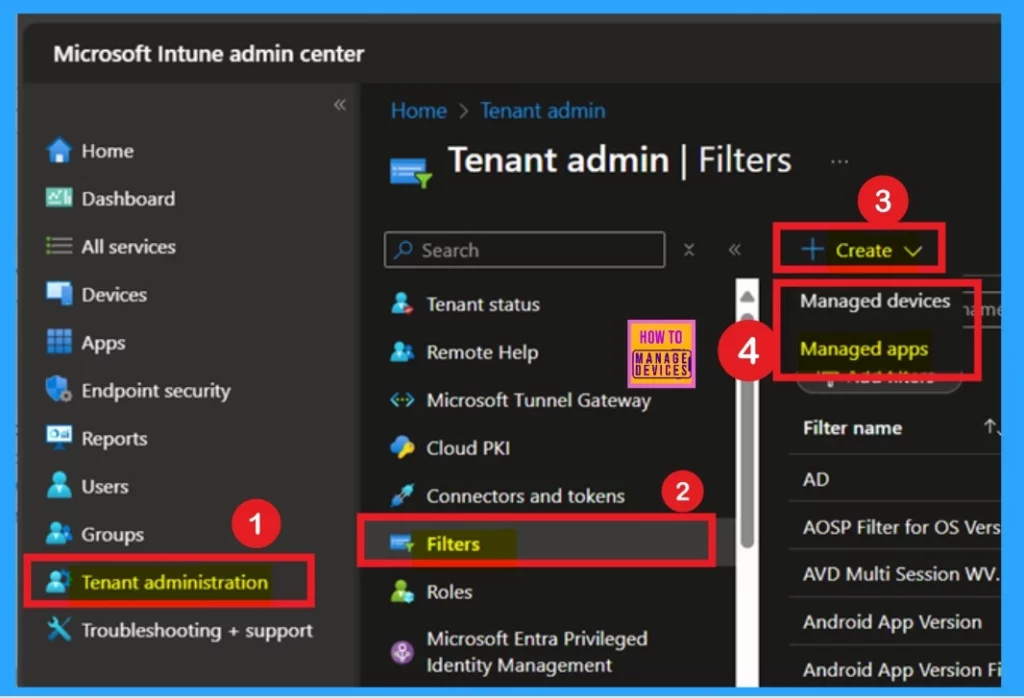
To begin, log in to the Microsoft Intune admin center. Next, navigate to Tenant Administration and select the Filters option. On the right side, you will see a “Create” option click on that. Then, choose “Managed Apps.” Refer to the screenshot below for guidance.
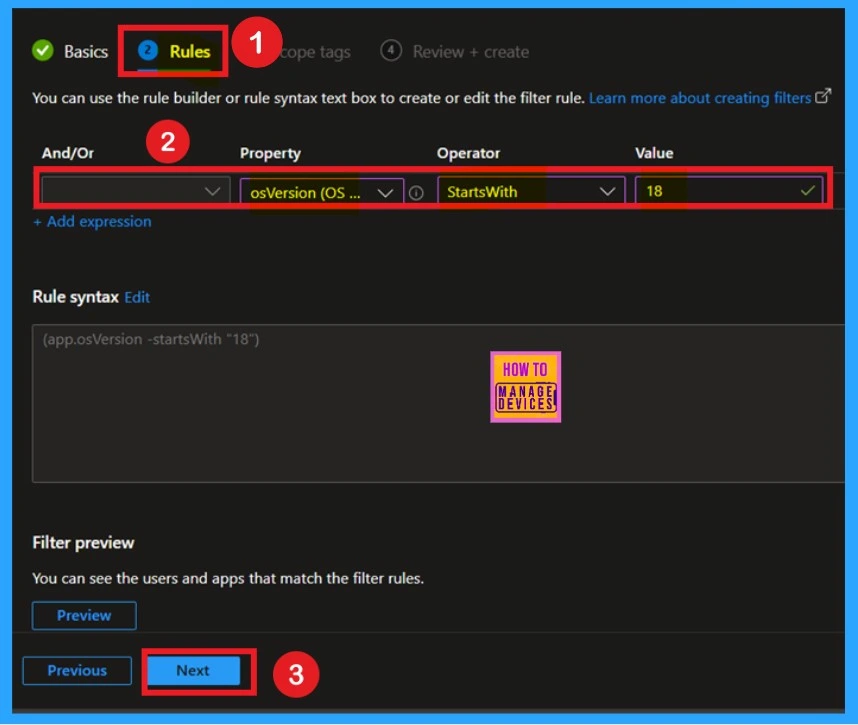
After that, you need to fill in the basic details of the policy. Once you’ve done that, you will proceed to the rules section. On the rules page, select the property as OS and set the version operator to start with. The value should be 18. If you want to use the Preview option if you want.
- Then Click on the Next.
Create an App with a Filter
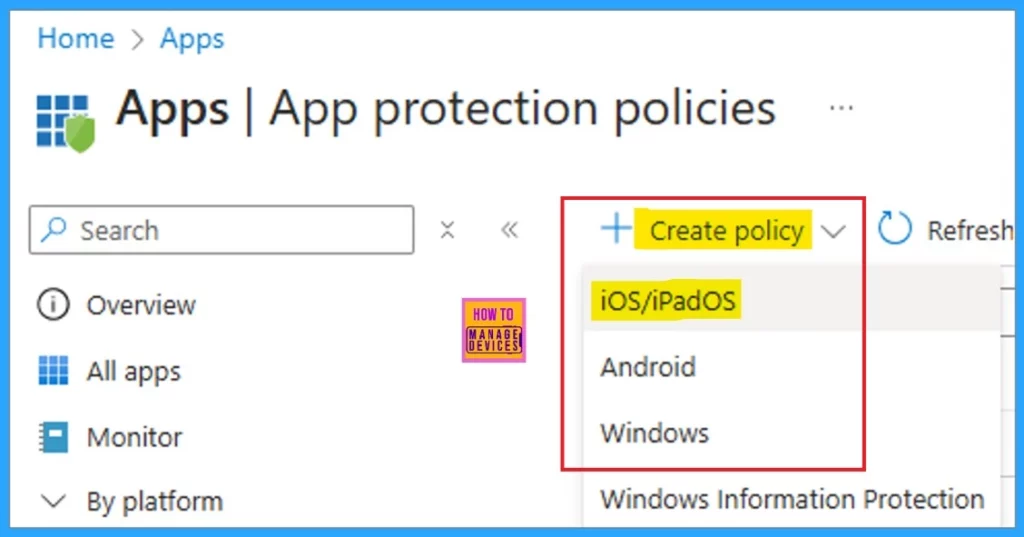
For Create and target apps with a filter on microsoft intune are some important steps. For that, first, you have to sign in to the Microsoft Intune admin center. Then, you have to navigate through Apps > App Protection Policy. Then select the platform you want, such as APP, iOS/iPadOS.
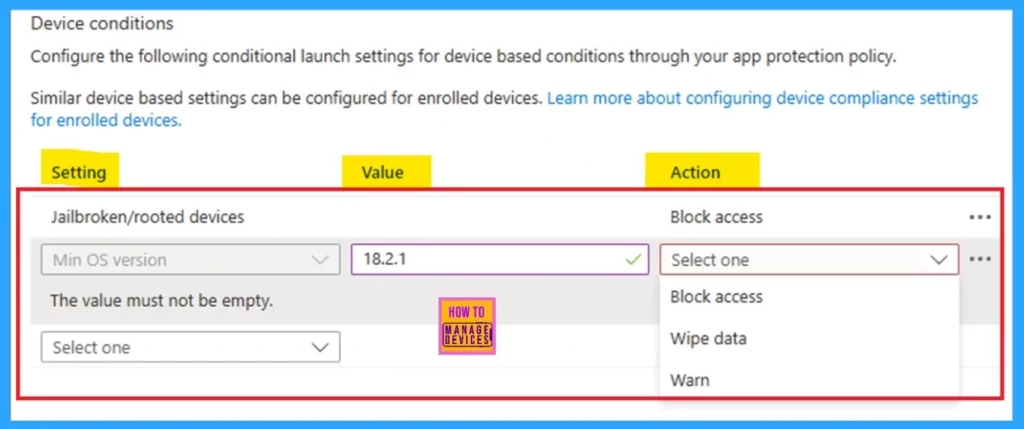
After providing the basic details, you can complete the Apps, Data Protection, and Access Requirements pages with the appropriate app protection policy settings for iOS, Android, or Windows, as per your organization’s needs. On the Conditional Launch page (or Health Checks page for Windows APP), within the Device Conditions section, specify the OS minor or patch release to set as the minimum version.
| Example | Info |
|---|---|
| Setting | Min OS version |
| Value | 18.2.1 |
| Action | Block access/Wipe data/Warn, (as per the action required for your organization) |
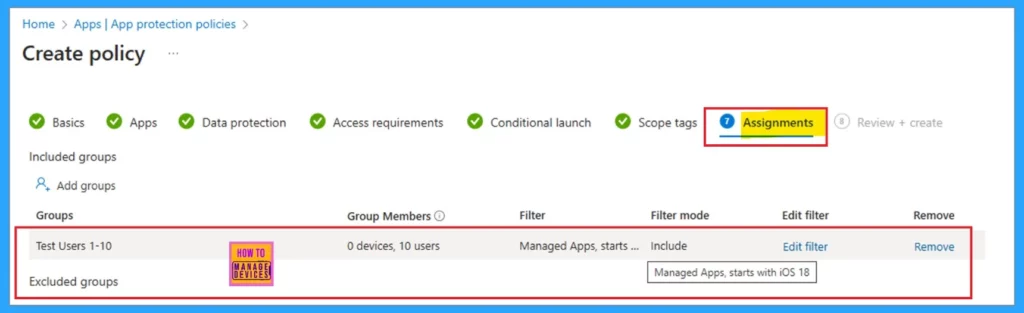
To assign the policy to the correct major OS version, use the filter that you created earlier on the Assignments page. After making your selections, save the policy by clicking “Create” on the Review and Create page. For example, the filter will target devices running iOS 18, with APP conditional launch settings requiring version 18.2.1, ensuring it does not apply to other major iOS versions.
Reference
Using filters and APP conditional launch to control the OS version with Microsoft Intune
Need Further Assistance or Have Technical Questions?
Join the LinkedIn Page and Telegram group to get the latest step-by-step guides and news updates. Join our Meetup Page to participate in User group meetings. Also, Join the WhatsApp Community to get the latest news on Microsoft Technologies. We are there on Reddit as well.
Author
Anoop C Nair has been Microsoft MVP from 2015 onwards for 10 consecutive years! He is a Workplace Solution Architect with more than 22+ years of experience in Workplace technologies. He is also a Blogger, Speaker, and Local User Group Community leader. His primary focus is on Device Management technologies like SCCM and Intune. He writes about technologies like Intune, SCCM, Windows, Cloud PC, Windows, Entra, Microsoft Security, Career, etc.


Discussion