






Image Loading Configuration for Websites using Intune Policy
Let’s discuss the Image Loading Configuration for Websites using Intune Policy. As you all know that Intune policy deployment is very important for organizations to secure the device management. In that case here are deploying a policy for Microsoft Edge.
You know this policy setting is comes under the Microsoft edge Content category. As it category mentions This policy lets admins choose which websites are allowed to show images in the browser. They can use website name patterns to allow images only from trusted sites.
This helps keep users safe and focused by blocking images from unknown or distracting websites. The main purpose of this policy is to control which websites can show images. Some images can be unsafe or distracting. By allowing only trusted websites, organisations can protect users from harmful or unwanted content.
This policy helps organisations stay safe and focused. By allowing images only from trusted websites, it blocks unwanted pictures. This can protect users from, reduce the risk of phishing attacks, and keep employees from getting distracted by unwanted things. It’s a very safe way to control what users see in their browsers.

Table of Contents
What Does this Policy Do?
This policy helps the administrators choose which websites are allowed to show images in the browser.
Can this Policy Improve Security?
Yes, it improves security. It blocks images from unknown or risky websites, reducing the chances of phishing, fake content, or malware
Image Loading Configuration for Websites- Get Started With the Policy Creation
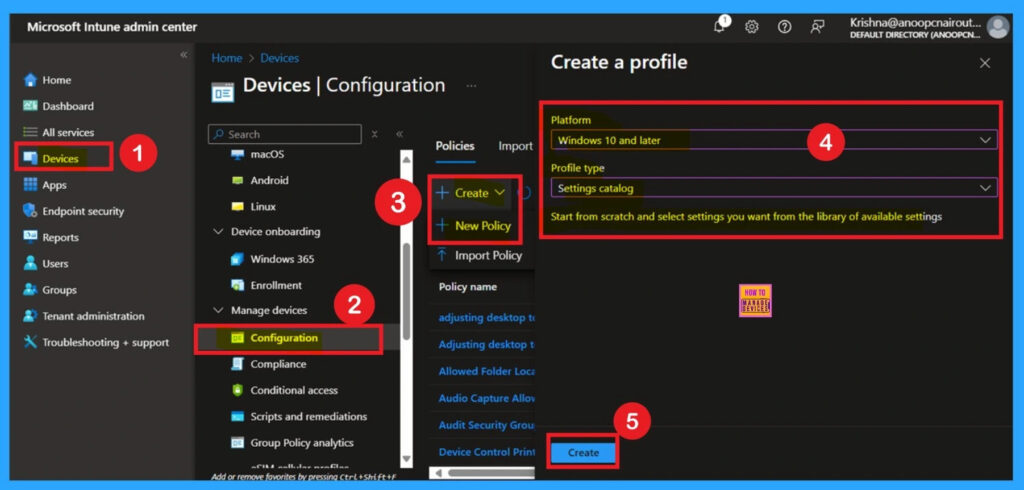
To create a profile for policy deployment. Start by logging in to the Microsoft Intune admin center. Once logged in, go to the Devices section. From there, select Configuration. In the Configuration area, click on + Create Policy. This will open a new window titled Create Profile. In the Create Profile window Set the Platform to Windows 10 and later.
- Choose Settings Catalog as the Profile type
- Then, click Create to continue.
- Enable Disable Full Screen Mode in MS Edge Browser using Intune Policy
- Allow Manual Start of Microsoft Account Sign In Assistant Using Intune Settings Catalog
- How to Allow Direct Memory Access for Data Protection Through Intune Settings Catalog
Basic Details for a Policy Creation
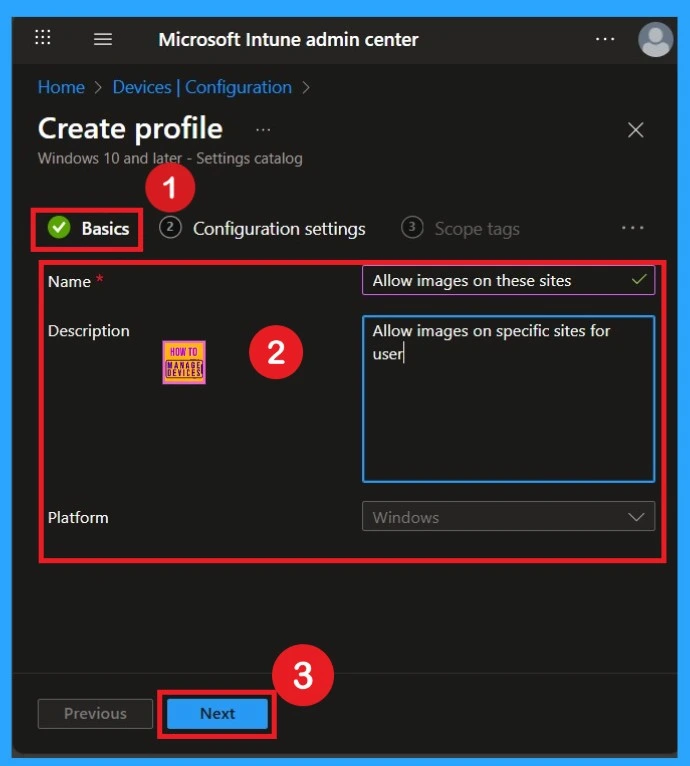
After creating the policy, you need to fill in the details in the “Basics” section. This includes entering the name, description, and platform details. The most important field here is the name, as it is the primary identification for the policy.
It’s essential to provide a specific name so that you can easily recognize it from other policies in the list. In this example, I have entered the policy name as Allow images on these sites, added a description, and the platform is set to Windows by default.
How to Configure Settings for Deployment
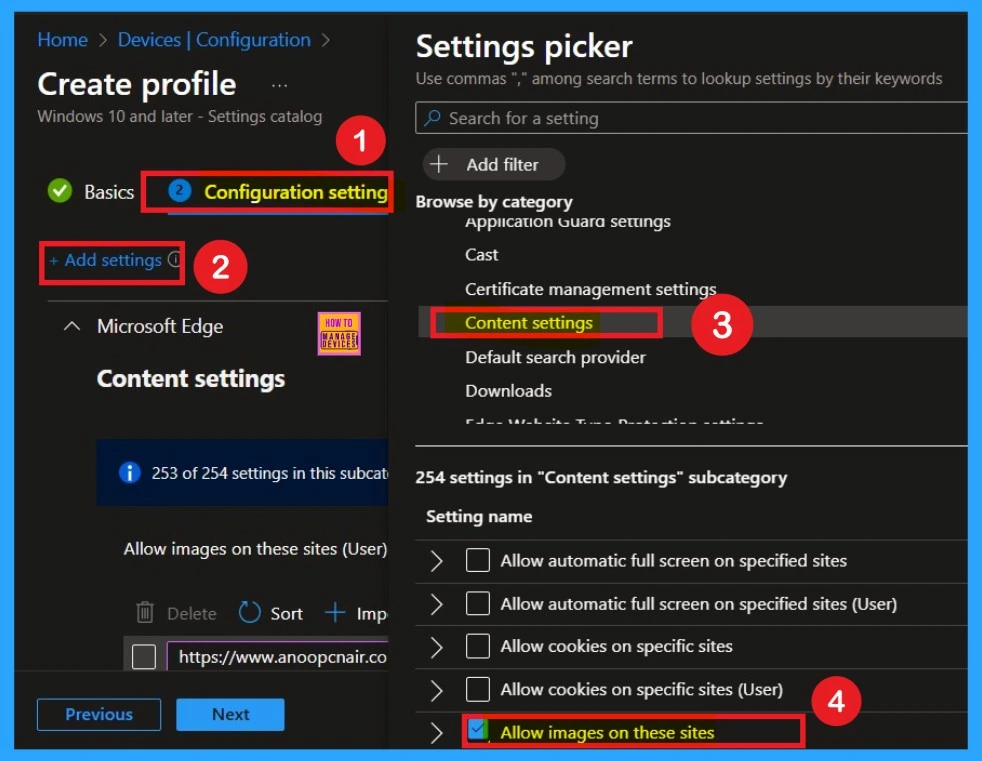
After the Basics section, you are now on the Configuration settings page. On this page, you will see an option called +Add settings. When you click on it, you will get different types of categories. You need to search for Microsoft Edge. Under Microsoft Edge, you have to select Content settings.
Always remember to expand the Microsoft Edge option. When you click on Content settings, you will see different types of policies available. Here, you can select the Allow images on these sites option.
Policy Disabled by Default
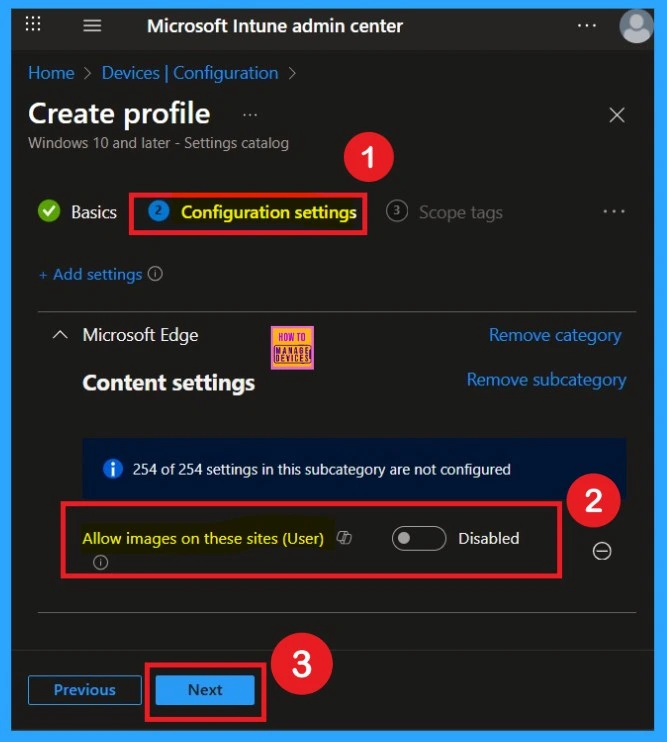
After selecting the policy setting, such as Allow images on these sites, you can close the Settings Picker window. Once you close it, you’ll return to the Configuration Settings page. Here, you’ll notice that the policy is set to Disabled or Not Allowed by default. If you want to continue with this setting, click Next to proceed.
How to Enable Images on Specified Websites policy
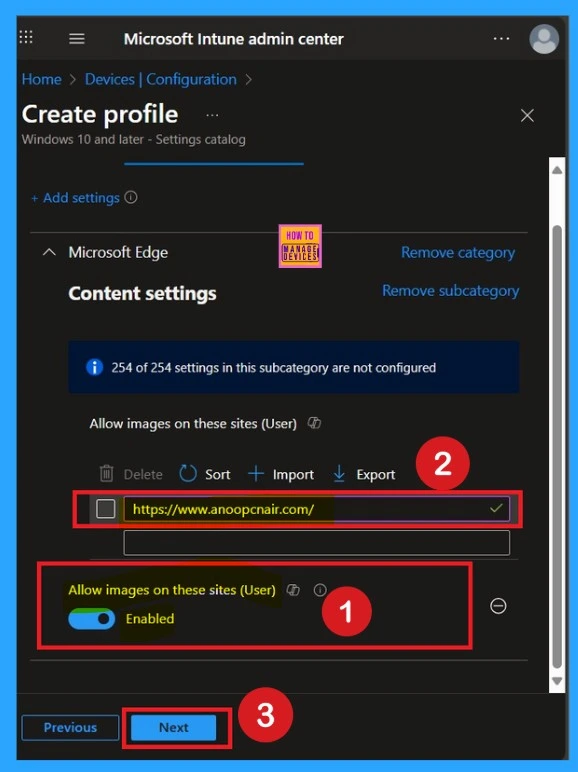
To enable this policy, locate the toggle switch next to the Allow images on these sites, setting. By default, this toggle is set to Disabled. To activate the policy, you have to move the toggle from left to right. Once enabled, the toggle will turn blue and change to Enabled.
- When I enable the policy I get other option, there we have to specify which websites are allowed Images on Specified Websites Policy.
- For Example here I entered our websites URL.
Know the Scope Tags
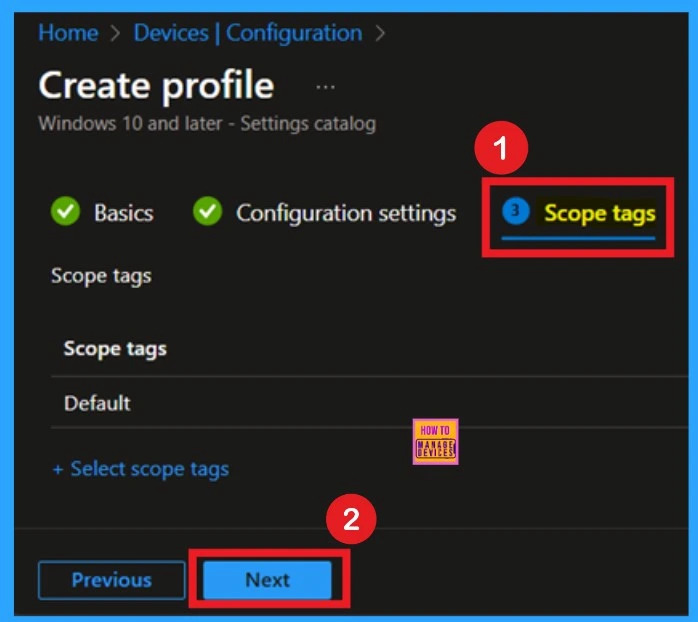
The next step is Scope Tags. If you want to add a scope tag to the policy, you can do so easily by clicking the +Select Scope Tags and selecting the appropriate scope tag. In this case, I am not adding any scope tags, so I will skip this section and click Next to continue.”
Assign Groups for Policy Deployment
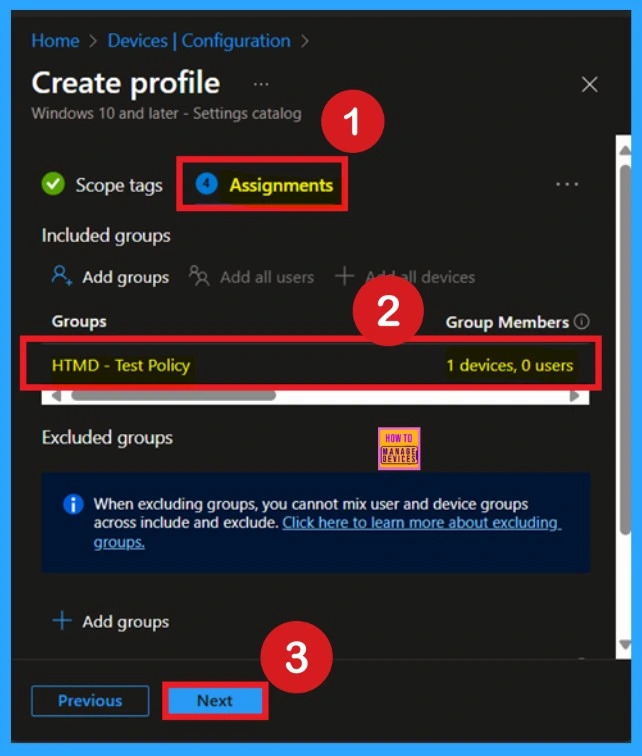
The next step is Assignments. In this section, you can specify which group the policy should be applied to. Our aim is to deploy this policy to a specific group, this step is essential. Look for the Add Groups option under the Include Groups section and click on it.
- A list of available groups will appear and use the search bar to find and select the group you want to target.
- You can add many groups for this if you need it.
Review + Create
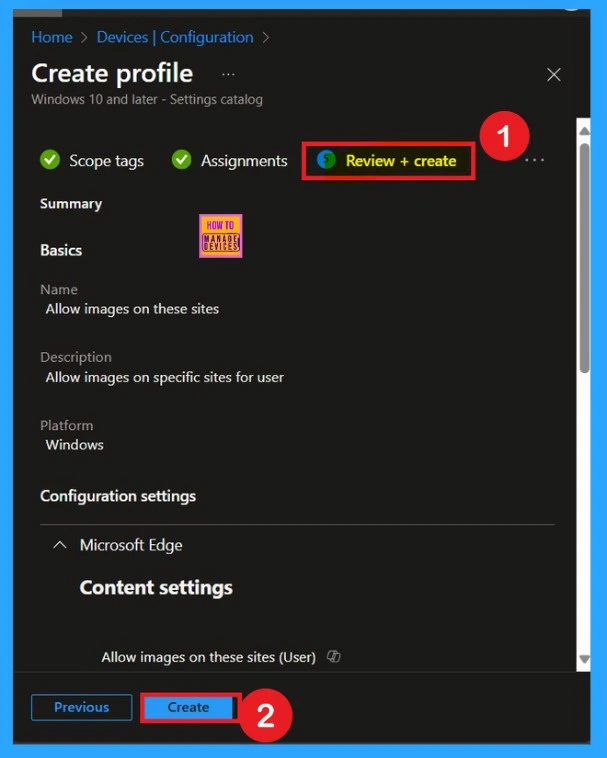
The last tab is called review + create option in this section the admin can review all details that you are entered like a summary page in this section have all the details about the Basics configuration settings etc. You have to read carefully and click on the Next to continue.
- If you want to edit anything you can go to the previous tabs.
Monitoring Status
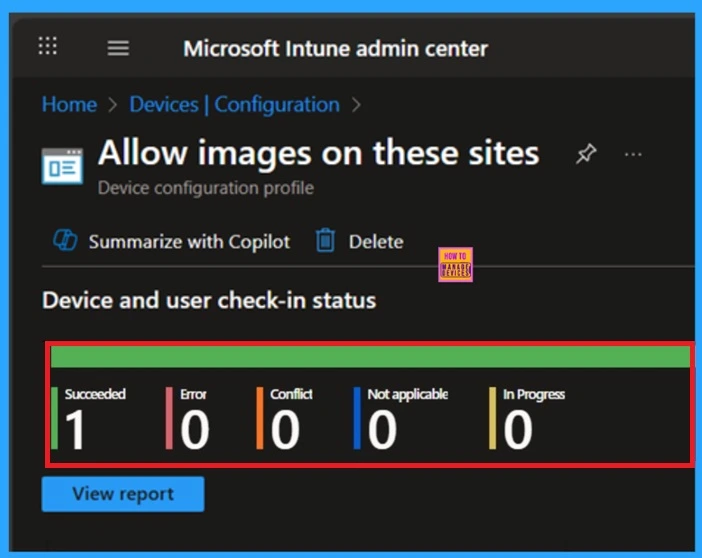
The Monitoring status is an important part of the process. It helps you confirm whether the policy was successfully deployed or not. To verify the monitoring status or check the device and user check-in status, go to the Microsoft Intune Admin Center.
Then, navigate to Devices > Configuration Policies. In the list of configuration policies, search for the policy you just created. Once you find it, you will be able to see the deployment status, such as Succeeded.
Client Side verification through Event Viewer
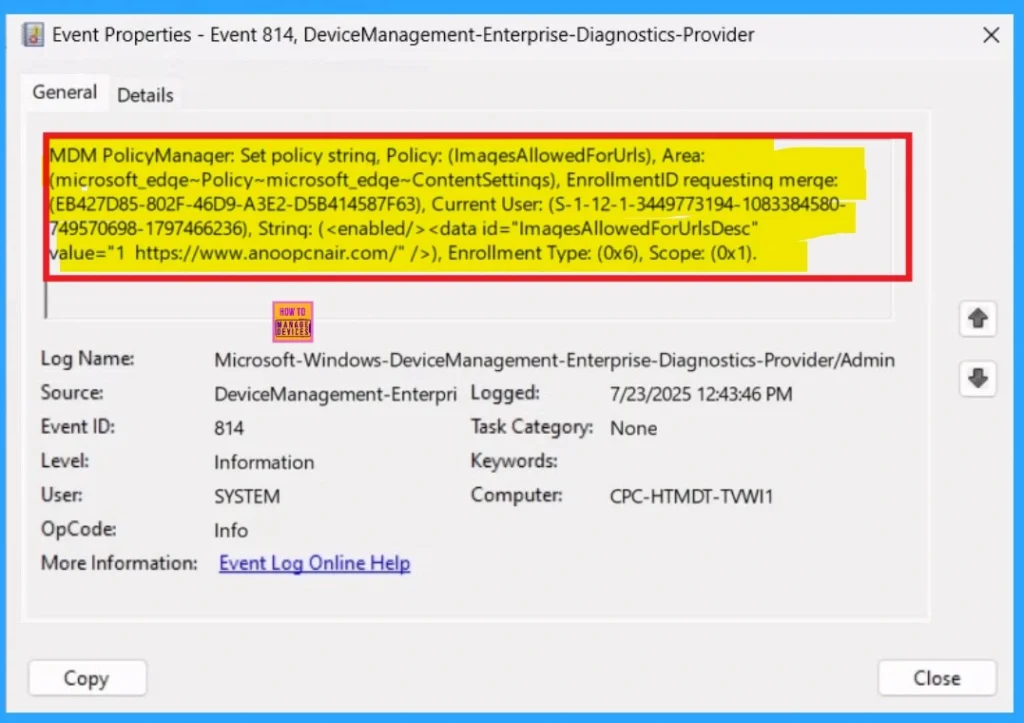
To confirm the policy is successful or not, you can use the Event Viewer. First, open Event Viewer and navigate to Applications and Services Logs > Microsoft > Windows > Device Management > Enterprise Diagnostic Provider > Admin. Look for Event IDs 813 or 814, as these typically policy-related information. Here i get the results from 814 event ID.
| Policy Details |
|---|
| MDM PolicyManaqer: Set policy strinq, Policy: (ImaqesAllowedForUrls), Area: (microsoft_edqe~Policy~microsoft_edqe~ContentSettinqs), EnrollmentID requestinq merqe: (EB427D85-802F-46D9-A3E2-D5B414587F63), Current User: (S-1-12-1-3449773194-1083384580- 749570698-1797466236), Strinq: ( ), Enrollment Type: (0x6), Scope: (0x1). |
Delete Allow Images on Specified Websites Policy
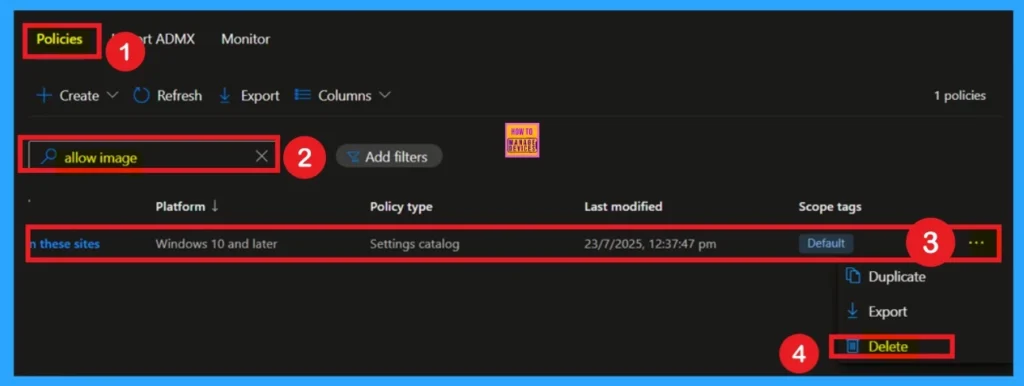
If you want to delete this policy, you can easily do that. First, search for the policy name in the configuration section. When you find the policy name, you will see a 3 dot menu next to it. Click on the 3 dots to open a menu with 3 options such as Duplicate, Export, and Delete. Click on the Delete option and the policy deleted for Permanently.
For detailed information, you can refer to our previous post – How to Delete Allow Clipboard History Policy in Intune Step by Step Guide.
Remove Allow Images on Specified Websites Policy
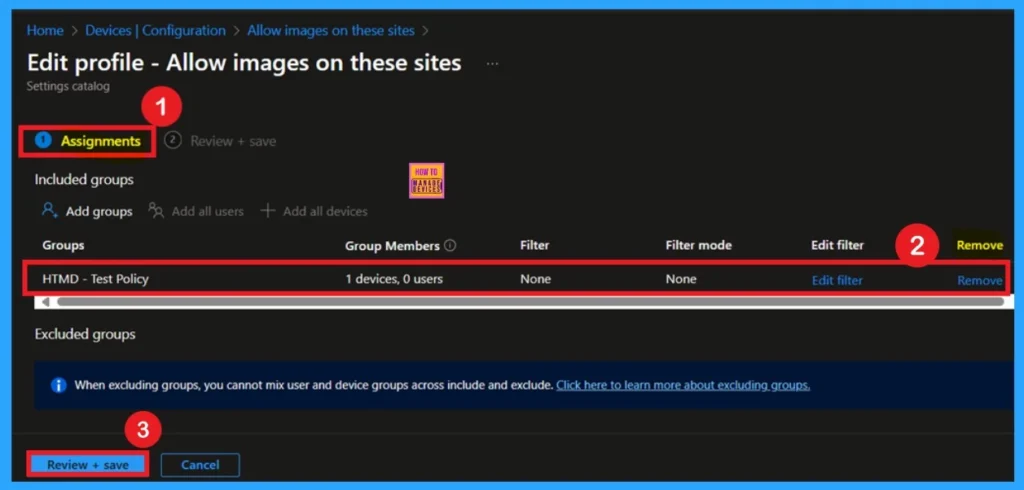
If you want to remove the specific group that you previously selected, you can easily do that. First, go to Devices > Configuration policies. In the Configuration policy section, search for the policy name. Once the result appears, click on the policy.
Then, Scroll down the page, and you will see Assignment Details. In the Assignment section, you will find an Edit option and click on it. When you click Edit, you will enter the Assignment page. Here, you will see a Remove option next to the group you added earlier.
- Click on Remove, then proceed by clicking Review + Save.
- The selected group now removed for the Policy.
Need Further Assistance or Have Technical Questions?
Join the LinkedIn Page and Telegram group to get the latest step-by-step guides and news updates. Join our Meetup Page to participate in User group meetings. Also, Join the WhatsApp Community to get the latest news on Microsoft Technologies. We are there on Reddit as well.
Author
Anoop C Nair has been Microsoft MVP from 2015 onwards for 10 consecutive years! He is a Workplace Solution Architect with more than 22+ years of experience in Workplace technologies. He is also a Blogger, Speaker, and Local User Group Community leader. His primary focus is on Device Management technologies like SCCM and Intune. He writes about technologies like Intune, SCCM, Windows, Cloud PC, Windows, Entra, Microsoft Security, Career, etc.


Discussion