






Increase WMI Default Memory Allocation for ConfigMgr Server
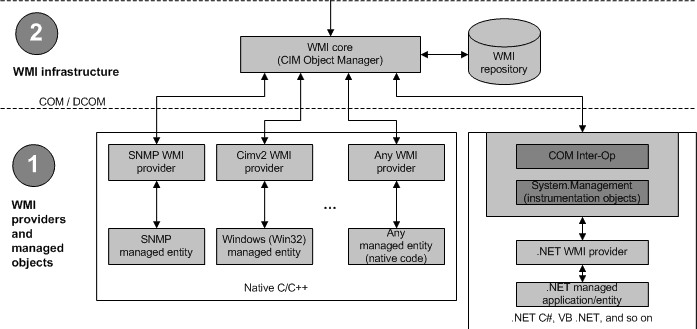
WMI is an integral part of ConfigMgr (SCCM). Let’s see How to increase – WMI Default Memory Allocation for ConfigMgr Servers.
Many SCCM issues could be directly linked with WMI. One example is SCCM console connectivity issues, such as “The ConfigMgr Provider reported an error connecting to the ConfigMgr site database server.”
This could be because the server doesn’t have enough WMI memory to handle all the processes (old win2k3 servers).
- WMI Explorer Details For Configuration Manager SCCM Post 1
- Windows WMI Command Line WMIC Reaching End Of Life
- SCCM Health Checks With Status Summarizers
| Index |
|---|
| Increase WMI Default Memory Allocation |
| Solution | FIX – Increase WMI Default Memory Allocation |
| Script |
Increase WMI Default Memory Allocation
For More details on __ProviderHostQuotaConfiguration

Solution | FIX – Increase WMI Default Memory Allocation
The solution is to increase the WMI default memory. See the below steps to achieve the same.
NOTE! Please try this in a LAB environment. I don’t think it’s recommended to change the WMI memory configuration directly on the production servers. To be on the safer side, take a snapshot of the servers before the change.
1) Run “wbemtest” on cmd prompt
2) Connect to the “root” namespace (not “root\default”, just “root”)
3) Select Open Instance, and specify “__ProviderHostQuotaConfiguration=@”
4) Check “Local Only” for easier readability, and you will see the threshold values
5) Change the MemoryPerHost value to something greater – e.g. Double it (256 MB)
6) Save Property
7) Save Object
8) Exit
Script
Also, see the Sample VB Script Code:
Dim locator: Set locator = CreateObject("WbemScripting.SWbemLocator")
Dim wmi: Set wmi = locator.ConnectServer("", "root")
Dim quota: Set quota = wmi.Get("__providerhostquotaconfiguration=@")
quota.MemoryPerHost = 384*1024*1024
quota.put_()
Wscript.Echo(quota.MemoryPerHost)
It’s always better to restart the box after applying this change.
Resources
- Windows 10 WMI Explorer Details for Configuration Manager|Intune
- How to Troubleshoot Windows 10 Intune MDM Issues
- Microsoft Surface Book Review from an SCCM Admin
We are on WhatsApp. To get the latest step-by-step guides and news updates, Join our Channel. Click here –HTMD WhatsApp.
Author
Anoop C Nair has been Microsoft MVP from 2015 onwards for 10 consecutive years! He is a Workplace Solution Architect with more than 22+ years of experience in Workplace technologies. He is also a Blogger, Speaker, and leader of the Local User Group Community. His main focus is on Device Management technologies like SCCM and Intune. He writes about technologies like Intune, SCCM, Windows, Cloud PC, Windows, Entra, Microsoft Security, Career, etc..




Thanks for sharing.
Are grateful for writing
When I update WMI quota it set it correctly. But my customer is reporting that it gets set back to defaults upon reboot. Any clues?
May be, you missed to click some buttons like “SAVE”, “OK” or “Apply”? If that is NOT the case then check the event logs to get some clue.
Need to launch the WBEMTEST with admin privilege and then save property and then save object ..
As vezes ela dá acesso negado
StaffVocê faz parte do administrador local no servidor SCCM?
I have found increasing the handlesperhost to 8192 fixed the memory issue for me with larger Task Sequences.
I did have memoryallhosts = 2GB, memoryperhost = 1GB