






Insights of How Copilot for Security Works
Let’s discuss how Copilot for Security Works insights work. Copilot for Security is a popular generative AI-powered security solution. Microsoft designed this security solution with Copilot to ensure users’ cybersecurity.
Copilot is a popular word in the digital world that puts everything at your fingertip. Microsoft enhances users’ security abilities with Copilot for security, which helps increase the efficiency and capabilities of defenders.
It also helps to improve security outcomes at machine speed and scale. Copilot for Security integrates with products such as Microsoft Defender XDR, Microsoft Sentinel, Microsoft Intune, and other third-party services such as ServiceNow.
Users get solutions with Copilot in a fraction of a second. There are different stages behind the Insights of Copilot for Security Works. You can familiarise this insight with this blog post.

- Microsoft CNAPP Cloud Native Application Protection Platform Life Cycle
- Microsoft Copilot for Security is Generally Available
- Top 10 Familiar AI Terms Everyone Should Know
Insights of Copilot for Security Works
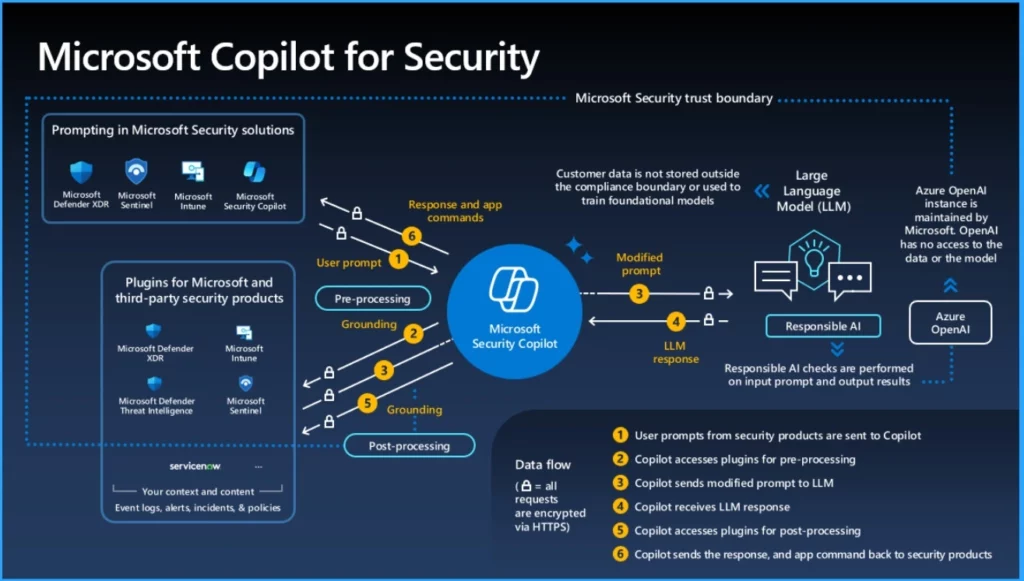
There are different steps behind the workings of Copilot. We all know Copilot is capable of answering anything in a fraction of a second, but we didn’t know the process behind that. The different steps are shown below.
| Different Steps in Working of Security Copilot |
|---|
| User Submit a prompt |
| Send Plugins and knowledge bases to Azure Open AI |
| Runs advanced LLMs to match the prompt |
| Calling API to take Action |
| API Send response back to Copilot |
| The Orchestrator receives the Response from the API calls |
| Azure OpenAI use Advanced LLM |
| Sent back a response to Copilot for review |
| The user Receives the response from Copilot |
1. User Submit a Prompt
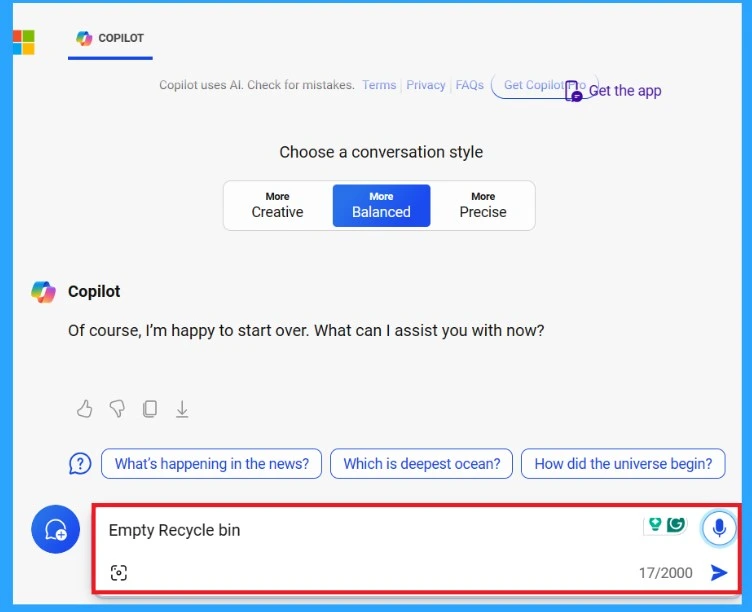
Users can easily submit a prompt in the prompt bar. For this type of prompt bar, click on the send button. After that, the Copilot backend is referred to as the orchestrator. The orchestrator is Copilot’s system that helps to compose capabilities together to answer a user’s prompt.
2. Send Plugins and Knowledge Bases to Azure Open AI
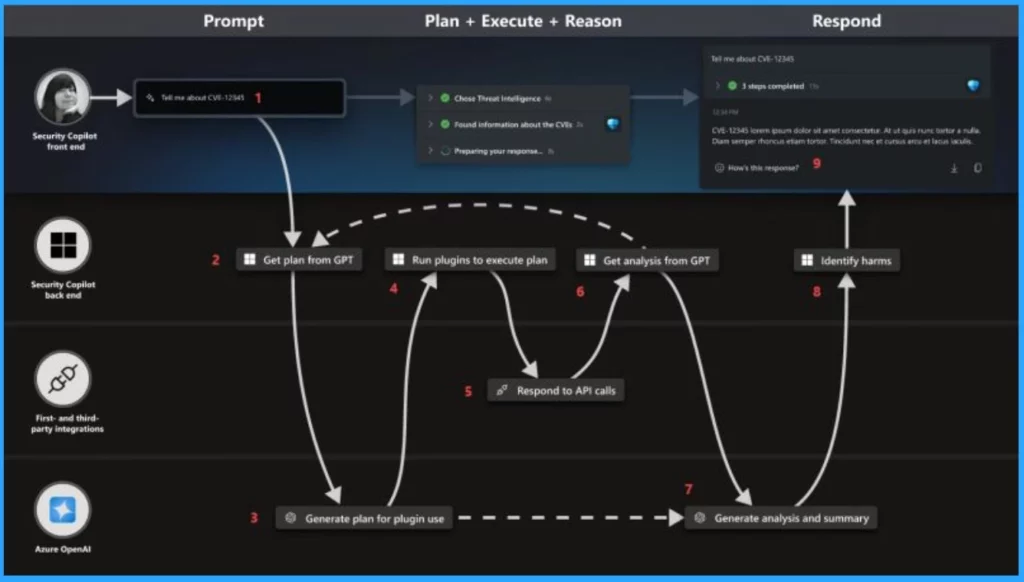
Copilot has different capabilities, and it is necessary to recognize which ability will be used according to the user prompt. For this, Copilot bundles the text prompt and list of Copilot capabilities and sends them to Azure OpenAI. Copilot sends them to Azure OpenAI to make necessary plans to fulfil users’ prompts.
3. Runs Advanced LLMs to Match the Prompt
Azure Open AI has advanced LLM capability. LLM helps Azure Open AI to do future steps. LLM match the user prompt with the capabilities and creates a plan. After creating the plan, it will sent back to the orchestrator.
- If the user prompt does not match with available capability, it will generate a response with general knowledge of LLM
- The LLM’s general knowledge is good for problem-solving. But it focused uniquely on security, and it may change to an inaccurate response
- Enabling plugins and connecting to knowledge bases is beneficial to bring a collection of resource-specific capabilities to Copilot.
4. Calling API to Take Action
Copilot’s orchestrator executes the plan by running code for the selected plugins/capabilities and calling the appropriate API (Application Programming Interface) to take action.
5. API Send Response Back to Copilot
API passes this plan to first- and third-party integration partner apps and executes actions according to the API call. Then, these actions are sent back to Copilot.
- Microsoft Offers 2 Million People in India with AI Skilling Opportunities
- How to Prepare Microsoft Copilot with Zero Trust
6. Orchestrator Receives the Response from the API Calls
The orchestrator receives the response from the API calls. Then, Copilot iterates the response to make it the best response. Copilot is dedicated to giving users the best response. The orchestrator bundles the response with the original prompt before providing the final response to the user. Then, it sends it back to Azure OpenAI.
7. Azure OpenAI Use Advanced LLM
Azure OpenAI again use the advanced LLM to compose responses. Azure OpenAI uses language that makes sense to a human being. If everything looks good, then the response is sent to the user.
8. Sent Back Response to Copilot for Review
This response is sent back to Copilot for Microsoft’s responsible AI models. Microsoft’s responsible AI model is to check this response to identify anything malicious, hate speech, etc. If any Microsoft’s responsible AI models detect anything malicious or inappropriate, an error message is generated instead of sending the information to the user.

9. User Receive the Response from Copilot
After all these steps, the user gets the response from Copilot according to the Prompt. We get responses from Copilot within seconds, but actually, all the steps mentioned above happen to get the best response. These steps also let end users know the accuracy and reliability of Copilot for Security.
- Enable Disable Let Copilot Use Content from Microsoft Edge in Windows 11
- Add or Remove the Copilot Toolbar Icon in Microsoft Edge
We are on WhatsApp. To get the latest step-by-step guides and news updates, Join our Channel. Click here for HTMD WhatsApp.
Author
Gopika S Nair is a computer enthusiast. She loves writing on Windows 11 and related technologies. She is here to share quick tips and tricks with Windows 11 or Windows 10 users. She is Post Graduate Diploma Holder in Computer Science.



Discussion