






Install ConfigMgr Hotfix KB12819689 Microsoft Connected Cache Update
Microsoft released hotfix KB12819689 for ConfigMgr 1910 through 2111. This KB 12819689 Connected cache update is to fix Microsoft Connected Cache (MCC) feature that is not used as expected for Win32 apps deployed in Co-Managed scenarios.
If you’re using early update ring versions (applicable only for SCCM 2111 downloads before 20th Dec 2021) must also have hotfix KB12709700 for SCCM 2111 installed.
Earlier, a client update for ConfigMgr 2111 hotfix KB12959506 was also released to address important issues for the remote control viewer and SCCM Client.
Do you need to update hotfix KB12819689 in your environment? The previously released hotfix KB5001600 was to fix the Microsoft Connected Cache MCC Server Component Installation Fails Issue with Configuration Manager replaced by the newer version KB12819689.

If you have all these symptoms, then you can proceed with the installation of the hotfix –
- Have you enabled distribution points (DP) after March 5, 2021?
- Have you enabled this distribution point to be used as a Microsoft Connected Cache server DP properties?
Recommended Posts –
- List of SCCM 2111 Known Issues and Fixes
- ConfigMgr Deprecated Features | Removed Features
- Fix Microsoft Connected Cache MCC Server Component Installation Fails Issue | SCCM | ConfigMgr
Summary of ConfigMgr Hotfix KB12819689
The available update resolves the following issue with Configuration Manager current branch, version 2111.
The Microsoft Connected Cache (MCC) feature is not used as expected for Win32 apps deployed through Microsoft Intune in a co-managed environment. A review of the IntuneManagementExtension.log file shows an internet-based DownloadURL value.
The MCC component is enabled by selecting the Enable this distribution point to be used as Microsoft Connected Cache server option in a distribution point’s properties.
Note! The hotfix KB12819689 is available for download from the Microsoft Download Center. You will not see it available in the Updates and Servicing node of the Configuration Manager console.
Download ConfigMgr Hotfix KB12819689
Let’s download hotfix KB12819689 from the Microsoft Download Center and process it for copying files to resolve Microsoft Connected Cache (MCC)/DP problem –
Hotfix KB12819689 doesn’t require a computer restart after installation.
Before proceeding to the next step, ensure there is not currently an installation of the Microsoft Connected Cache (MCC) component in progress. You can confirm this by 9522 status message generated by the SMS_DISTRIBUTION_MANAGER component.
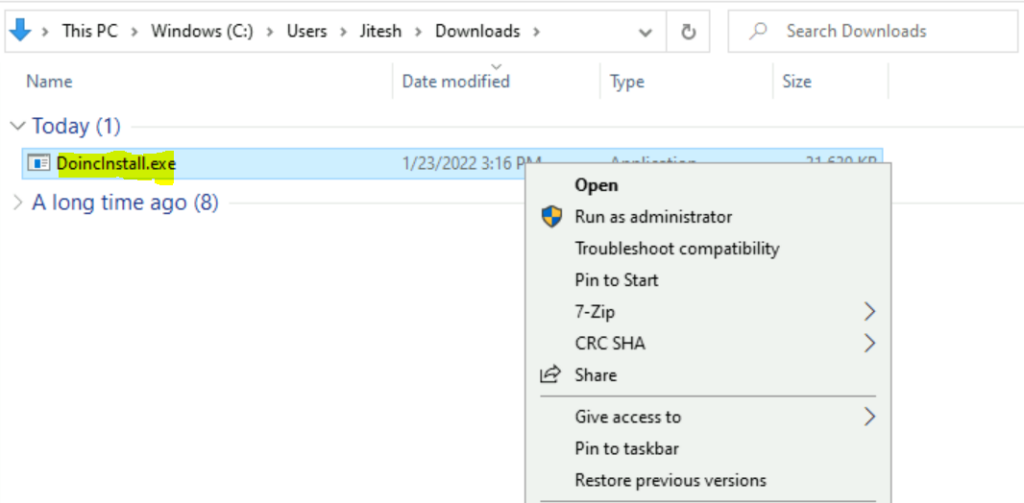
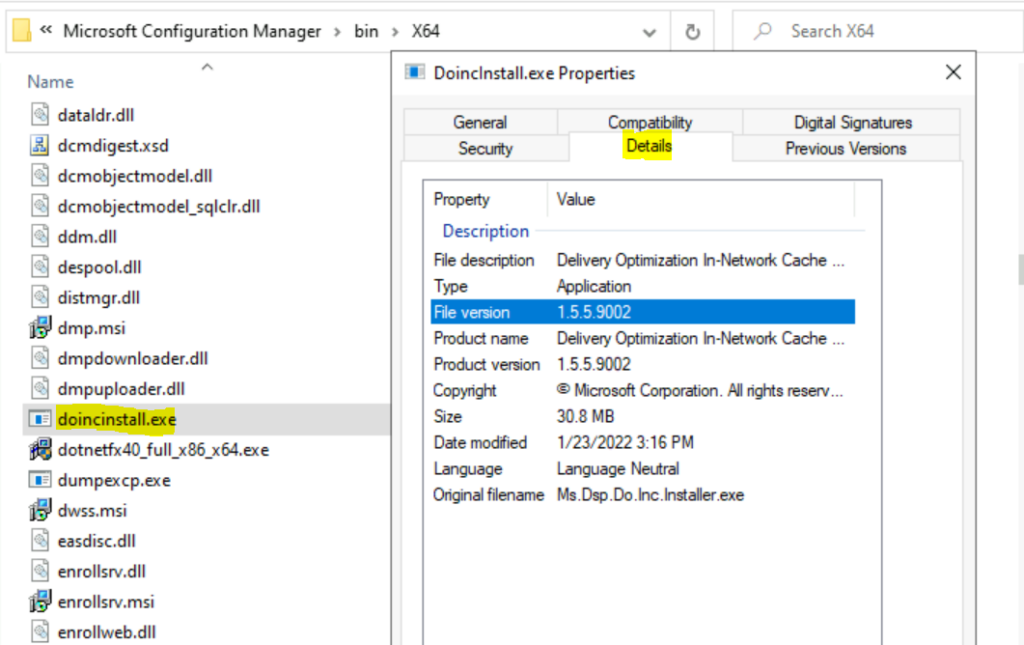
Copy the new version of DoincInstall.exe, version 1.5.5.9002, to the <InstalledDrive>:\Program Files\Microsoft Configuration Manager\bin\x64 (change the drive letter according to your environment) folder on all site servers, including the CAS server if present, and any passive sites.
Note – You will be prompted with Confirmation Windows to Replace the files as the destination already has a filed name “DoincInstall.exe”, Click Replace the file in the destination.
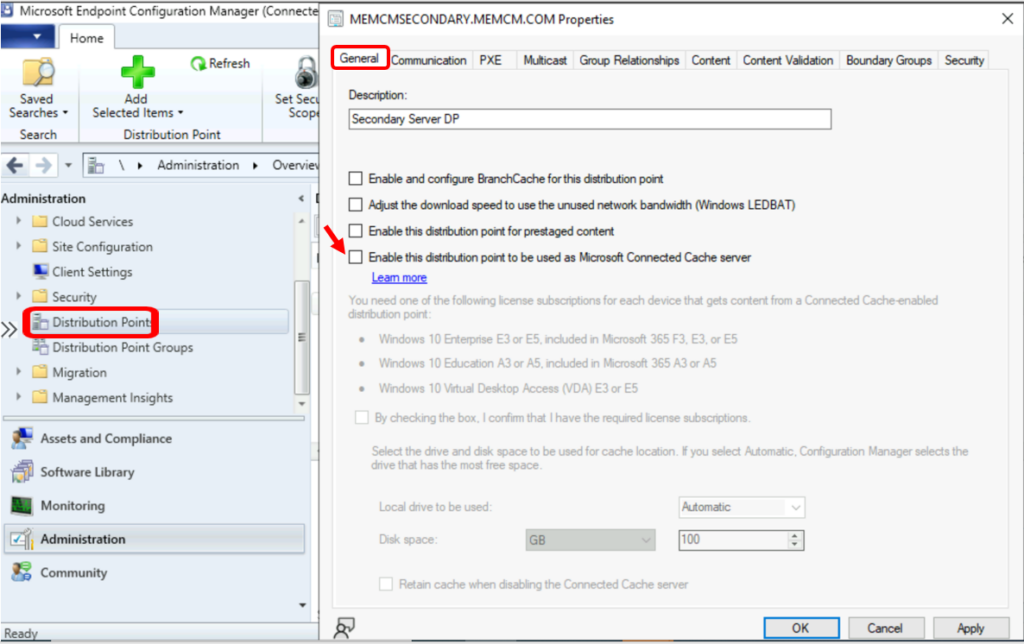
Navigate to Configuration Manager Console, Under Administration\Distribution Points.
Uncheck the Enable this distribution point to be used as Microsoft Connected Cache server option in the affected distribution point’s properties.
Wait for the uninstall of MCC to complete on the distribution point. You can confirm this by 9152 success status message with the following entry in distmgr.log.
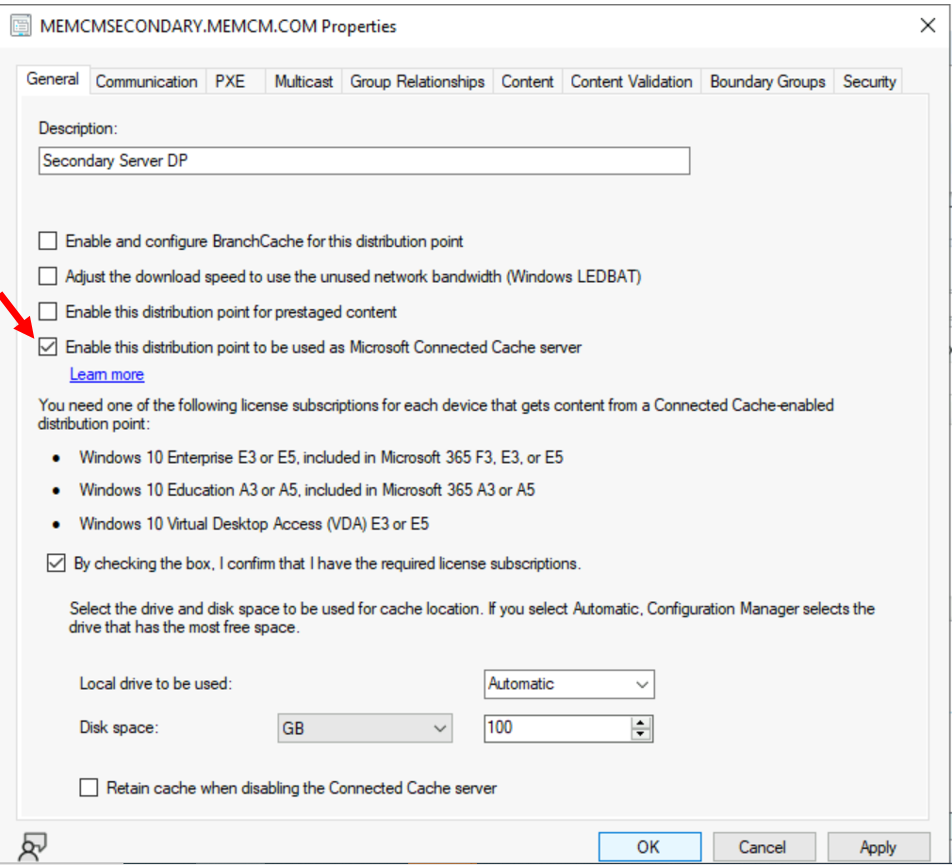
Finished waiting for DoincInstall. InvocationState: UninstallCompleted. InvocationExitCode: 0. InvocationMessage: .Once Microsoft Connected Cache (MCC) gets uninstalled successfully, you can Recheck the Enable this distribution point to be used as Microsoft Connected Cache server option for the affected distribution point.
Installation Steps for Multiple Distribution Points Sites
When you have sites with many distribution points, In that case, it’s a bit difficult to perform the manual process by going to each DP Properties to disable and re-enable MCC (Microsoft Connected Cache) component.
Let’s follow the method provided by Microsoft to the automation option to reset DP with the new DoincInstall.exe file.
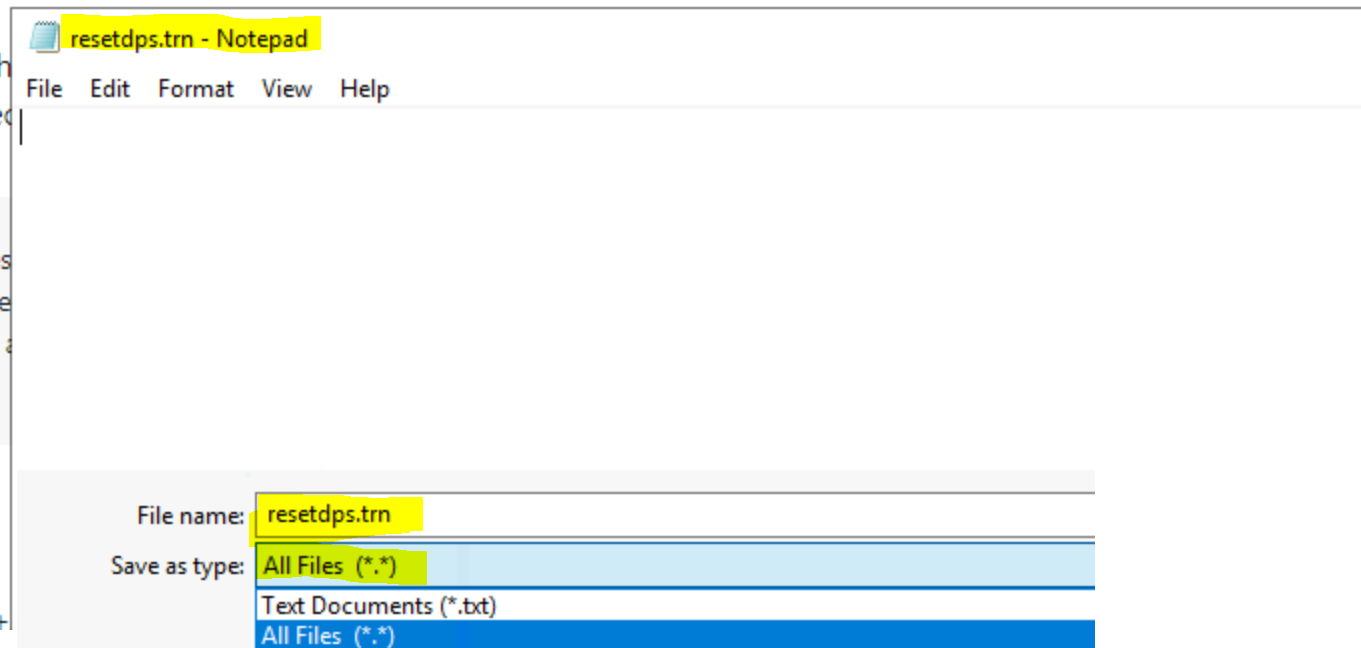
- In your server, create a blank\empty file. Open Notepad.
- In the File menu, Select Save As and click Browse to your preferred folder or location. In the File name box provide the file name resetdps.trn and Save as type “All Files (*.*)”. Click Save.
Open the {SMSInstallDir}\inboxes\distmgr.box folder (<Installed Drive>:\Program Files\Microsoft Configuration Manager\inboxes\distmgr.box)
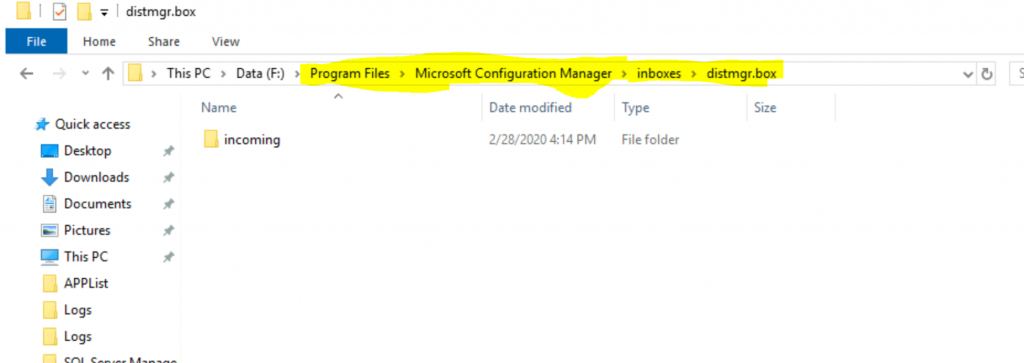
- Copy the resetdps.trn file created above.
- Paste resetdps.trn file to <Installed Drive>Program Files\Microsoft Configuration Manager\inboxes\distmgr.box.
- This will reinstall all distribution points for that site using the latest version of
DoincInstall.exe.




Discussion