






Learn how to Install Microsoft Edge Browser Using ConfigMgr. I have a blog post explaining how to deploy Microsoft Edge Patches with SCCM Software Updates. This is all about the chromium-based edge version.
Microsoft Endpoint Configuration Manager 1910 introduces the new application model to support the Microsoft Edge (chromium) browser.
You can deploy the Microsoft Edge browser version 77 and later use MECM|ConfigMgr|SCCM 1910 on Windows 10 computers. You can also choose the Beta, Dev, and Stable channels with the Version of the Microsoft Edge client to deploy.
Related Post – How to Deploy Microsoft Edge Browser (client installation) to Windows 10 devices.

Prerequisites
The following are the prerequisites to install the Microsoft Edge browser using SCCM.
- This feature will be available from Microsoft Endpoint Configuration Manager | ConfigMgr 1910
- The console requires an Internet connection to download the Edge Browser MSI files.
- PowerShell execution policy can’t be set to Restricted mode
How to create the Microsoft Edge Browser Application
Let’s see a more detailed step-by-step guide for SCCM admins to upgrade Microsoft Edge (chromium). Follow the steps mentioned below to create a Microsoft Edge browser application.
Once the app for MS Edge is created, you can deploy and update it to all your Windows 11 or Windows 10 PCs.
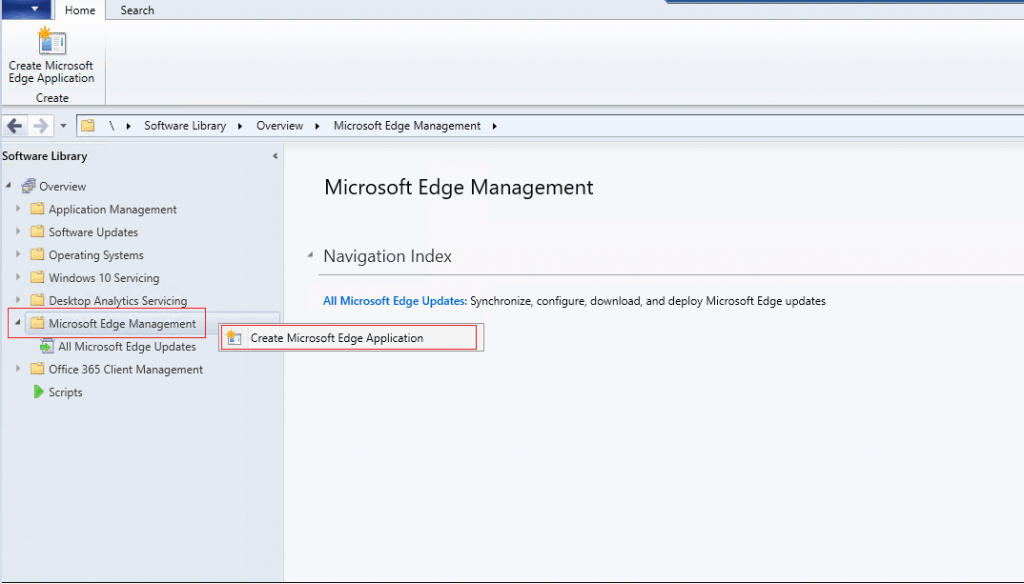
Login into the SCCM console
Expand Software Library
Select Microsoft Edge Management
Right-click & select Create Microsoft Edge Application
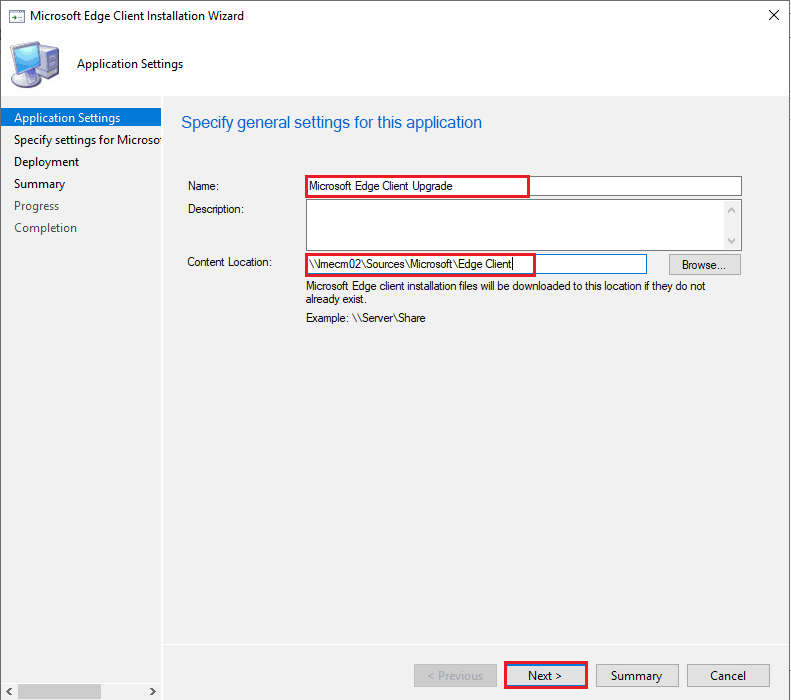
STEP-2 is to enter the Name for the MS Edge browser application. This is done using Microsoft Edge Client Installation Wizard.
Input the Name of the application
Provide the Content-Location to download the Microsoft Edge MSI’s from the internet
Click Next
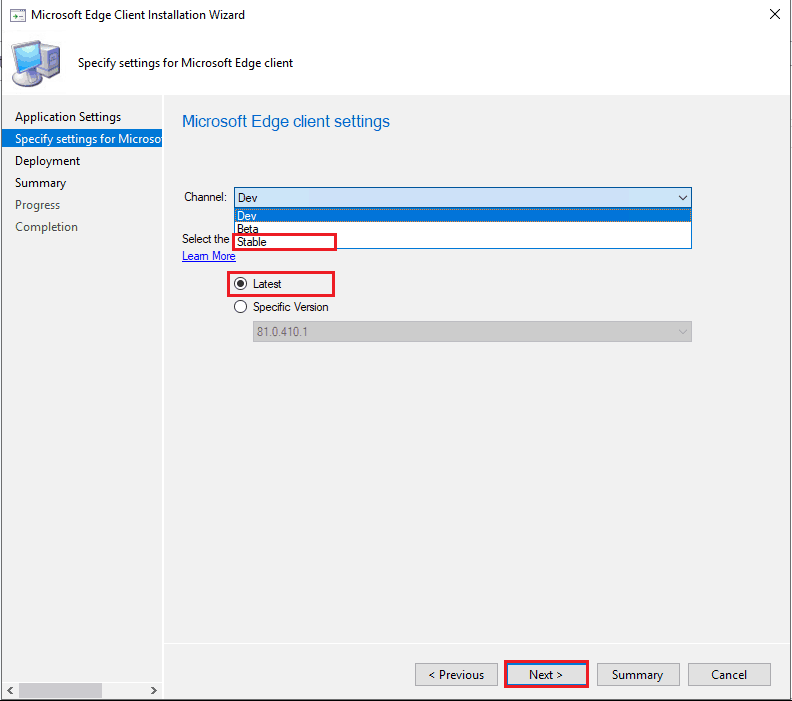
In STEP-3, you will need to select the Microsoft Edge channel. I recommend using the stable channel for all production deployments.
Select the Channel Type ( you can choose based on your organization’s requirement) &
Select the Version to be deployed
Click Next
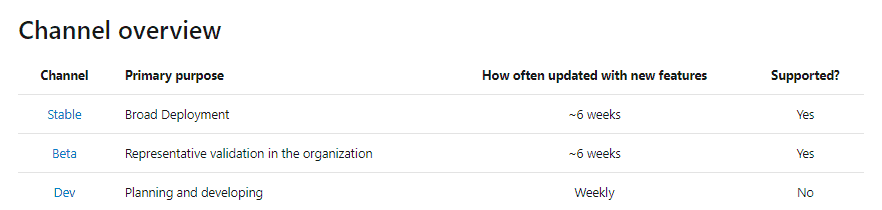
Microsoft Edge Stable Channel
The Stable Channel is intended for broad deployment in your organization and is the channel that most users should be on.
It is the most stable of the channels, resulting from the stabilization of the feature set available in the prior Beta Channel release.
New features ship about every six weeks, and security and quality updates ship as needed. A release from the Stable Channel is considered supported until the next release is available.
Microsoft Edge Beta Channel
The Beta Channel is intended for production deployment in your organization to a representative sample set of users. It is a supported release, and each release from Beta is supported until the next release from this channel is available.
This is a great opportunity to validate that things work as expected in your environment. If you encounter an issue, have it remediated before the release to the Stable Channel.
New features ship about every 6 weeks. Security and quality updates ship as needed.
Dev Channel
The Dev Channel is intended to help you plan and develop using Microsoft Edge’s latest capabilities but with higher quality than the Canary Channel.
This is your opportunity to get an early look at what’s coming and prepare for the next Beta release.
Microsoft Reference: https://docs.microsoft.com/en-us/deployedge/microsoft-edge-channels
Deploy Microsoft Edge Browser application using SCCM
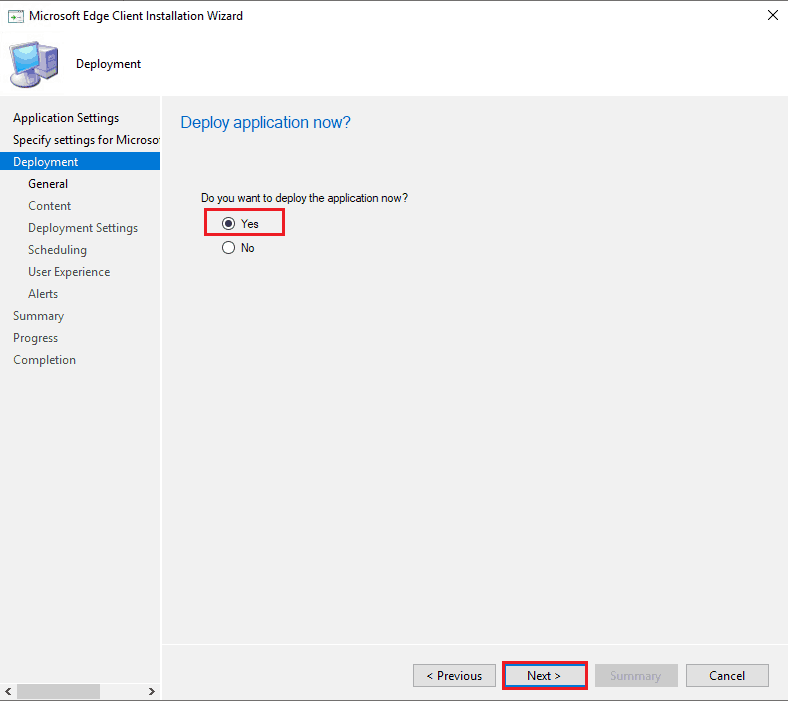
STEP-4 is when you start deploying the Microsoft Edge Browser application using SCCM.
- Select the Yes in Do you want to deploy the application now
- Click Next
STEP-5
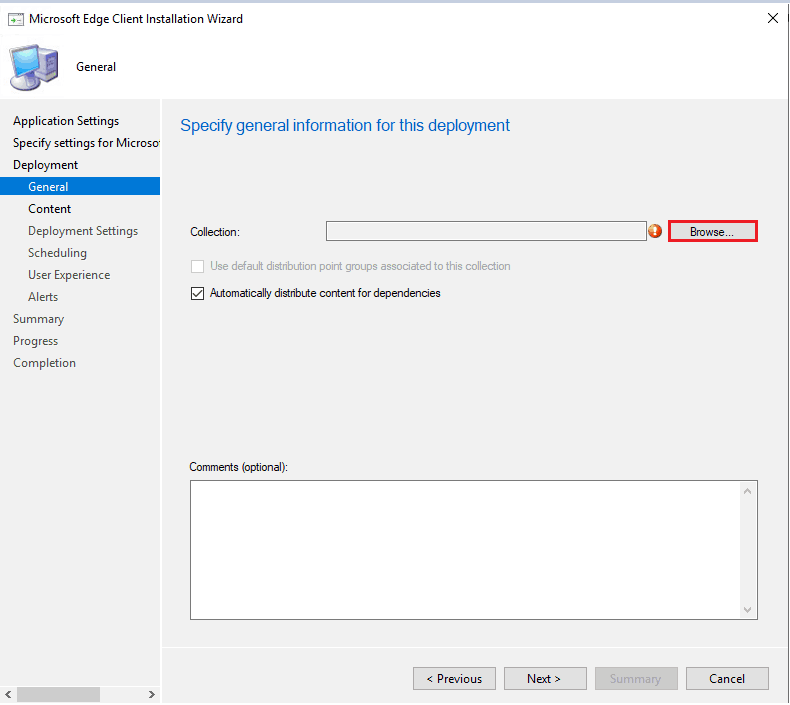
- Click Browse to select the collection
STEP-6
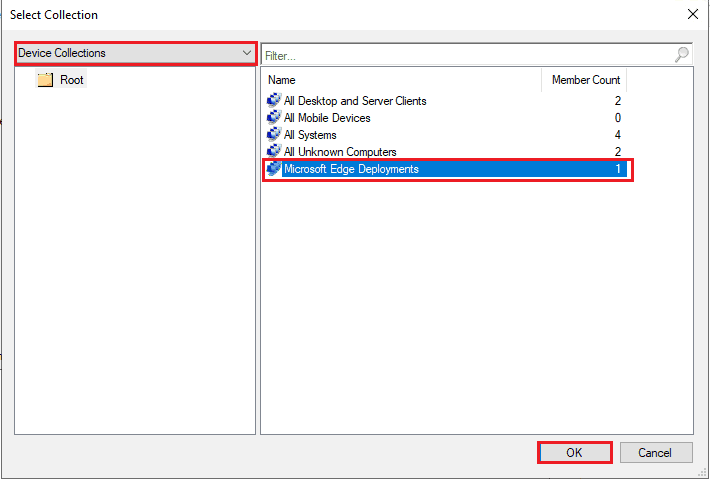
Select the desired collection
Click OK
Note: The application can be deployed to both User and Devices collections.
STEP-7
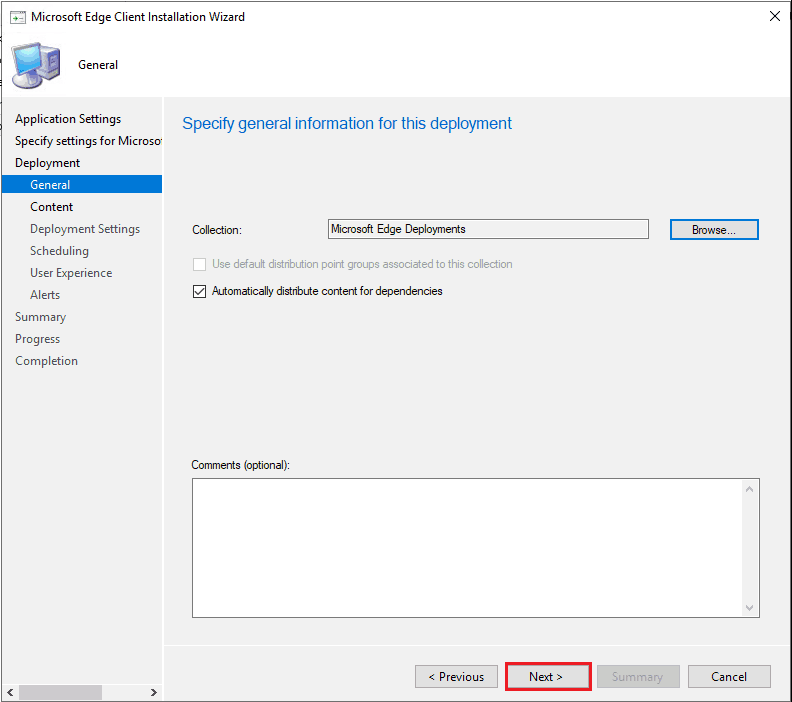
Click Next to continue
STEP-8
Click Add button to select the Distribution Point
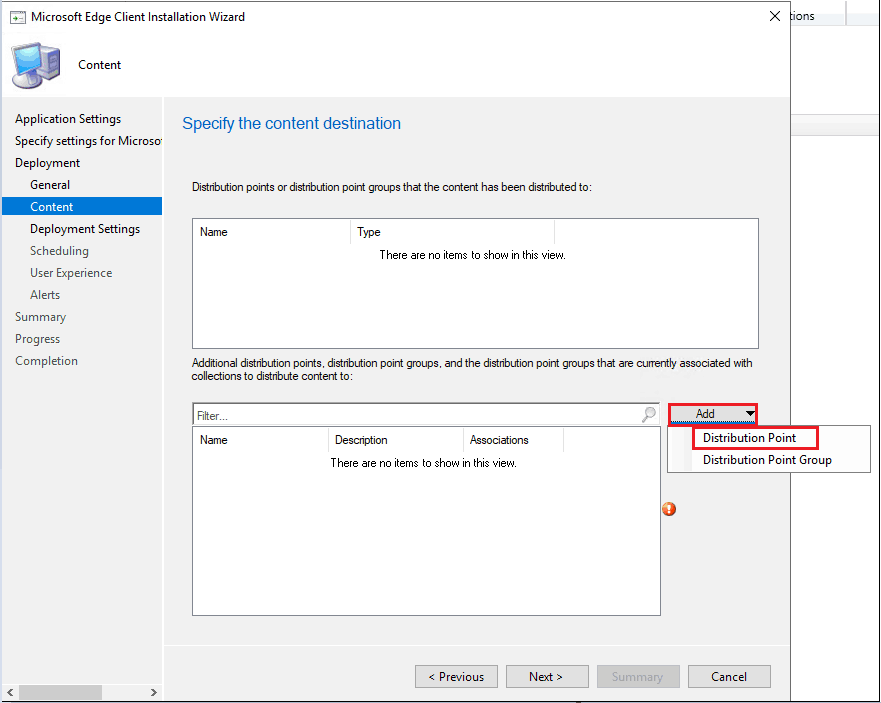
STEP-9
Click Add button to select the Distribution Point
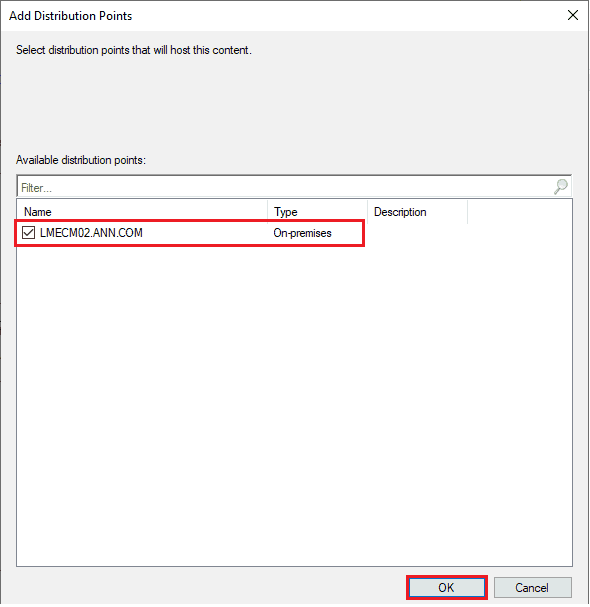
STEP-10
Click Next
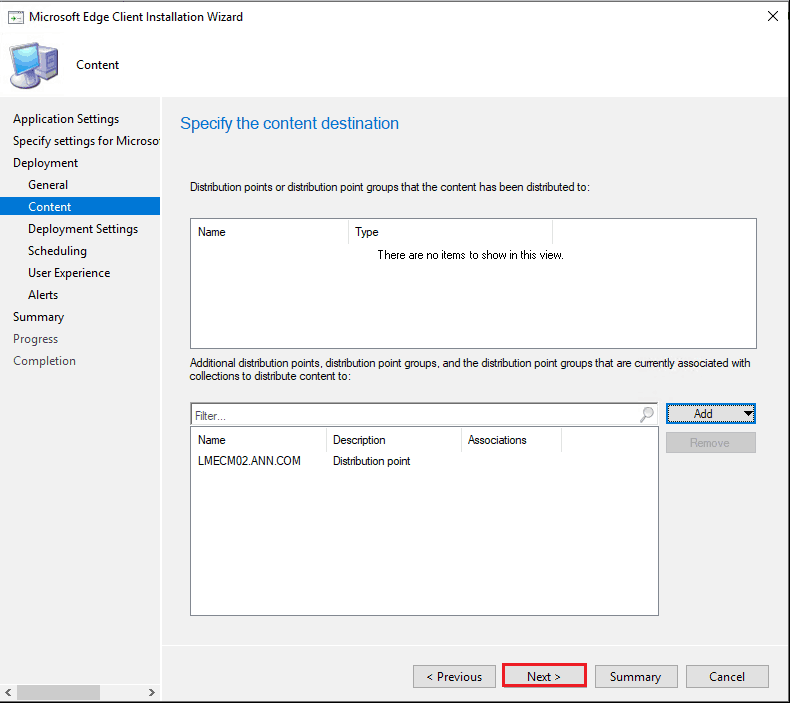
STEP-11
Choose the application installation method
Click Next
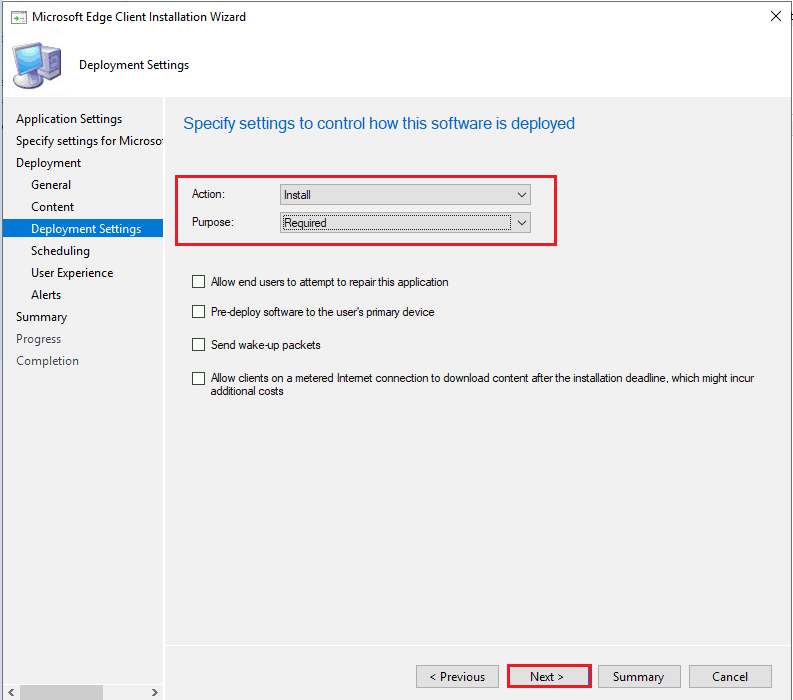
STEP-12
Click Next
Note: Make the changes as per your organization’s requirement
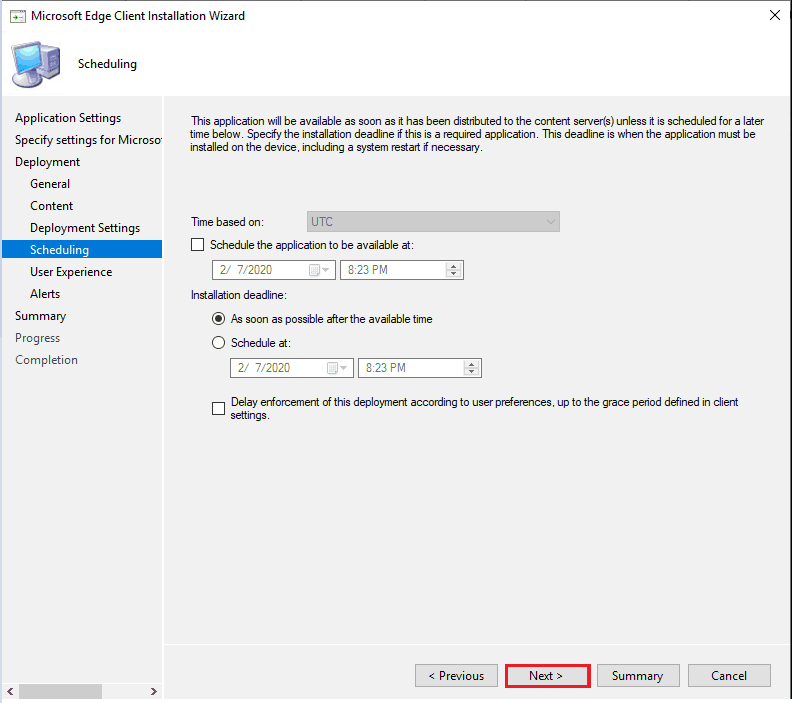
STEP-13
Click Next
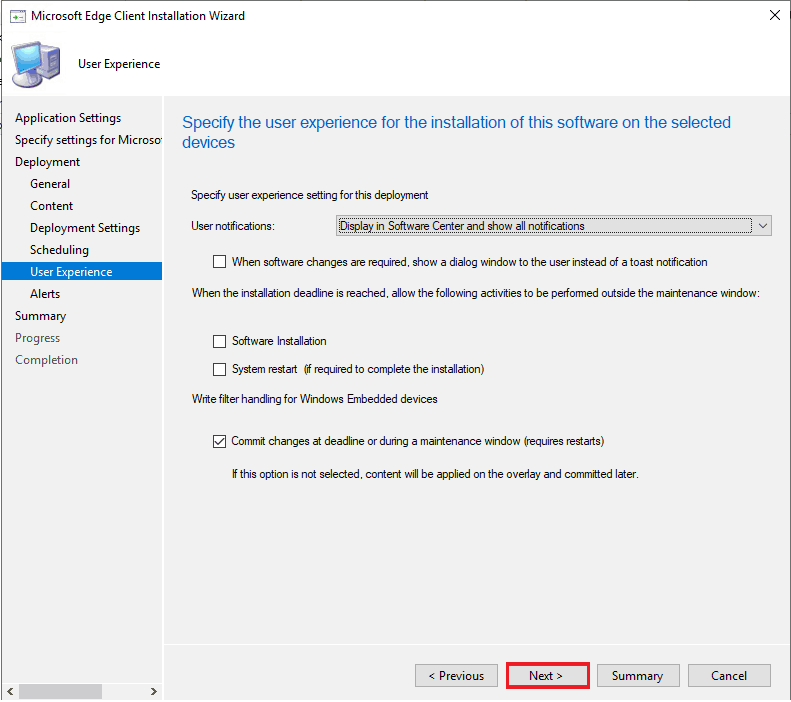
STEP-14
- Click Next
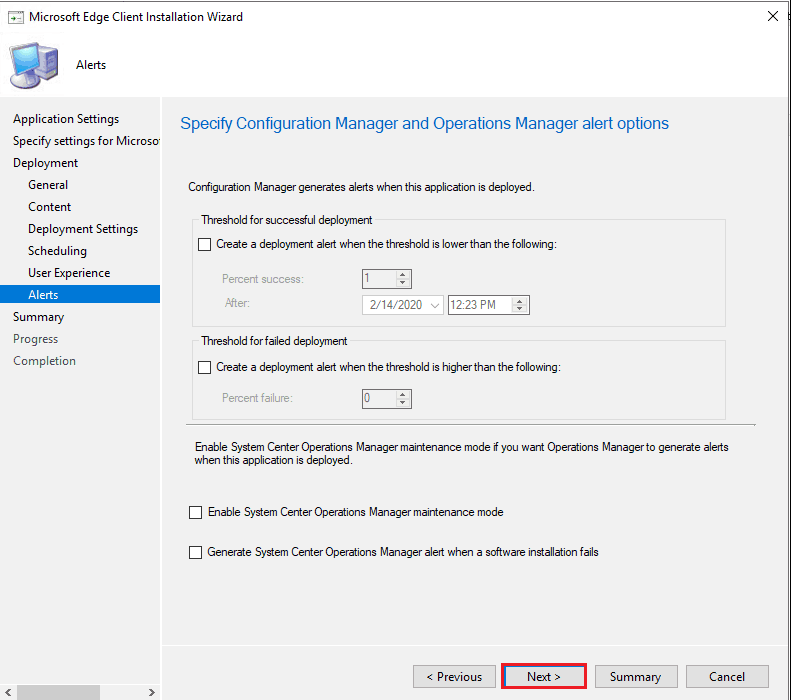
STEP-15
- Review the application and deployment details. Click Next to create the application.
STEP-16
- The application is created successfully. Click Close, the wizard
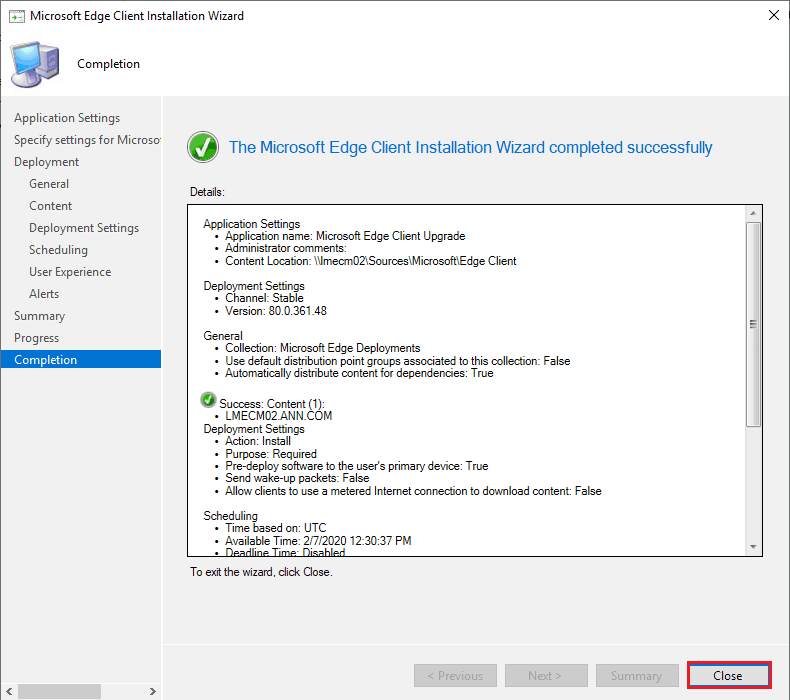
- You can view the application information in the MECM|ConfigMgr console
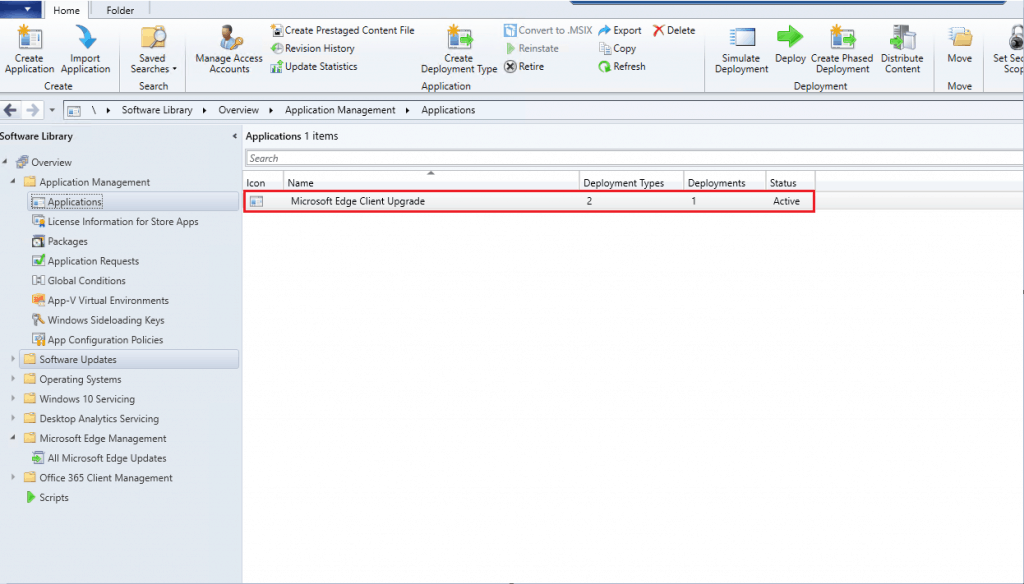
Derivatives – Install Microsoft Edge Browser
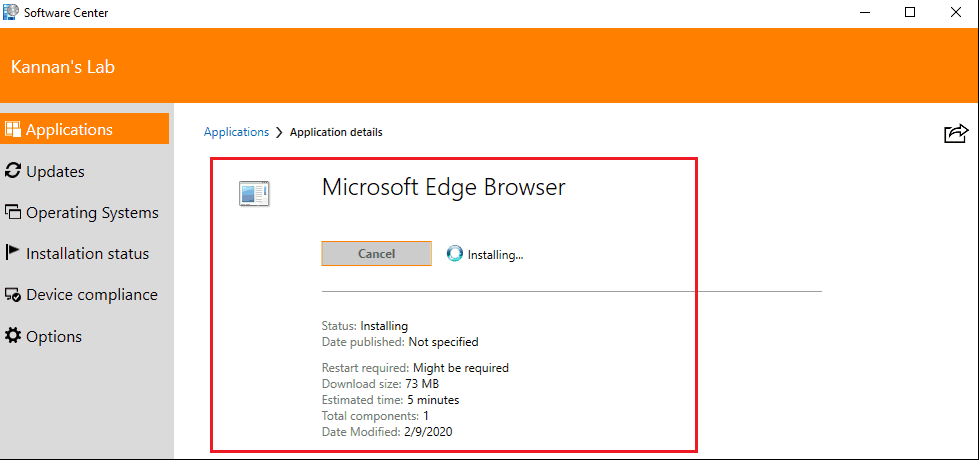
On the Client Side, the Application is in Installation Status
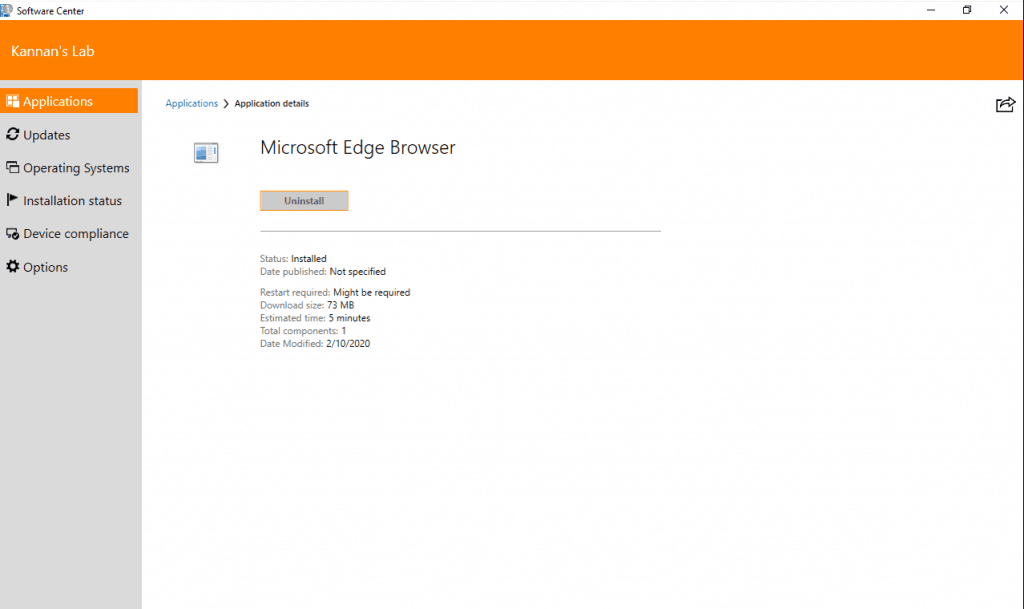
The application is installed successfully
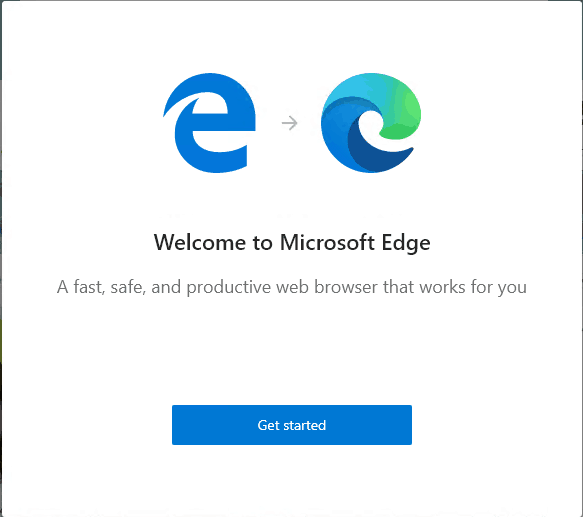
The Microsoft Edge Legacy browser is upgraded latest Microsoft Edge Browser.
Resources
- How to Deploy Microsoft Edge Browser (client installation) to Windows 10 devices
- Deploy Microsoft Edge Patches with SCCM Software Updates|ConfigMgr Part 1
We are on WhatsApp. To get the latest step-by-step guides and news updates, Join our Channel. Click here –HTMD WhatsApp.
Author
Kannan CS is a Technical Architect with more than 15 years of experience in the IT domain. He has worked on various technologies, such as Windows server administration, SCCM, SCOM, and Desktop Engineering. For the last 10 years, he has been working in Microsoft SCCM, with a focus on Configuration Manager and Intune technologies.




Discussion