






Install Multiple Applications using ConfigMgr Task Sequence SCCM
Let’s learn how to Install Multiple Applications using ConfigMgr Task Sequence. As an SCCM Admin, you might have encountered a scenario where your customer asked if we could build a machine for a specific department, like Finance, and install the required application during the machine build.
There are many ways to achieve this requirement. You can have a different complete task sequence for the various departments (but managing them in a large environment is difficult) or use a dynamic application installation step ( but this can be a problem if applications depend on other applications).
In this post, we will fulfil this requirement using the child task sequence. I am taking the example of building a machine for the ‘Human Resource’ department.
With the release of SCCM version 1806, a new feature, a child task sequence, was introduced. With this feature, you can call another task sequence with custom settings and run it along with your original task sequence.

Table of Contents
Prerequisite
If you have followed my articles, I prefer a folder structure with my SCCM environment for clear understanding. We would need a custom task sequence with all the applications or packages and their dependent requirements as a prerequisite.
- Create Application Group Using SCCM | ConfigMgr | Deploy App Group
- Best Guide to Deploy Windows 11 22H2 using SCCM Task Sequence | ConfigMgr
- Create a custom task sequence in SCCM.
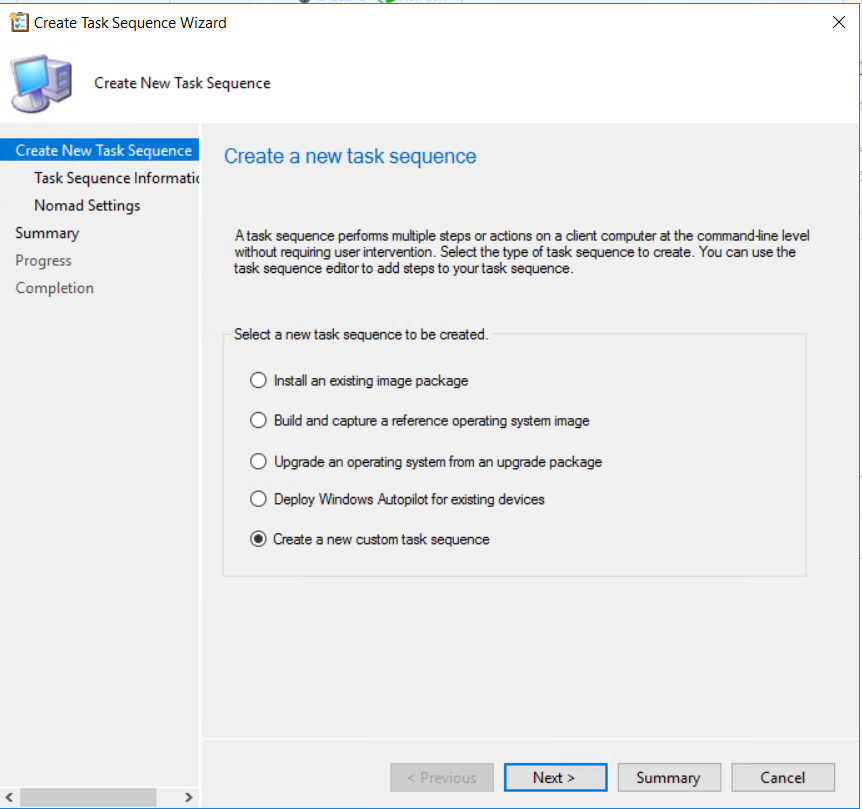
- Provide the name of this Custom task sequence, like ‘Human Resource’, and click next.
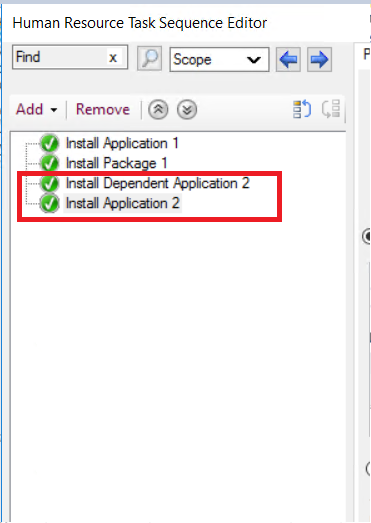
- Now right-click on this custom task sequence and click ‘edit’.
- Add the applications and packages their dependent requirement in the order inside the task sequence(In the screenshot below, you can see I am installing the dependency of application 2 first, then application 2).
- After this, you must create a collection for the ‘Human Resource department and deploy this task sequence on that collection.
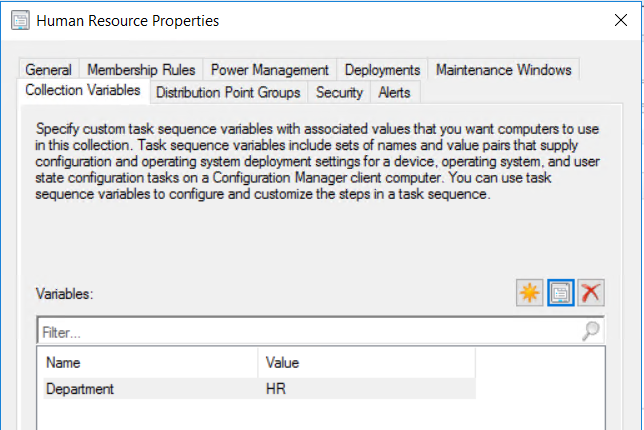
- Now go to the properties of the collection you created and add a new collection variable for that.
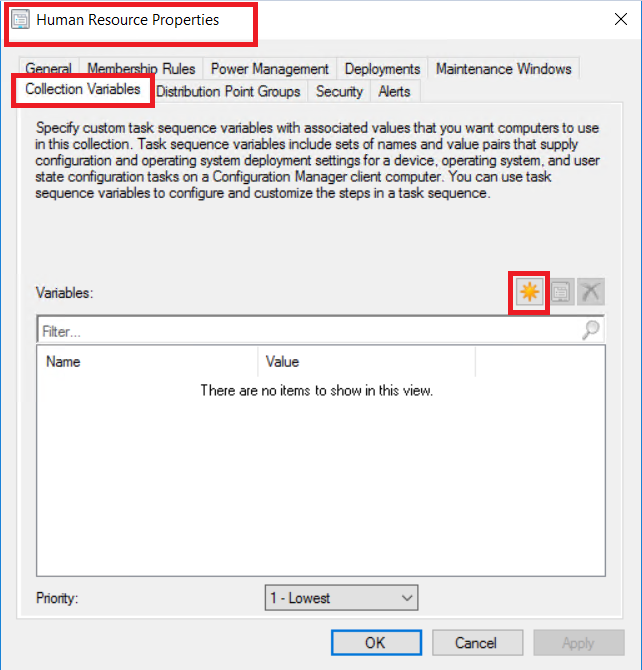
Specify a custom task sequence variable with associated values you want computers to use in this collection. Task sequence variables include sets of names and value pairs that supply configuration and operating system deployment settings for a device, operating system, and user state configuration tasks on a configuration manager client computer. You can use task sequence variables to configure and customize the steps in a task sequence.
Preparing for Machine Build
After we have created a child task sequence, created a collection for the department, and deployed that TS to this collection, we need to edit the production task sequence so that if the machine is built for this department, it gets the required applications.
- Open your production task sequence and the step for the child task sequence as below.
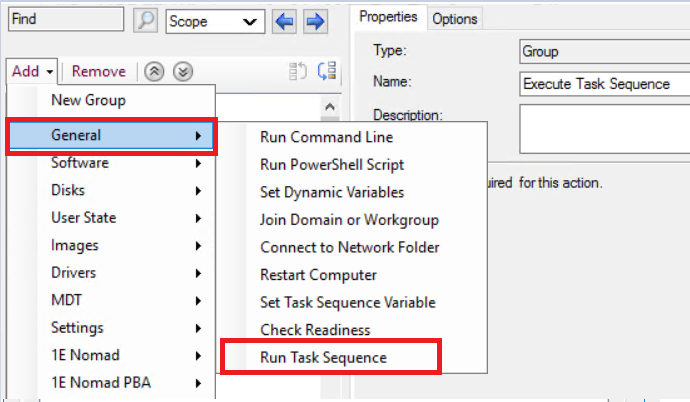
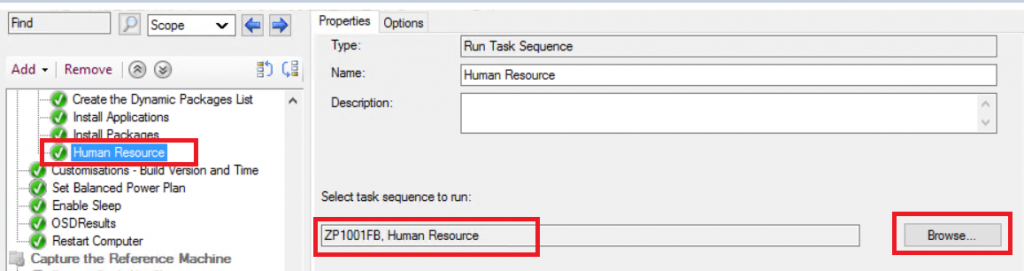
I prefer adding custom steps for application installation at the end of the task sequence. Browse the task sequence you created in this step.
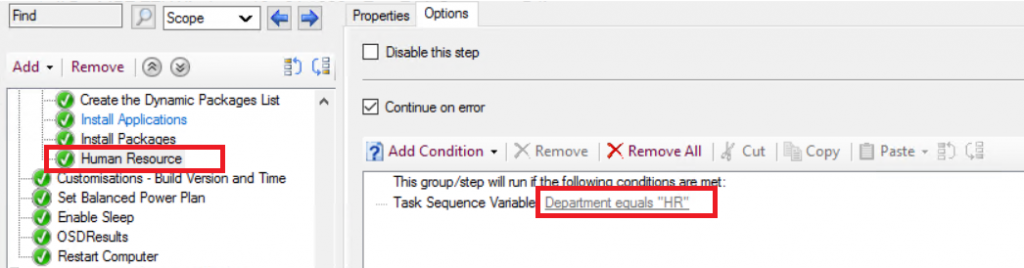
The options tab defines a task sequence variable with the same name as defined in the collection variable.
Result
When you add the machine to the collection of the human resource department and run the production task sequence to build a machine, SCCM will check for the variables, and it will see that the condition is ‘True‘ for the Department is equal to HR. It will run the child task sequence.
References
- https://social.technet.microsoft.com/wiki/contents/articles/52066.sccm-1806-child-task-sequences.aspx
- https://docs.microsoft.com/en-us/mem/configmgr/develop/osd/how-to-create-a-collection-variable
We are on WhatsApp. To get the latest step-by-step guides and news updates, Join our Channel. Click here –HTMD WhatsApp.
Ankit Shukla, an IT professional with over seven years of experience, has worked on SCCM/MECM since 2012. During this time, he has extensively dealt with various aspects of the tool, such as migration, infrastructure designing, OSD, custom SQL reporting, and client-side troubleshooting. Ankit’s blog posts reflect his hands-on experience addressing issues and providing practical solutions. The primary aim of his posts is to cater to the audience, comprised of support team members and SCCM admins in organizations.




Thanks for the article. I’m struggling to figure the best way to do this to. I was wondering of using a variable… Eg like when you get a pop-up to supply the pc name and then the task sequence will rename the machine to that name. So we should be able to make another pop-up asking department and depending on what department you put in… You will get different settles of package installed. I know there is no variable for departnet like the pc name. But we could just use another variable? What do you think, I won’t mind a collab on this? Maybe also a powershell in winpe with a menu… Just trying to think out of the box