






SCCM SMSTS Log File Location | Reading Tips
This post will teach you about SCCM OSD SMSTS Log File Reading Tips with the built-in log reader tool CMTrace. The SMSTS.log is one of the critical SCCM log files that will help you troubleshoot installation issues related to Operating System Deployment (OSD).
SMSTS.log contains a lot of redundant information, so learning to read It effectively is essential. CMTrace is one of the Configuration Manager tools. It allows you to view and monitor log files and analyze them by highlighting, filtering, and error lookup.
As explained in the post, you can monitor the SCCM Task Sequence using status messages. List Of 43 SCCM Status Message Queries | Custom Query For SCCM Task Sequence Engine Status Messages.
We need more details on Configuration Manager OSD troubleshooting with SMSTS.log. SCCM OSD Task Sequence Ultimate Guide 5 Understand Process.

- OSD Known Issues Troubleshooting Guide | SCCM | ConfigMgr
- SCCM OSD Task Sequence Troubleshooting Step-by-Step Ultimate Guide with SMSTS.log
What is the SCCM PXE Task Sequence Deployment Workflow
Let’s understand the SCCM PXE Task Sequence Deployment Workflow. Pre-installation Tasks are completed, and the operating system is deployed. How can we know the troubleshooting flow for SCCM Task Sequence Deployment and PXE?
SCCM Task Sequence Troubleshooting using the SMSTS.log flowchart gives you a great idea of how all these work together. The location details of SMSTS.log are explained in the table below.
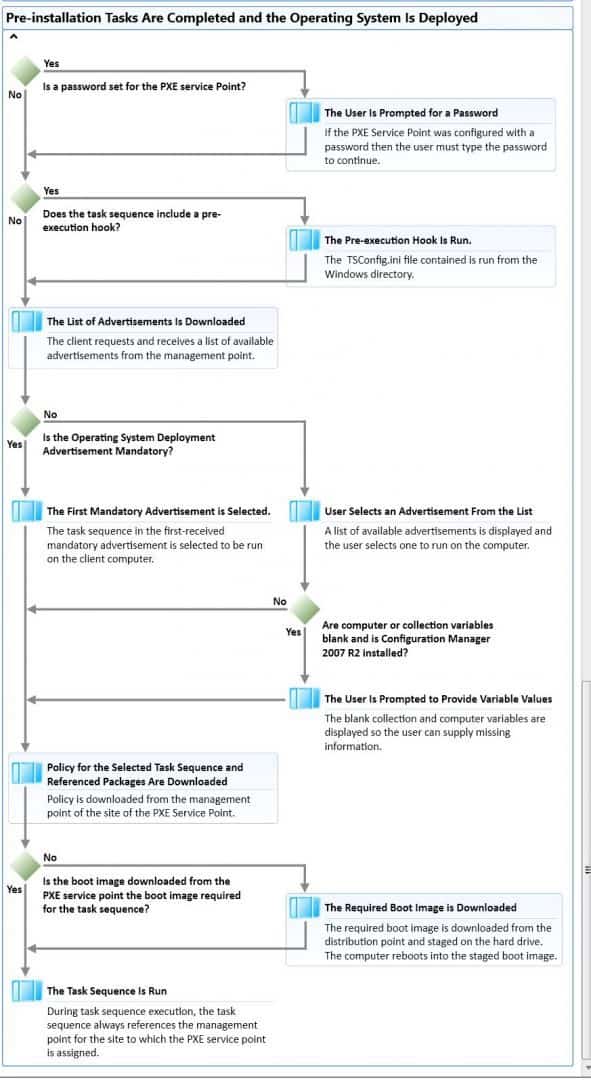
The above SCCM SuperFlow provides more details about the background processes of Task Sequence and PXE deployment. This will be very helpful to troubleshoot SCCM PXE and TS issues.
For example:- PXE is boot is not happening, Task Sequence is not getting deployed to a machine, etc. How to start troubleshooting these issues.
SCCM SMSTS Log File Location Details
The SCCM SMSTS log file is one of the particular SCCM log files available in a different location on Windows 11 or Windows 10 devices.
SCCM goes through different phases in the OS deployment scenario, and SMSTS.log location also changes according to phases.
The location is updated depending on the phases of the deployment process. The SCCM SMSTS.log file will be located in different places. The following table gives you the details for the Windows 10 and Windows 11 operating systems.
| Phase | Log Location [Client Side] |
| WinPE (Before HDD are formatted and partitioned) | x:\windows\temp\smstslog\smsts.log |
| WinPE (After HDD are formatted) | x:\smstslog\smsts.log copied to c:\_SMSTaskSequence\Logs\Smstslog\smsts.log |
| Installed Operating System (Before the SCCM client is installed) | c:\_SMSTaskSequence\Logs\Smstslog\smsts.log |
| Installed Operating System (After the SCCM client is installed) | c:\windows\ccm\logs\Smstslog\smsts.log |
| Installed Operating System (When the Task Sequence is completed) | c:\windows\ccm\logs\smsts.log |
Video Recording SCCM SMSTS.log OSD Troubleshooting
Let’s check the video recording of the SCCM SMSTS.log walkthrough by Vishal Goyel. He explained the different locations of SMSTS.log and how you can start troubleshooting OSD issues with SMSTS.log.
WinPE & PXE Boot Stage – SCCM OSD Task Sequence
A quick example of SCCM SMSTS.log and troubleshooting process that uses the log file. In this example, the SMSTS log is located in the RAM drive.
X:\Windows\Temp\SMSTSLOG\SMSTS.log
If you check the logs at the beginning, it will show the Boot Image files downloaded.
RAM Disk Boot Path: NET(0)\SMSIMAGES\LAB00005\BOOT.LAB00005.WIM TSBootShell
Booted from network (PXE) TSBootShell
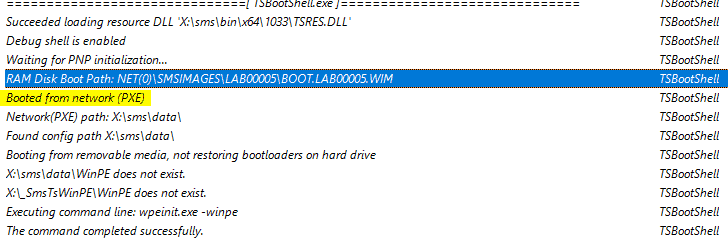
You can confirm from the logs if the machine PXE or it booted using any media.
CMTrace.EXE
Starting in version 1806, the CMTrace log viewing tool and the Configuration Manager client are automatically installed. It’s added to the client installation directory, which, by default, is %WinDir%\CCM\CMTrace.exe.
Run CMTrace.exe. The first time you run the tool, you see a prompt for the file association. Please navigate to the location of the smsts.log file and open it using CMTrace.
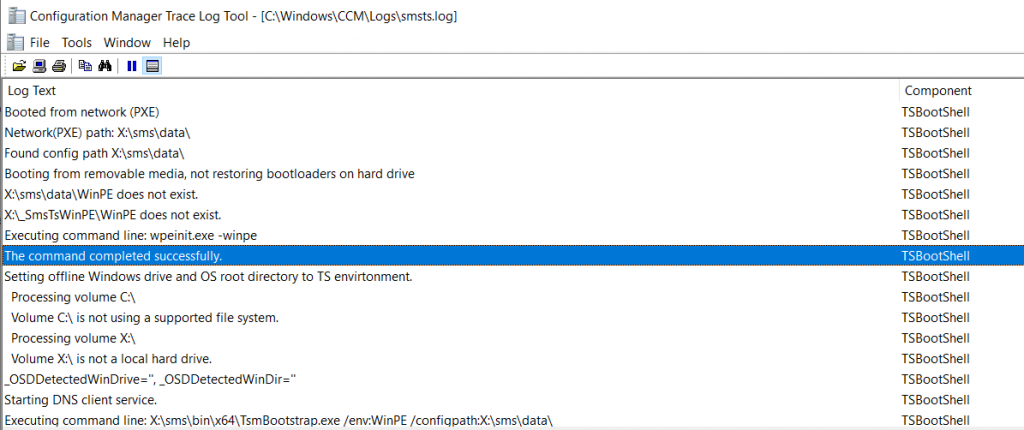
CMTrace Tools Menu
The following actions are available in the Tools menu; click on Filter from the appear menu.
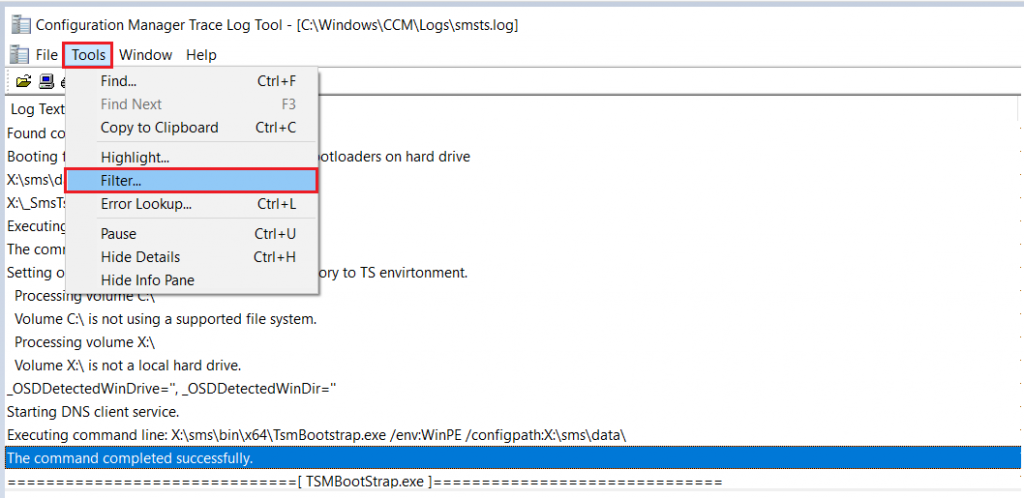
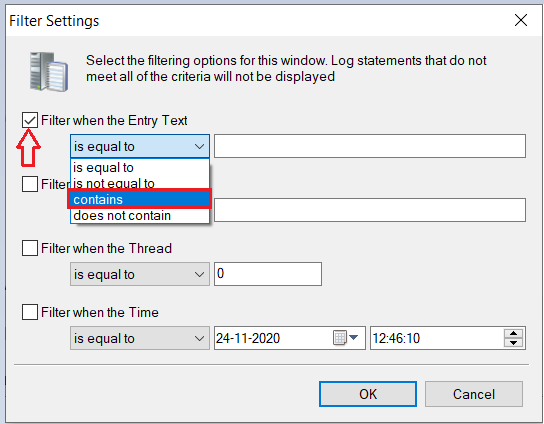
Under Filter settings, Select “Filter when the Entry Text”, and on entry, text select contains from the Drop-down list.
If you want to review when specific or all steps added in the Task Sequence have been executed successfully. You can filter smsts.log on the entry text containing “the action” or “the group” and click OK.
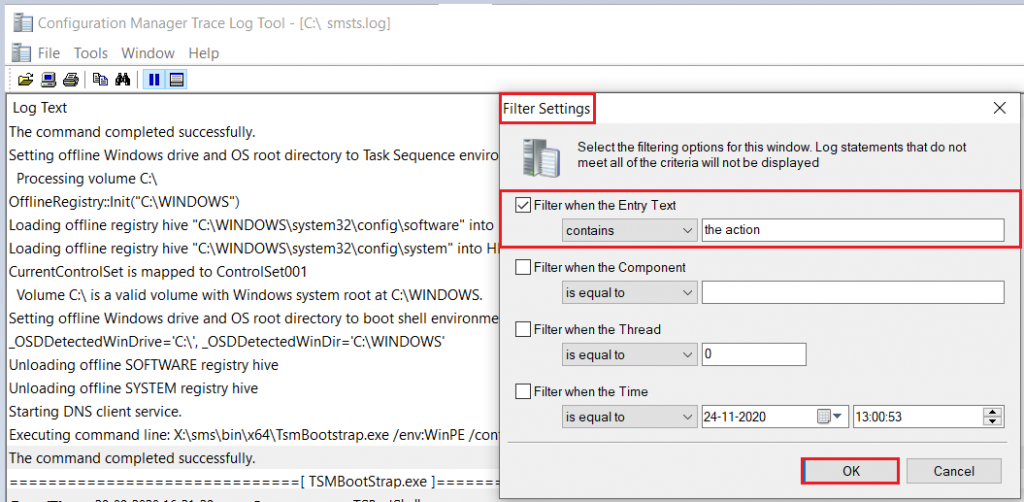
Filter using entry text “the action” or “the group” – SCCM OSD SMSTS Log File Reading Tips | ConfigMgr | MEMCM.
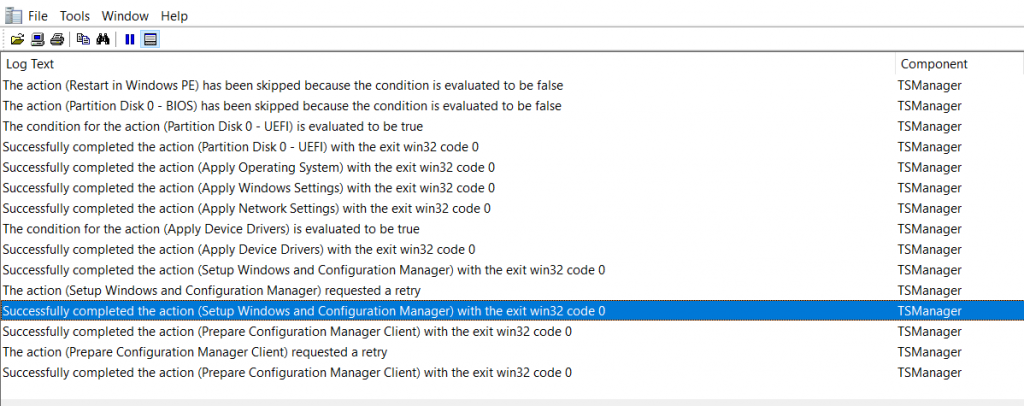
Once we filter action, it displays all steps of deployed Task Sequences on the machine, as shown below. Reviewing this lets you quickly validate whether all steps have been executed successfully.
Use the HTMD Forum, the one-stop shop for all your device management queries related to ConfigMgr (a.k.a SCCM), Intune, and more!
Resources
- SCCM OSD Task Sequence Troubleshooting Steps by Step Ultimate Guide with SMSTS.log
- SCCM Logs Files | 5 Log File Reading Tips | ConfigMgr
We are on WhatsApp. To get the latest step-by-step guides and news updates, Join our Channel. Click here –HTMD WhatsApp.
Author
Jitesh Kumar has over five years of experience in the IT Industry. He writes about and shares his experiences related to Microsoft device management technologies and IT infrastructure management. His primary focus is the Windows 10 Deployment solution with Configuration Manager, Microsoft Deployment Toolkit (MDT), and Microsoft Intune.




You missed the best feature of this tool which is the Error lookup function.