






Complete Guide to Install the New Microsoft Entra PowerShell Module
This post will explain how to install the Microsoft Entra PowerShell Module on your machine. It was formerly known as the Microsoft.Graph.Entra Module. This guide serves as a comprehensive resource for any automation enthusiast to start their Microsoft Entra automation journey.
Microsoft Entra ID, commonly known as Microsoft Azure AD, represents a cutting-edge cloud-based solution for managing identity and access. As a directory and identity management service operating in the cloud, it provides a comprehensive suite of authentication and authorization services to an array of Microsoft offerings, including Office 365, Dynamics 365, Azure, and many cloud-based applications
Previously, the Microsoft Entra PowerShell module was built on the Microsoft Graph PowerShell SDK and offers a scenario-focused approach to managing Entra resources. This Module also supports the old Azure AD module.
Recently, Microsoft has launched a dedicated PowerShell module for Microsoft Entra, designed to assist every automation enthusiasts in their endeavors and facilitate their journey towards automation excellence. You no longer need to use Microsoft Graph PowerShell SDK modules to manage Microsoft Entra.

Table of Contents
Understand More about Microsoft Entra PowerShell Modules
Microsoft Entra PowerShell is a module designed for scenarios that enable administrators to manage Entra ID resources effectively, including users, groups, applications, and policies. Since the Microsoft Entra PowerShell modules are relatively new to us, it’s important to gain a deeper understanding of the module before we begin working with it.

According to Microsoft, the Entra PowerShell cmdlets are currently in a preview phase and are subject to modification. Microsoft advises that these cmdlets should be utilized solely for testing and development purposes at this time and not for production applications.
NOTE: Microsoft Entra PowerShell works with Windows PowerShell 5.1 and PowerShell 7+. For the best experience on Windows, Linux, and macOS, we recommend using PowerShell 7 or later.Currently, The Microsoft Entra PowerShell module is available in two modules, which can be installed independently. Each of these modules comprises of submodules that can be installed separately. Please find the module details in the table below.
| Microsoft Entra PowerShell Module | Details |
|---|---|
| Microsoft.Entra | The general availability or v1.0 version of Microsoft Entra PowerShell. It points to Microsoft Graph v1.0 and Microsoft Graph PowerShell SDK v1.0 resources. |
| Microsoft.Entra.Beta | The Beta version of Microsoft Entra PowerShell. It points to Microsoft Graph Beta and Microsoft Graph PowerShell SDK Beta resources. |
- New MS Entra PowerShell Module
- Free Entra Training Videos | Start Learning Entra ID Azure AD
- Best Guide to Install Microsoft Graph PowerShell Modules
Install Microsoft Entra PowerShell Module
Let’s install the Microsoft Entra PowerShell Modules on Windows machine. The .NET Framework 4.7.2 or later must be installed on your machine before installing the Microsoft Entra PowerShell Modules. Microsoft Entra PowerShell works with the Windows PowerShell 5.1 and PowerShell 7+.
The PowerShell execution policy is the another thing that you should keep in mind when you install the modules. As per Microsoft, it’s recommened to set the PowerShell execution policy to RemoteSigned. Also, set the execution policy scope for Current User. You can use the below command to set the execution policy.
Set-ExecutionPolicy -ExecutionPolicy RemoteSigned -Scope CurrentUserWhen you installing the Microsoft Entra PowerShell Module, you can choose to install the entire module or a specific submodule. I am showing you both scenarios in this article. You have to use Install-Module cmdlet to install any module.
Let’s try the entire Microsoft Entra PowerShell Module. I am setting the scope for AllUsers. You can also set it for CurrentUser and proceed the installation. The modules are installing from PowerShell Gallery.
Install-Module -Name Microsoft.Entra -Repository PSGallery -Scope AllUsers -Force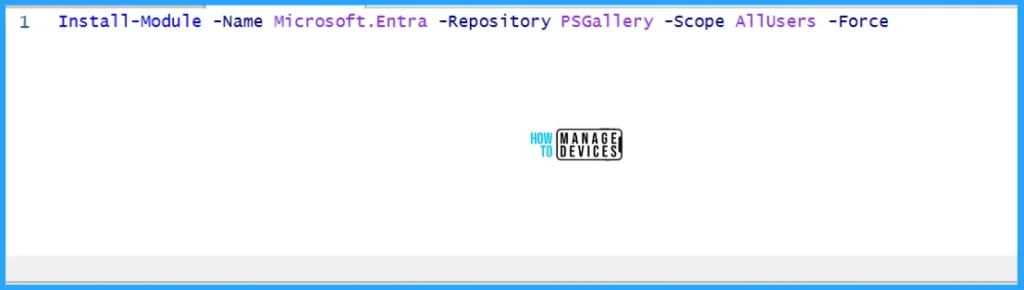
Well, what if you want to install only the Beta module. It can be simply installed using the below command. The Beta module also has to install from PSGallery repository.
Install-Module -Name Microsoft.Entra.Beta -Repository PSGallery -Force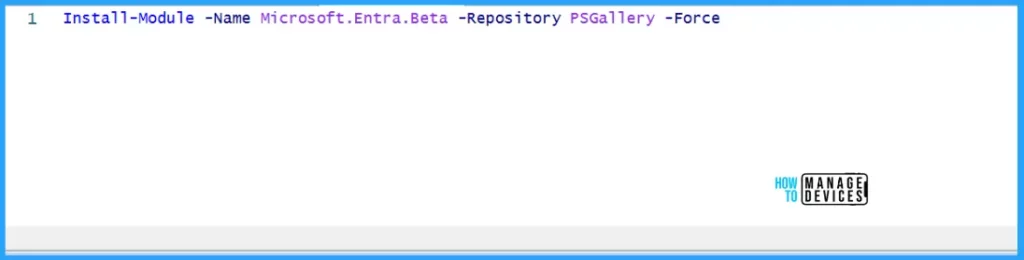
Please refer to the table below if you encounter issues while installing the module. Big shoutout to Microsoft for outlining the known issues and solutions in the table. Thank you for making our lives better.
| Error | Cause | Workaround |
|---|---|---|
| Install-Module: A parameter can’t be found that matches parameter name AllowPrerelease. | You’re using an older version of Install-Module. | To upgrade, follow this guide. The issue applies to Windows platform only. |
| Dependent module ‘module-name‘ isn’t installed on this computer. To use the current module ‘Microsoft.Entra,’ ensure that its dependent module ‘module-name‘ is installed. | Microsoft Entra PowerShell dependencies aren’t installed | To install, use this script |
| Cmdlets already exist on the system | Few cmdlets already exist in the machine. This might have been installed along with other module. | Add -AllowClobber parameter: Install-Module -Name Microsoft.Entra -Repository PSGallery -Force -AllowClobber |
| The following commands are already available on this system: ‘Enable-EntraAzureADAlias,Get-EntraUnsupportedCommand,Test-EntraScript’ | There’s a conflict when either Beta or v1.0 is already installed | To resolve the issue, uninstall the offending module version |
How to Verify Microsoft Entra PowerShell Module Installation
Once installation is completed, you can verify the Entra modules by running below commands. This will list you Microsoft Entra module information with its version.
Get-InstalledModule -Name Microsoft.Entra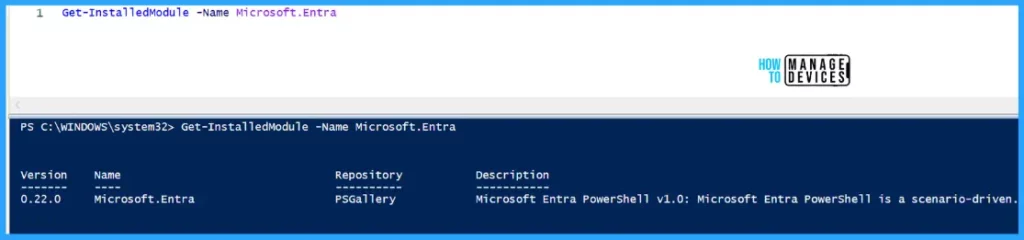
The Microsoft Entra Module has been successfully installed on the machine. However, you may encounter certain issues when attempting to execute the cmdlets that will be discussed below. To mitigate such issues, it is advisable to close and then reopen the Windows PowerShell.
You can view the Microsoft Entra PowerShell cmdlets by running the command below. This will list all the Entra PowerShell cmdlets available for your automation.
Get-Command -Module "Microsoft.Entra*"- Best Guide to Restart Intune Devices Remotely using Microsoft Graph API and PowerShell
- Intune Policy Assignment Classification Easy Secrets of using Graph API with PowerShell
- Manage Intune Tasks with PowerShell Part 1
- Managing Windows Bitlocker Compliance Policy Using Intune | MS Graph | Grace Period
Manage Microsoft Entra with PowerShell Module
Let’s start automating the Microsoft Entra tasks and manage Entra resources using simples codes. You must connect to Microsoft Entra using Connect-Entra cmdlet each time to automate your daily tasks. Connect-Entra is an alias for Connect-MgGraph. It connects to the Microsoft Entra ID with your account.
NOTE: You should connect to Microsoft Entra ID using Connect-Entra cmdlet with necessary permissions.Let me execute the Connect-Entra cmdlet with the required scope on PowerShell 7.5.0. As mentioned earlier, the Microsoft Entra PowerShell module function on PowerShell 5.1 as well. It may ask you to log in with your credentials when you hit enter.
Connect-Entra -Scopes 'User.ReadWrite.All'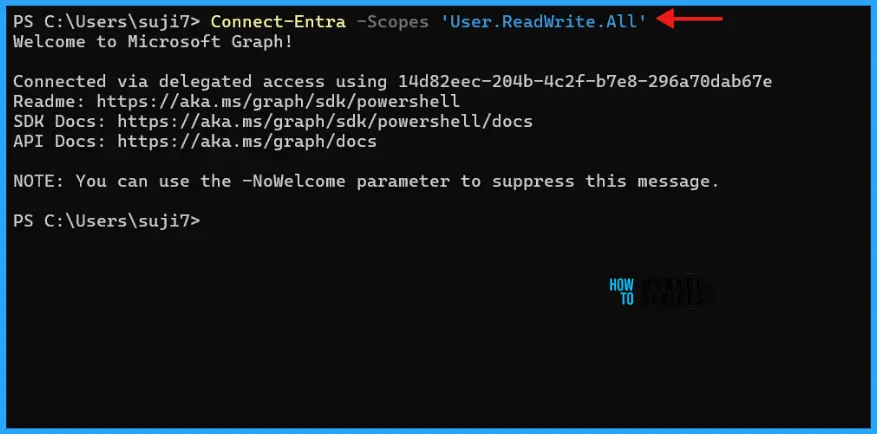
We’re connected to the Entra ID using PowerShell. As I mentioned above, You may can explore the Microsoft Entra PowerShell cmdlets using Get-Command -Module "Microsoft.Entra*". I am trying to get the all the Microsoft Entra groups for this example. The following cmdlet retrieves all the security groups created in Entra ID.
Get-EntraGroup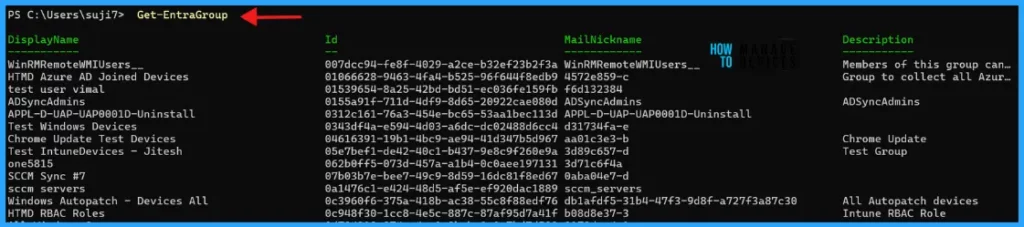
I will develop more Entra ID automation scenarios in my coming articles. This article isn’t meant to explain Entra ID real-time automation examples. I hope this article will help you manage your Microsoft Entra resources with the Microsoft Entra PowerShell module and automate your day-to-day tasks.
Need Further Assistance or Have Technical Questions?
Join the LinkedIn Page and Telegram group to get the latest step-by-step guides and news updates. Join our Meetup Page to participate in User group meetings. Also, Join the WhatsApp Community to get the latest news on Microsoft Technologies. We are there on Reddit as well.
Author
About the Author: Sujin Nelladath, a Microsoft Graph MVP with over 11 years of experience in SCCM device management and Automation solutions, writes and shares his experiences with Microsoft device management technologies, Azure, DevOps and PowerShell automation.
Discussion