






Install WinGet Store Apps Using Windows Autopilot
Let’s see how you can Install WinGet Store Apps Using Windows Autopilot. Intune Autopilot supports installing the new Microsoft Store apps during the Enrollment Status Page (ESP).
The Enrollment Status Page started offering WinGet store apps installs and enables better support for the new Microsoft Store experience, during Windows Autopilot.
Using the new Microsoft Store experience, IT pros can select and assign apps, and choose whether to install an app, such as Company Portal, in the system context, during device setup and installing for all users, or in user context, during account setup with the user logged in.
The Enrollment Status Page (ESP) provides a configuration option, which allows users only to access their device once all critical and necessary apps have been installed. This ensures a better user experience and minimizes any potential issues that may arise from accessing the device before the necessary apps have been installed.

Before you start using the new Microsoft Store apps with Enrollment Status Page (ESP), You need to follow the guide for checking the Microsoft Store app (new) deployment, Deploy New Microsoft Store Apps Type From Intune With Winget.
To Add New Store app as Blocking App during Autopilot
Now with the support of installing the New Microsoft store apps during AutoPilot ESP, you can also choose to block the device until the new store app is installed.
To deploy the new store apps to ESP, you have to create or use an existing ESP profile in Intune. Within the profile, you can configure the ESP settings that control. Here’s how you can block access to a device until a specific application is installed.
- Sign in to the Microsoft Intune admin center https://intune.microsoft.com/.
- Navigate to Devices > Windows. Select Windows enrollment > Enrollment Status Page.
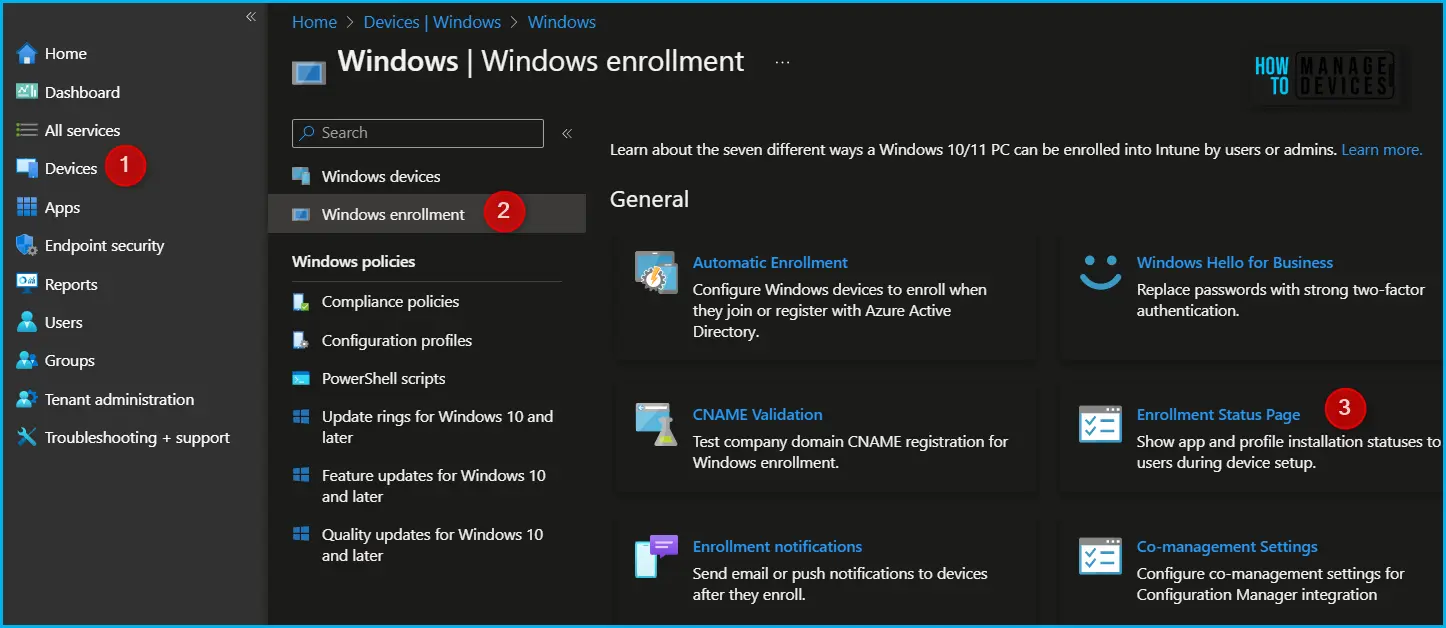
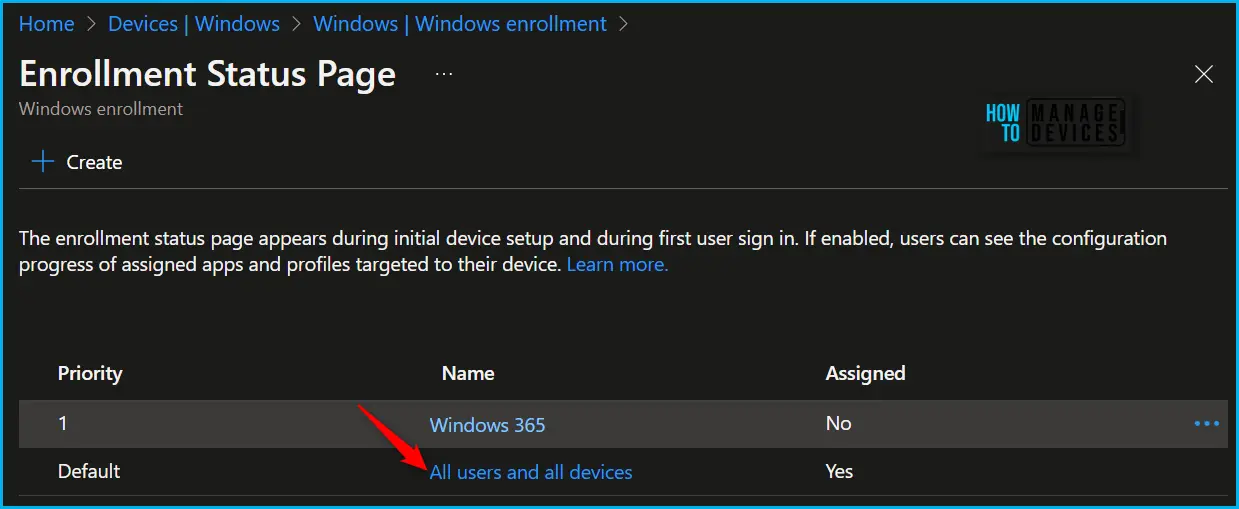
Create a new Enrollment status page (ESP) or Select the existing ESP from the list, The enrollment status page appears during device setup and during the first user sign-in. If enabled, users can see the configuration progress of assigned apps and profiles targeted to their devices.
Important – If you assign a user or device more than one ESP profile, the profile with the highest priority takes precedence over the other profiles. The profile set to 1 has the highest priority.
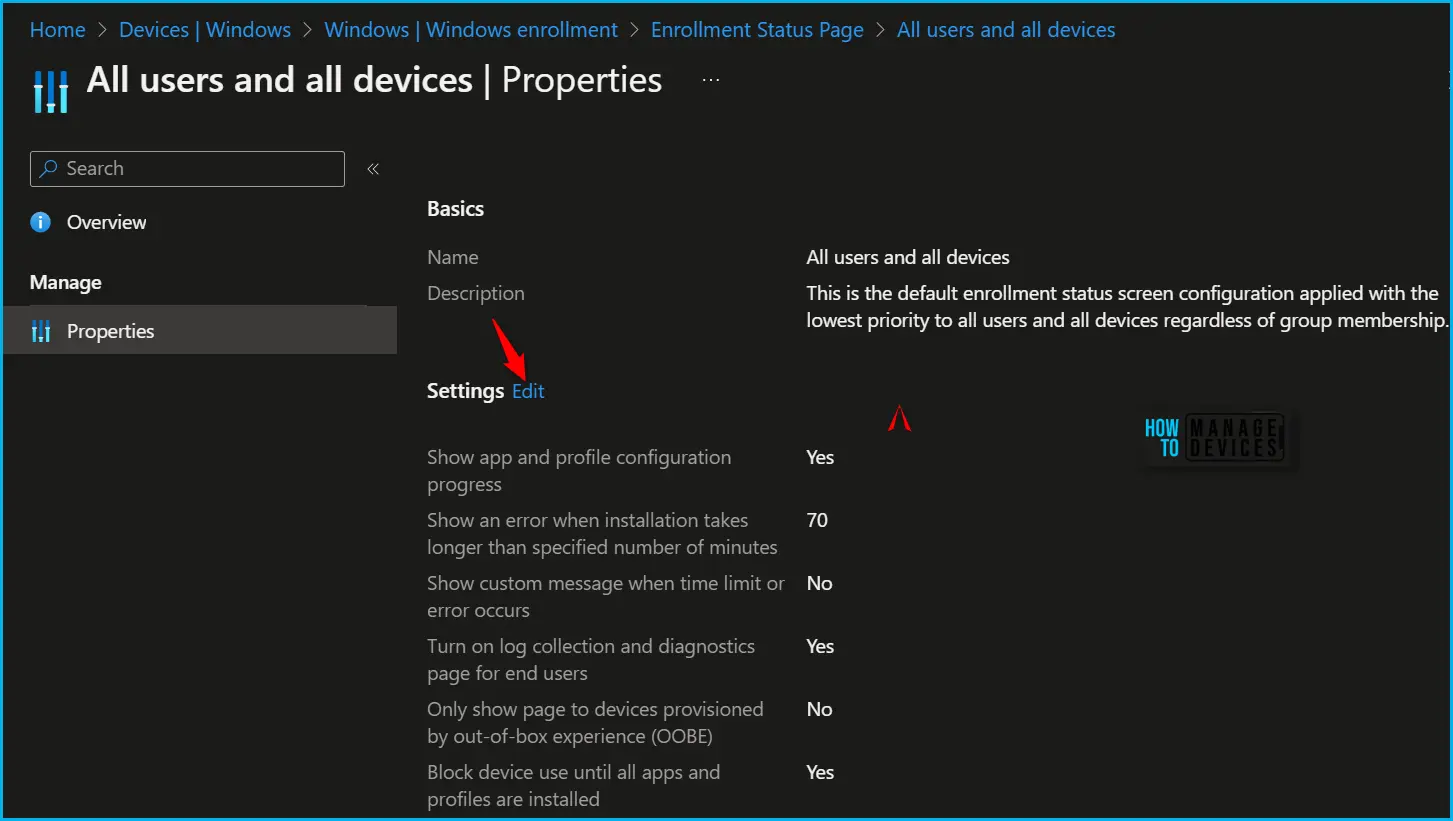
On the Properties. Click Edit to modify the settings. Blocking use of the device until all apps have been installed is useful in scenarios where you may have a limited number of required apps that will not take too long to install or for dedicated devices like kiosks where all apps must be installed prior to use.
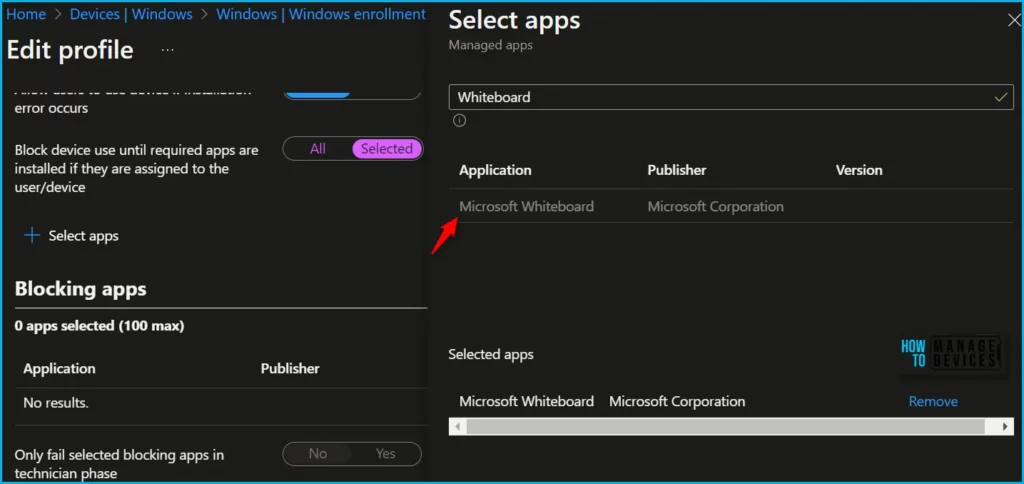
Configure by setting Block device use until these required apps are installed if they are assigned to the user/device to be Selected. Here you need to Select apps > choose the store apps > Select > Save.
Once the configuration option includes blocking device access until app installation is complete, this ensures that the user cannot access the desktop until the device is in the intended state.
Author
About Author – Jitesh, Microsoft MVP, has over six years of working experience in the IT Industry. He writes and shares his experiences related to Microsoft device management technologies and IT Infrastructure management. His primary focus is Windows 10/11 Deployment solution with Configuration Manager, Microsoft Deployment Toolkit (MDT), and Microsoft Intune.


Discussion