






Rename Administrator Account Policy Using Intune
Here we will learn how to create Rename Administrator Account Policy on workstations with the help of Intune. We will make use of configuration profiles from Intune to Rename Administrator Account on Windows 11 by creating a policy.
Local administrators are commonly targeted by attackers because of their well-known names. To avoid identifying this account as an administrative or elevated access account, it is recommended to choose another name. In the Computer Management console, modify the default description for the local administrator as well.
Every computer running Windows 2000 or a newer operating system has an Administrator account. If you rename this account, it is slightly more difficult for unauthorized persons to guess this privileged user name and password combination.
It is impossible to lock out the built-in Administrator account, no matter how many times an attacker may attempt to use a bad password. A brute force attack attempting to guess a password using the Administrator account becomes popular because of this capability.

Since this account has a well-known SID, the value of this countermeasure is diminished, and third-party tools allow authentication using the SID rather than the account name. By using the SID to log in, an attacker could launch a brute force attack even if you rename the Administrator account.
- Intune Windows 11 CIS Benchmarks is Available for Download Now
- Rename the Guest Account Name using Intune
Rename Administrator Account Policy Using Intune
Follow the steps stated below to create Rename Administrator Account Policy using Intune:
- Sign in to the Endpoint Manager Intune portal https://intune.microsoft.com/
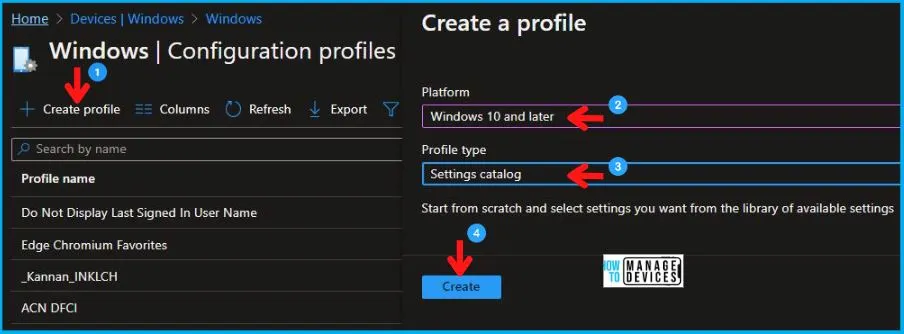
- Select Devices > Windows > Configuration profiles > Create a profile
In Create Profile, Select Windows 10 and later in Platform, and Select Profile Type as Settings catalog. Click on Create button.
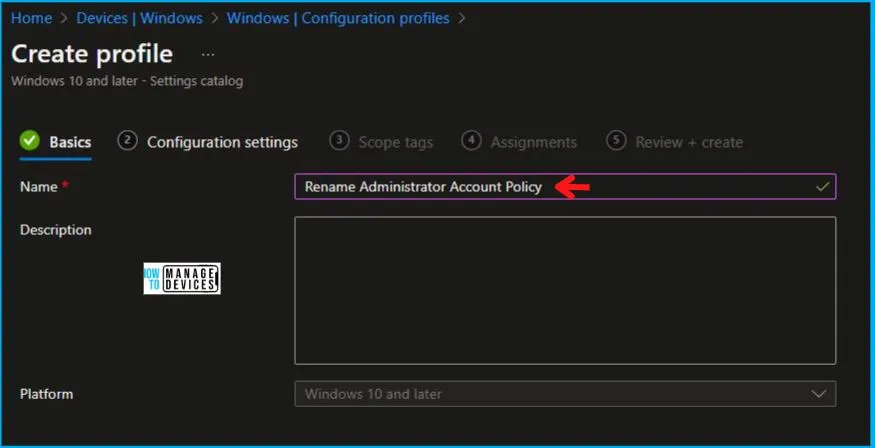
In the Basics tab pane, enter a name for the policy as Rename Administrator Account Policy Using Intune. If you like, you can enter the Description for the policy, then select Next.
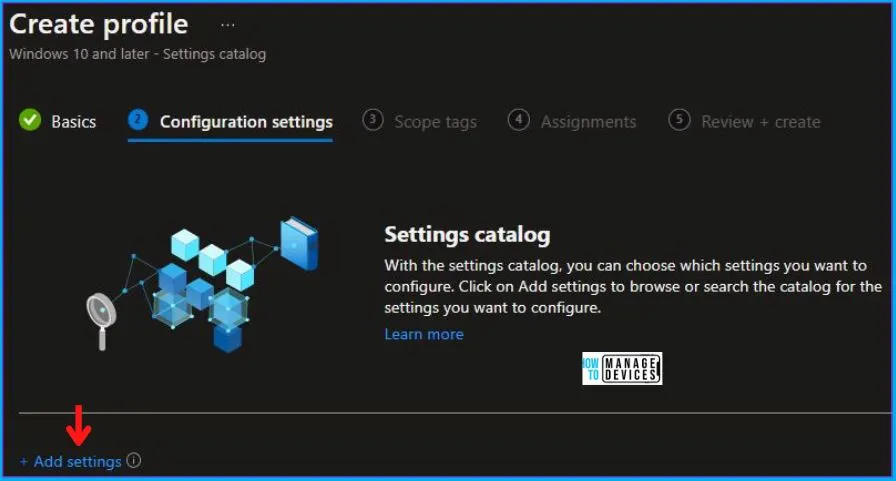
Now in Configuration settings, click Add settings to browse or search the catalog for the settings you want to configure.
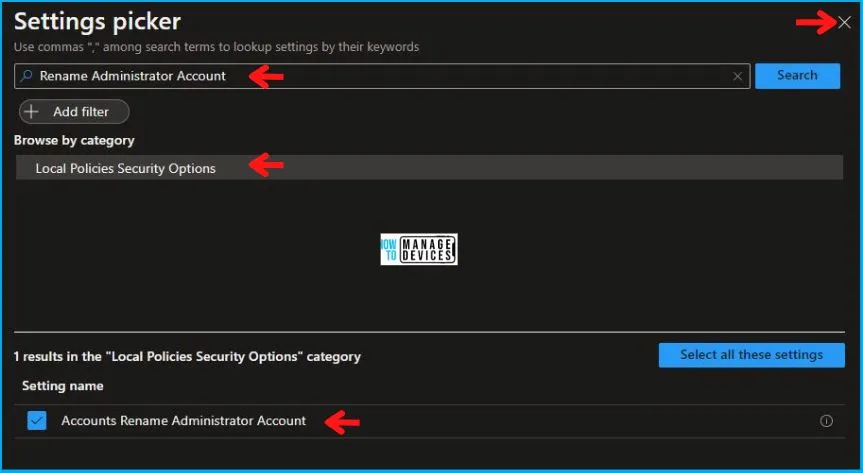
On the Settings Picker windows, if you search by the keyword Rename Administrator Account, you will see Local Policies Security Options, as shown below in the image. On selecting Local Policies Security Options, you will see one setting name, as shown below, and you need to select that which is Accounts Rename Administrator Account. After adding your setting, click the cross mark at the right-hand corner as shown below.
After this, in the Local Policies Security Options, enter the Administrator Account Name of your choice as shown below in the image.
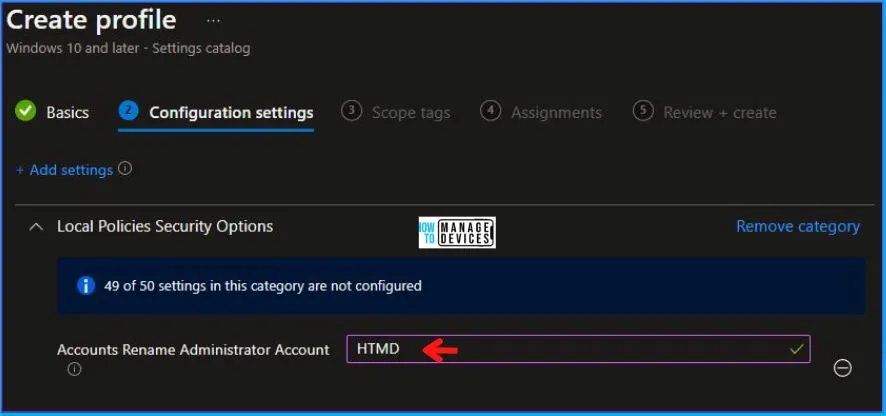
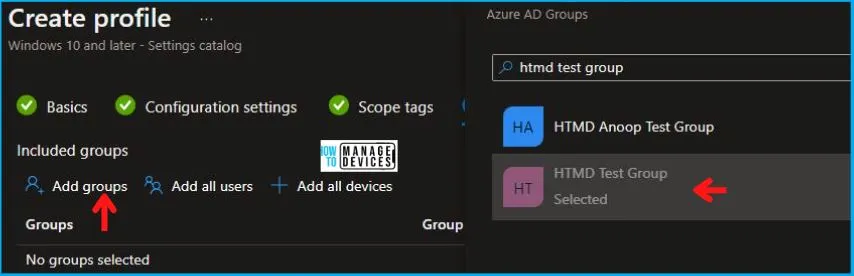
In Scope tags, you can assign a tag to filter the profile to specific IT groups. Add scope tags (if required) and click Next. Under Assignments, In Included groups, click Add groups, and then choose Select groups to include one or more groups. Click Next to continue.
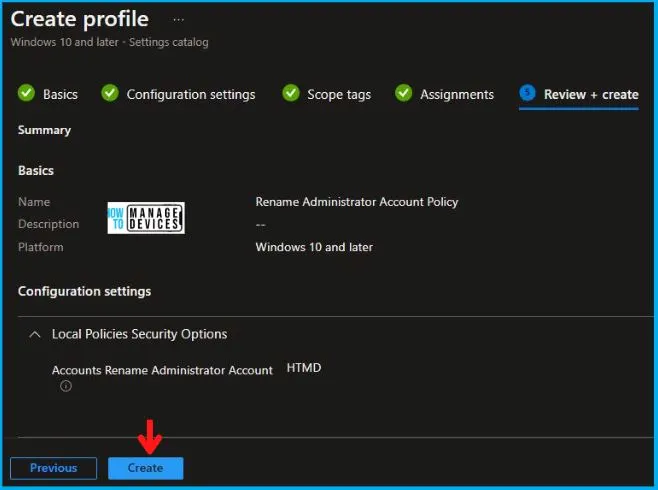
Now in Review + create, review your settings. When you click on Create, your changes are saved, and the profile is assigned.
A notification will appear automatically in the top right-hand corner with a message. You can see that Policy “Rename Administrator Account Policy” was created successfully. Now if you check, the policy is available in the Configuration profiles list.
Your groups will receive your profile settings when the devices check in with the Intune service the policy applies to the device.
Video Rename the Administrator Account Name using Intune
Let’s discuss Rename Administrator Account | Disable Administrator Account Status | Windows Security Policy Deployment using Intune in this video.
Intune Reporting
From Intune Portal, you can view the Intune settings catalog profile report, which provides an overview of device configuration policies and deployment status.
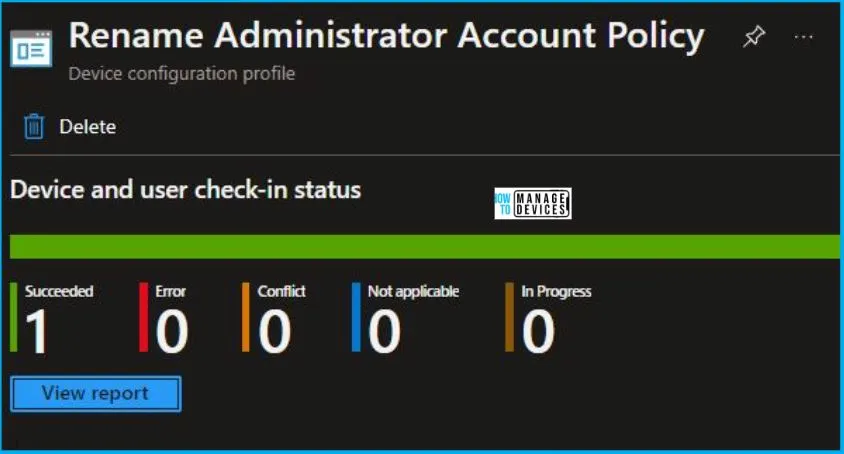
To monitor the policy assignment, from the list of Configuration Profiles, select the policy, and here you can check the device and user check-in status. If you click View Report, additional details are displayed.
Intune MDM Event Log
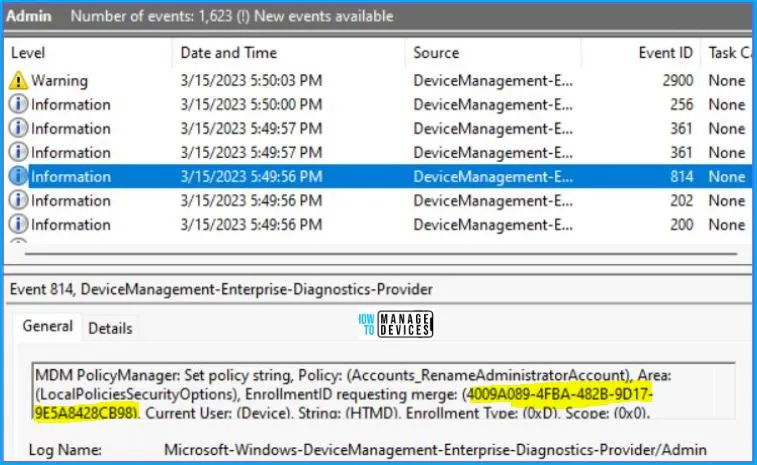
Intune event ID 814 indicates that a string policy has been applied to Windows 10 or 11 devices. In addition, you can view the exact value of the policy that is being applied to those devices –
You can check the Event log path to confirm this – Applications and Services Logs – Microsoft – Windows – Devicemanagement-Enterprise-Diagnostics-Provider – Admin.
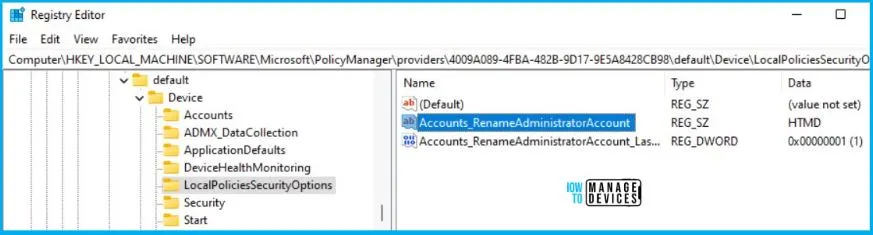
You can use REGEDIT.exe on a target computer to view the registry settings that store group policy settings. These settings are located at the registry path –
- Computer\HKEY_LOCAL_MACHINE\SOFTWARE\Microsoft\PolicyManager\providers\4009A089-4FBA-482B-9D17-9E5A8428CB98\default\Device\LocalPoliciesSecurityOptions
Author
Abhinav Rana is working as an SCCM Admin. He loves to help the community by sharing his knowledge. He is a B.Tech graduate in Information Technology.


Discussion