






Step-by-Step Guide Install Node.js with Intune Enterprise App Catalog App
This post will explain how to Install Node.js with Intune Enterprise App Catalog App. It aims to elucidate the process of adding Enterprise App Catalog Apps to Intune, configuring them, and deploying them to Windows devices.
The Enterprise App Catalog is an assemblage of pre-packaged Win32 applications specifically formulated and developed by Microsoft to facilitate the smooth functioning of Intune.
When you add any Enterprise App Catalog application, Intune auto-fills many details. For example, The Commands to install and uninstall the app, the application’s name, the App Version, the number of minutes the system will wait for the program’s installation to finish, the detection rule, etc.
Microsoft recommends using the pre-populated fields containing specific commands and regulations. However, you can modify the pre-populated fields if you want.

Intune Enterprise Application catalog can help you manage apps by providing simplified discovery, automated packaging and deployment, and updating outdated apps. The Intune App catalog gives admins a better experience in choosing and managing the application, language, and architecture they want to deploy.
You can request to add an application to the Enterprise App Catalog. If you aren’t already working with a Microsoft contact, fill out the form to request to add an application to the Enterprise App Catalog. Microsoft also hosts the applications in Microsoft storage.
- How to Deploy Microsoft Store for Business Apps using Intune
- Create and Deploy Python Applications with Intune Enterprise App Catalog App
- Install Zoom Client using Windows Enterprise App Catalog App with Intune
| Index |
|---|
| What is Node.js? Learn More About Node.js |
| Install Node.js with Intune Enterprise App Catalog App |
| Monitor Enterprise Application Catalog in Intune |
| End-User Experience |
What is Node.js? Learn More About Node.js
Node.js is an open-source, cross-platform, JavaScript runtime environment that executes JavaScript code outside a web browser. It’s designed to build scalable network applications and can handle many connections simultaneously, making it ideal for data-intensive real-time applications that run across distributed devices.

When we write a backend server and database, Node.js is a popular choice because we can run our code as a standalone application rather than something that can only be evaluated in a browser environment. Node.js uses the Google Chrome V8 JavaScript engine to execute code and has a vast library of modules available through the npm (node package manager), which can help quickly get a project off the ground.
Node.js allows us to use JavaScript everywhere and on any browser, including MacOS, Linux, and Windows. If you want to install Node.js manually, go to the Node.js site and download and install the files. The table below has some key features of Node.js.
| Feature | Description |
|---|---|
| Asynchronous and Event-Driven | All APIs of the Node.js library are asynchronous, meaning they are non-blocking. |
| Single-Threaded | Node.js uses a single-threaded model with event looping. |
| No Buffering | Node.js applications never buffer any data |
Install Node.js with Intune Enterprise App Catalog App
Let’s learn how to Install Node.js using the Intune Enterprise Application Catalog. To create an application in Intune, follow the below steps.
- Sign in to the Microsoft Intune Admin portal.
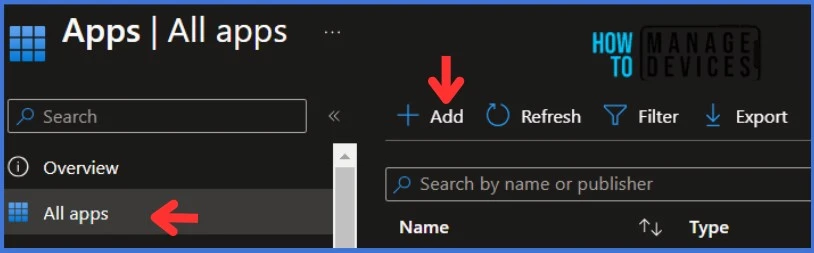
- Select Apps > All Apps> Add.
On the Select app type pane, select Enterprise App Catalog app Intune application type from the drop-down menu and click Select. After clicking the Select button, you will see a list of new apps from the Enterprise App Catalog.
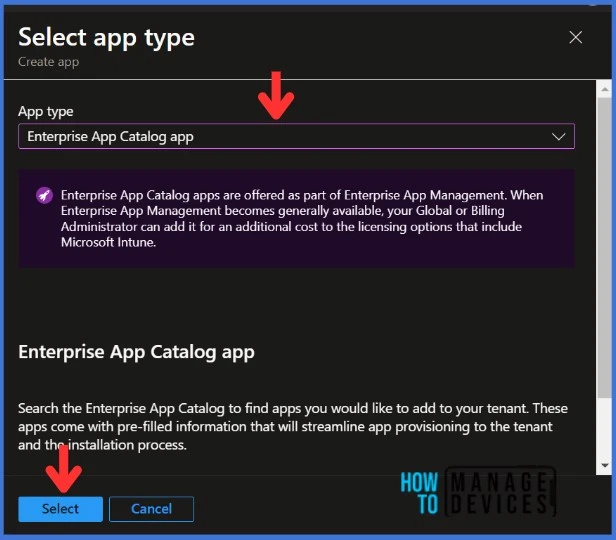
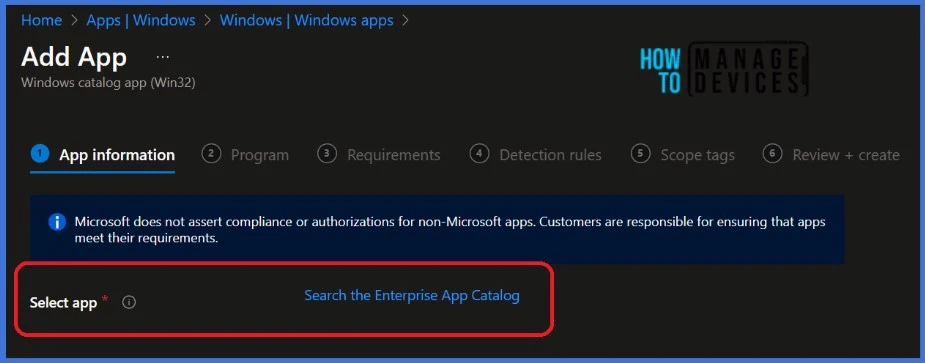
NOTE! Enterprise App Catalog apps are offered as part of Enterprise App Management. When Enterprise App Management becomes generally available, your Global or Billing Administrator can add it for an additional cost to the licensing options that include Microsoft Intune.Then, Click on the Search the Enterprise App Catalog link to display the search panel, which features a search bar.
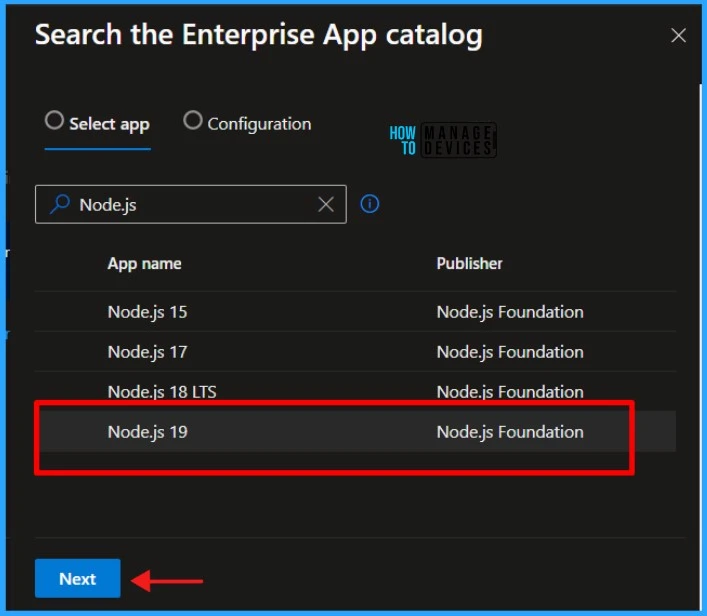
In the search bar, type the name of the application you want to install. In this example, I will search for Node.js and Select the latest version of Node.js. You can search for applications only by their names. Click Next to continue.
Once you click Next, a new window will ask you to Select the Configuration. Click Select to view the application details. The information related to the application is displayed along with the chosen app’s metadata.

You can modify the auto-filled data and add more details to the app’s metadata. Click Next to see the Program.
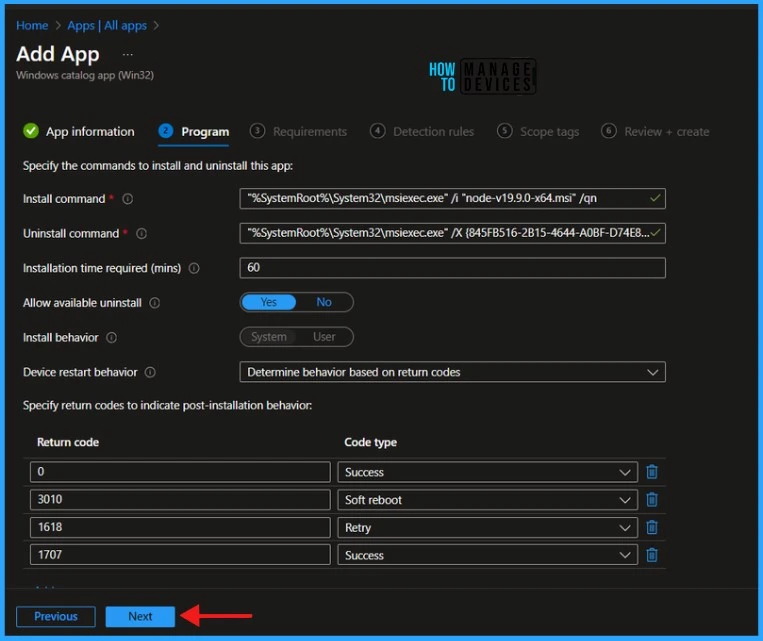
The Install command and Uninstall commands are auto-filled. There is no need to make any changes to it. The number of minutes the system will wait for the install program to finish is 60 minutes, set as the default value. Click Next to continue.
- Create and Deploy Python Application with Intune Enterprise App Catalog App
- Deploy Windows Catalog App type using Intune Enterprise Application Catalog.
- Microsoft Added New 160+ Apps on Intune Enterprise App Catalog
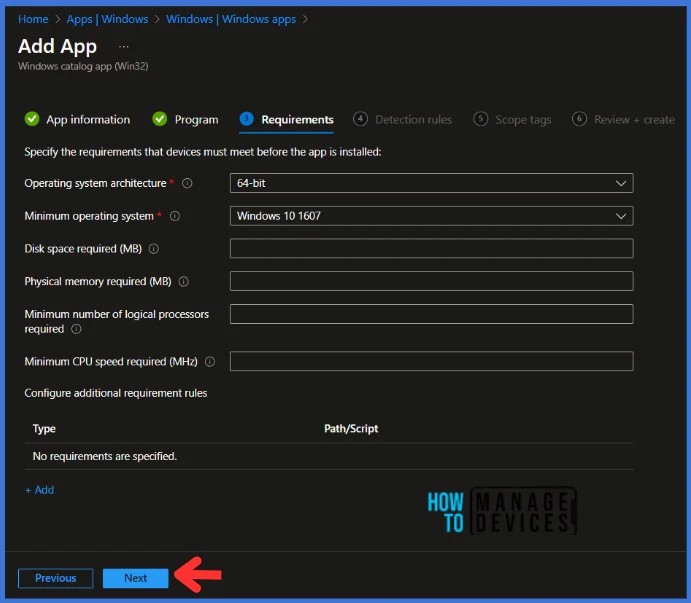
Specify the requirements that devices must meet before the app is installed. Click Next to continue.
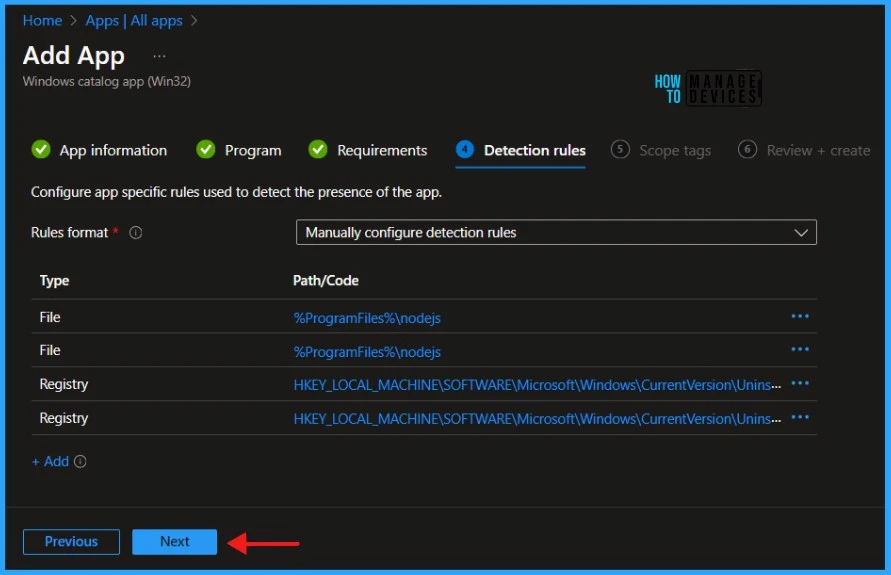
The Enterprise Application Catalog apps include predefined Detection Rules, one of the most critical and life-saving features. You can Add or Delete any defined Detection Rules. Click Next to display the Scope tags page. Add the Scope tags, and click Next to Review and Create the application.
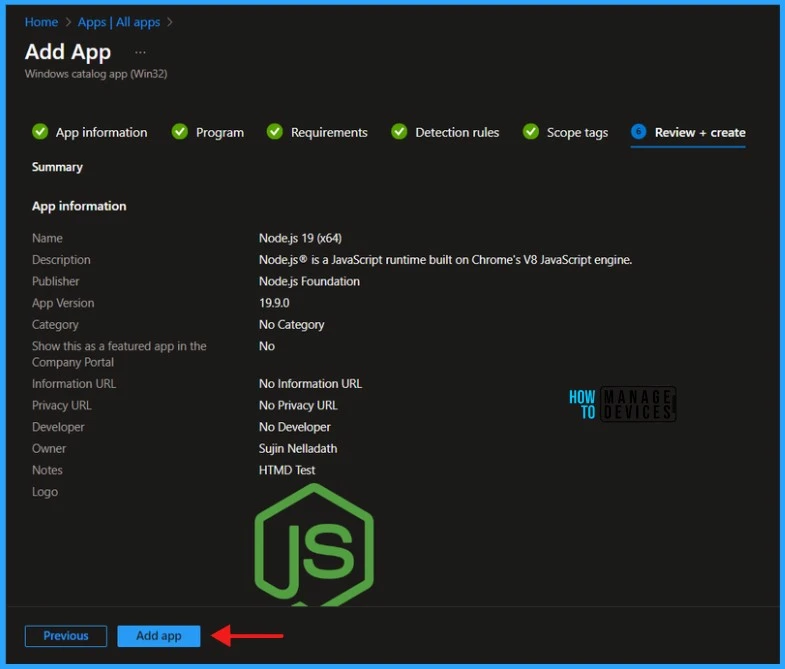
On the Review and Create tab, check the application settings and click on Add app. When you click on Add App, you will still receive this banner; the app is not ready. Microsoft provides you with the application and binary while you wait for the upload.

You must have noticed that the application has not been deployed to any groups. Let’s see how we can deploy the newly created application.
- Update 3rd Party Apps using Intune Windows Catalog App
- Block Windows Registry Access using Intune Settings Catalog
After preparing the Node.js application, select Properties and edit the assignment. From the application properties, you can deploy it to groups. I will deploy it to the HTMD – Test Computers Group.

Monitor Enterprise Application Catalog in Intune
The latest version of Node.js is deployed to Microsoft Entra ID groups. Since it’s deployed in Required mode, the installation should occur on the client device as soon as possible.
- Integrate Power BI with Intune and Create Reports using Power BI
- Intune Managing OneDrive File Downloads For Low Disk Space
The installation status can be monitored from the Intune portal. Let’s see how to monitor the deployment and status of the installation from the Intune portal.
- Select Apps > All Apps and enter the application’s name in the search bar.
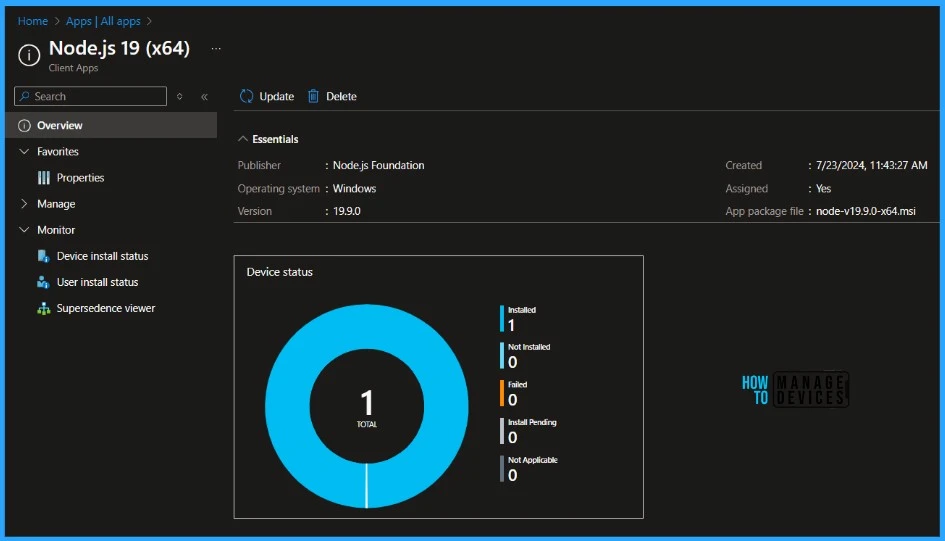
The Intune portal displays the recently created application. Select the desired application and click Overview. You can view a detailed report of recent app deployments, including whether the app is Installed, Not Installed, Failed, Install Pending or Not Applicable.
End-User Experience
The Node.js will be automatically installed after it is deployed to workstations since it was marked as a required deployment. You may wonder how to monitor the deployment from the client side.
- 6 Exciting Features Coming to Intune Enterprise App Management
- Guidelines for Installing Microsoft PC Manager from New Microsoft Store in Intune
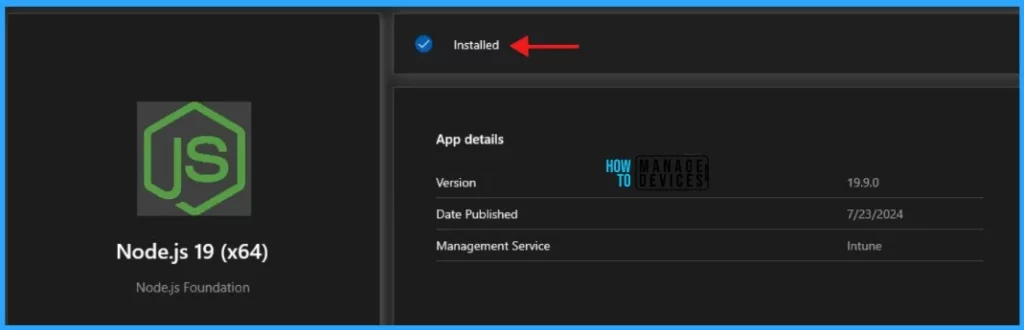
Open the Company Portal on the workstation and navigate to Download & Updates. You can see the Node.js application as installed.
Thank you for being so patient in reading this post. I look forward to seeing you in the next post. Keep supporting the HTMD Community.
We are on WhatsApp now. To get the latest step-by-step guides, news, and updates, Join our Channel. Click here. HTMD WhatsApp.
Author
About Author – Sujin Nelladath has over 10 years of experience in SCCM device management and Automation solutions. He writes and shares his experiences related to Microsoft device management technologies, Azure, and PowerShell automation.


Discussion