






Configure Intune RBAC Role for macOS FileVault Recovery Key
Let’s learn how you can configure Intune RBAC Role for macOS FileVault Recovery Key in Intune and manage the permissions and actions of helpdesk associates to check recovery key. Remote actions empower helpdesks to support users devices more securely.
The FileVault encryption profile includes FileVault settings for organizations to control on company-enrolled macOS devices, which can be created either navigate to the Configuration profiles or Endpoint security inside the Intune Admin portal.
Role-based access control (RBAC) enables Intune Administrators to manage and regulate the permissions granted to individuals for different Intune tasks within your organization. You can also leverage the role-based access controls for remote help in Intune.
By leveraging these permissions, admins can control remote activities precisely, ensuring security and aligning with organizational requirements. If none of these roles aligns with your requirements, you can create custom Intune roles tailored to your scenario.

- Configure FileVault Encryption For MacOS Devices Using Intune
- Types Of MacOS Enrolment Methods In Microsoft Intune
Configure Intune RBAC Role for macOS FileVault Recovery Key
The following steps help you configure Intune RBAC Role for macOS FileVault Recovery Key, You can perform restart, Sync, Collect Diagnostics and more by using remote actions from the Intune portal. The remote action would differ based on the Platform. Also, you may require additional roles for the remote action.
- Sign in to the Microsoft Intune admin center https://intune.microsoft.com/.
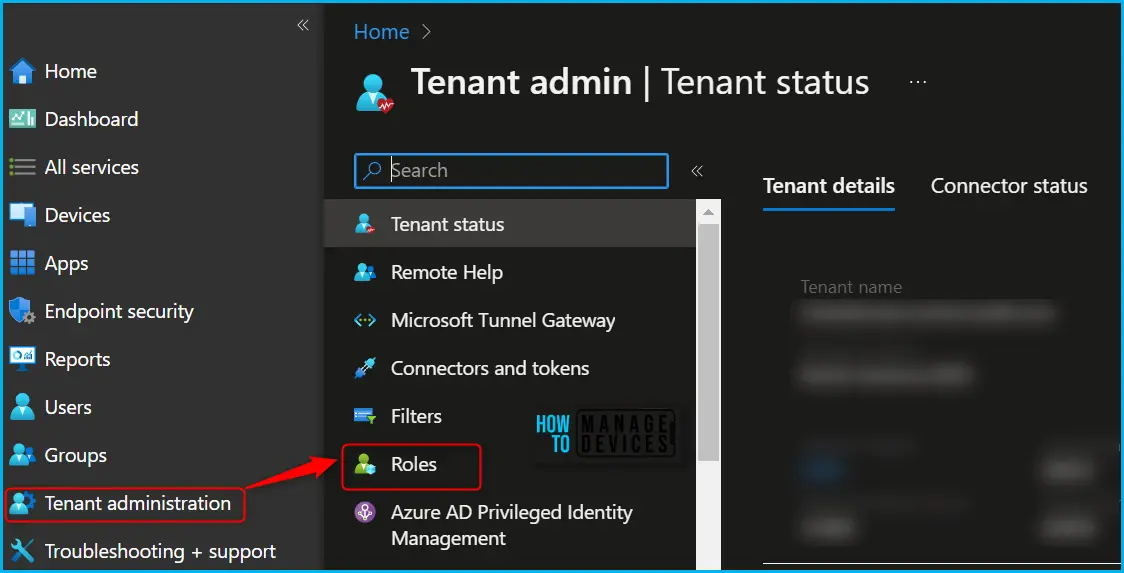
- Navigate to Tenant administration > Roles.
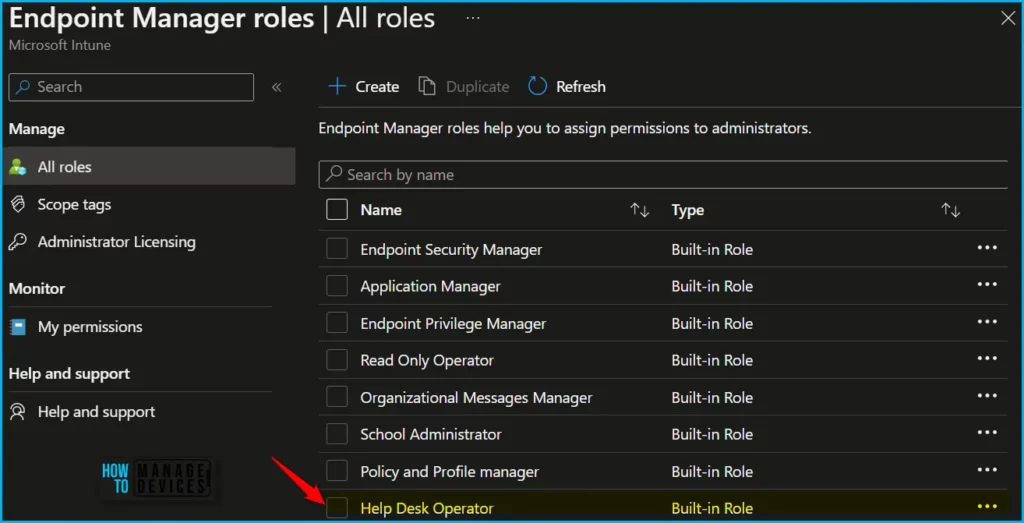
In the All roles, you will find all the built-in roles, and created custom roles available in the tenant. The Help Desk Operator, and Endpoint security manager built-in role can retrieve FileVault key on devices. The following are the FileVault permissions, which are part of the Remote tasks category, and the built-in RBAC roles that grant the permission:
- Get FileVault key:
- Help Desk Operator
- Endpoint security manager
- Rotate FileVault key
- Help Desk Operator
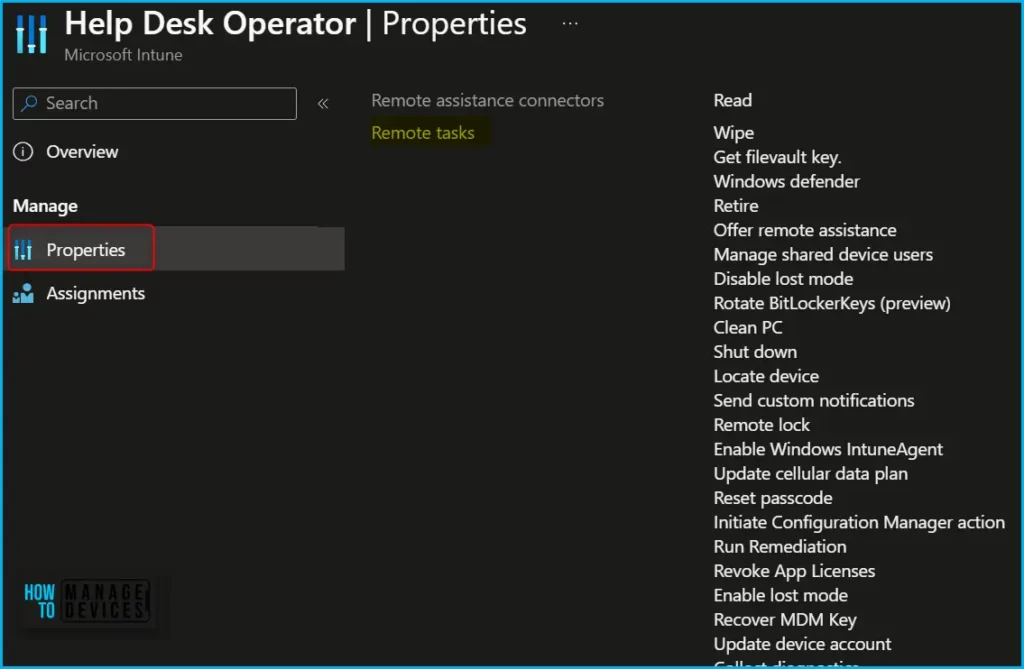
By default, the built-in Help Desk Operator role sets all these permissions to Yes. You can use the built-in role or create custom roles to grant only the remote tasks permissions you want different user groups to have.
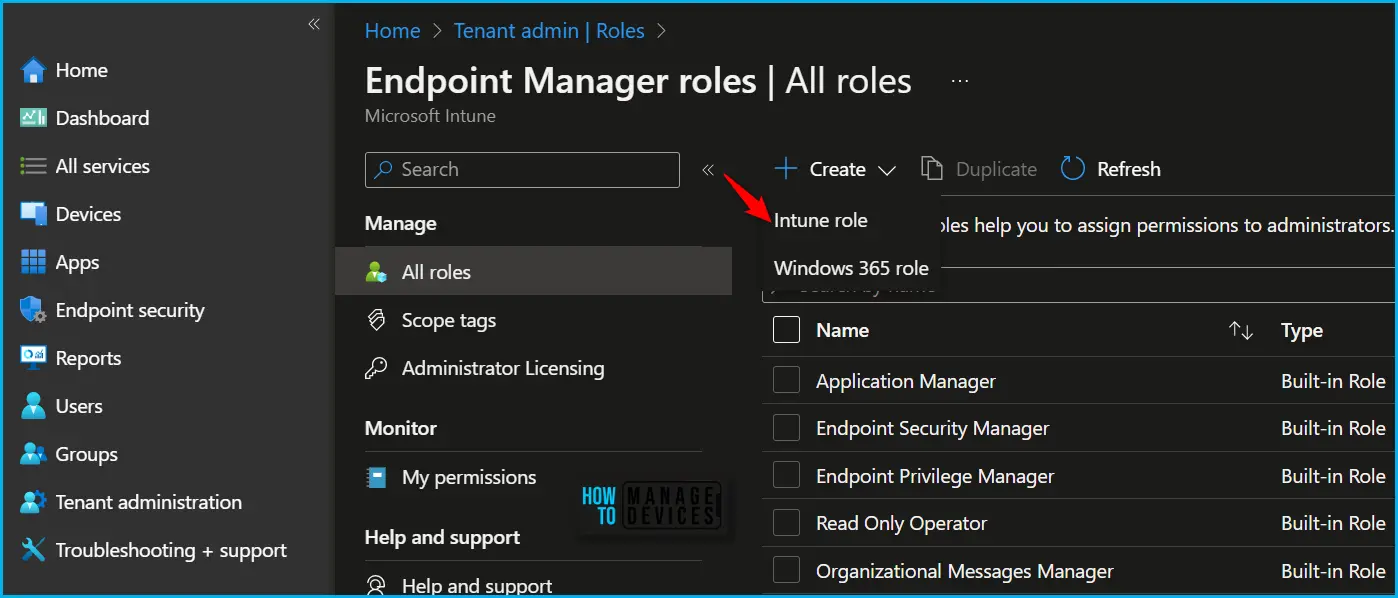
In Endpoint Manager All roles, Click on Create and select Intune role from the options to create a custom Intune role to run remote actions in Intune for the managed devices.
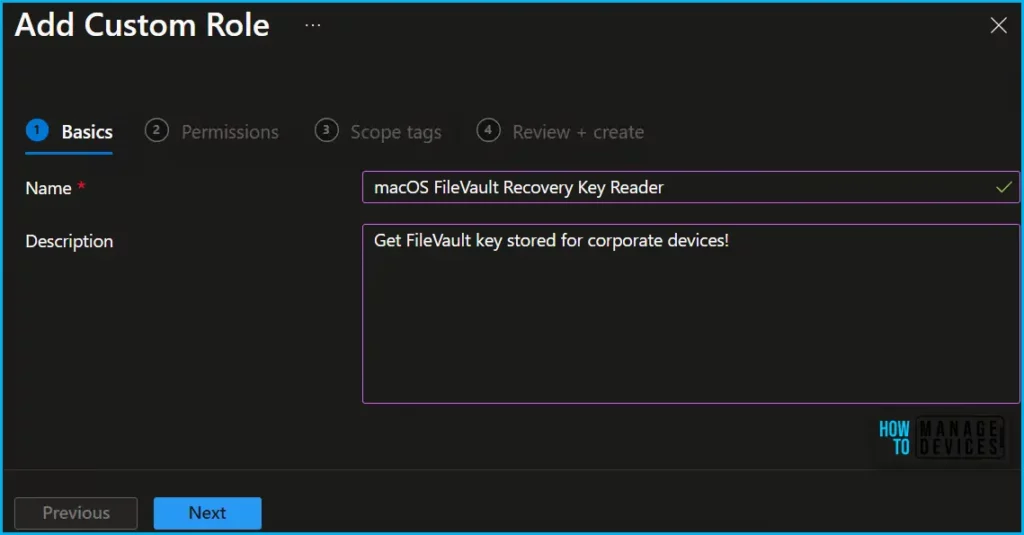
On the Basics page, enter a name and description for the custom role, then choose Next. To modify the roles associated with a particular category, navigate to the “Permissions” page.
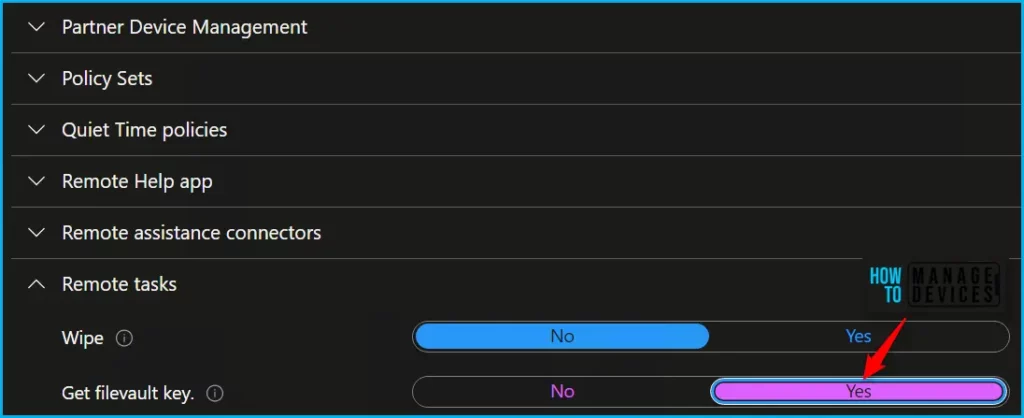
When creating custom roles, you can enable the relevant permissions by selecting “Remote tasks” and toggling the switch to “Yes” to select the appropriate roles.
The following Intune RBAC permissions manage the use of the Remote Help app. Set the Get FileVault key or Rotate FileVault key to Yes to grant the permission:
| Permission | Descriptions |
|---|---|
| Remote tasks/Get filevault key. | Get Mac FileVault key. |
| Remote tasks/Rotate filevault key. | Rotate Mac FileVault key. |
Once the roles are created, You can duplicate built-in roles to create, edit, or assign Intune roles. Here’s how you can duplicate Intune RBAC Roles. You can assign a built-in or custom role to an Intune user, choose the created role you want to assign > Assignments > + Assign.
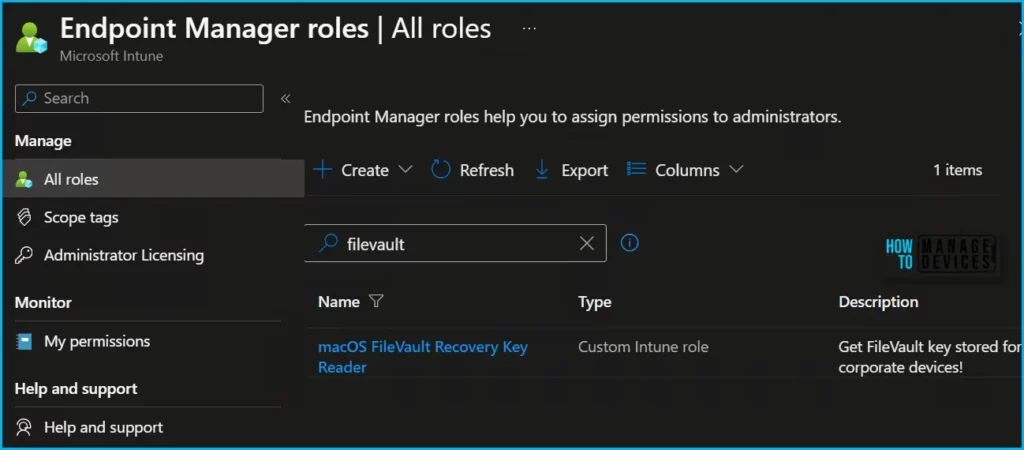
Find macOS Recovery Key in Intune Portal
FileVault recovery key is required to help ensure that only an authorized person can unlock your macOS and restore access to your encrypted data. Ensure the FileVault is activated on macOS, How can you get the recovery key?
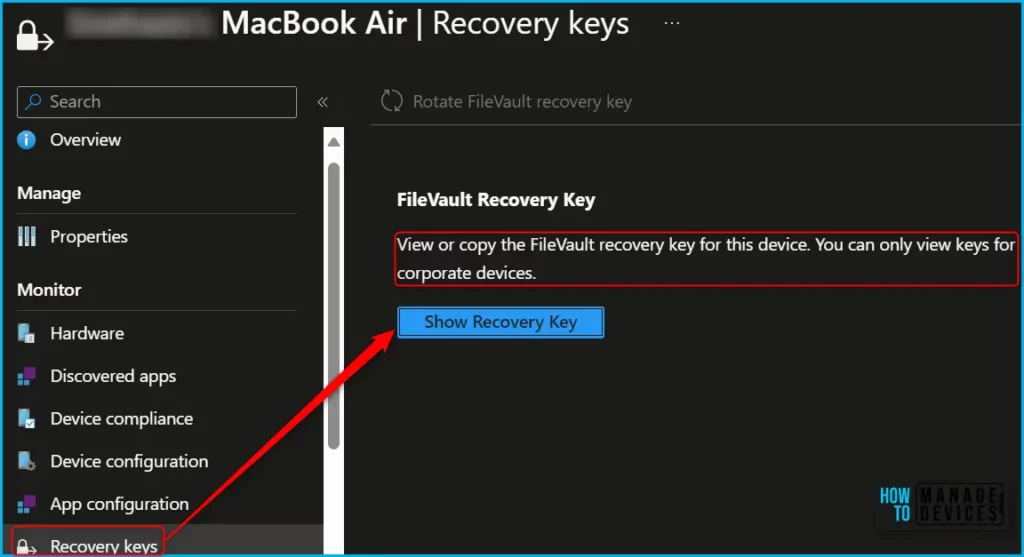
You can access the recovery key of the macOS device registered as corporate owned in Intune. Here’s how you can access the keys for the device..
- Sign in to the Microsoft Intune admin center https://Intune.microsoft.com/.
- Choose Devices > All devices and select the device from the list. For Example, I selected the macOS device.
We are on WhatsApp. To get the latest step-by-step guides and news updates, Join our Channel. Click here –HTMD WhatsApp.
Author
About Author – Jitesh, Microsoft MVP, has over six years of working experience in the IT Industry. He writes and shares his experiences related to Microsoft device management technologies and IT Infrastructure management. His primary focus is Windows 10/11 Deployment solution with Configuration Manager, Microsoft Deployment Toolkit (MDT), and Microsoft Intune.


Discussion