






How to Repair Reset Microsoft Edge in Windows
Let’s learn How to Repair Reset Microsoft Edge in Windows. This is an important feature. It helps you to solve problems on Microsoft Edge while working on loading issues. This advanced feature allows your Edge browser to work smoothly.
The Reset option clears your computer’s errors and manages it in a controlled manner. Your Microsoft Edge is not working correctly; repair and reset help you to perform your PC accurately without any issues.
The Repair and Reset option solves all the problems when working on the computer. If the laptop faces a running issue, repair and reset is the best choice to recover it. If you reset the computer, you can lose some tabs and favourites.
This post discusses how to repair and reset Microsoft Edge in Windows. You can solve all the problems of Microsoft Edge with the repair and reset option. This post will help you to solve your problem immediately in Edge.

What are the Advantages of Repair Reset options in Microsoft Edge?
1. It helps to clear cache and browsing data
2. It is used to disable unnecessary extensions
3. It helps to keep Microsoft Edge up to date
4. It helps to boost speed
5. It recovers the loading issue
How to Repair Reset Microsoft Edge in Windows
You can easily apply the repair option in your browser. For this, click on the start button on your Windows 11 PC. Then click on the Settings application.
| Repair and Reset | It Used to |
|---|---|
| Repair | It helps to repair the application; it isn’t working right, and the app’s data won’t be affected |
| Reset | It helps reset the application; if it isn’t working right, the app’s data will be deleted. |
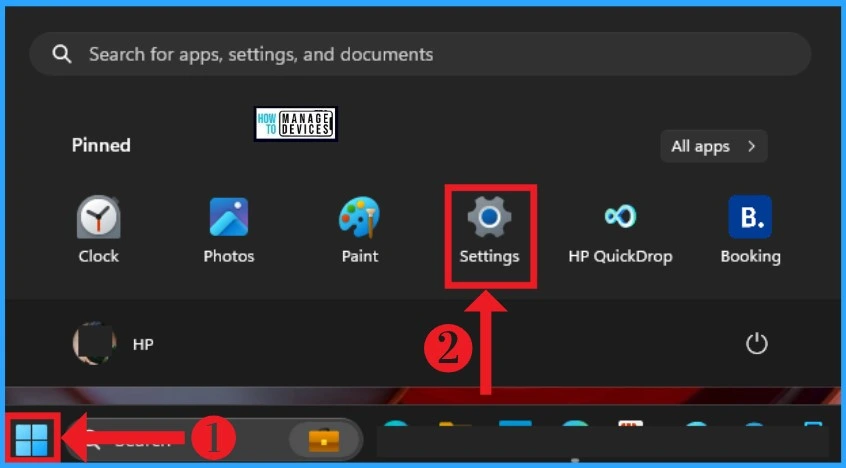
After that, click on the Apps section on the Settings. Here, you can see the different App settings. Then click on the Installed Apps option in the Apps section.
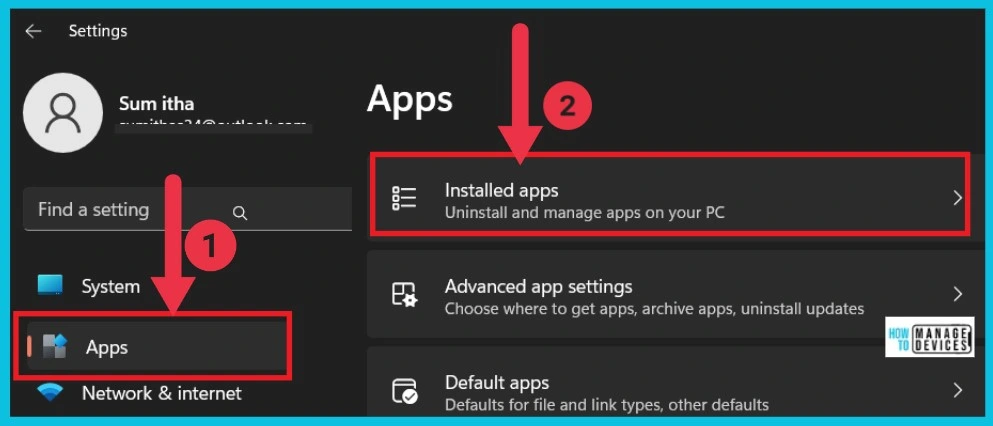
All installed apps are shown under the installed Apps option. Select Microsoft Edge and click the 3 dots on the right side. Select modify from it.
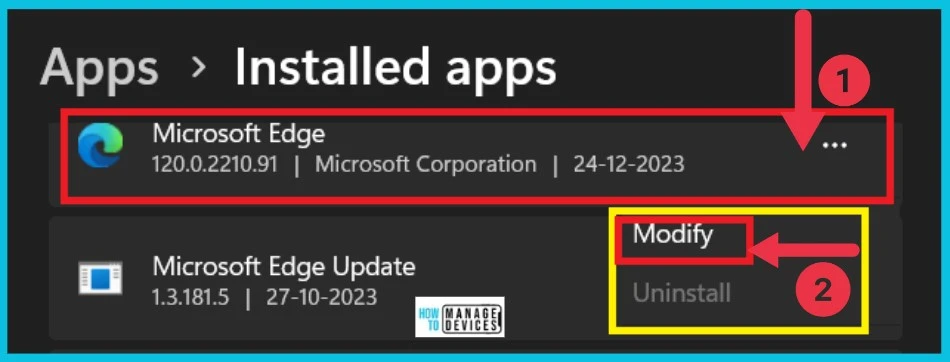
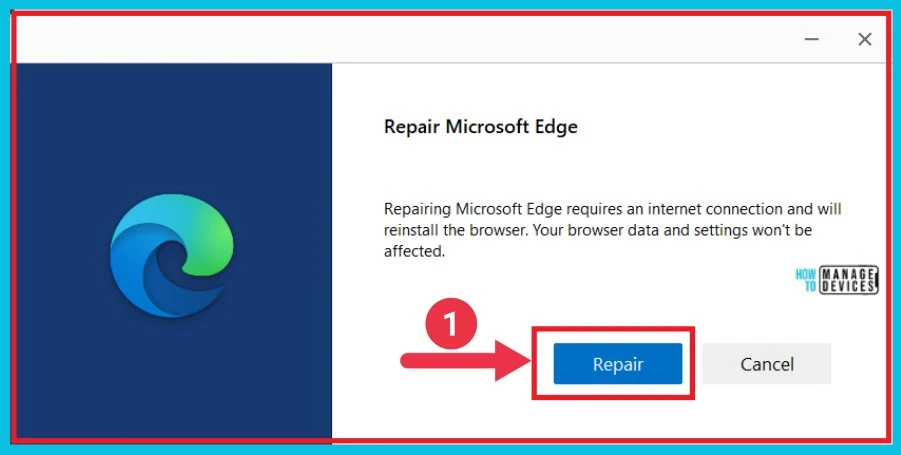
After clicking the modify option, You can get a window of Repair. Repairing Microsoft Edge requires an internet connection and will reinstall the browser. Your browser data and settings won’t be affected.
- Click on the Repair option
- How to Repair Reset Power Automate in Windows
- Enable Disable Website Typo Protection in Edge Browser
How to Reset Microsoft Edge on Windows
Resetting Microsoft Edge is very easy. There are different methods used for resetting the Edge. Microsoft Edge brings several new features. Reset is a vital feature to overcome the running issue. The following steps are used for reset.
- Click Start Button
- Select Microsoft Edge from it
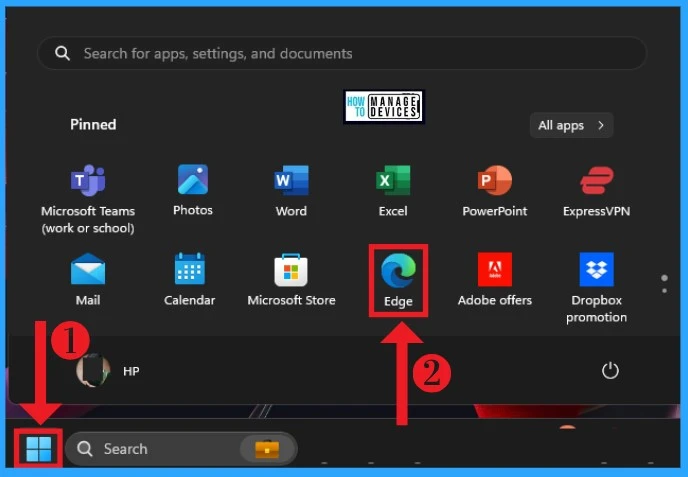
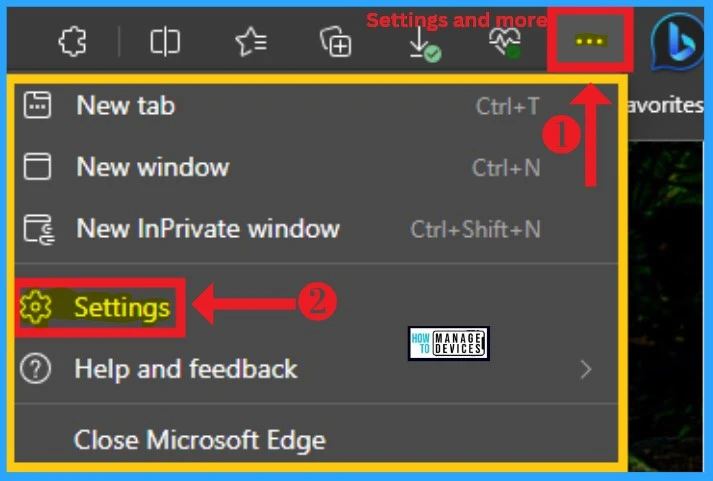
After selecting Microsoft Edge, Click the 3 dots on the right side of the edge (settings and more). Select settings options from the below window.
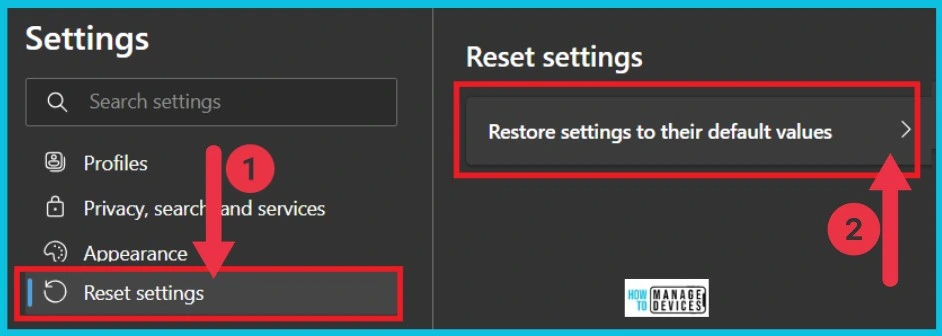
Here, you can click the Reset settings from the Settings menu. Select the Restore settings to their default values on the right side to continue.
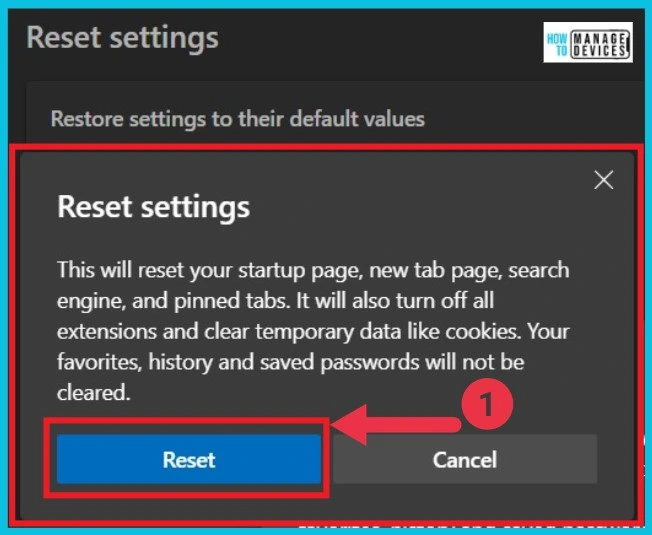
Here, you can see a confirmation box. This section shows a warning if you choose the reset option. “This will reset your startup page, new tab page, search engine, and pinned tabs. It will also turn off all extensions and clear temporary data like cookies. Your favourites, history and saved passwords will not be cleared.’
- Click the Reset button from the below Reset Settings window
Using PowerShell to Reset Microsoft Edge
Powershell is the command-line task automation and configuration management program from Microsoft. You can easily Reset Microsoft Edge via PowerShell. Take Powershell through the start menu.
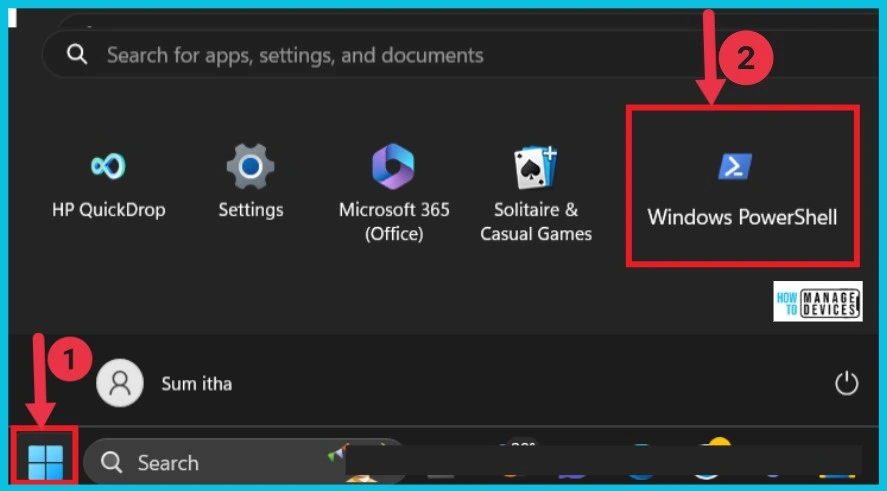
When you open the PowerShell, you can see a commanding option screen in the screenshot below. You can easily reset Microsoft Edge with PowerShell.
Windows PowerShell
Copyright (C) microsoft Corporation. All rights reserved.

Install the latest PowerShell for new features and improvements! https://aka.ms/PSWindows

PS C:\Users\sumit>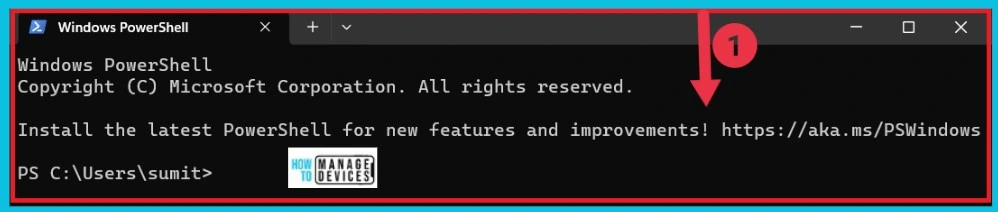
Type the below command and click Enter. Wait a few minutes to finish, close the PowerShell window, and reboot your PC. The edge will reset to its settings.
PS C:\Users\sumit>Get-AppXPackage -AllUsers -Name Microsoft.MicrosoftEdge | Foreach {Add-AppxPackage -DisableDevelopmentMode -Register "$($_.InstallLocation)\AppXManifest.xml" -Verbose}.
Resetting Edge with Run Command
Microsoft Edge can be easily reset with Run Command on a Windows PC. This is the following method for Resetting Edge.
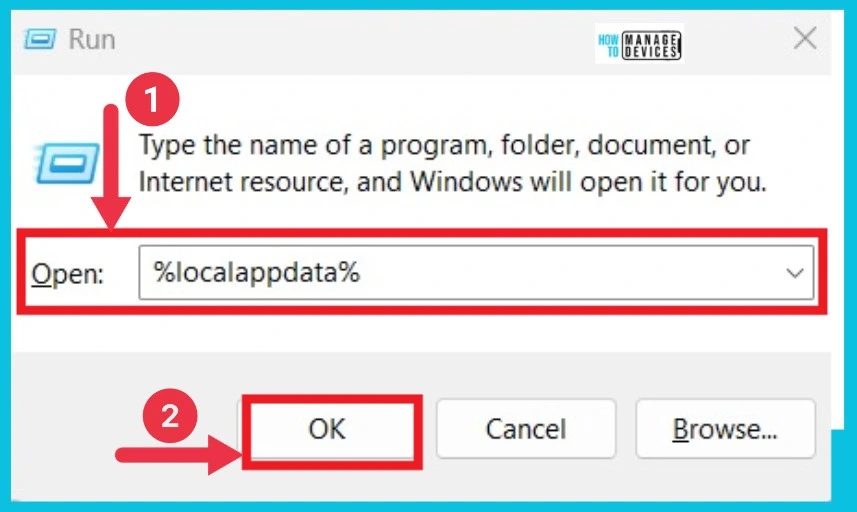
- Press Windows Key +R to open Run Command
- Type %localappdata% in the open box, then click OK
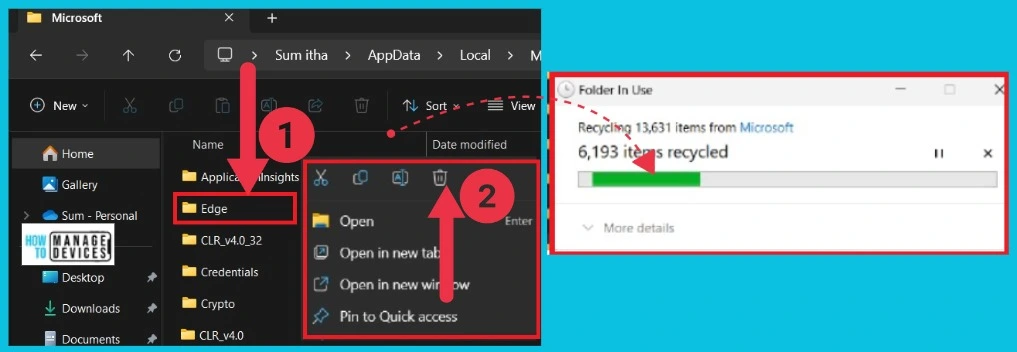
Now here opens a window, the folder named Local. It includes all folders on your PC. Click the Microsoft file folder in it.
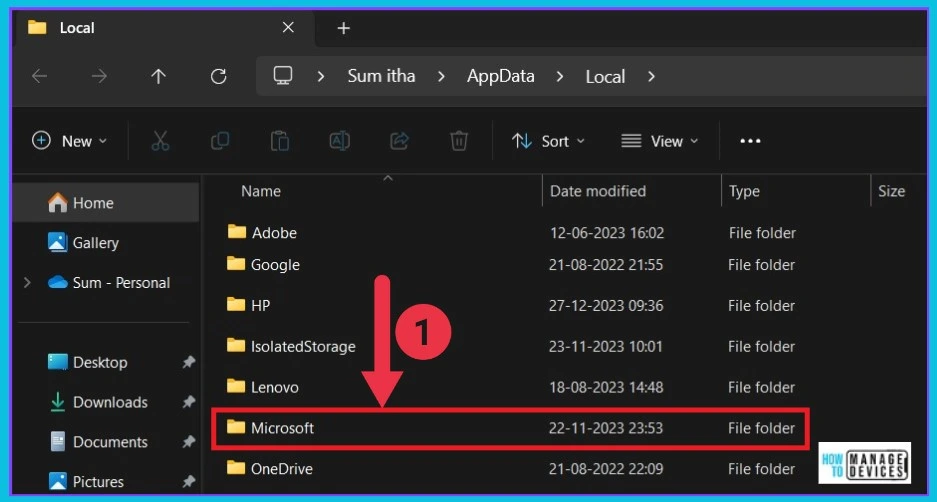
After opening the Microsoft file folder, you can see the Edge folder. Right-click on it; different options are seen here. Click the delete button to delete the Edge folder. Now you can see a small pop-up window deleting the files. Then check whether the Edge browser has completely reset or not.
We are on WhatsApp. To get the latest step-by-step guides and news updates, Join our Channel. Click here for HTMD WhatsApp.
Author
Sumitha was introduced to the world of computers when she was very young. She loves to help users with their Windows 11 and related queries. She is here to share quick news, tips and tricks with Windows security.




Discussion