






Let’s discuss how to use Intune Remote Assistance for Windows Devices. Using Intune Remote Assistance for Windows Devices is a straightforward process. It allows you to provide remote support to users.
To begin, initiate the remote assistance session through the Intune portal on your device. This will start a notification to the user whose device you intend to assist. Once the user accepts the request, you can view their screen and, if necessary, take control of their device.
This feature helps troubleshoot or guide users through various tasks. The system also supports devices that haven’t been officially registered, ensuring flexibility. Strong authentication measures, including proof of identity for the helper and the user sharing their screen, are implemented for added security.
Intune Remote Assistance is available for macOS devices. This feature allows users to provide remote support efficiently. With Intune, users can initiate assistance sessions directly from their MacOS device.

- MS Intune Remotely Access Windows Devices Without User Interaction Using Unattended Remote Help
- Configure Solicited Remote Assistance Policy using Intune
- Remote Help for Android in Intune for Enhancing Support and Troubleshooting Coming Soon
- Configure Offer Remote Assistance Policy using Intune
What is Attended Screen Sharing and Attended Full Control in Intune Remote Assistance?
Attended screen sharing allows a helper to view the user’s screen, while attended full control permits the helper to take control of the user’s device, aiding in troubleshooting or guidance.
How to Use Intune Remote Assistance for Windows Devices
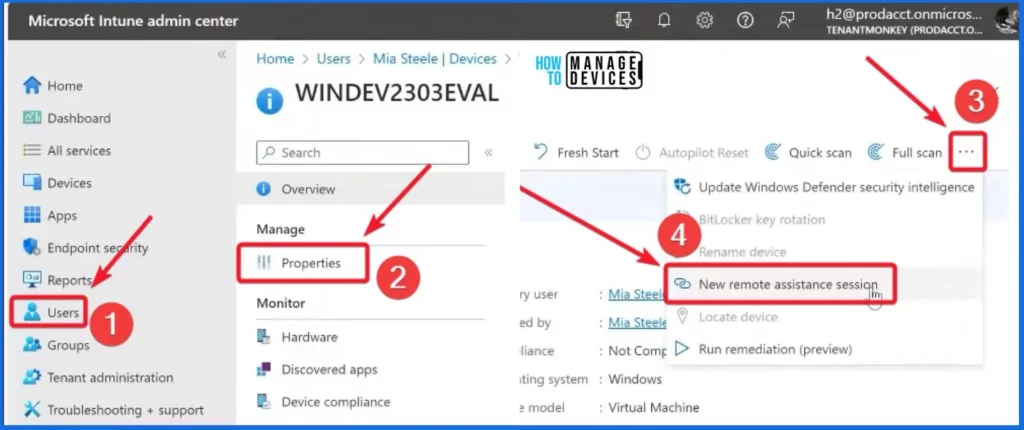
Sign in to the Intune Admin Center portal. Select the Users tab on the left side of the Intune admin center. Select one of the users and then click the Properties tab. Select the New remote assistance session from the below 3 dots menu.
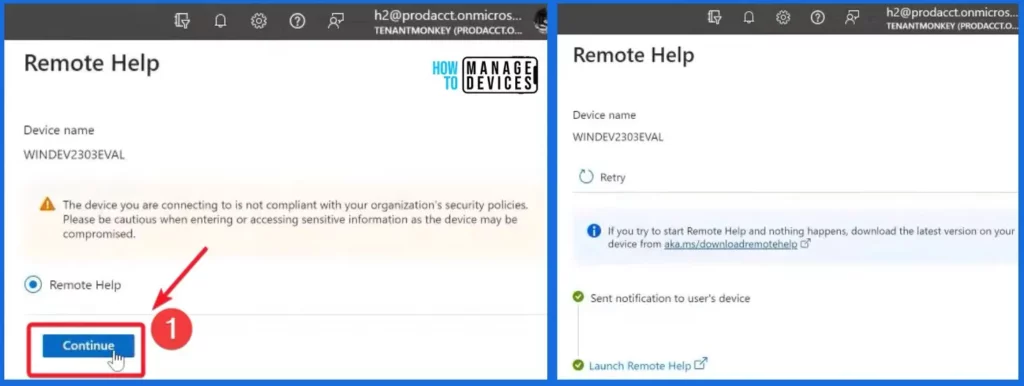
After selecting the New remote assistance session, the Remote Help window below will appear. Select Remote Help and click Continue from the first window. The 2nd window helps you to show that the send notification is sent to the user’s device.
Note! If you try to start Remote Help and nothing happens, download the latest version on your device from aka.ms/downloadremotehelp.
To start a Remote help session, the helper uses a tool in Intune on their device. The person they are helping gets a notification and can decide if they want to allow the help. For security, there is a solid way to prove who the helper and the person sharing their screen are.
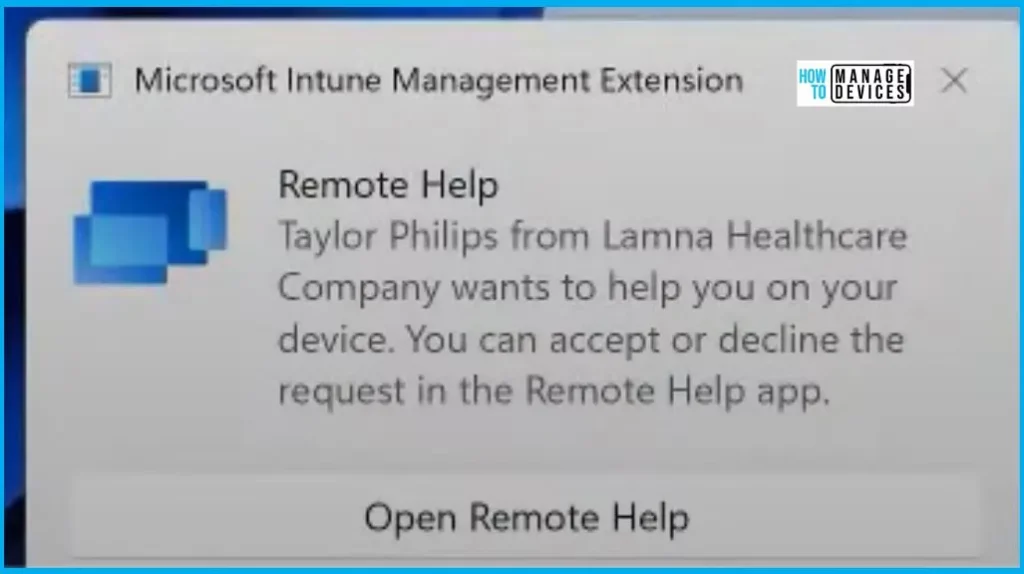
- The screenshot below shows the Remote help notification
- Taylor Philips from Lamna Healthcare Company wants to help you with your device. You can accept or decline the request in the Remote Help app
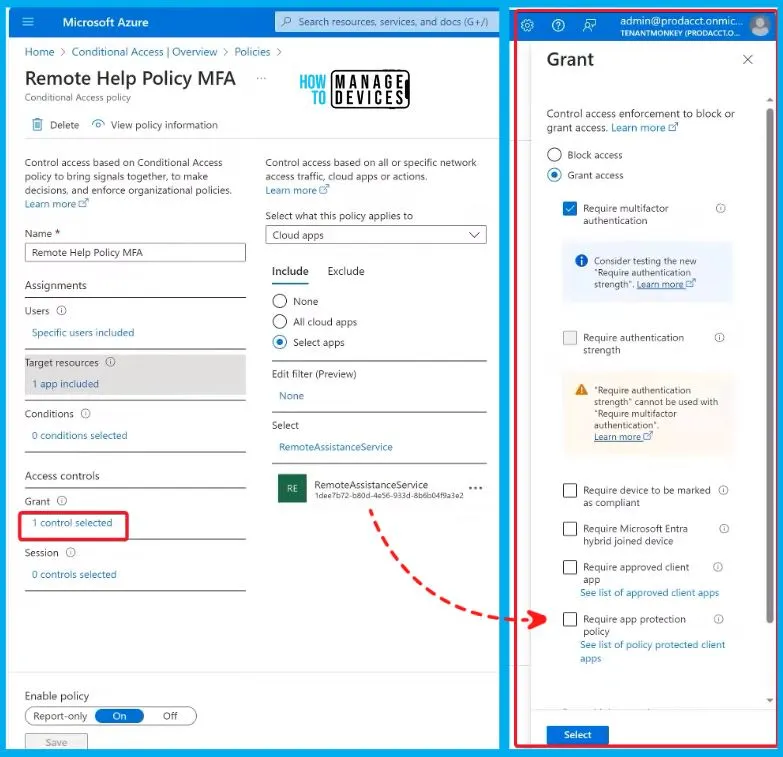
To prevent an attacker from using credentials to view and access devices in an organisation. Setting up a special rule called a conditional Access Policy is essential. Control access based on conditional access policy to bring signals together, make decisions and enforce organizational policies.
- Choose the “Control selected” option from the screenshot below
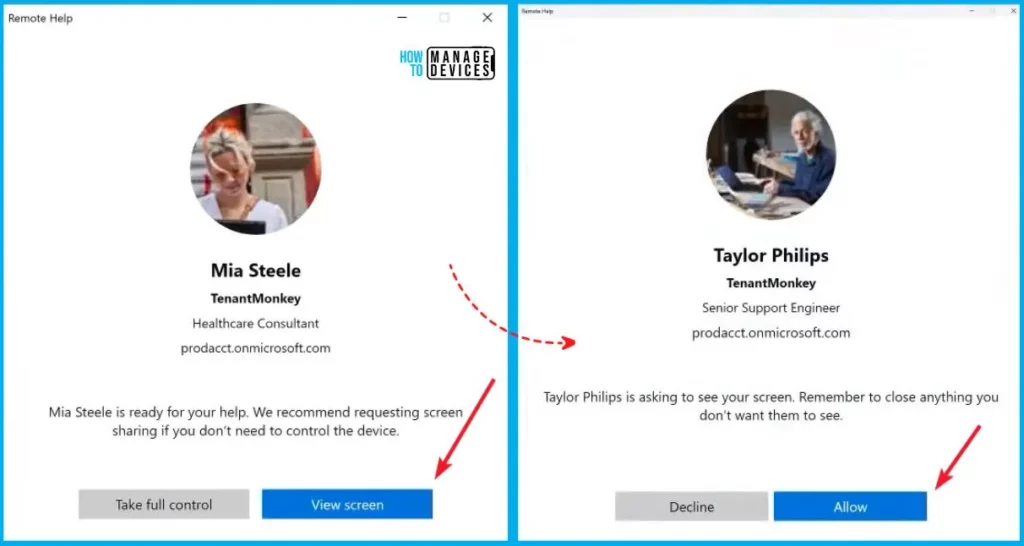
In the Remote Help window, you can easily view important information about the person assisting you, including their name, profile picture, job title, and domain verification. Click on the “View screen” button in the first screenshot.
The person helping you will also see similar details about you and will request to view your screen. To proceed, click the “Allow” button, permitting them to view your screen. This simple process ensures a smooth and secure remote assistance experience.
| Users | Helper |
|---|---|
| Mia Steele | Taylor Philips |
| Allow | View Screen |
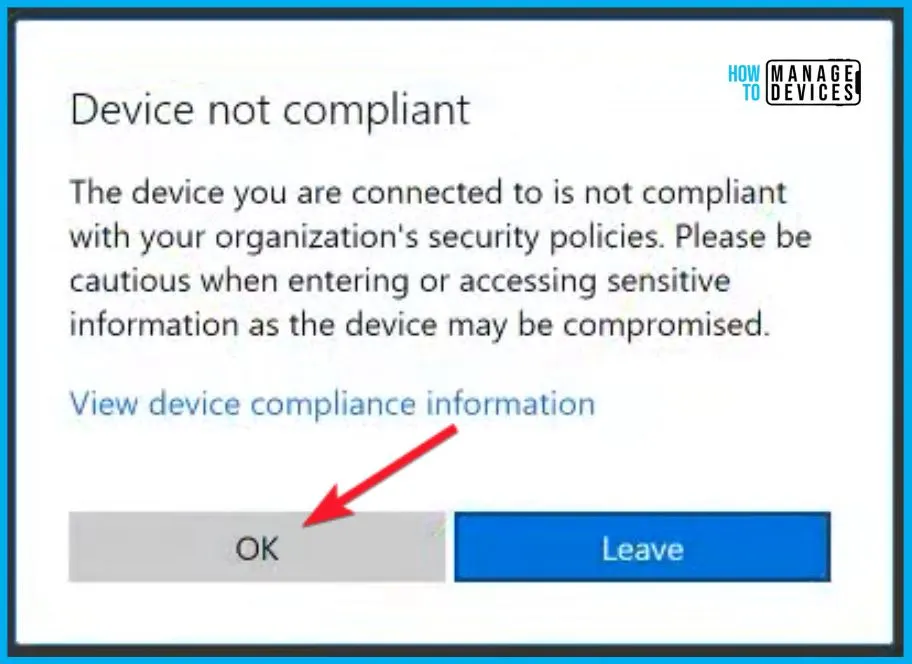
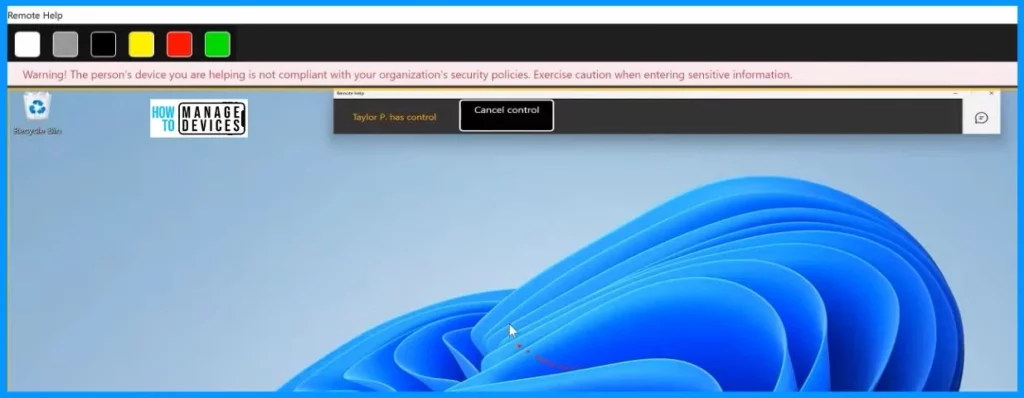
The device you are connected to violates your organization’s security policies. Please be cautious when entering or accessing sensitive information, as the device may be compromised.
- Select the OK button from the screenshot below
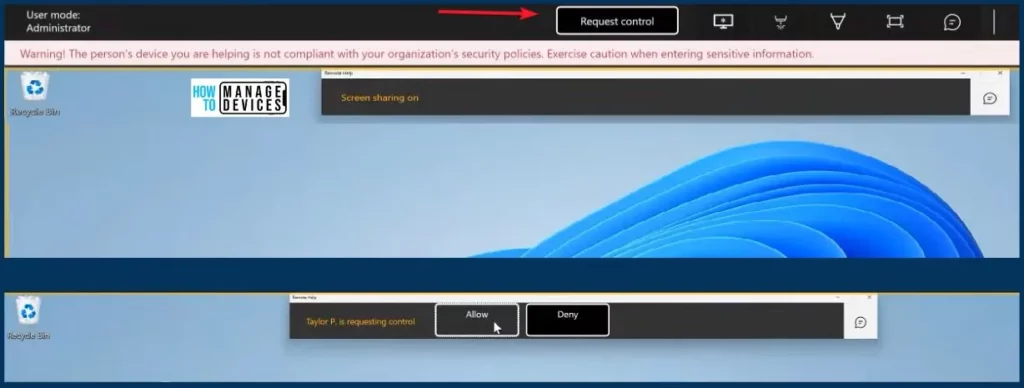
Once the sharer and the helper are in a screen-sharing session, the helper might find it insufficient to troubleshoot the issue effectively. In such cases, the helper can request a full control session to assist better.
When this request is made, the sharer receives a notification and clicks “Allow” to grant the helper full control over the device. This switch to a complete control session ensures a more comprehensive and efficient troubleshooting process, allowing the helper to address and resolve the issue directly on the sharer’s device.
- This is the full control session
- Now the Helper gets the local admin rights on the sharer’s machine
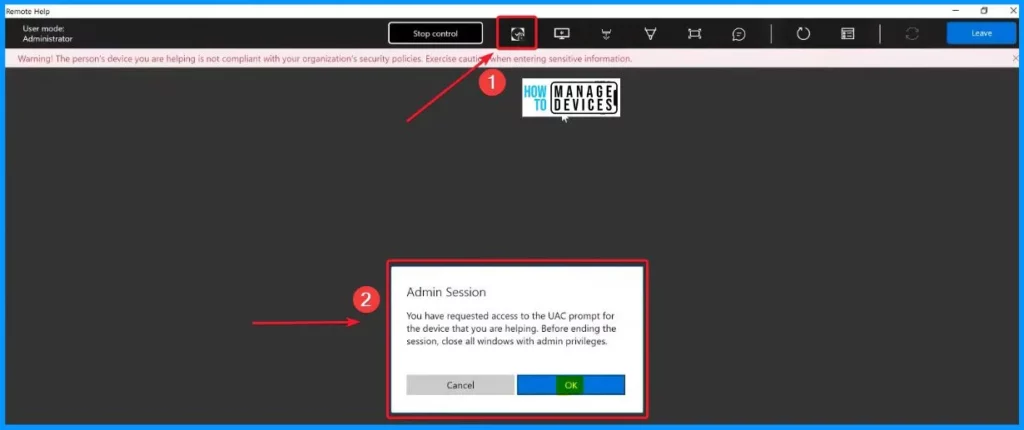
In the screenshot below, you will notice a button that assists you in dealing with User Account Control (UAC) prompts. This button lets you interact with the UAC prompt and enter admin credentials, allowing you to delve deeper into troubleshooting issues requiring administrative permissions.
- Click OK from the Admin Session
Additionally, the system includes a laser pointer control and improved chat features to speed up the problem-solving process further. The laser pointer control lets you highlight specific points on the screen, making it easier to direct attention.
Simple and secure helpdesk support using Remote Help in Intune – YouTube – NOTE! – Microsoft shared detailed information on How to Use Intune Remote Assistance for Windows Devices with the latest Technical Takeoff session by Kara Wang.
We are on WhatsApp. To get the latest step-by-step guides and news updates, Join our Channel. Click here – HTMD WhatsApp.
Author
About the Author – Vidya is a computer enthusiast. She is here to share quick tips and tricks with Windows 11 or Windows 10 users. She loves writing on Windows 11 and related technologies. She is also keen to find solutions and write about day-to-day tech problems.


Discussion