






Language Packs for Windows
Let’s learn the Language Packs for Windows. Languages are very important to manage all the tasks in Windows PCs. It helps you to display content on a Windows PC. Windows PC provides display languages and Preferred languages to users.
Windows is the Most Popular Operating System that supports languages to display content. Windows languages help you view all the displayed contents on your PC. English (Universal Language) is enabled by default as the Windows display language.
Windows Display Languages allows you to display Windows features like Settings and File Explorer. Preferred languages help you to display other features and tasks on a Windows PC. Microsoft Provides many languages in the list of Preferred Languages.
Installing languages on a Windows PC is a very easy and simple process. This post shows you how to install languages on a Windows PC quickly. You can add many preferred languages to your Windows PCs.

What are the Features of Windows Languages?
1. Windows languages support Windows display languages and preferred languages
2. Preferred languages include features such as text-to-speech, Handwriting, speech recognition etc.
3. It allows to addition of a keyboard to the selected preferred language
Language Packs for Windows
Language is an essential factor in a Windows PC to manage all tasks accurately. You can easily install languages on your PCs via Settings. Displayed Languages and preferred languages are shown in the Windows Settings. The list below gives the details
- Select Settings from the Start Menu
- Select Time & Languages from Settings
- Select Languages & Region from the below window
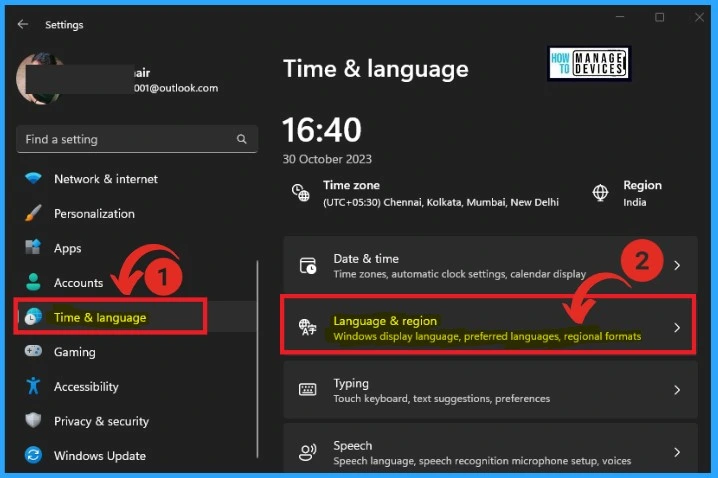
The languages and region option shows the Windows display languages and preferred languages. Windows features like Settings and File Explorer will appear in the Windows display languages. This window shows 1 display language is only supports Windows license.
Preferred languages can be easily added from this window. Microsoft Store apps will appear in the first supported language in this list. The below list will give the details.
- Click on the Add a Languages option from Preferred languages
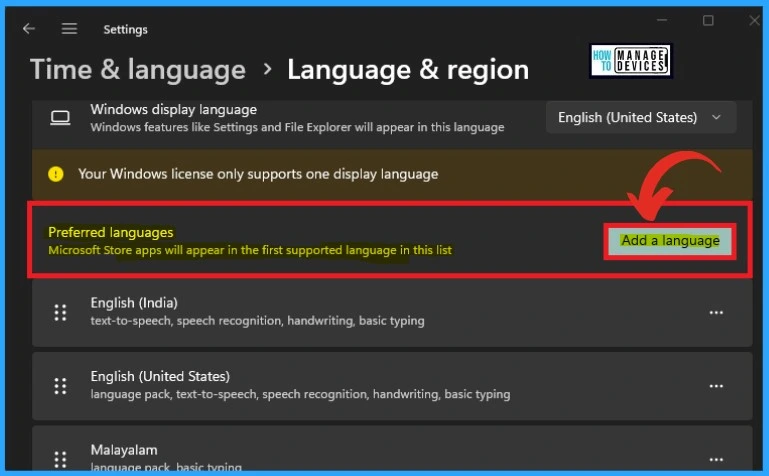
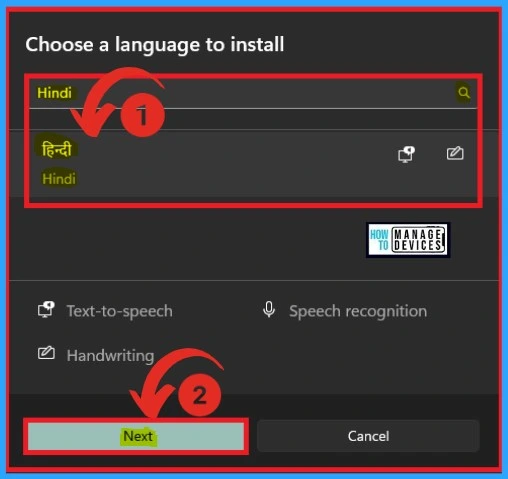
After that, you can choose a language to install to add a preferred language. There are many languages supported on Windows PCs. You can easily search languages in the search box. Here I choose Hindi as my preferred language. This window shows many regional languages from different countries.
- Click on the Next option to choose a language to install
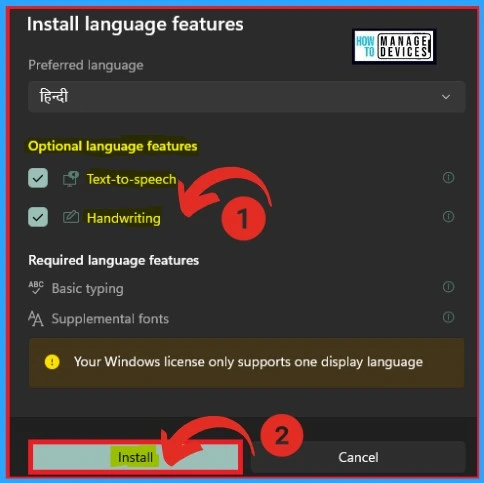
In this window, you can see the features of the installed language. You can see the optional language features and required language features from this window. Click on the Install option to continue the installation of the language in Windows.
| Optional language features | Required language features |
|---|---|
| Text-to-speech | Basic typing |
| Handwriting | Supplement fonts |
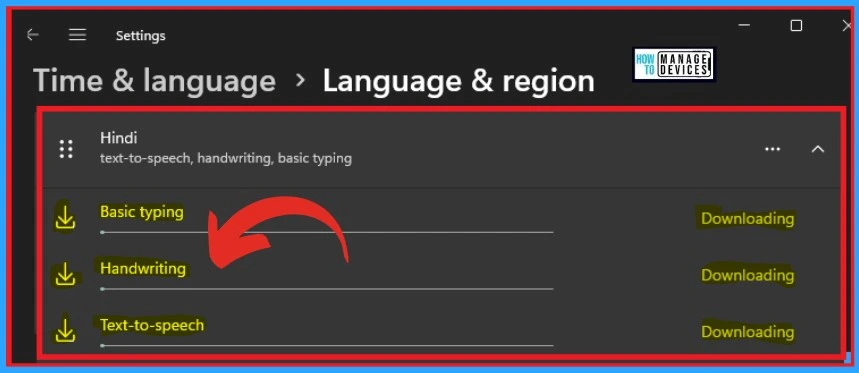
After the installation, the features of the installed language start downloading. In this window, you can see that features such as basic typing, handwriting, text to text-to-speech are starting to download.
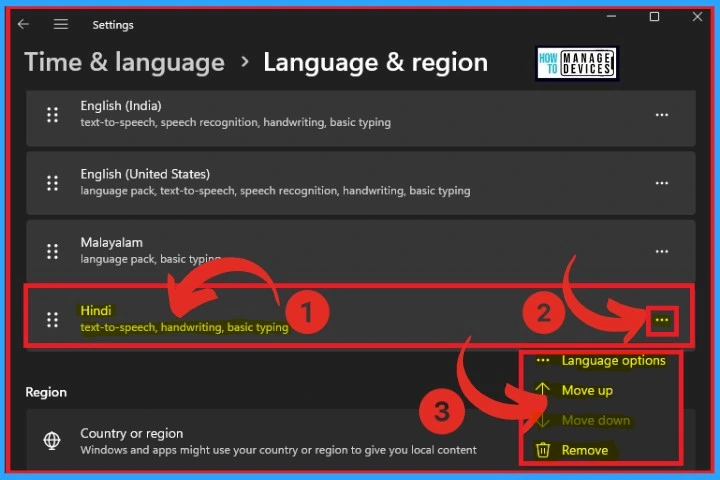
After completing the downloading of the features, the Hindi language is added to the list of preferred languages. When you click on the 3 dot option, you can see some options such as Language options, Move up, Move down and Remove.
- Language options – It shows language options such as language features, keyboards, etc
- Move Up – It is used to move the selected language to up
- Move down – It helps to move down the selected language
- Remove – It allows the removal of the installed language from the preferred language
How to Use the Hindi Language on Windows PC
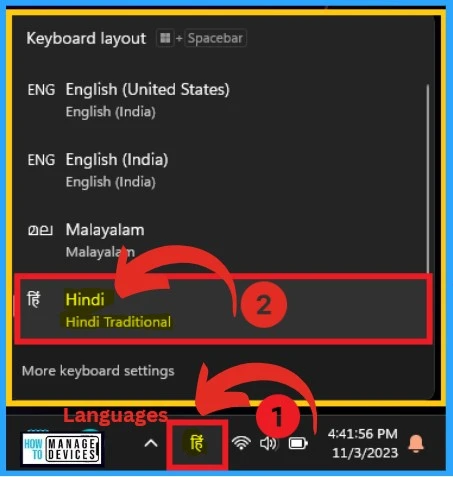
You can easily change and use the Language on your PC from the taskbar. For this, click the language shown in the taskbar. The appearing window will show the installed languages on your PC. Select the Hindi language from the window.
Result Image
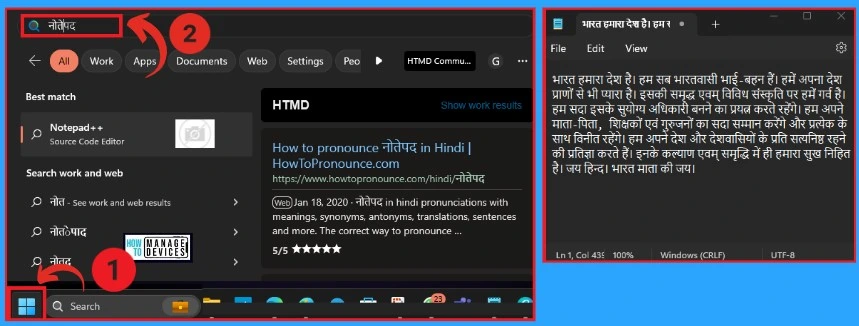
The below window shows the Hindi language for the Windows feature. The left screenshot shows Notepad is searched in the search box of your Windows PC. In this Hindi language pack, text-to-speech, handwriting, and basic typing features are available.
- Reference – Install a language for Windows
We are on WhatsApp. To get the latest step-by-step guides and news updates, Join our Channel. Click here HTMD WhatsApp
Author
Gopika S Nair is a computer enthusiast. She loves writing on Windows 11 and related technologies. She is here to share quick tips and tricks with Windows 11 or Windows 10 users. She is Post Graduate Diploma Holder in Computer Science.




Discussion