






Limit Local Account Blank Password Use to Console Logon Using Intune Policy
In this post, we will see and learn about the Limit local account blank password use to console logon only policy. We will enable Limit local account use of blank passwords to console logon only using Intune. We will make use of Configuration Profiles.
This policy setting controls whether local accounts that aren’t password protected can be logged on from outside the computer console. This policy prevents remote client computers from connecting to local accounts with blank passwords. These accounts can only be accessed via the computer’s keyboard.
Blank passwords seriously threaten computer security and should be forbidden through organizational policy and appropriate technical measures. It is required by default for Active Directory domains to use complex passwords that contain at least seven characters.
Users who can create new accounts could create accounts with blank passwords if they bypass your domain-based password policies. An individual could, for example, create a blank password for one or more accounts on a stand-alone computer, then join the computer to his domain.

Accessing the local accounts with blank passwords would still be possible. It is then possible for anyone who knows the name of one of these unprotected accounts to log on to it. The recommended state for Limit local account use of blank passwords to console logon only is Enabled.
- Rename Administrator Account Policy Using Intune
- Intune Windows 11 CIS Benchmarks is Available for Download Now
Limit Local Account Blank Password Use to Console Logon Using Intune Policy
Follow the steps stated below to Enable Limit local account use of blank passwords to console logon Policy Using Intune:
- Sign in to the Endpoint Manager Intune portal https://intune.microsoft.com/.
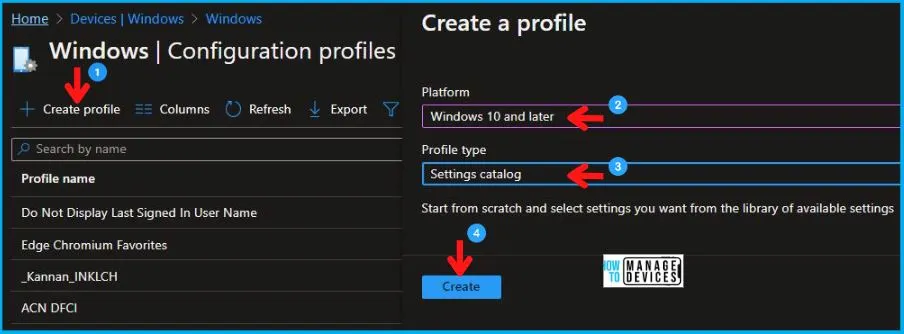
- Select Devices > Windows > Configuration profiles > Create a profile.
In Create Profile, Select Windows 10 and later in Platform, and Select Profile Type as Settings catalog. Click on Create button.
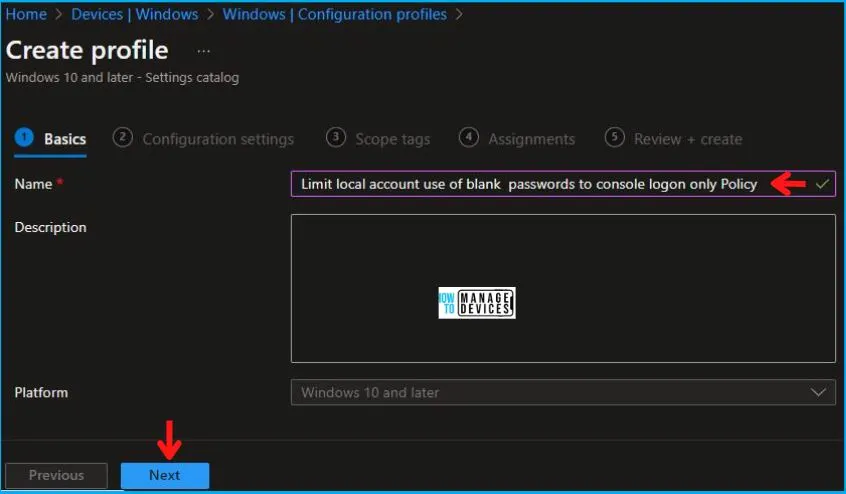
In the Basics tab pane, enter a name for the policy as Limit local account use of blank passwords to console logon Policy. If you like, you can enter the Description for the policy, then select Next.
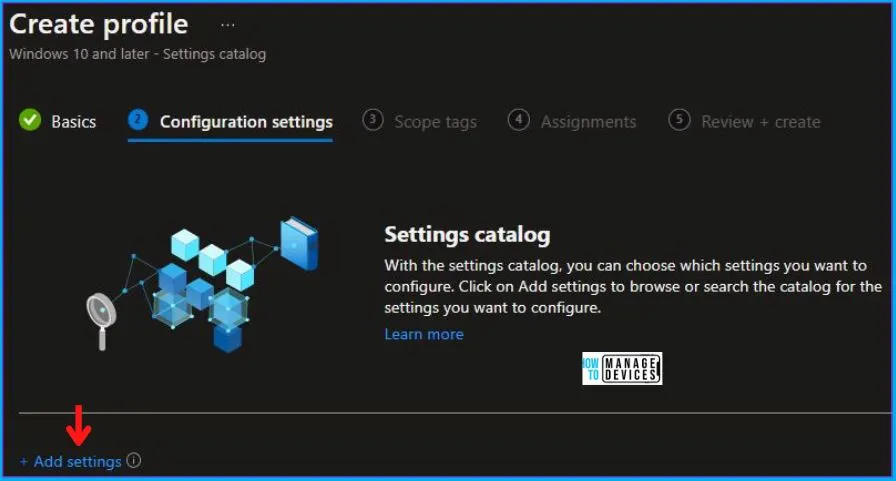
Now in Configuration settings, click Add settings to browse or search the catalog for the settings you want to configure.
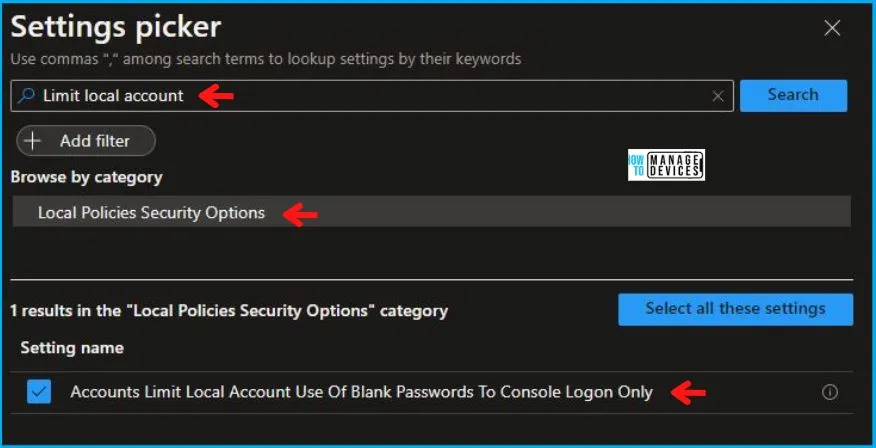
On the Settings Picker windows, if you search by the keyword Limit local Account, you will see Local Policies Security Options, as shown below in the image.
On selecting Local Policies Security Options, you will see one setting name, as shown below, and you need to select which Accounts Limit Local Account Use Of Blank Passwords To Console Logon Only. After adding your setting, click the cross mark at the right-hand corner as shown below.
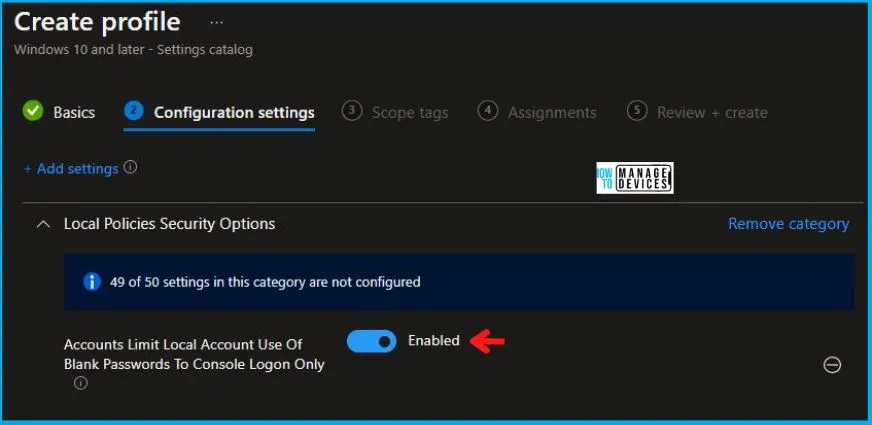
After this, in the Local Policies Security Options, set the Accounts Limit Local Account Use Of Blank Passwords To Console Logon Only to Enabled as shown below in the image.
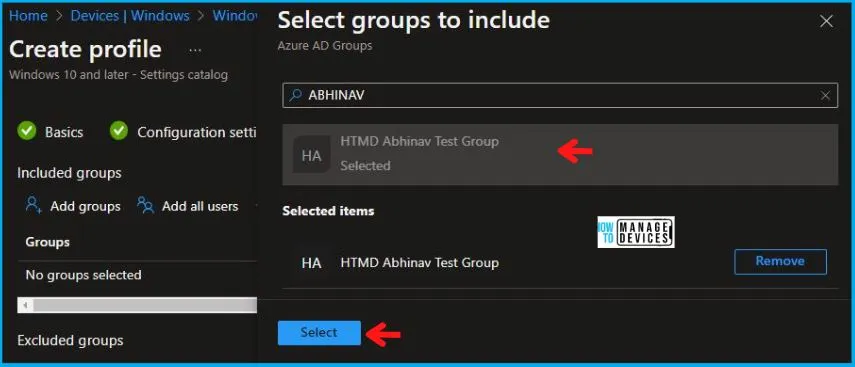
In Scope tags, you can assign a tag to filter the profile to specific IT groups. Add scope tags (if required) and click Next. Under Assignments, In Included groups, click Add groups, and then choose Select groups to include one or more groups. Click Next to continue.
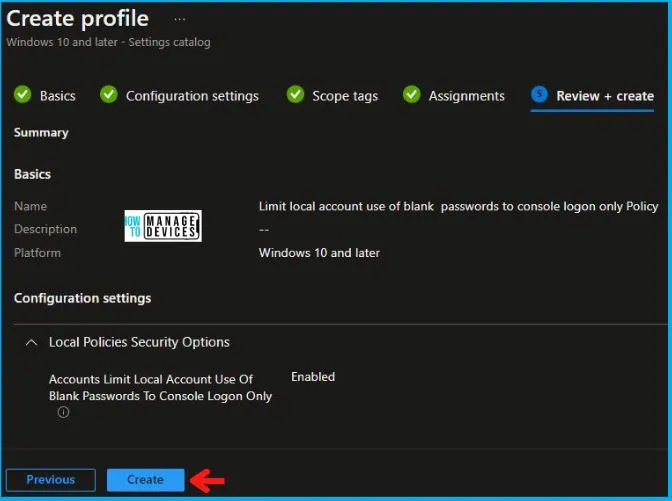
Now in Review + create, review your settings. When you click on Create, your changes are saved, and the profile is assigned.
A notification will appear automatically in the top right-hand corner with a message. You can see that the Policy “Limit Local Account Use Of Blank Passwords To Console Logon Only” was created successfully. If you check, the policy is available in the Configuration profiles list.
Your groups will receive your profile settings when the devices check in with the Intune service the policy applies to the device.
Intune Reporting
From Intune Portal, you can view the Intune settings catalog profile report, which provides an overview of device configuration policies and deployment status.
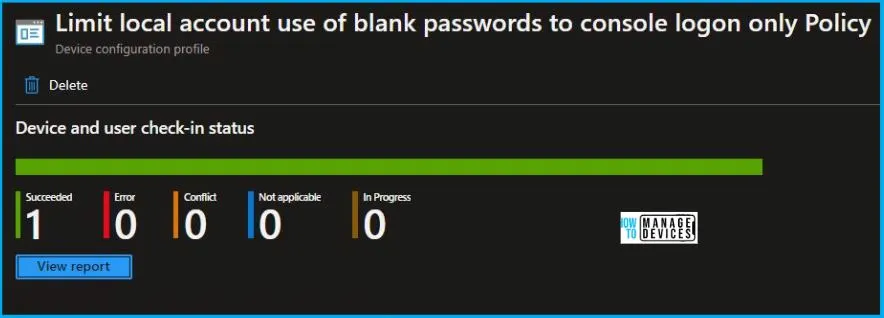
To monitor the policy assignment, from the list of Configuration Profiles, select the policy, and here you can check the device and user check-in status. If you click View Report, additional details are displayed.
Intune MDM Event Log
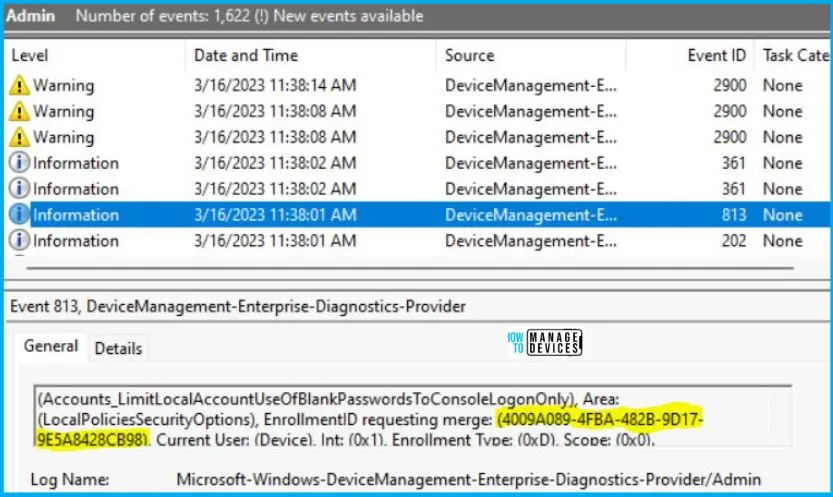
Intune event ID 813 or 814 indicates that a string policy has been applied to Windows 10 or 11 devices. In addition, you can view the exact value of the policy that is being applied to those devices.
You can check the Event log path to confirm this – Applications and Services Logs – Microsoft – Windows – Devicemanagement-Enterprise-Diagnostics-Provider – Admin.
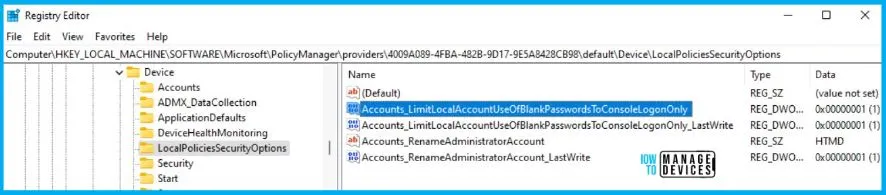
You can use REGEDIT.exe on a target computer to view the registry settings that store group policy settings. These settings are located at the registry path.
- Computer\HKEY_LOCAL_MACHINE\SOFTWARE\Microsoft\PolicyManager\providers\4009A089-4FBA-482B-9D17-9E5A8428CB98\default\Device\LocalPoliciesSecurityOptions
Author
Abhinav Rana is working as an SCCM Admin. He loves to help the community by sharing his knowledge. He is a B.Tech graduate in Information Technology.


Discussion