






Enable Local Admin Access for Windows 365 Business Edition
Here’s how you can enable local admin access for Windows 365 Business Edition. Enabling local admin access for Windows 365 Business Cloud PC can be important for several reasons, including providing flexibility, efficiency, and enhanced control.
The Windows 365 lifecycle management features include setting the default operating system and account type for your users’ devices at the organizational level and device-level actions on individual Cloud PCs. You can only set or change the account type for Cloud PCs with a Business license.
Considering security implications, it’s important to note that local admin access should be granted judiciously. Organizations should establish clear policies, conduct regular security audits, and provide training to users to ensure responsible use of local admin privileges within the Cloud PC environment.
The account types are available for Cloud PC Business, Standard user (Recommended) have permission to install software only from the Microsoft Store. Local administrator accounts have permission to install any software and make changes to any part of the operating system. Select this account type only when needed, since malware may use administrator permissions to infect or damage files.

You can use the user settings policy to add assigned users to the local administrator on all Enterprise edition Windows 365 cloud PCs. The admin access might be required to support some of the developer use case scenarios, Here’s how you can enable Cloud PC Local Admin Access to User in Windows.
- Extend Trial License Of Windows 365 Cloud PC Assign License To Microsoft Entra ID Group
- Business Edition Windows 365 Cloud PC End User Provisioning Experience Walkthrough
Enable Local Admin Access for Windows 365 Business Edition
Here’s how you can enable Local Admin Access for Windows 365 Business Edition by following these steps, You can manage Cloud PC apps and services in one place.
To get the latest information on device management technologies, Watch out for HTMD Daily Coverage.
- Sign in to windows365.microsoft.com with an account with either a Global Administrator or Windows 365 Administrator role.
- Select Your organization’s Cloud PCs > Update organization settings. Here you can manage who can access apps and services included in your Microsoft 365 subscriptions. Add or remove users, manage licenses, and reset passwords.
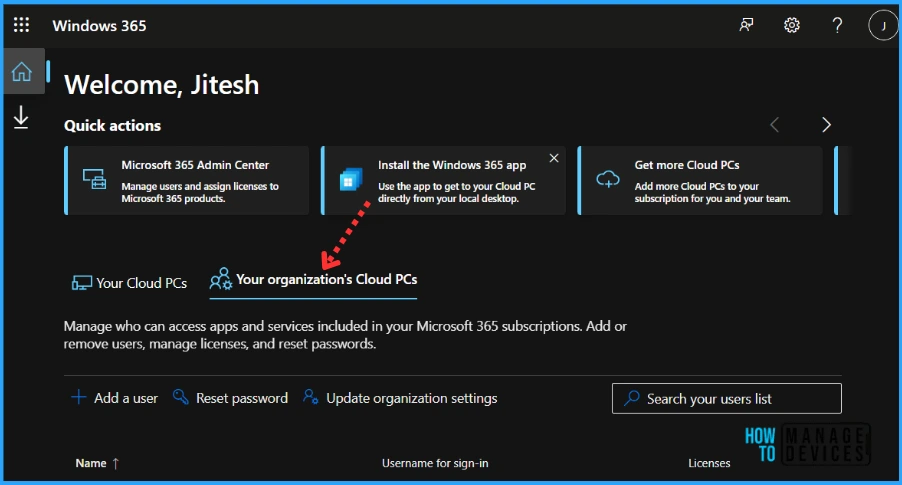
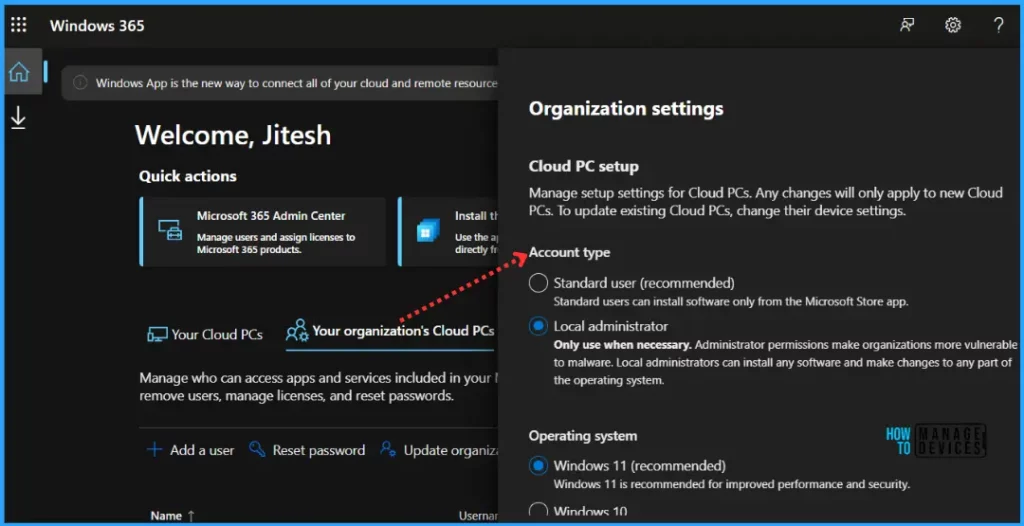
Select your preferred option for the following settings, In the Cloud PC setup, you can manage setup settings for Cloud PCs. Any changes will only apply to new Cloud PCs. To update existing Cloud PCs, change their device settings. Select Save.
- In the Account type, You will be able to change the account type of users either Standard user or Local Admin. By default, new Cloud PCs will be set up with a Standard user account type. If an admin chooses, they can change the default to Local Administrator to allow users to install apps and change all settings on their Cloud PC.
Note – These settings will affect only newly created Cloud PCs, not existing ones.
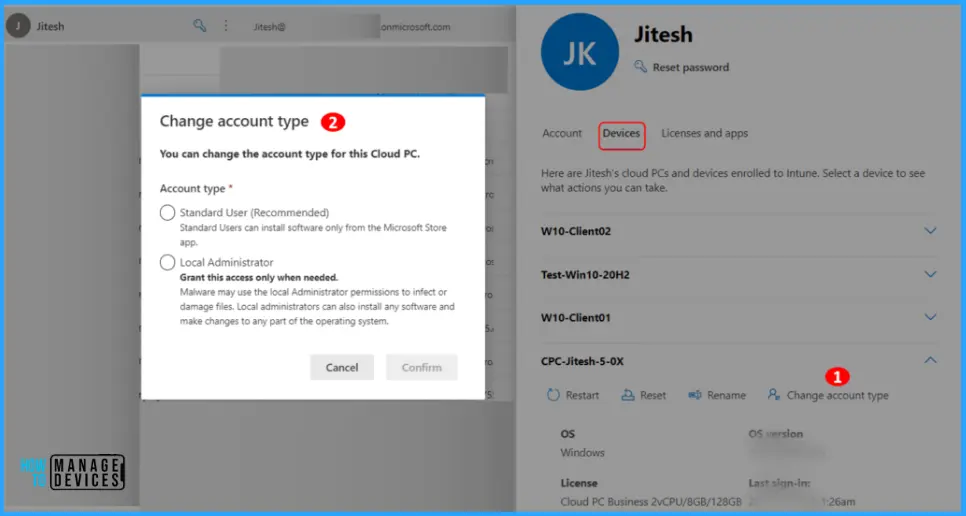
The following remote device actions are supported on winodws365.microsoft.com and the Microsoft 365 admin center, Select any Cloud PC in the list to view more details and execute management actions such as:
- Restart: Select to reboot the device.
- Reprovision: Select to reset the device. You can also view the provisioning policy in the Microsoft Intune link.
- Rename: Select to rename the device assigned to a user.
- Change account type: Select the account type for the user: Standard user (recommended) or Local administrator.
You will see the message “The account type for Cloud PC is being changed” After completion, you will get the below message as shown below. Once you perform the sign-out or restart to Cloud PC, You can also validate the Account type under devices.
Note: The user must sign out of Windows on their Cloud PC and sign back in for the role change to take effect. Alternatively, the admin can remotely restart the Cloud PC, but the user may lose any unsaved data.
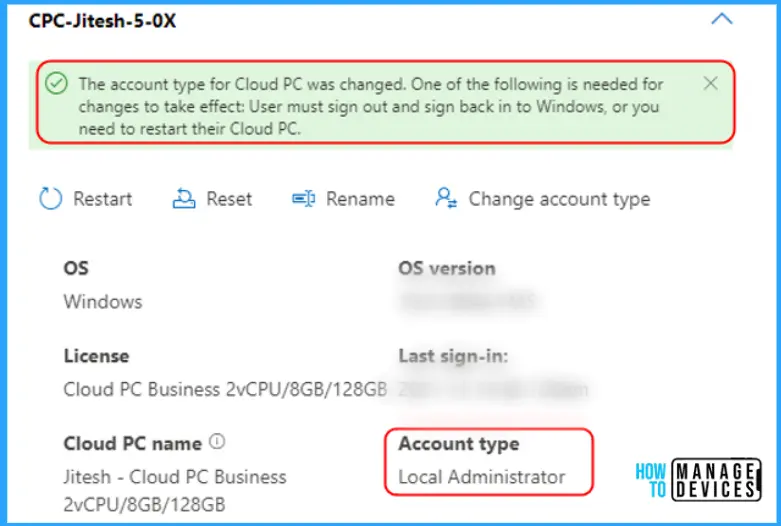
Once the update is applied, the assigned user of the Cloud PC will need to sign back into the Cloud PC or restart their device. The new changes may take several minutes to appear. The Cloud PC Administrator can also remotely restart the Cloud PC, but the user may lose any unsaved data.
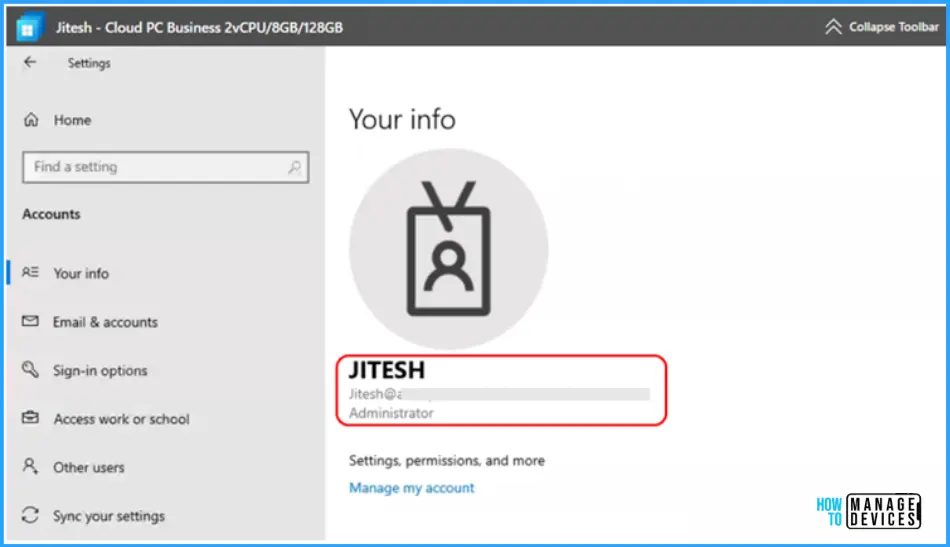
Confirm Local Administrator from Cloud PC Business Settings App
You can check the access to a user account by navigating to Windows Settings > Account > Your info. All Windows 365 Business users have local administrator privileges on their Cloud PCs. Here’s how you can grant Enable Local Admin Access for Windows 365 Business Edition with Organization settings for all newly provisioned Cloud PCs.
We are on WhatsApp. To get the latest step-by-step guides and news updates, Join our Channel. Click here –HTMD WhatsApp.
Author
About Author – Jitesh, Microsoft MVP, has over six years of working experience in the IT Industry. He writes and shares his experiences related to Microsoft device management technologies and IT Infrastructure management. His primary focus is Windows 10/11 Deployment solution with Configuration Manager, Microsoft Deployment Toolkit (MDT), and Microsoft Intune.




Discussion