






How to Stop Automatic Driver Installation in Windows11
Let’s learn how to stop automatic driver installation in Windows 11. Windows 11 has many significant features, and automatic driver installation is one of the best. Can we turn off automatic driver installation in Windows 11? Yes, we can do it.
Drivers are the essential part of your system; Drivers are the Software component that helps the device communicate with the system. Without drivers, devices like a mouse, printers, scanners, etc., do not work correctly. Every device has a different driver so that the device can work properly.
The driver installation must be essential for the better performance of your hardware devices. The automatic installation is much needed. With this installation, you will get the latest updates for the drivers. This will help you keep your devices working correctly and efficiently.
Windows 11 also automatically updates many drivers through Windows Update. Some users like to install drivers manually. Also, the automatic installation of the driver has some drawbacks. This article will guide you on how to stop the Automatic driver installation of Windows 11.

- New Windows App available in iOS MacOS iPadOS Android Devices
- New Windows Update for Start Menu on Windows 11
What are the Advantages of Driver?
1. Drivers provide a better performance of a hardware device
2. Drivers ensure the system security
3. Driver provides the latest features and improvements for the hardware with the latest update
4. Drivers prevent the system from crashing or freezing
How to Stop Automatic Driver Installation in Windows
You can Stop automatic driver installation easily. It is essential for some users for many reasons. Driver updates are always done in Windows updates. Updates are not always up to date, and some buggy drivers are also included in the update.
Sometimes, you like to install different driver versions for your system, so the user prefers manual installation. Stop Automatic driver installation is possible by the system settings. You can use 2 methods:
| Methods for Stop Automatic Driver Installation in Windows | Methods |
|---|---|
| Method 1 | Using the System Settings |
| Method 2 | Using the Group Policy Editor |
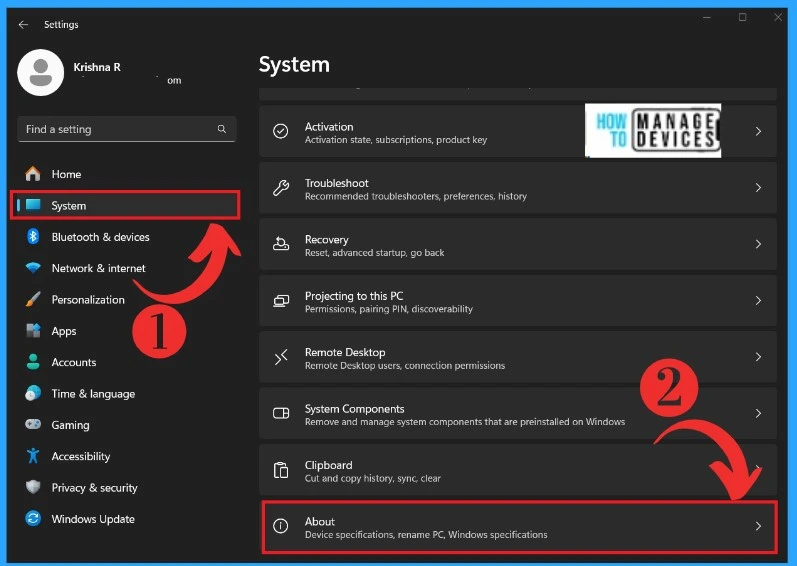
- First, Open your System Settings
- Click on the System Option
- Click on the About option
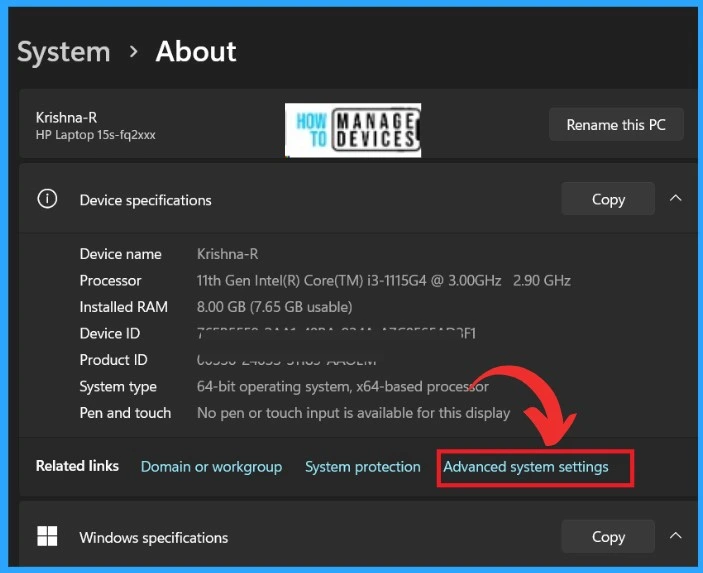
After that, You will get the About window; in that window, you can see the details of your laptops. In the Bottom section, you can see related link options; in those options, click on the Advanced System Setting option.
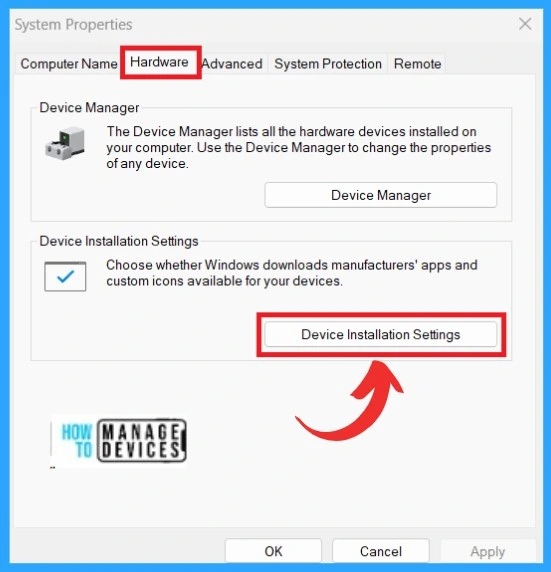
In the Other window, there are many options related to your computer, like Computer Name, Hardware, Advanced, etc. Click on the Hardware section. Two categories are available there: Device Manager and Device Installation Settings.
- Click on the Device Installation Settings
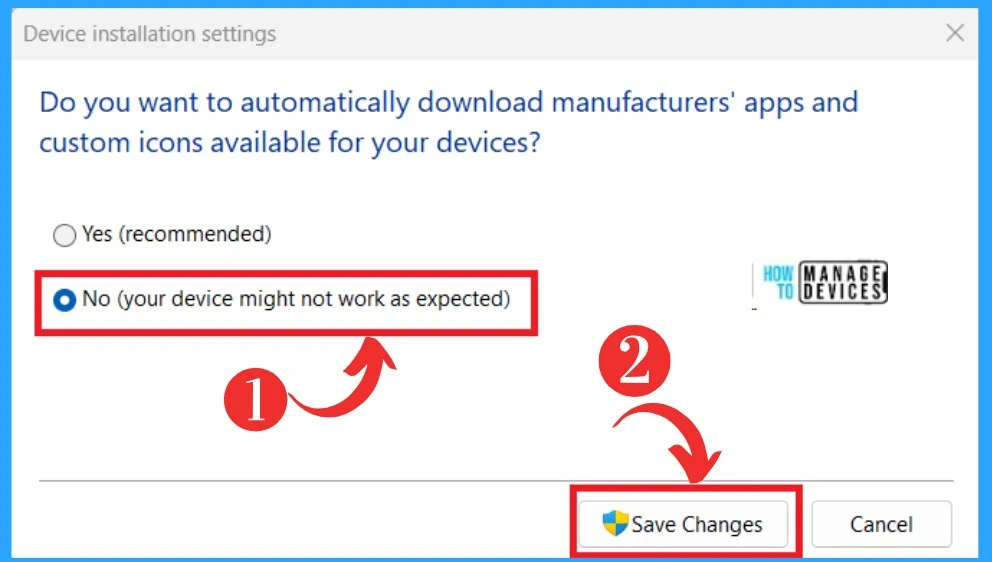
After that, you will get a window asking, ” Do you want to automatically download manufacturer apps and custom icons available for your devices? ” There will also be 2 options for you. If you complete the steps, the system will stop installing drivers for your operating system.
- Select the option ” No (your device might not work as expected)
- Click on the Save changes
- Click on the OK button
Stop Automatic Driver Installation in Group Policy Editor
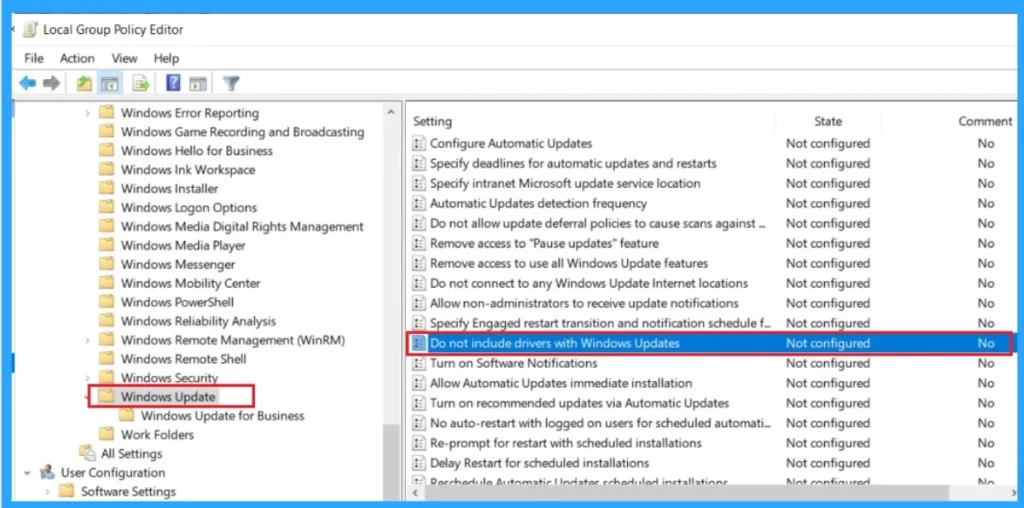
You can Stop Automatic Driver Installation in Group Policy Editor, first, you have to Open Start and search for the gpedit. Then open the path Computer Configuration > Administrative Templates > Windows Components > Windows Update > Manage updates offered from the Windows Update.
- Right-click the option ”Do not include a driver with Windows Update”
- In the Right-click, click on the Edit option
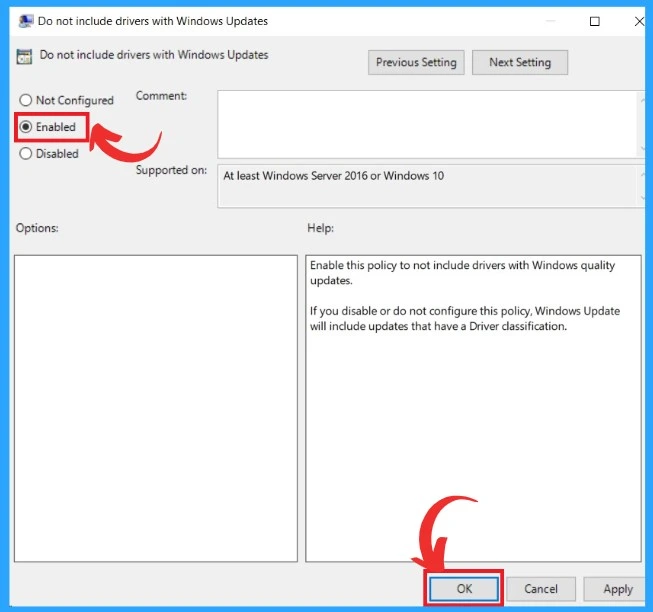
After clicking the Edit option, you will get another window there, you can choose the Enable option for stopping the feature. Then click on the apply option and click the OK button.
- WordPad App Removal from Windows is Announced by Microsoft
- New End Task Options from Taskbar in Windows
We are on WhatsApp. To get the latest step-by-step guides and news updates, Join our Channel. Click here – HTMD WhatsApp.
Author
Krishna. R is a computer enthusiast. She loves writing on Windows 11 and related technologies. She likes to share her knowledge, quick tips, and tricks with Windows 11 or Windows 10 with the community.




Discussion