






Best Guide to Create a Local User with Intune Remediation Script
In this blog post, I will explain how to Create a Local User with Intune Remediation Script. A remediation script can efficiently create a local user on devices managed by Microsoft Intune. This approach is beneficial in scenarios where you must ensure that a specific user account exists on all organisational devices, such as for administrative purposes or running specific tasks.
Microsoft recommends a solution called LAPS for managing local admin passwords on Windows devices. Administrators can automate the process across multiple devices by deploying a remediation script, reducing manual effort and ensuring consistency. The script can be tailored to create a user with specific permissions, group memberships, and settings, aligning with the organization’s security and operational policies.
The remediation script uses Intune’s device management capabilities to run PowerShell scripts on targeted devices. These scripts are executed in the background, checking for the existence of the desired local user account and creating it if it does not already exist. Parameters such as username, password, and group memberships can be defined within the script, ensuring the user account is configured precisely as needed. This method is particularly effective in environments where devices are frequently added or reimaged, as the script can be redeployed to maintain compliance.
In addition to creating local users, Intune remediation scripts can also be used to manage other aspects of the device configuration. For example, they can ensure that certain security settings are applied, software is installed, or that specific files are present on the device.


Benefits to Create a Local User with Intune Remediation Script
Creating a local user on devices using an Intune remediation script can be beneficial in various scenarios, especially in a managed enterprise environment. Here’s why you might choose to use Intune remediation scripts for this task:
| Benefits | Description |
|---|---|
| Centralized Management | Ease of Deployment: Intune allows IT administrators to deploy scripts across multiple devices simultaneously. This centralized approach is more efficient than manually creating users on each device, especially in large organizations. Consistency: By using a script, you ensure that the local user account is created with the same configuration across all targeted devices. This reduces the risk of human error. |
| Automation and Scalability | Automated Processes: Remediation scripts can automate the process of creating local user accounts, reducing the need for manual intervention. This is especially useful for onboarding new employees or preparing devices for specific roles. Scalability: Whether you need to create local users on a few devices or thousands, Intune can scale the deployment, ensuring consistent application of policies and configurations across your organization. |
| Security and Compliance | Controlled Access: Using Intune, you can create local user accounts with specific permissions, ensuring that they align with your organization’s security policies. For instance, you can control whether the new local user has administrative privileges. Auditing and Compliance: Intune allows you to track and report on script deployments, helping maintain compliance with internal and external policies. You can monitor which devices have received the local user and ensure adherence to security standards. |
| Dynamic Remediation | Proactive Remediations: Intune’s remediation scripts can be set to check for the presence of a local user and create one if it’s missing. This dynamic approach ensures that the required user accounts are always present on the device, automatically correcting any deviations. Custom Logic: Scripts can include logic to handle different scenarios, such as checking if a user already exists, assigning the user to specific groups, or handling password policies. This customization ensures the script behaves according to your organization’s needs. |
| Device Readiness and Configuration | Pre-Configuration: When preparing devices for specific users or roles, creating local user accounts in advance ensures that the devices are ready for use immediately. This is particularly useful in environments where devices need to be quickly reassigned or configured for new tasks. Remote and Hybrid Workforces: In scenarios where employees are working remotely, Intune allows you to manage devices and create user accounts without requiring physical access to the device. |
| Cost and Resource Efficiency | Reduced IT Workload: Automating user creation via Intune scripts frees up IT resources, allowing staff to focus on more strategic tasks rather than routine user management. Reduced Downtime: Automating the creation of local users minimizes the downtime that might be caused by waiting for manual setup, especially in critical situations. |
| Flexibility and Adaptability | Custom Scenarios: Intune remediation scripts can be tailored to meet specific organizational requirements, such as creating accounts for service users, temporary users, or local admin accounts for troubleshooting. Ongoing Management: If policies change, scripts can be easily updated and redeployed, ensuring that local user accounts remain aligned with current organizational standards. |
- How To Fix Conflict Status In Local User Group Membership Policy Using Intune
- New Windows Autopilot Device Preparation Experience using Intune
- Unpin Microsoft Store Apps from Taskbar with Intune | Do Not Allow Pinning Store App to the Taskbar
- Best Guide to Deploy New Intune Company Portal App on Windows using Intune
Remediation Script to Create a Local User
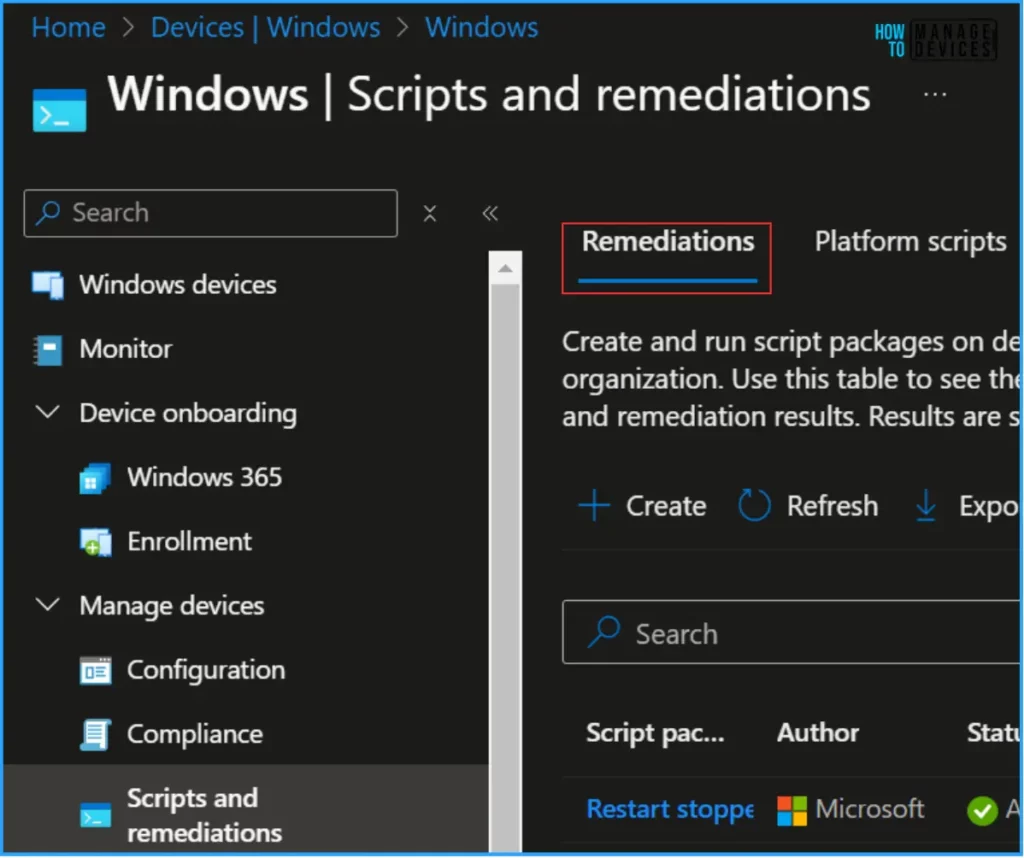
Follow the below-mentioned steps to create a powershell remediation script to create a local user with Intune. Log In to the Microsoft Intune Admin Center using your administrator credentials.
- Navigate to Devices > Windows > Scripts and remediations
- Choose > Remediations
- Click on +Add
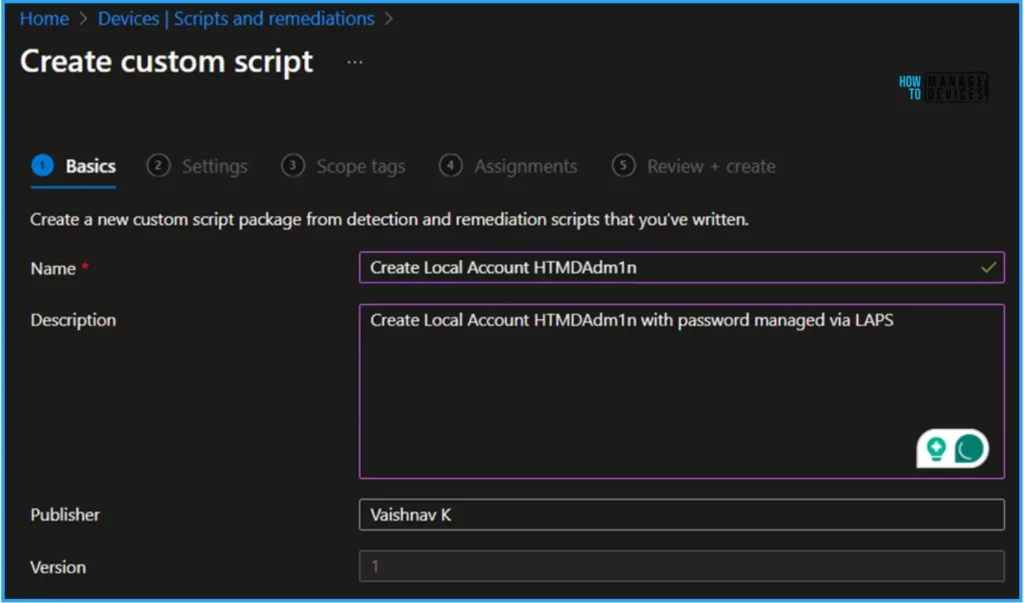
In the Basics details pane, we can give the Custom PowerShell script name as “Create Local Account HTMDAdm1n” If needed, provide a brief script description about the script and click Next.
- How to Set App Defaults using Intune | Export the Default XML File & Encode it in Base64 format
- Intune Win32 App Supersedence and Auto App Update Explained
Prepare a PowerShell Detection and Remediation Script to Create a Local User
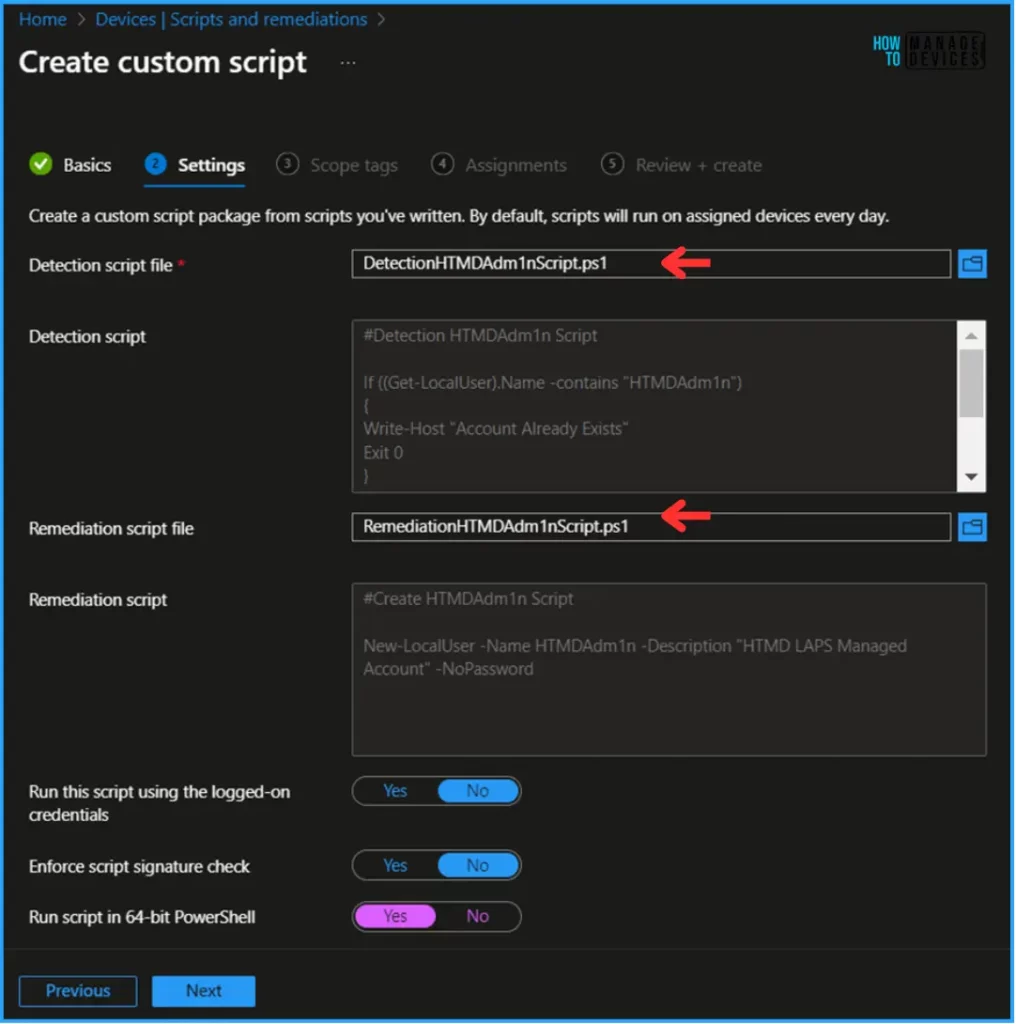
To set up our local user creation, we need to import one Detection and one Remediation Script file on the Settings page. Here, we are going to create HTMDAdm1n as a local user. The section Script will check whether HTMDAdm1n already exists on the targeted device.
If it is already available as a local user, it will be written as Account Already Exists, and no changes will occur.
Otherwise, it will exist with return code 1, and the Remediation Script will create a New Local User as HTMDAdm1n with a description HTMD LAPS Managed Account without password.
Detection HTMDAdm1n Script
If ((Get-LocalUser).Name -contains “HTMDAdm1n”)
{
Write-Host “Account Already Exists”
Exit 0
}
Else
{
Write-Host “Account Missing”
Exit 1
}
Remediation HTMDAdm1n Script
New-LocalUser -Name HTMDAdm1n -Description “HTMD LAPS Managed Account” -NoPassword
- Detection script file – DetectionHTMDAdm1nScript.ps1
- Remediation script file – RemediationHTMDAdm1nScript.ps1
- Run this script using the logged on credentials – No
- Enforce script signature check – No
- Run script in 64 bit PowerShell Host – Yes
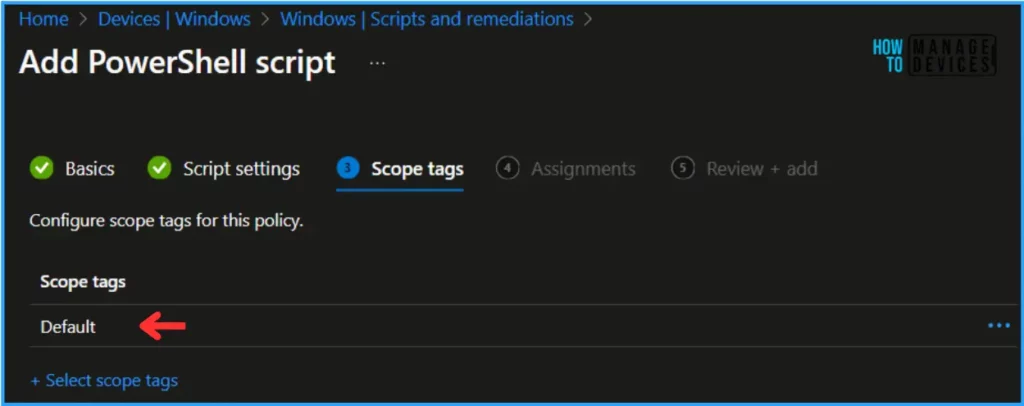
On the Next page, leave the scope tags default. If you have any custom scope tag available, you can also select it for this deployment.
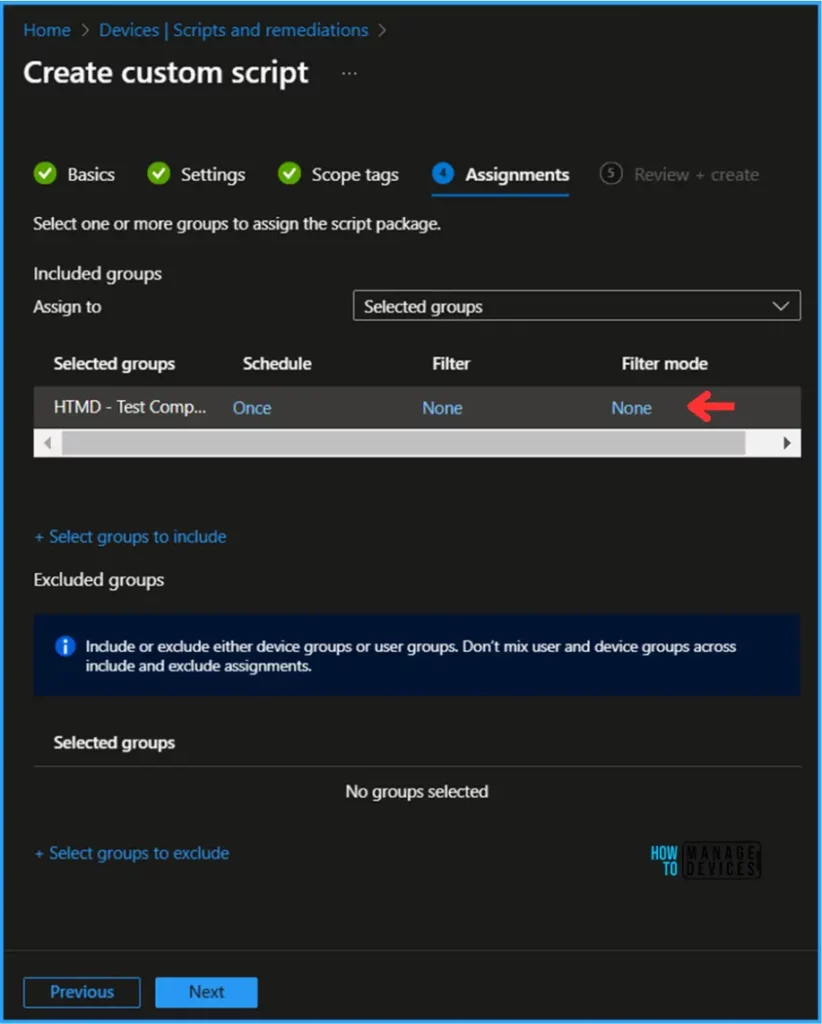
Click on Next, and under +select groups, include HTMD – Test Computers. Then, assign the script to the targeted device group. Schedule: Choose Once. Filter and Filter mode: Keep it as it is.
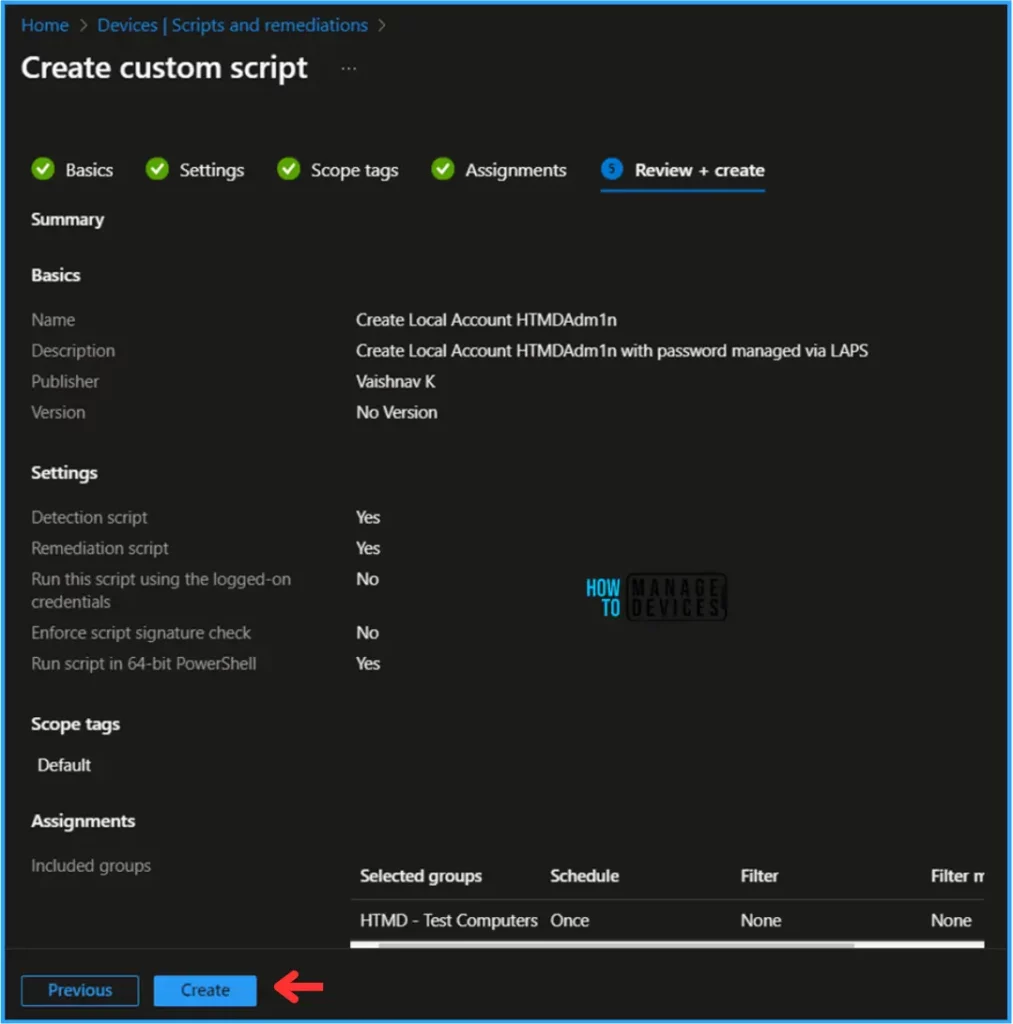
On the Review + Add page, carefully review all your settings for Create a Local User with Intune Remediation Script. Select Create to implement the changes once you’ve confirmed everything is correct.
Monitor Create a Local User with Intune Remediation Script
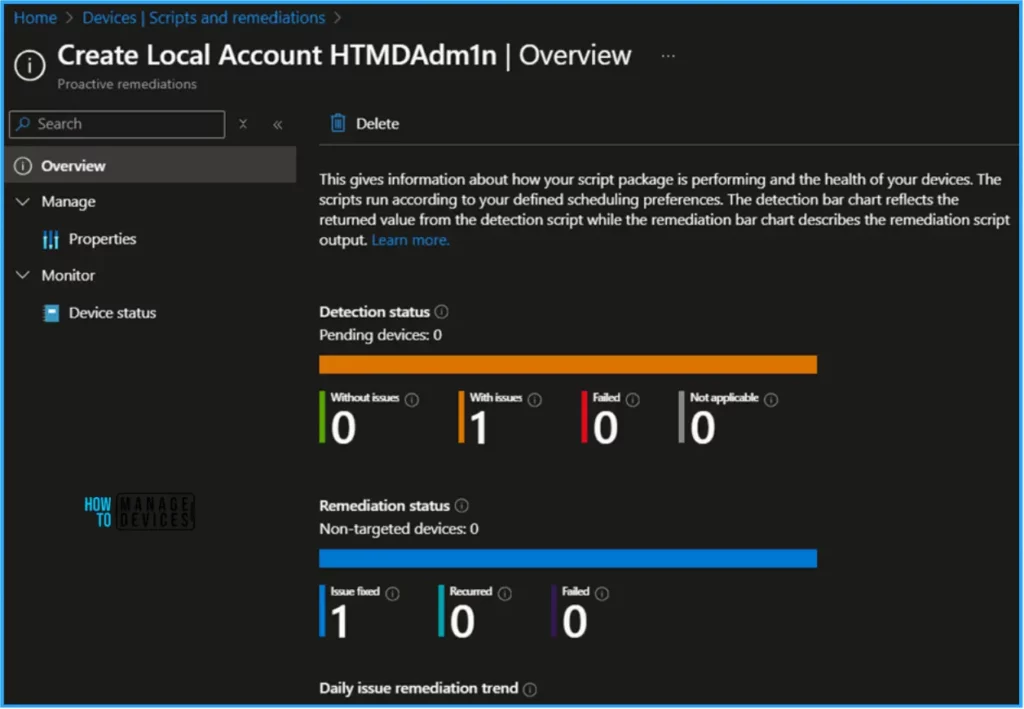
This PowerShell script has been deployed to the Microsoft Entra ID group (HTMD – Test Computers). The policy will take effect as soon as possible once the device is synced.
To monitor the policy deployment status from the Intune Portal, follow the steps below.
Navigate to Devices > Windows > Scripts and Remediations> Remediations. Search for the “Create Local Account HTMDAdm1n” Script. The deployment status for this script can be seen under the Overview status.
End User Experience – Create a Local User with Intune Remediation Script
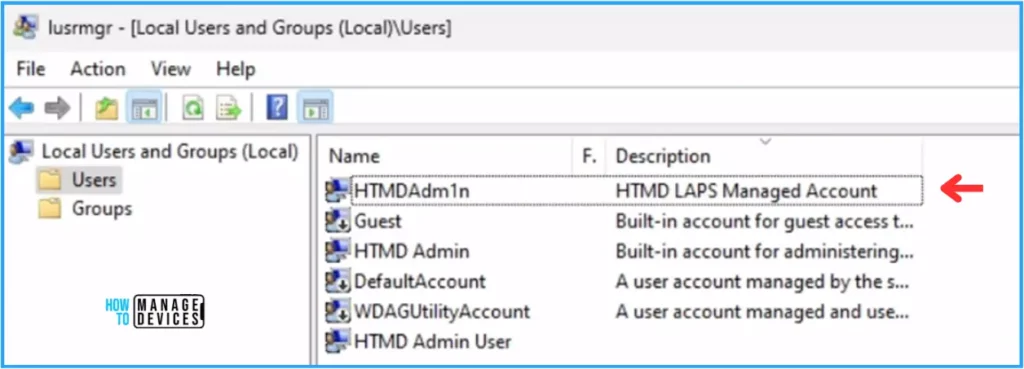
Now, we must check whether the PowerShell Detection and Remediation Script worked. To do so, log in to one of the policy-targeted devices.
Open Run and type lusrmgr.msc under Local Users and Groups (Local). Select Users. The HTMDAdm1n user was created successfully with the specified Description and without a Password.
Author
Vaishnav K has over 10+ years of experience in SCCM, Device Management, and Automation Solutions. He writes and imparts his knowledge about Microsoft Intune, Azure, PowerShell scripting, and automation. Check out his profile on LinkedIn.


Discussion