






Microsoft Latest Addition Sudo for Windows
Exciting News! Microsoft Latest Addition Sudo for Windows. Microsoft introduced Sudo for Windows in the latest Windows 11 Insider Preview Build 26052. This feature provides a convenient method to run elevated commands directly from a regular console session. It eliminates the need to open a separate elevated console.
Sudo for Windows offers a user-friendly solution for executing commands requiring elevated permissions. This announcement marks a significant step forward in enhancing the usability and functionality of Windows 11.
Microsoft has also announced that this project will be open-sourced on GitHub. Users can now easily access the project’s repository on GitHub, where Microsoft is actively working on providing more information about the project.
Additionally, Microsoft plans to share further details about its plans for Sudo for Windows in the upcoming months. In this post, we are reporting Microsoft’s latest addition, which introduces Sudo in Windows 11.

- Install Ubuntu Terminal Environment on Windows 11 from Microsoft Store
- Manage System Integrity Protection for macOS devices using Intune
- Use Shell Scripts for macOS Devices using Intune
How Does Sudo for Windows Work?
With Sudo for Windows, users can easily elevate commands within their existing console session, providing a more user-friendly experience. This feature simplifies the process of executing commands that require elevated permissions.
Microsoft Latest Addition Sudo for Windows
Windows 11 Build 26052 will be released later this week. It features the inaugural public preview of Sudo for Windows, which promises an ergonomic and familiar solution for users seeking elevated command execution within the Windows environment.
- Users can easily enable Sudo by navigating Settings’s “For Developers” page.
- And toggling on the “Enable Sudo” option.
- This simple process empowers users to easily access and utilize the Sudo functionality within their Windows environment.
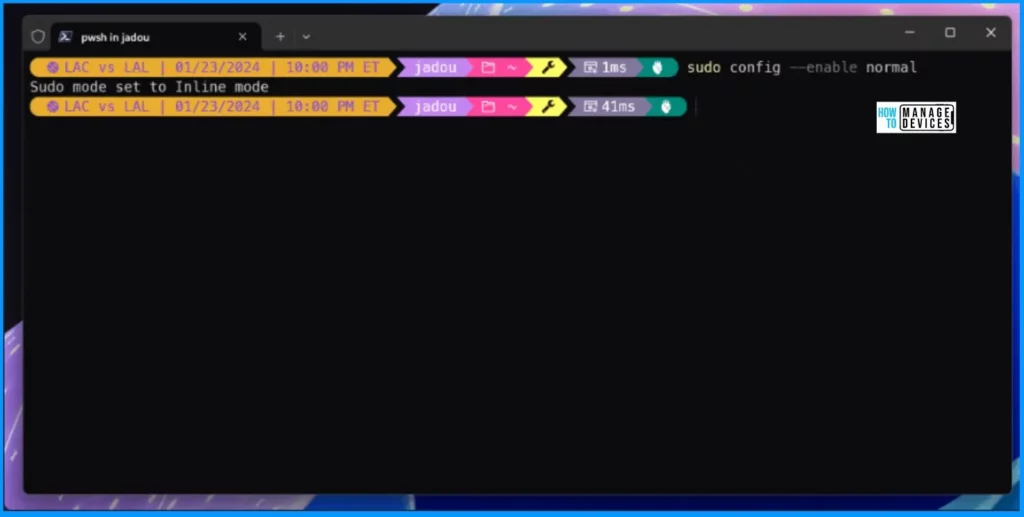
- Users can execute the provided command in an elevated console session to enable Sudo for Windows.
sudo config --enable <configuration_option>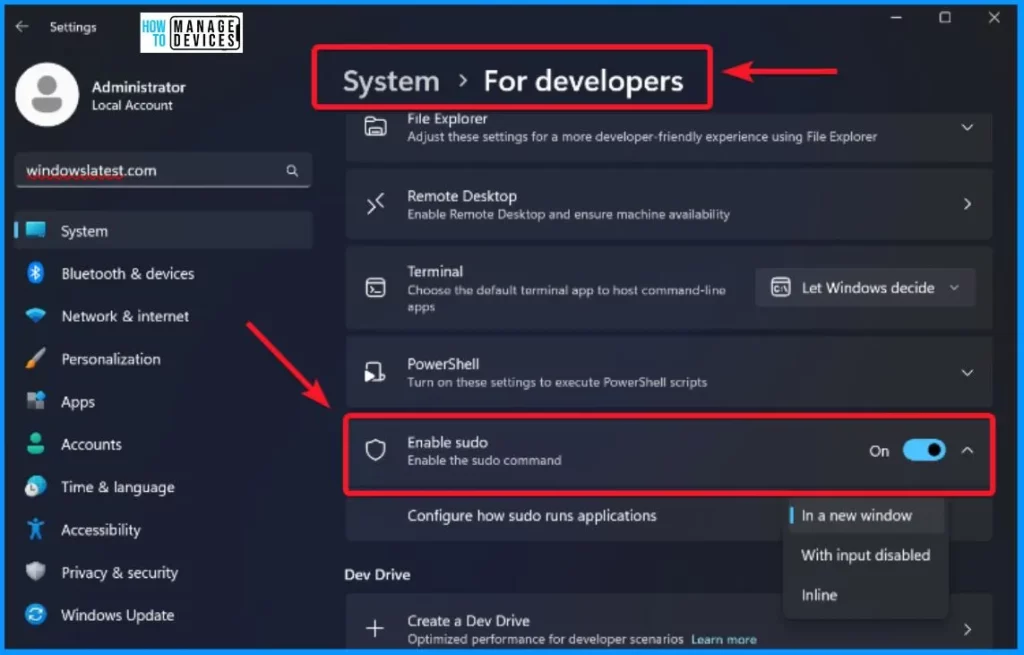
Enable Sudo for Windows
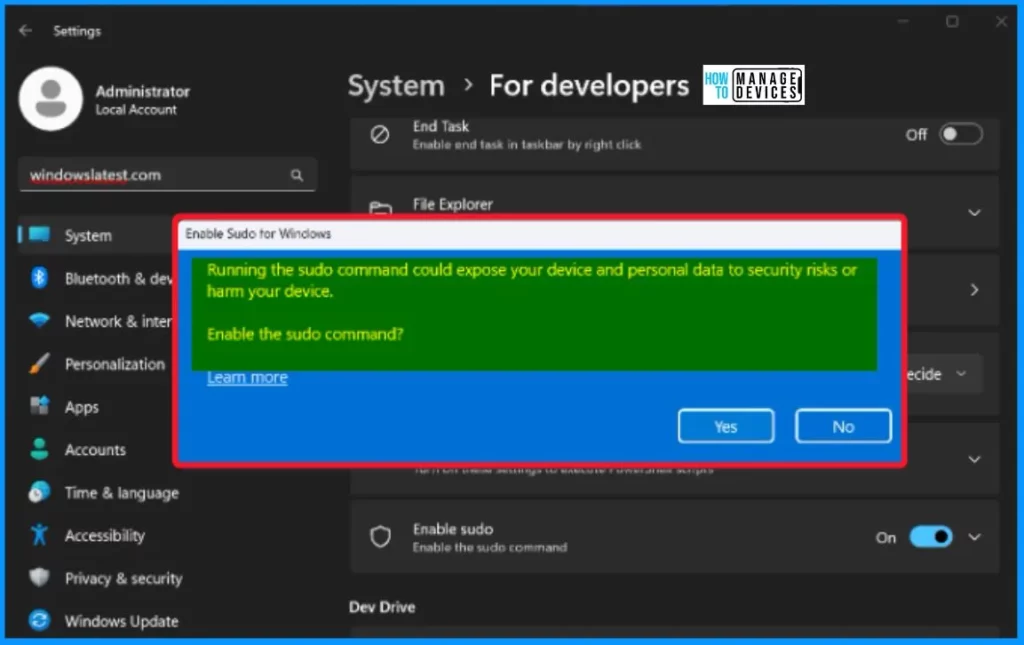
Users should understand the commands they execute and their potential impacts on the system before proceeding. After enabling Sudo, the user will get the warning message that “Running the Sudo command could expose your device and personal data to security risks or harm your device. “
Type of Configuration Options
Sudo for Windows offers 3 distinct configuration options. The table below shows these options.
| Configuration Option | Description |
|---|---|
| In a new window (newWindow) | Sudo for Windows opens a new elevated console window and executes the command within it. This is the default option when sudo is enabled. |
| Input closed (disableInput) | Sudo for Windows runs the elevated process in the current window, but the new process will have its stdinput closed. It won’t accept any user input, suitable for commands without further input after elevation. |
| Inline (normal) | Sudo for Windows runs the elevated process with stdinput, stdoutput, and stderror connected to the current window. The new elevated process can take input and route output to the current window. |
How Sudo for Windows Works
When a process is executed from the command-line with sudo in Windows, a User Account Control (UAC) dialog box will appear, prompting the user to confirm the elevation of privileges.
This dialog ensures that the user is aware of and consents to the action that requires elevated permissions. Once confirmed, users can use sudo in the terminal like you do on Linux or macOS.
We are on WhatsApp now. To get the latest step-by-step guides, news, and updates, Join our Channel. Click here. HTMD WhatsApp.
Author
About the Author: Vidya is a computer enthusiast. She is here to share quick tips and tricks with Windows 11 or Windows 10 users. She loves writing about Windows 11 and related technologies. She is also keen to find solutions and write about day-to-day tech problems.




Discussion