






Let’s discuss the Microsoft Outlook.com Connectivity Issue. Since around January 23, 2024, users have been experiencing issues connecting to Microsoft Outlook.com. This problem has affected various email applications, including Microsoft Outlook, Thunderbird, and Apple Mail.
Users have reported difficulties accessing their Outlook.com accounts through these apps, indicating a widespread issue with connectivity. This post discusses people’s problems with connecting to Microsoft Outlook.com. We will also give you the status of the issue.
In a recent update, Microsoft’s Outlook platform announced a significant change: discontinuing the cloud attachment option for email links. This means the users could no longer attach files to their emails using cloud services.
Outlook Desktop to search within a specific folder of an auto-mapped shared mailbox, users may face an issue where the search yields no results or displays results from folders other than the planned one. It potentially shows a message like “Showing results from all folders. No results found in the current folder.”

- Fix Outlook Desktop Crashes Issue when sending Emails
- FIX Spoofing Vulnerability with Outlook Image Blocking and Read-Only Meeting Body
- FIX Restricted Access to FQDN and IP Hyperlinks Issues in Outlook
Which Email Applications are Affected by these Connectivity Problems?
The issues impact many email applications, including Outlook 2013, Outlook 2016, Thunderbird, Apple Mail, 9Folders, BlackBerry Hub+ services, and other email apps that rely on basic authentication for connecting to email services.
Microsoft Outlook.com Connectivity Issue – Reported Sign-in Problems in Outlook
There is an ongoing issue related to sign-in problems that customers have been experiencing since last Tuesday. This issue has been widely reported on Microsoft’s community platforms and social networks.
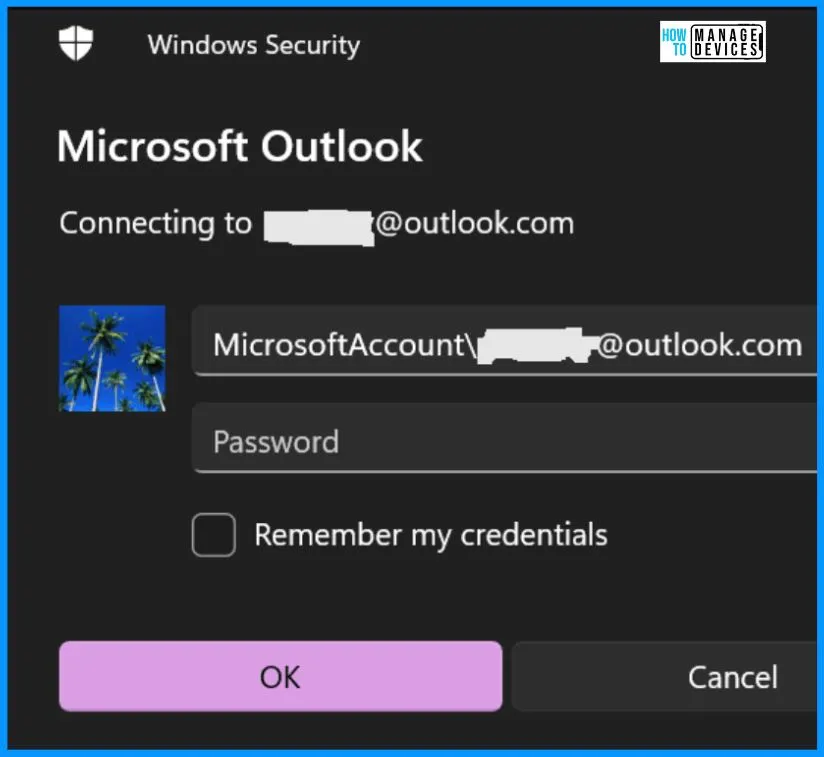
- Affected users encounter pop-up messages prompting them to enter their password when signing in.
- Additionally, they are given the option to “Remember my credentials.” Despite entering the correct password, the pop-up dialog persists, repeatedly appearing as the application attempts to connect to the user’s account.
- This issue creates difficulties in the sign-in process for users across various platforms and applications.
Current Status of the Microsoft Outlook.com Connectivity Issue
The sign-in problem is currently under investigation by Microsoft. Microsoft is actively working to identify the root cause of the issue and develop a solution. Unfortunately, as of now, there is no resolution available.
Updating Outlook 2013 and Outlook 2016 for Outlook.com Compatibility
To ensure compatibility with Outlook.com, updating Outlook 2013 and Outlook 2016 is essential to meet minimum version requirements. Additionally, enabling two-step verification and creating an app password enhances security. Below are detailed steps.
Updating Outlook Desktop
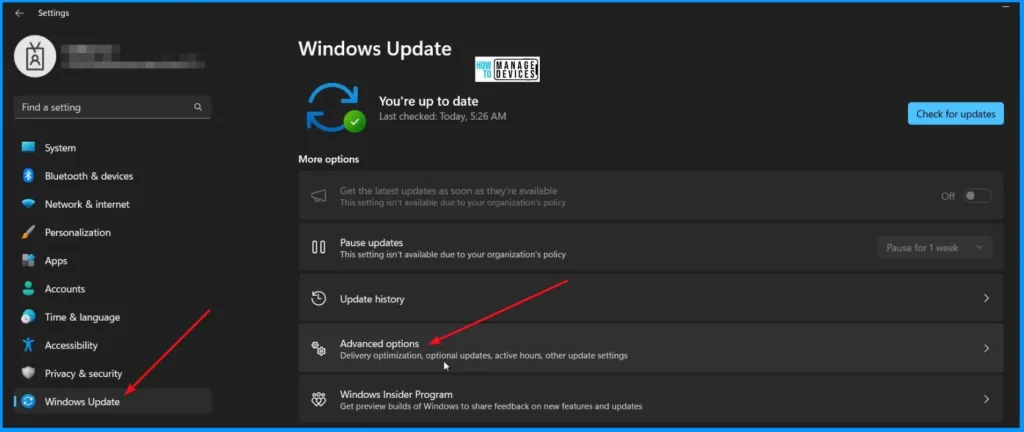
It is essential to update Outlook Desktop. You can easily access Windows Settings by clicking the Start menu and the gear icon (Settings). Navigate to Update & Security and then Windows Update. Click “Advanced Options” and enable “Microsoft Update” to install the latest Office updates.
Confirming Outlook Version Requirements
It is essential to verify the version of Outlook installed on your system. Below are the minimum version requirements. Before proceeding with any updates or configurations, confirm that your Outlook version meets or exceeds these requirements. This ensures simplified integration with Outlook.com services and features.
| Microsoft Outlook | Minimum Required Version |
|---|---|
| Outlook 2013 | Version 15.0.5603.1000 or higher |
| Outlook 2016 | Version 16.0.5430.1000 or higher |
Enabling Two-Step Verification
By enabling two-step verification, you add an extra layer of security to your Outlook.com account. It helps to protect your personal information and prevent unauthorized access. To enhance the security of your Outlook.com account, you can enable two-step verification. Follow these steps to set it up.
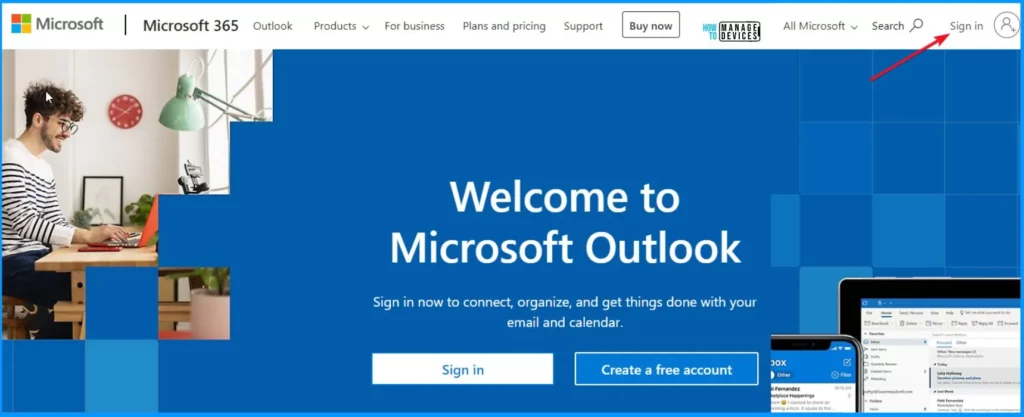
- Go to the Outlook.com website and sign in using your credentials.
- Once logged in, click on your profile menu and select “View account.”
- Within your account settings, locate the “Security” section.
- Look for the option to enable two-step verification and click on it.
- Follow the on-screen prompts to complete the setup process.
Set Up Two-Step Verification
You should add a phone number for verification purposes. Enter your phone number and choose the method through which you like to receive verification codes (e.g., text message, phone call). You will receive a verification code once you have provided your phone number.
- Enter the verification code to confirm and enable two-step verification for your Outlook.com account.
Resources
Outlook and other apps are unable to connect to Outlook.com – Microsoft Support
We are on WhatsApp now. To get the latest step-by-step guides, news, and updates, Join our Channel. Click here. HTMD WhatsApp.
Author
About the Author – Vidya is a computer enthusiast. She is here to share quick tips and tricks with Windows 11 or Windows 10 users. She loves writing on Windows 11 and related technologies. She is also keen to find solutions and write about day-to-day tech problems.


Discussion