






Enable or Disable Mouse Gesture Policy in MS Edge Browser using M365 Admin Center
Let’s discuss how to enable or disable Mouse Gesture Policy in Microsoft Edge Browser using M365 Admin Center. Microsoft Edge, a faster, more secure upgrade from Internet Explorer, is standard on Windows and available across macOS, iOS, and Android.
This policy controls the settings for Mouse Gestures in the Microsoft Edge application. Mouse gestures offer a streamlined method for users to execute common browser actions. By pressing and holding the right mouse button and drawing specific patterns on a webpage, users can quickly perform tasks such as scrolling, opening new tabs, or refreshing pages.
Microsoft Edge continues to evolve with user-friendly features like Mouse Gesture Action Hints, as discussed in our blog. This innovative tool simplifies navigation through intuitive mouse gestures, offering a faster alternative to standard browsing commands.
Enabling or leaving the Mouse Gesture policy unconfigured allows users to utilize the feature within Microsoft Edge. Conversely, disabling this policy completely prevents users from accessing and using any Mouse Gesture functionality within the browser.

Table of Contents
What are Mouse Gestures in a Web Browser?
Mouse gestures are a method of controlling a web browser by performing specific mouse movements like holding down the right mouse button and swiping in designated directions.
These movements, recognized by the browser, trigger built-in functions like closing tabs or navigating history. By using these gestures, users can significantly speed up their interactions with the browser, leading to increased productivity.
Mouse Gesture Policy in Microsoft Edge Browser
This policy manages Microsoft Edge’s Mouse Gesture feature, which lets users perform actions like scrolling and opening tabs by drawing patterns with the right mouse button. This gesture-based approach provides an alternative to traditional button clicks or keyboard shortcuts. It enhances efficiency and user experience.
| Gesture | Action |
|---|---|
| Left | Go back |
| Right | Forward |
| Up | Scroll up |
| Down | Scroll down |
| Down then right | Close tab |
| Left then up | Reopen closed tab |
| Right then up | Open new tab |
| Right then down | Refresh |
| Up then left | Switch to left tab |
| Up then right | Switch to right tab |
| Down then left | Stop loading |
| Left then down | Close all tabs |
| Up then down | Scroll to bottom |
| Down then up | Scroll to top |
| Left then right | Close tab |
| Right then left | Reopen closed tab |
- Enable Or Disable Microsoft Editor Synonyms Policy In Edge Browser Using M365 Admin Center
- Enable or Disable Default Share Additional OS Region in MS Edge Browser using M365 Admin Center Policy.
- Enable Disable Application Locale Value Policy in Microsoft Edge Browser using M365 Admin Center.
Enable or Disable Mouse Gesture Policy in Microsoft Edge Browser
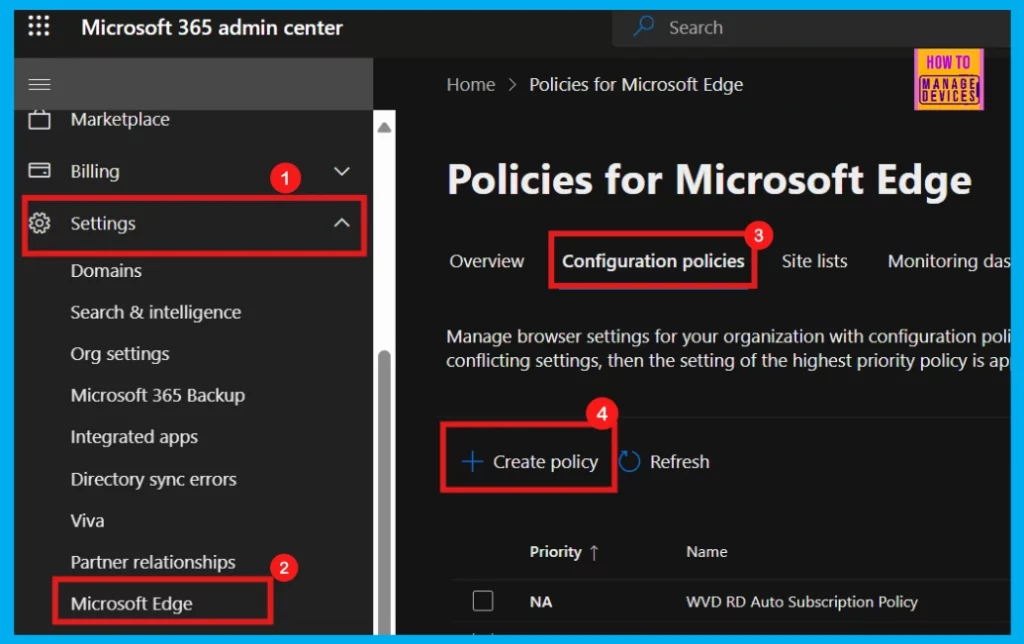
To enable Mouse Gestures in Microsoft Edge using the Microsoft 365 Admin Center, begin by logging into your Microsoft 365 Admin Center. Navigate to the Settings section, and then select Microsoft Edge.
Within the Edge settings, click on Configuration Policies to access policy management. To create a new policy, click the + Create Policy button. This will allow you to configure and deploy the Mouse Gesture feature across your organization’s Edge browsers.
- Microsoft 365 Admin Center > Settings > Microsoft Edge > Configuration Policies > + Create Policy
Basics
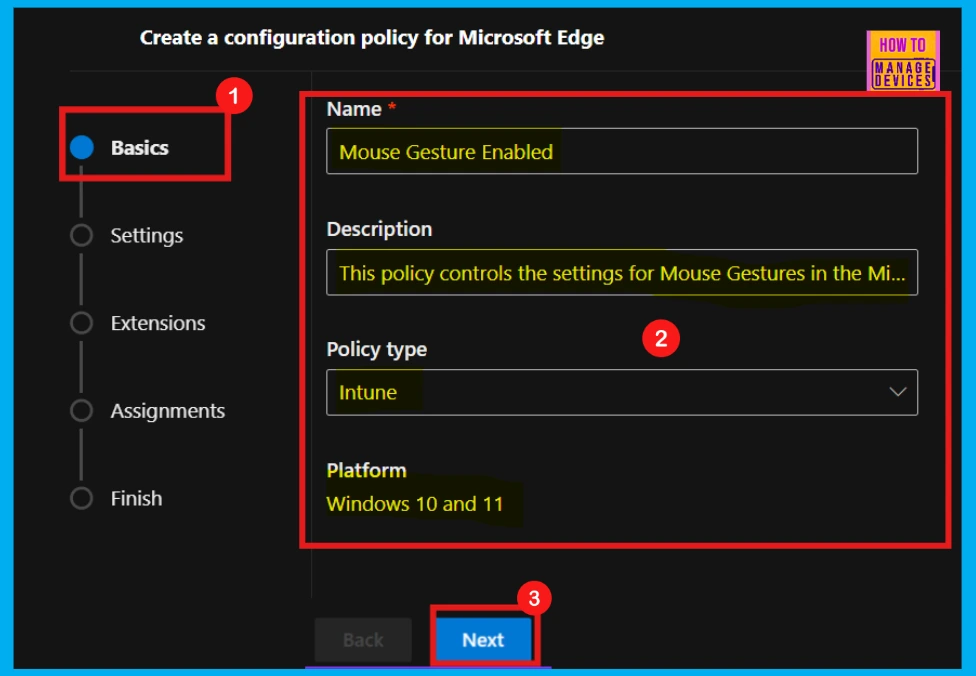
Upon clicking + Create Policy, we will enter into Basics section. Policy configuration starts with defining the basics: Name, Description, Type, and Platform. These details are essential for later identification. Proceed to the next step by clicking Next after entering this information.
| Policy Name | Description | Policy Type | Platform |
|---|---|---|---|
| Mouse Gesture Enabled | This policy controls the settings for Mouse Gestures in the Microsoft Edge application. | Intune | Windows 10 and 11 |
Settings
The Settings phase, the second and most vital part of creating a Microsoft Edge configuration policy, is where you determine the policy’s specific parameters and assign it. To do this, follow these steps:
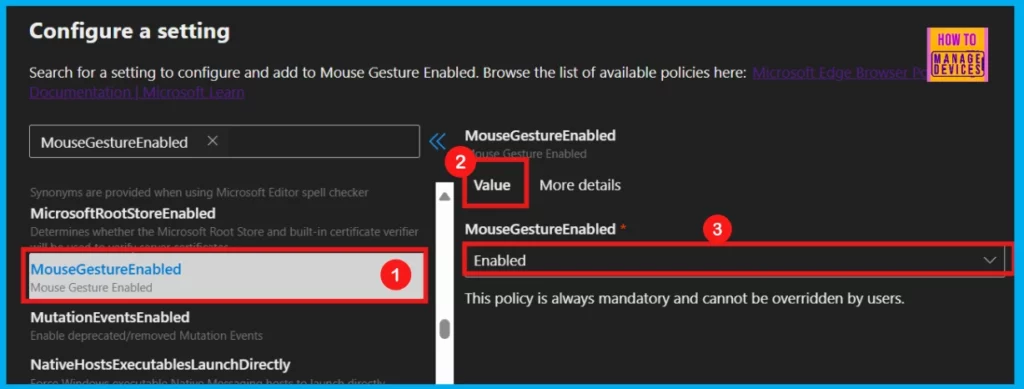
- Click on + Add Settings to enter the Configure a setting page.
- Search for the policy name under Additional settings.
- The left pane of the Settings window shows the Value and More details options.
- Add the mandatory Value.
- Here, I select Enabled from the dropdown arrow as my policy is Mouse Gesture Enabled.
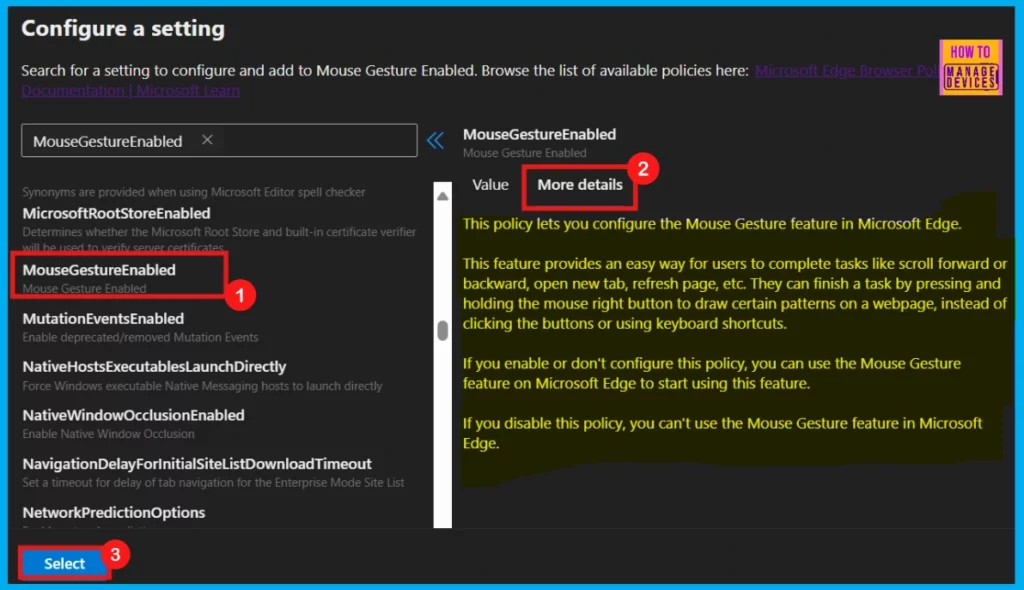
The More Details section provides crucial information about the policy. Thoroughly reviewing this section ensures a comprehensive understanding of the policy before implementation.
- Click Select to finalize and assign the policy.
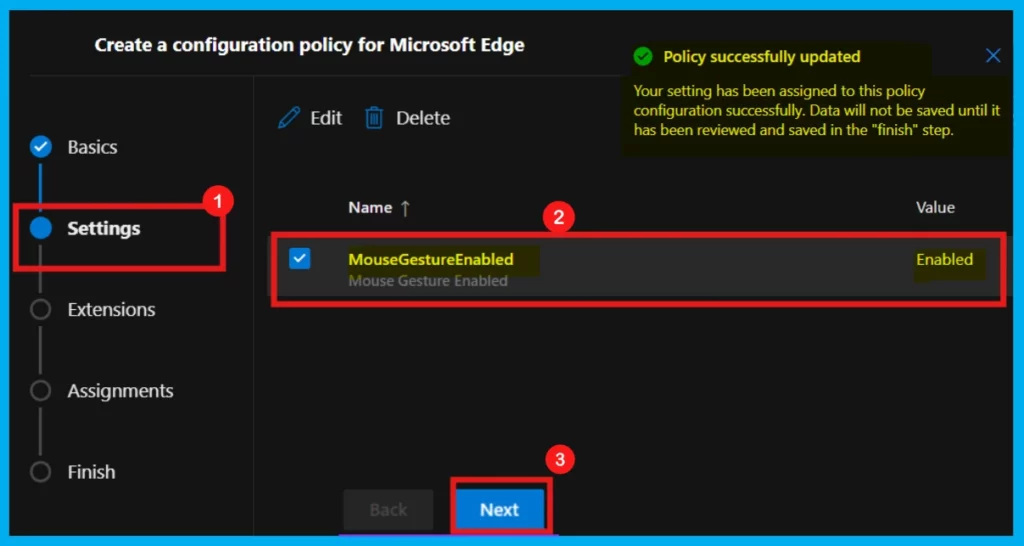
After clicking Select, you’ll see a confirmation that the policy has been updated. However, it’s crucial to understand that these changes are temporary and won’t be permanently saved until the Finish step. The screenshot confirms the Mouse Gesture policy is now enabled.
- To finalize and save these settings, click Next to continue to the next stage.
Extensions
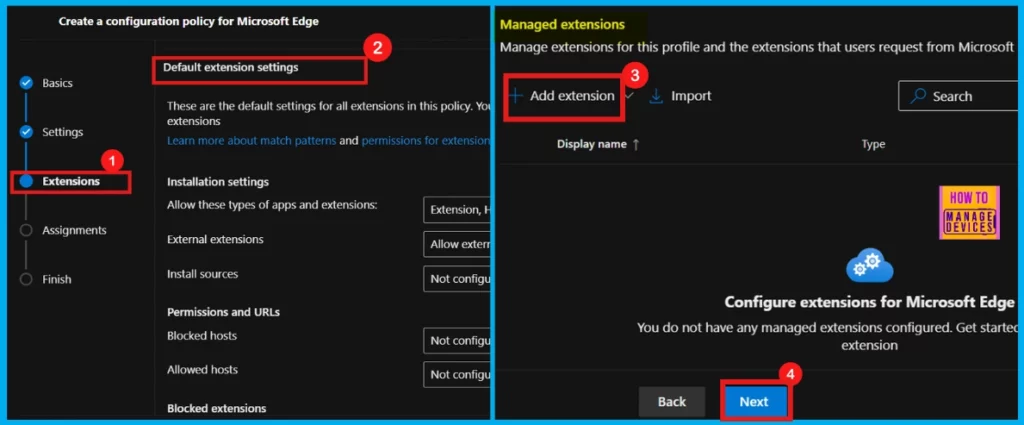
In the Extensions area, you can configure policy-driven extension behaviors, including installation settings, permissions, and allowed or blocked URLs. Use the + Add extension button to include specific extensions in your policy. If no extension settings are necessary, simply click Next to continue.
Assignments
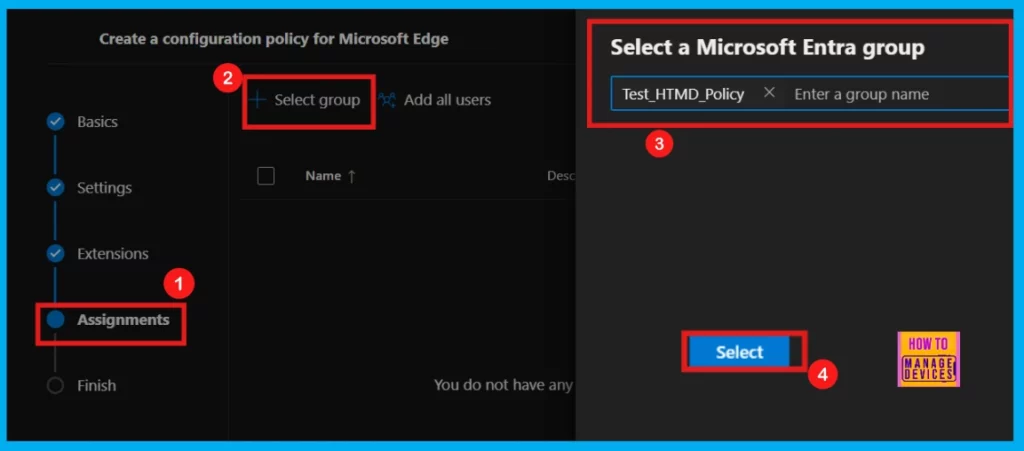
The Assignments tab, the fourth step in policy configuration, allows you to determine which groups, users, or devices will receive the policy.
- To assign it, click +Select group.
- Choose the desired group from the available Microsoft Entra groups.
- For example, here I select Test_HTMD_Policy.
- After selecting the group, click Select.
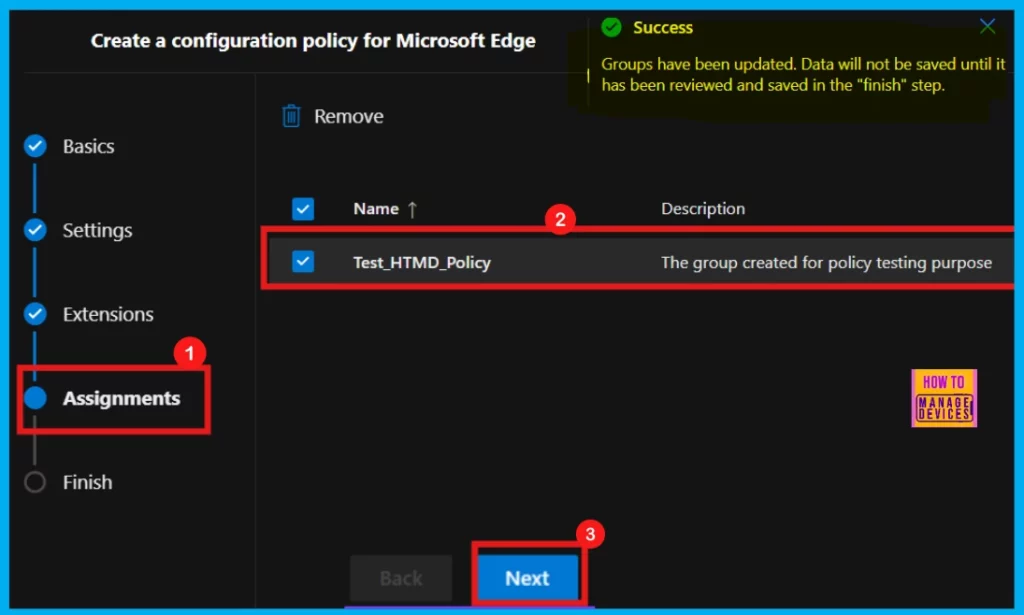
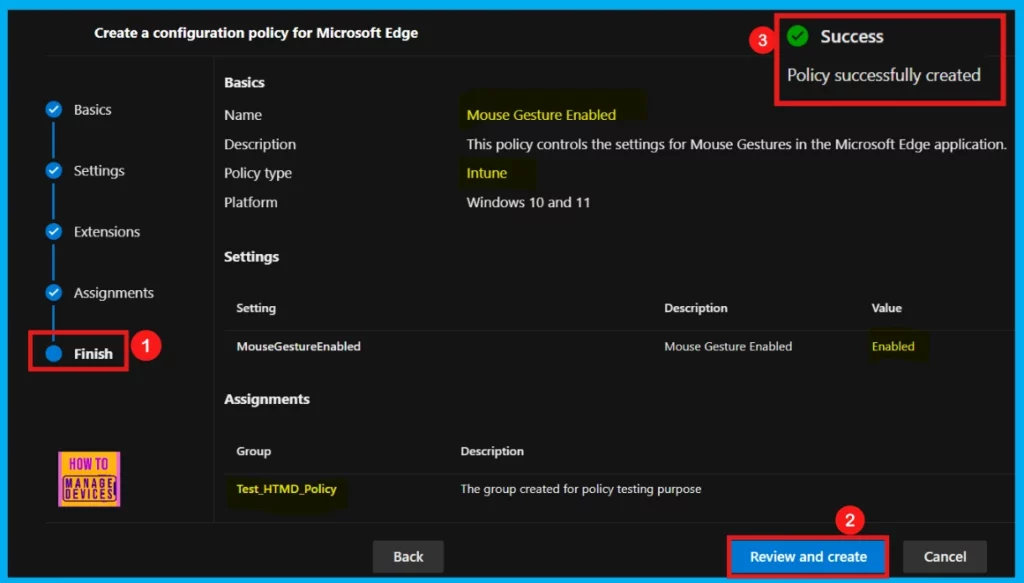
Upon choosing a group from the Microsoft Entra directory, a notification will confirm that the group assignment has been successfully updated. In this case, the Test_HTMD_Policy group has been assigned, and its description clarifies its purpose: The group was created for policy testing purposes.
Finish
The Finish stage represents the final step in the policy creation process, providing a comprehensive review of all configurations made in the preceding steps. Here, you can use the Back button to revisit and modify any previous settings. Before finalizing, verify that all details are accurate.
- Once you are satisfied with the configuration, click Review and Create to complete the policy creation.
- Now, a notification will be received saying that the Policy has been successfully created.
Monitoring Status
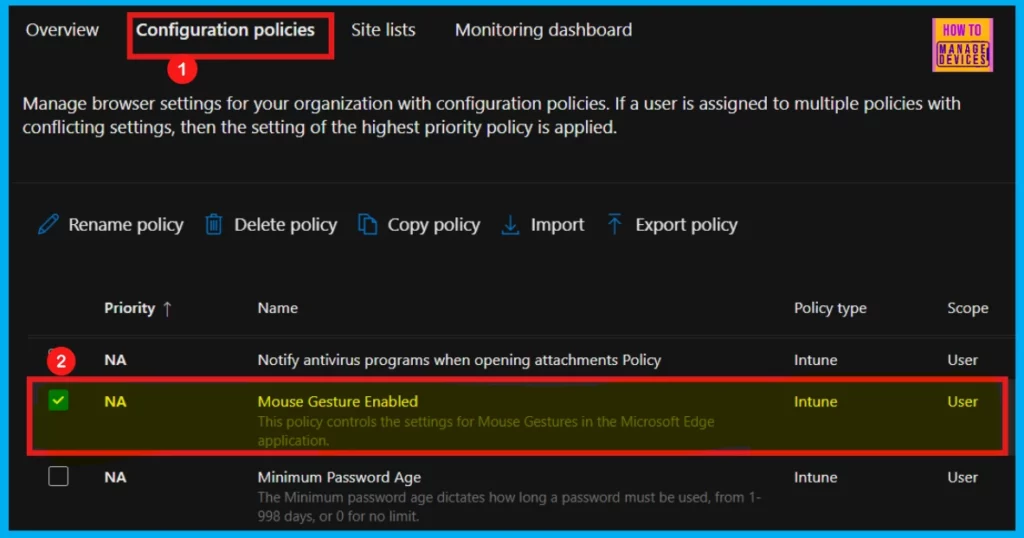
To activate the policy for the designated group, a deployment delay is necessary. Alternatively, immediate synchronization can be achieved through the company portal. To manually sync, navigate to Company Portal > Settings> Sync. After performing a manual sync, the new policy is reflected on the Policies for Microsoft Edge page, as seen in the image.
Device and User Check-in Status
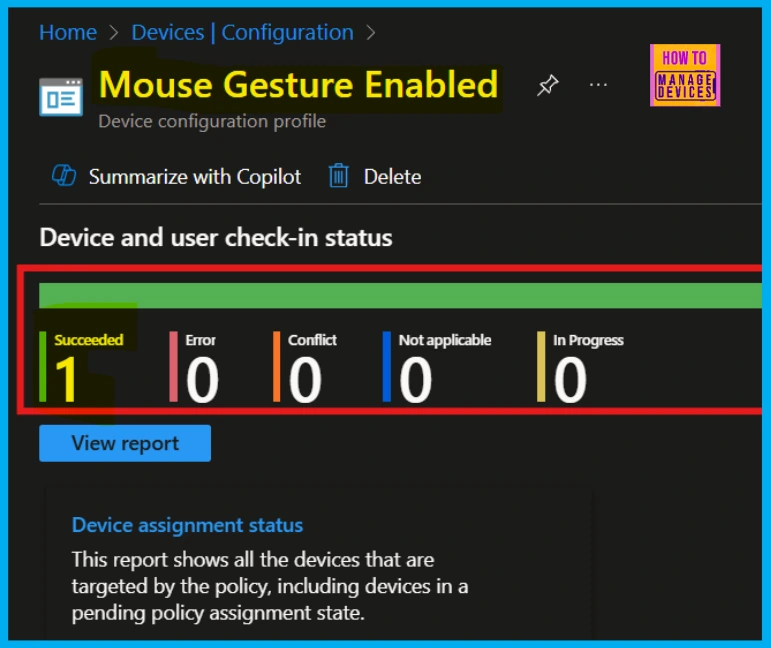
Following a manual synchronization via the company portal, you can confirm successful policy deployment by checking its status in the Intune Portal. First, navigate to Devices > Configuration. Then, find the policy under the Policies tab. A successful status confirms the policy’s successful application to the device.
Client-Side Verification
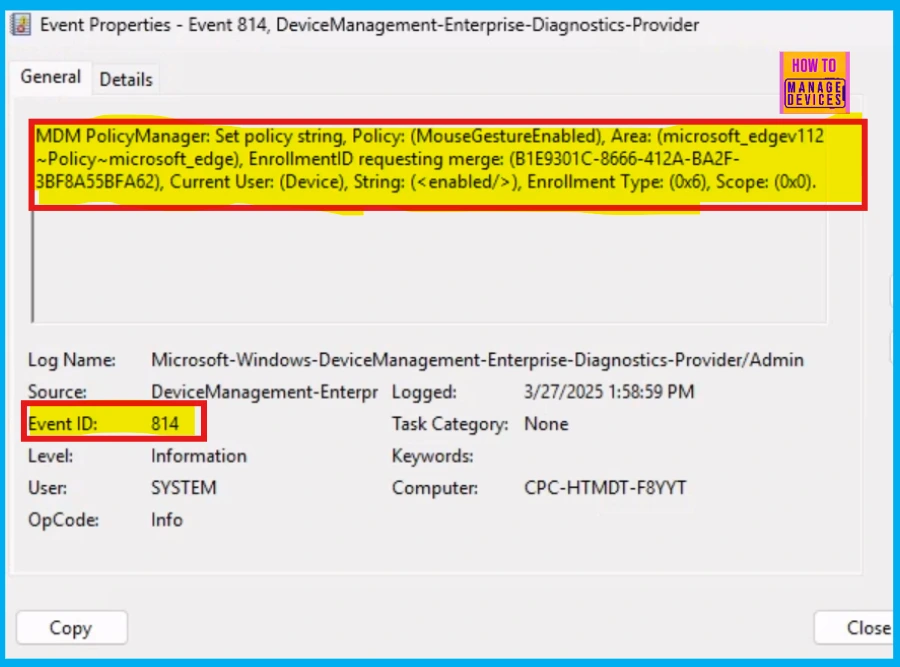
Client-side verification in Microsoft 365 confirms an app’s authenticity and authorization before granting access to sensitive data, protecting users from fake applications. Event Viewer in Windows displays detailed computer event logs, useful for error diagnosis. IDs 813 and 814 indicate successful string/integer policy implementation.
- Event Viewer > Applications and Services Logs > Microsoft > Windows > Devicemanagement-Enterprise-Diagnostics-Provider > Admin.
MDM PolicyManager: Set policy string, Policy: (MouseGestureEnabled), Area: (microsoft_edgev112~Policy~microsoft_edge), EnrollmentID requesting merge: (B1E9301C-8666-412A-BA2F-3BF8A55BFA62), Current User: (Device), String: (), Enrollment Type: (0x6), Scope: (0x0).
End User Experience
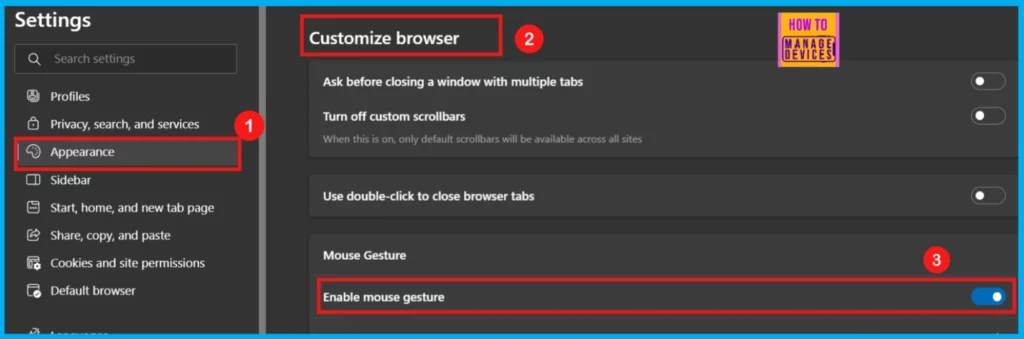
To confirm the successful application of the Mouse Gesture Enabled policy, open Microsoft Edge and go to its Settings via the three-dot menu (…) in the top right.
- On the left, click on Appearance.
- Scroll down the right side to Customize browser > Mouse gesture.
- Turn ON the Enable Mouse Gesture by toggling it right.
Need Further Assistance or Have Technical Questions?
Join the LinkedIn Page and Telegram group to get the latest step-by-step guides and news updates. Join our Meetup Page to participate in User group meetings. Also, Join the WhatsApp Community to get the latest news on Microsoft Technologies. We are there on Reddit as well.
Author
Anoop C Nair has been a Microsoft MVP for 10 consecutive years from 2015 onwards. He is a Workplace Solution Architect with more than 22+ years of experience in Workplace technologies. He is a Blogger, Speaker, and Local User Group Community leader. His primary focus is on Device Management technologies like SCCM and Intune. He writes about technologies like Intune, SCCM, Windows, Cloud PC, Windows, Entra, Microsoft Security, Career, etc.




Discussion