






Enable or Disable Find My Device using Intune Security Policy
Today, I would like to explain how to enable or disable Find My Device using Intune Security Policy. Intune’s Settings Catalog simplifies device management. It centralizes settings for various platforms, making policy creation easier.
Allow Find My Device policy turns on the Find My Device feature in Windows. If you misplace your Windows 10 or 11 device, Find My Device allows you to use your Microsoft account to find its location, lock it in security, or erase its data. This functionality works even if the device isn’t currently connected to the internet.
Enabling or disabling Find My Device in Windows 11 can be done using multiple methods, such as Settings, Registry, and Group Policy (GPO). With security being a top priority, Windows 11 offers robust features to help protect and recover lost or stolen devices. Understanding these options in advance ensures you’re prepared to locate your device if needed.
Through this post, I would like to explain enable or disable Allow Find My Device Policy using Intune Setting Catalog. This Setting Catalog makes creating and managing device policies easier, allowing administrators to customize configurations efficiently.

Table of Contents
What are the Benefits of Enabling or Disabling Find My Device?
If you enable (turn on) Find My Device, your device’s location is stored in the cloud, allowing you to find it through account.microsoft.com. Additionally, for compatible devices, it records the last used location of your active digitizer locally.
If you turn off (disable) Find My Device, you won’t be able to locate your device remotely, and the last used location of your active digitizer will not be recorded or available.
What are the Allowed Values of Allow Find My Device Policy?
In Windows 11, the Find My Device feature can be controlled using specific values. When set to 0, the feature is disabled, meaning the device cannot be tracked if lost or stolen. The default value is 1, which enables the feature, allowing the device’s location to be recorded and retrieved when needed.
Windows CSP Details – Experience
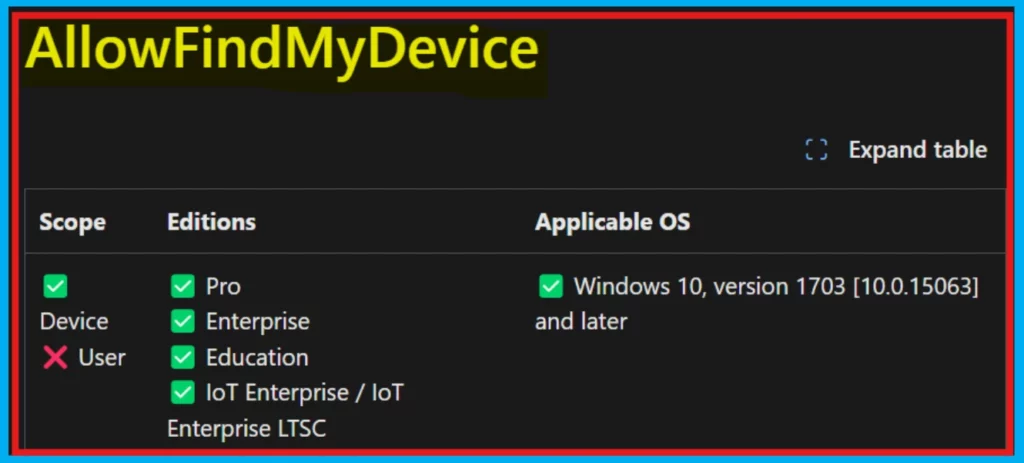
Configuration Service Providers (CSPs) provide the functionality for Intune to manage Windows device settings, allowing for remote configuration changes through the Windows Registry. The following section will showcase the CSP details of the Allow Find My Device Policy, which is under the Experience category.
Description framework properties:
| Property Name | Property Value |
|---|---|
| Format | int |
| Access Type | Add, Delete, Get, Replace |
| Default Value | 1 |
./Device/Vendor/MSFT/Policy/Config/Experience/AllowFindMyDevice
- Enable Sync My Settings Policy on Intune Settings Catalog
- Easy Way to Set Bandwidth Throttling End Time using Setting Catalog Via Intune
- Allow Manual Start of Microsoft Account Sign In Assistant Using Intune Settings Catalog
Enable or Disable Find My Device using Intune Security Policy
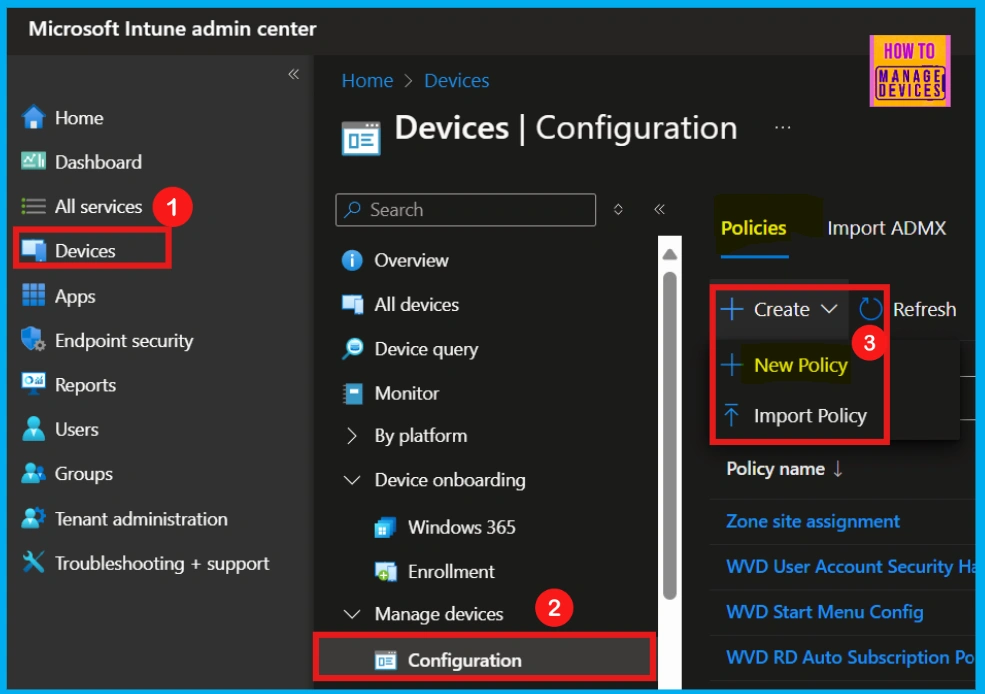
To deploy an Intune policy, first, log in to the Microsoft Intune admin center. Then, create a new configuration profile by navigating to Devices > Configurations > Create policy. To begin creating a new policy, initiate the process by selecting New Policy.
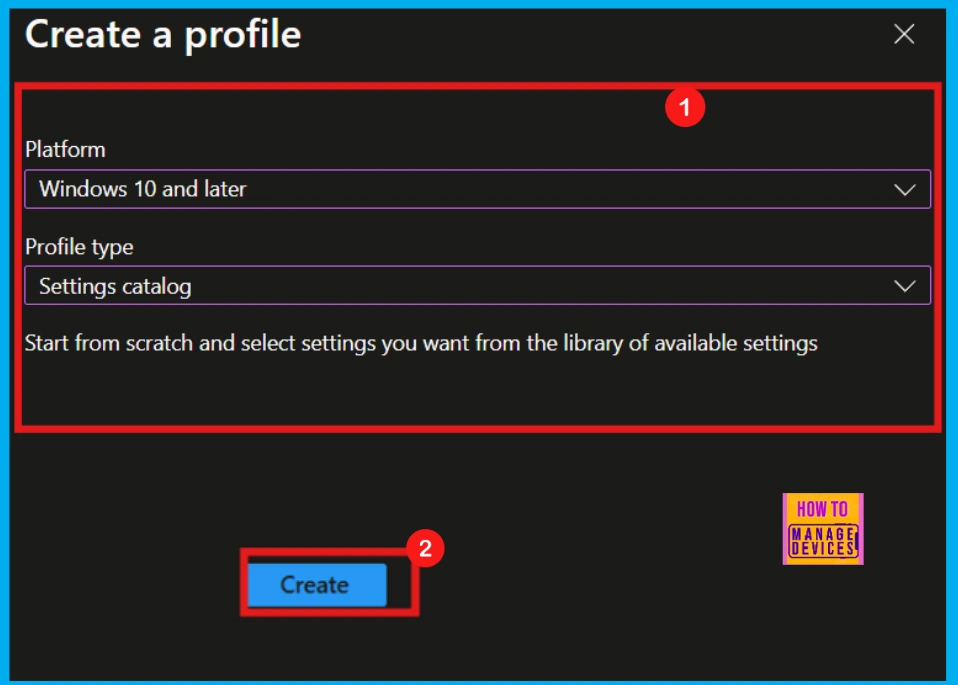
Selecting New Policy opens the Create Profile window, allowing you to configure the policy. First, specify Windows 10 and later as the target platform. Next, select Settings Catalog as the profile type. Finally, confirm your selections by clicking Create, which will finalize the policy creation setup.
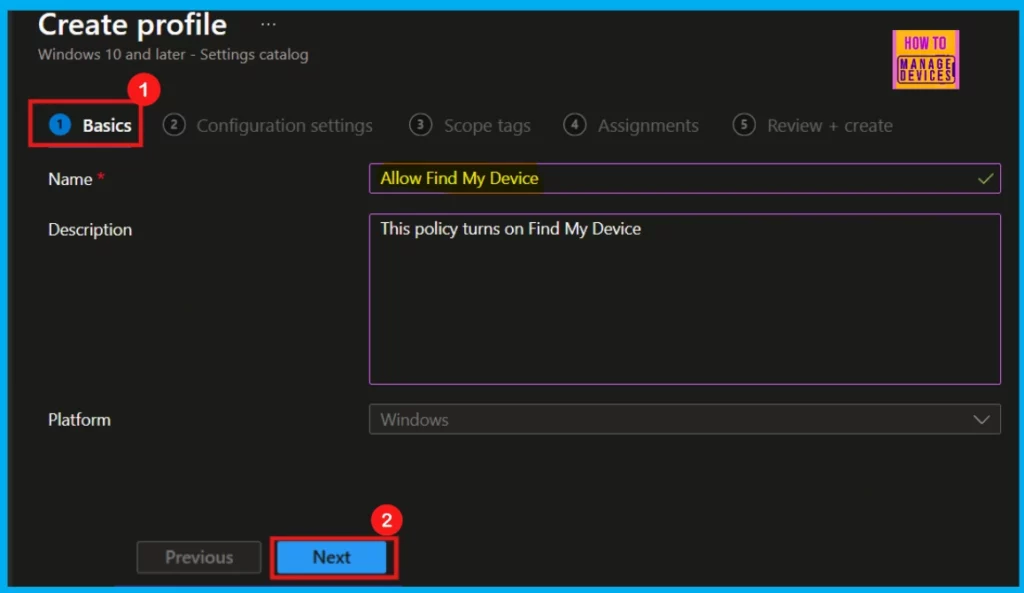
Basics
Policy creation begins with the Basics section. This mandatory step requires you to name your policy and provide a brief description, ensuring clear identification and purpose.
| Basics | Details |
|---|---|
| Name | Allow Find My Device |
| Description | This policy turns on Find My Device |
| Platform | Windows |
Configuration Settings
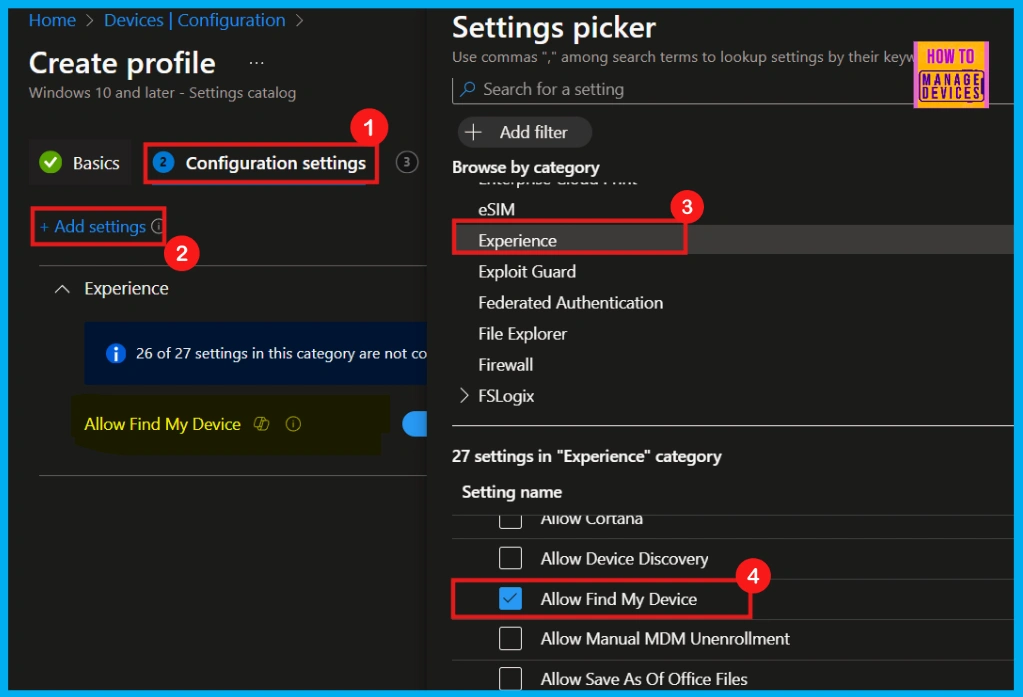
Following the Basics section, you must configure the policy’s actual settings. Click +Add settings to select the desired options. This Configuration settings section is mandatory and requires completion to proceed. When you click Add Settings, the Settings Picker window appears.
- Search for policies by keyword or browse by category
- Here, I select Experience as a category
- I choose Allow Find My Device settings from the given list.
- Top 75 Latest Intune Interview Questions and Answers
- Create Intune Settings Catalog Policy
- Enable Offline Maps Auto Update using Intune Setting Catalog Policy
Enable or Disable Allow Find My Device
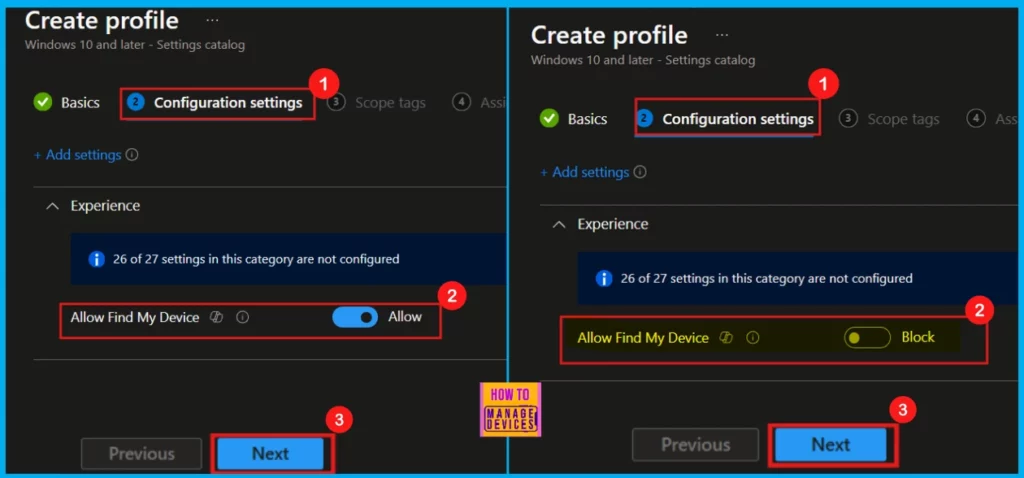
After closing the settings window, the main configuration screen shows up. This screen allows us to change various settings. Here, the Allow Find My Device policy is allowed (Enabled) by default. From here, we can change the policy settings to Block (disable) by toggling it left.
Scope Tags
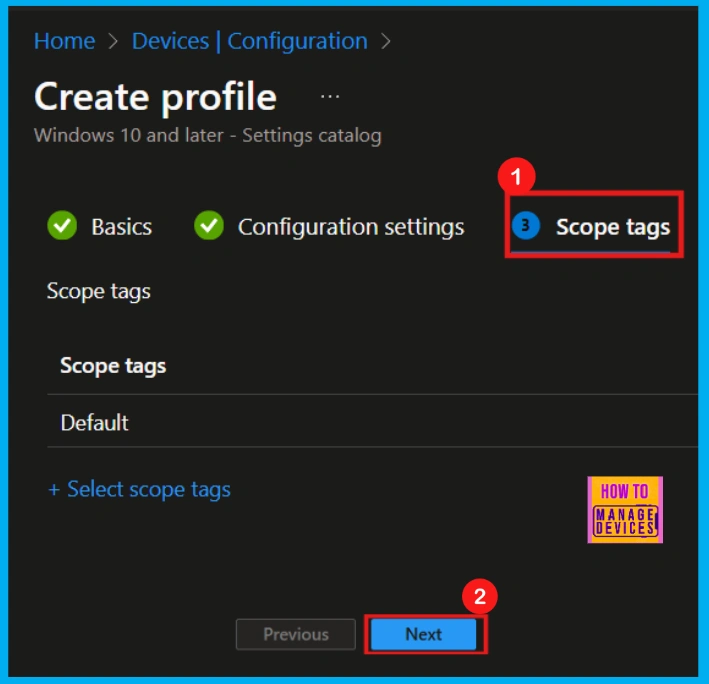
In Intune, the Scope Tags section allows you to organize and manage access to your policies. Using tags, you can control who sees and uses specific policies based on criteria like department or location. While helpful for organization, adding scope tags is optional; you can proceed to the Next step without them.
Assignments
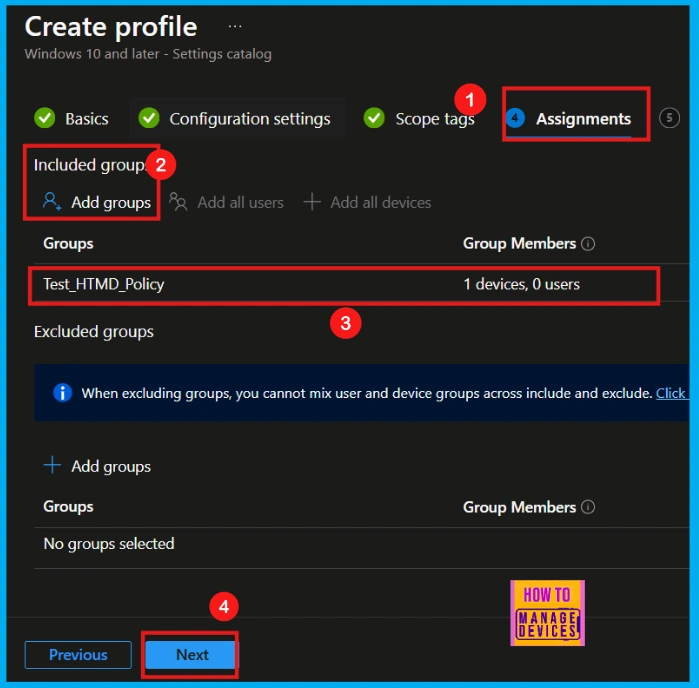
The Assignments section is where you determine which groups receive the Allow Find My Device Policy. To assign the policy, click Add Group within the Include Groups section. This will open a window where you can select the desired groups.
- After making your selection, click the Select button.
- Then click on the Next button to move on.
Review + Create
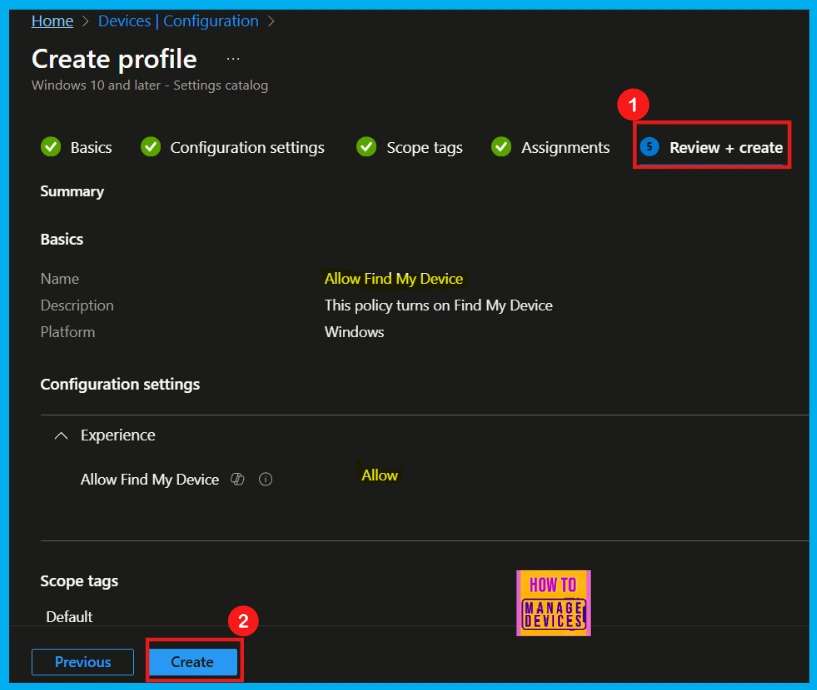
After assigning the policy to the device group, you’ll arrive at the Review + Create page. This is your final chance to examine all settings and configurations. If changes are required, use the Previous button. Once you’re satisfied, click Create to deploy the policy.
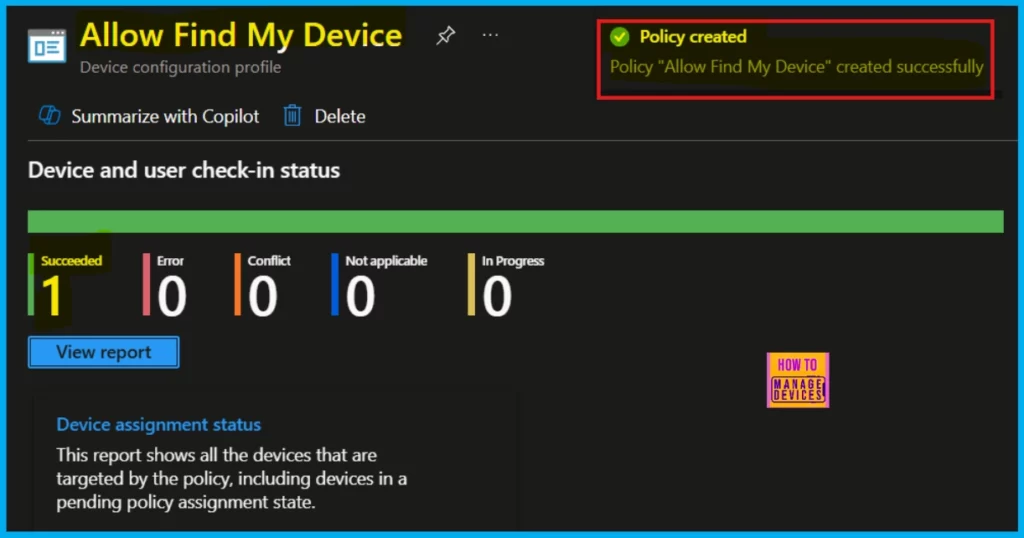
Device and User Check-in Status
It’s crucial to sync your device with the Company Portal before reviewing the results, as this speeds up policy application. Then, go to Devices > Windows > Configuration and find your policy. The deployment status will be shown in the ‘Device and user check-in status’ section.
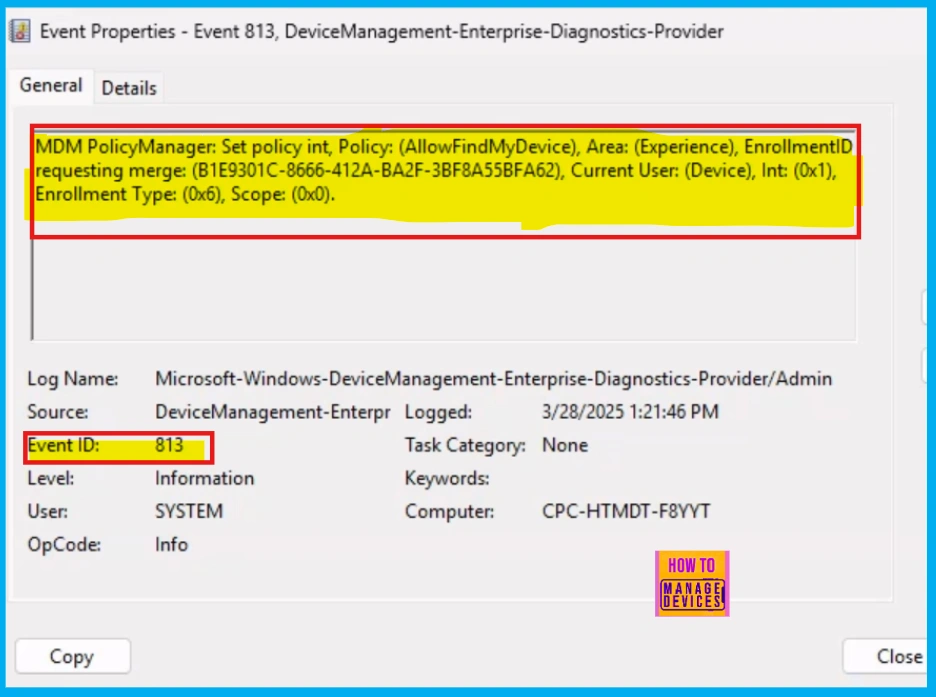
Client Side Verification
For client-side verification, use the Event Viewer. Navigate to Applications and Services Logs > Microsoft > Windows > Device Management > Enterprise Diagnostic Provider > Admin. To quickly find your policy results within the list, utilize the Filter Current Log option in the right pane.
| Policy Details |
|---|
| MDM PolicyManager: Set policy int, Policy: (AllowFindMyDevice), Area: (Experience), EnrollmentID requesting merge: (B1E9301C-8666-412A-BA2F-3BF8A55BFA62), Current User: (Device), Int: (0x1), Enrollment Type: (0x6), Scope: (0x0). Event ID -813 |
Need Further Assistance or Have Technical Questions?
Join the LinkedIn Page and Telegram group to get the latest step-by-step guides and news updates. Join our Meetup Page to participate in User group meetings. Also, Join the WhatsApp Community to get the latest news on Microsoft Technologies. We are there on Reddit as well.
Author
Anoop C Nair has been Microsoft MVP for 10 consecutive years from 2015 onwards. He is a Workplace Solution Architect with more than 22+ years of experience in Workplace technologies. He is a Blogger, Speaker, and Local User Group Community leader. His primary focus is on Device Management technologies like SCCM and Intune. He writes about technologies like Intune, SCCM, Windows, Cloud PC, Windows, Entra, Microsoft Security, Career, etc.


Discussion