






Easy Guide to Configure Multiple Display Mode for Windows 11 24H2 using Intune
In this article, I am talking about how to Configure Multiple Display Mode for Windows 11 24H2 using Microsoft Intune. It a new settings available in the Windows settings catalog to Configure multiple display modes. This configuration setting are available from Intune’s latest Service Release 2501 onwards. This configuration policy currently applies to only Windows devices.
The Configure Multiple Display Mode setting allows monitors to extend or clone the display by default, facilitating the need for manual setup. It streamlines the multi-monitor configuration process, ensuring a consistent and user-friendly experience.
Once the settings are configured, assign the profile to specific device groups or all devices for deployment. This ensures that users get a predefined display configuration without manual setup. The profile applies automatically once the device syncs with Intune, making it an efficient way to enforce display policies.
You can define whether screens should be extended, duplicated, or use only the second display based on your organization’s needs. The Settings Catalog lists all the settings you can configure in a device policy, and all in one place.

Table of Contents
Uses of Configure Multiple Display Mode in Windows 11 24H2
Below mentioned table shows the major uses of Configure Multiple Display Mode in Windows 11 24H2 Devices. Make sure your device will support Multiple Display Mode before deploying this policy.
| Uses | Details |
| Enhanced Productivity | Extending displays allows users to multitask efficiently by working on multiple applications simultaneously |
| Seamless Presentations | Mirroring the primary display ensures a smooth presentation experience in meetings, conferences, and classrooms. |
| Kiosk & Digital Signage | Configuring “Second Screen Only” mode helps in retail displays, self-service kiosks, and advertising screens. |
| Security & Compliance | Restricting external displays can prevent unauthorized screen sharing and protect sensitive data. |
| Remote Work Optimization | Ensuring consistent multi-monitor settings for remote employees enhances their work experience. |
| Classroom & Training Setup | Teachers can easily mirror their screens to projectors for students, ensuring effective learning. |
| IT Support & Troubleshooting | IT teams can remotely enforce display settings for standardization and troubleshooting. |
- How to Control User Input from the Wireless Display Receiver using Intune Policy
- How to Configure Hotpatch Update for Windows 11 using Microsoft Intune Policy
- Best Method to Enable Virtualization Based Security Using Microsoft Intune
Create a Configure Multiple Display Mode Policy in Intune
Follow the below mentioned steps to create a configuration policy to Configure Multiple Display using Microsoft Intune. First, Sign In to the Microsoft Intune Admin Center with your administrator credentials.
- Navigate to Devices > Windows > Manage devices > Configuration
- Click on +Create > +New Policy
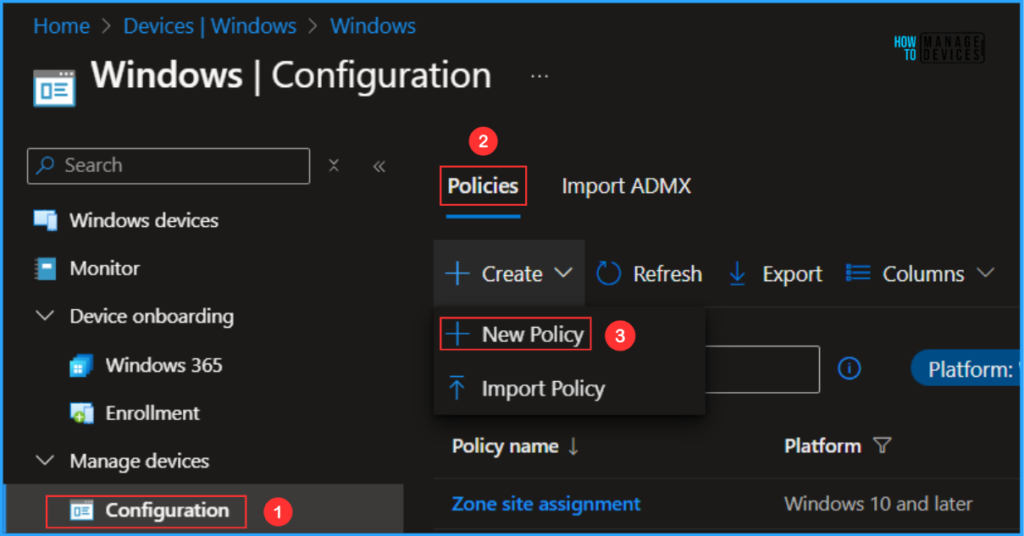
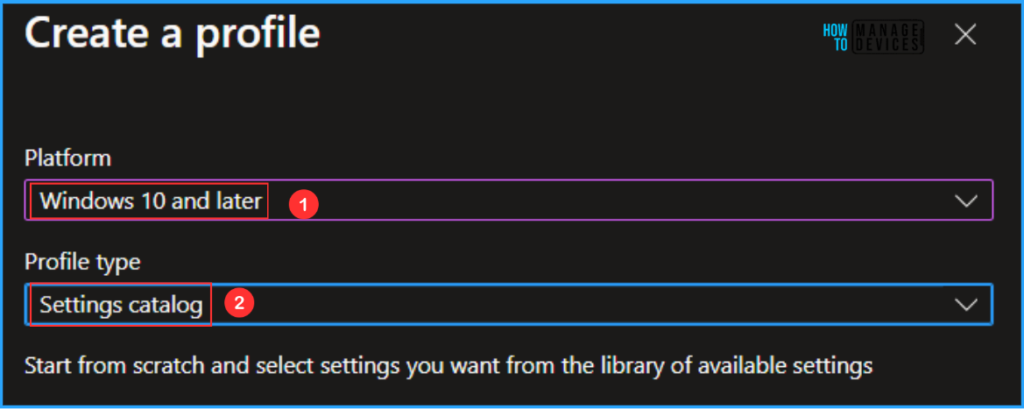
In the next step, we can create a new Configuration profile from scratch. First, we need to provide the options mentioned below.
- Platform: Windows 10 and later
- Profile type: Settings Catalog
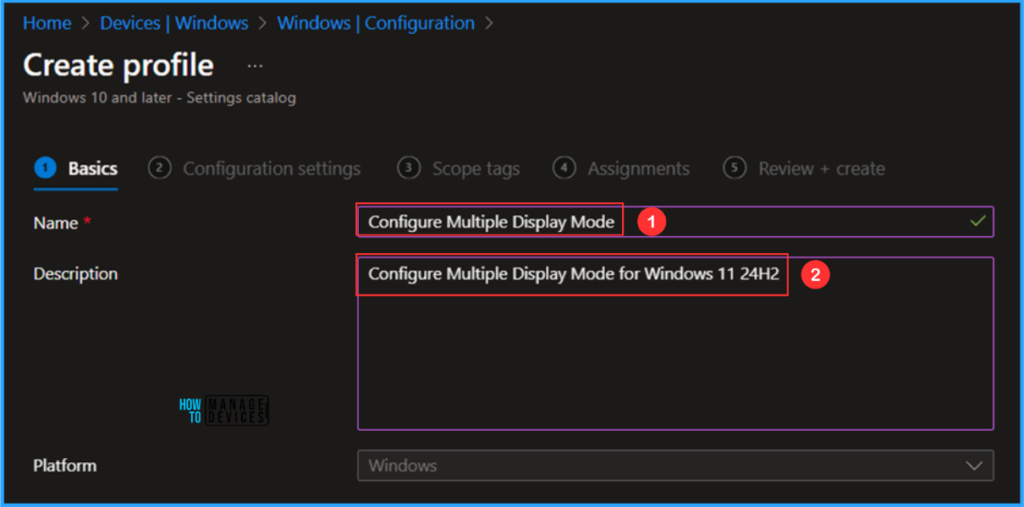
On the Basics details page, we can name the configuration policy as “Configure Multiple Display Mode” if needed, briefly describe the policy’s in detail, here am giving as “Configure Multiple Display Mode for Windows 11 24H2” and then click Next.
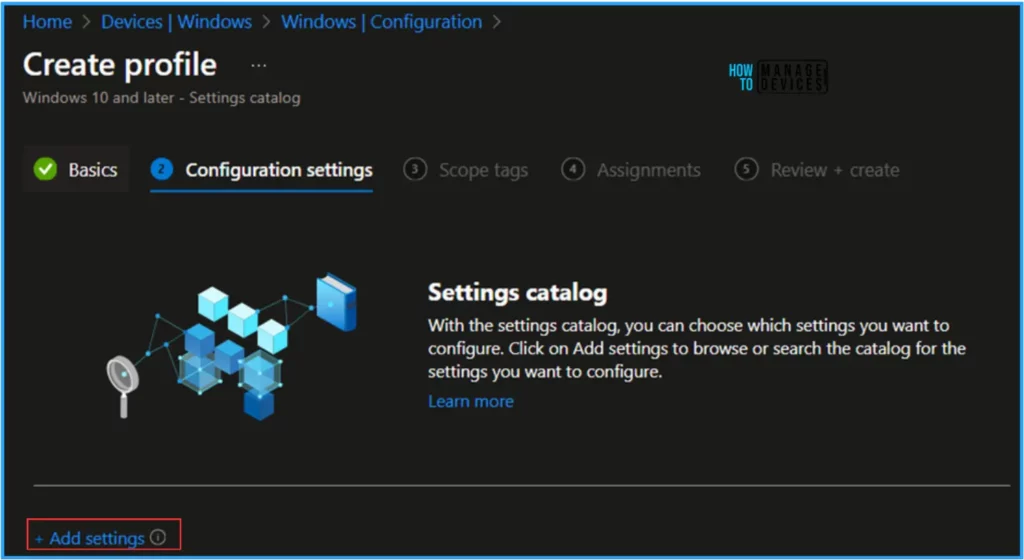
We can now add the required settings to the Configuration Settings pane. To do that, click +Add settings in the bottom left corner of the page.
Note! In Microsoft testing, they have discovered admins may experience performance degradation when greater than 400 settings are added to a single policy. While they continue to make improvements, please take this into consideration when designing your policies.
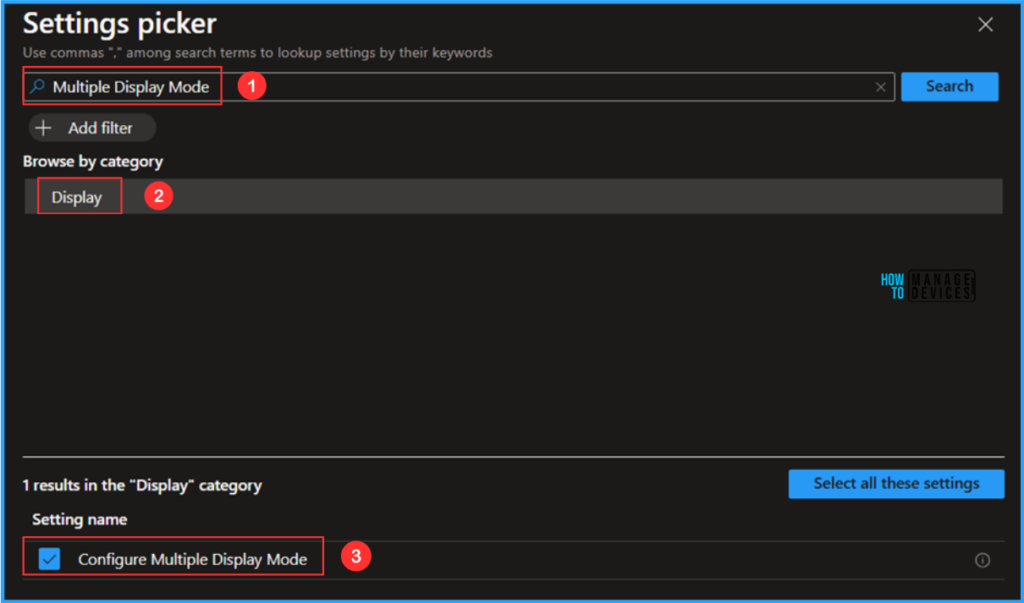
Search “Multiple Display Mode” as a keyword. This will help us to find the correct policy based on our your current need. Now you can see the browse by category found as Display. Click that and check the “Configure Multiple Display Mode” Settings name and close the Settings picker window.
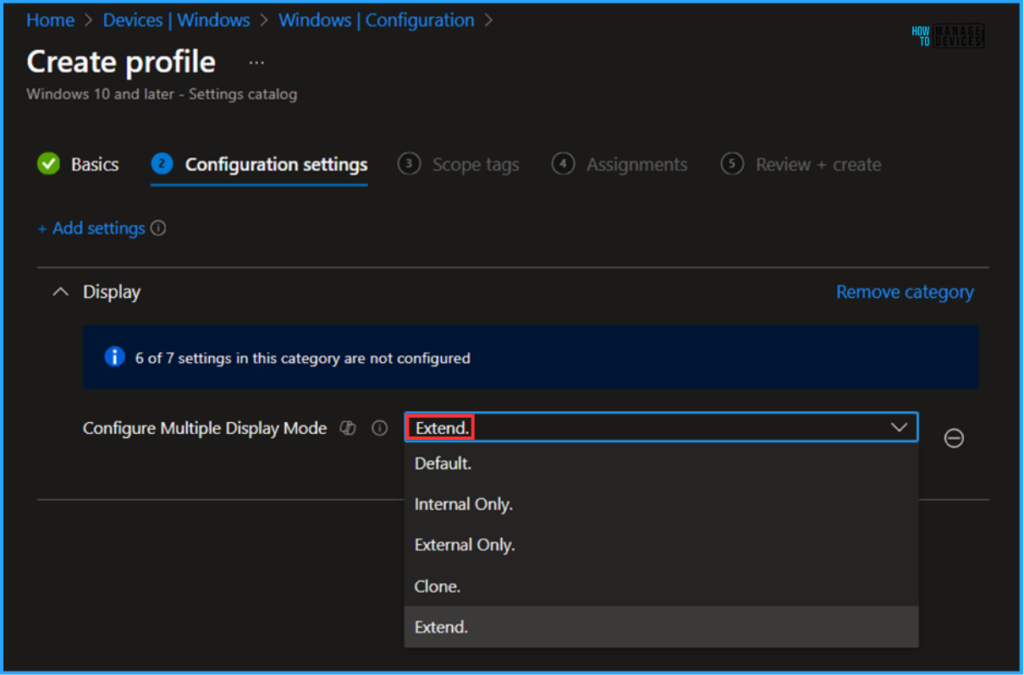
On the current Configuration settings page, select the Extend. option from the drop-down you can see other options like Default., Internal Only., External Only., Clone. menu and click Next.
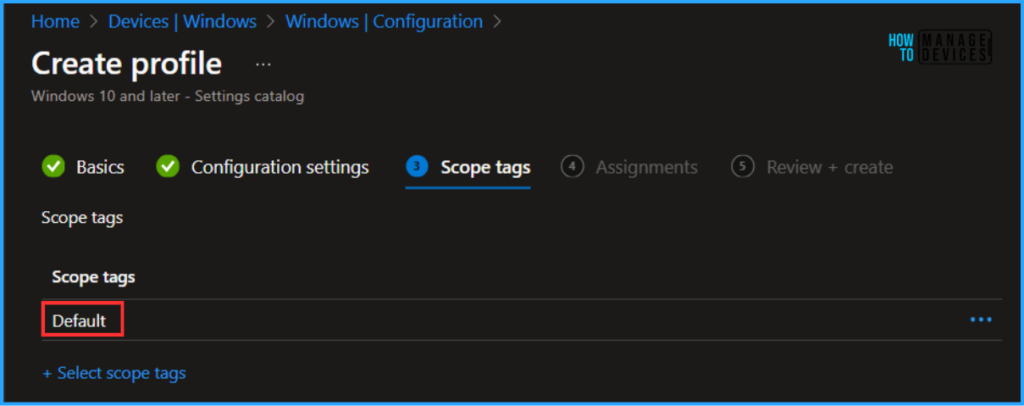
On the next page, Leave the Scope tags as Default. If your tenant has custom scope tags, you can select them based on your policy needs then Click on Next.
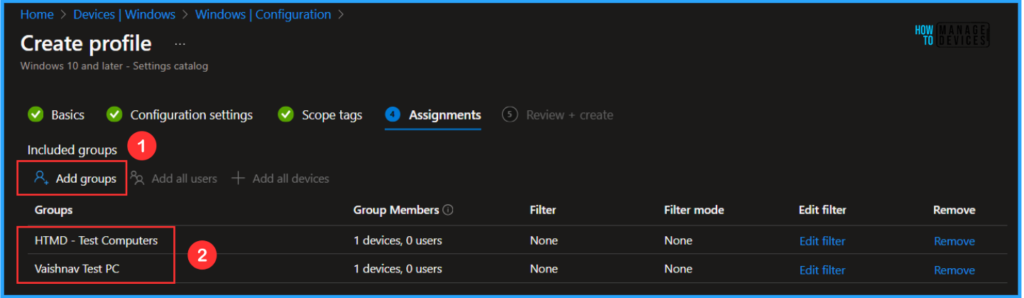
Here, I am assigning the configuration policy to HTMD – Test Computers & Vaishnav Test PC Device Groups. To do that, click Add Groups and select a required device group under the Included Groups option. Not using any Filter in this example, and the Excluded Groups option was also left blank.
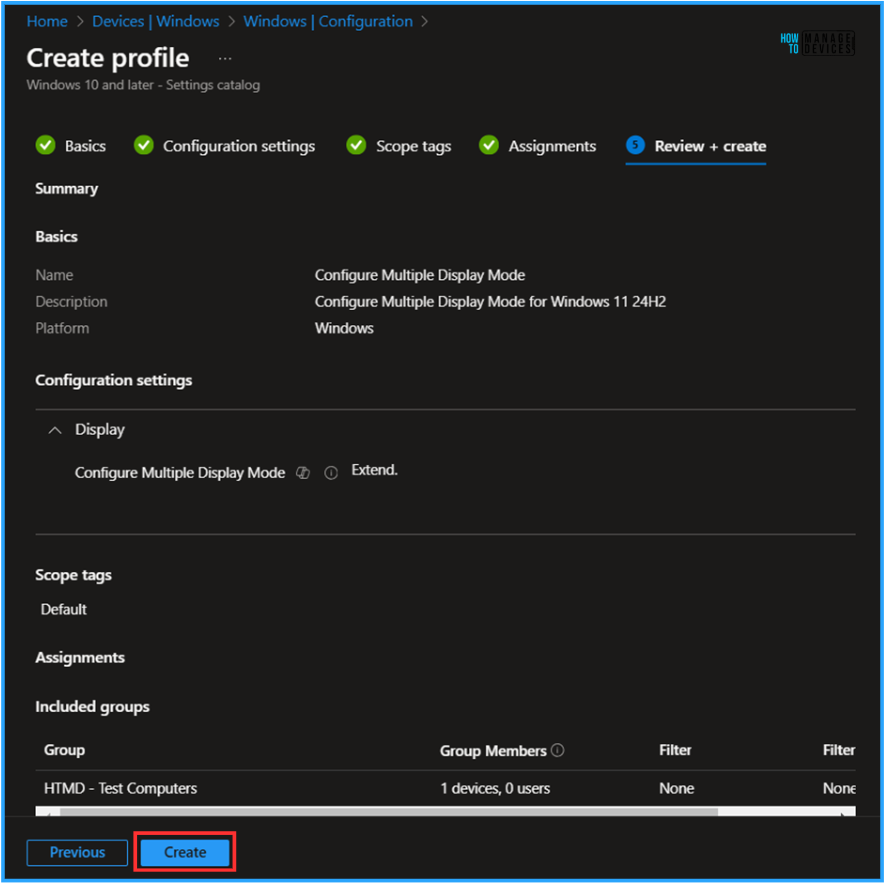
On the Review + Create page, carefully review all the settings you’ve defined for the Configure Multiple Display Mode policy. Once you’ve confirmed everything is correct, select “Create” to deploy the policy.
- Best Guide to Deploy SQL Server Management Studio App Using Microsoft Intune
- Best Guide to Configure User Confirmed EPM Elevation Settings Policy with Intune
- How to use the Update option in Intune Enterprise App Catalog apps by Vaishnav
Monitor the Configure Multiple Display Mode Policy Deployment
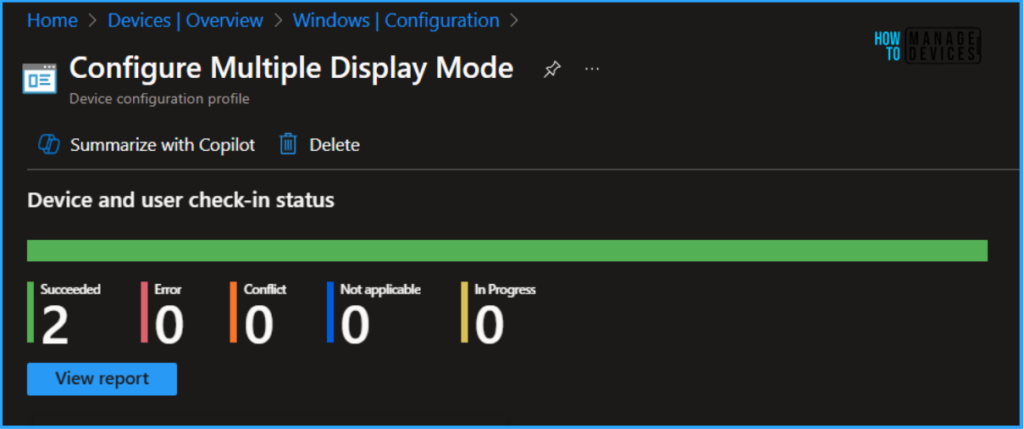
The configuration policy has been deployed to the HTMD – Test Computers & Vaishnav Test PC Microsoft Entra ID Device groups. Once the devices are synced, the policy will take effect immediately. To monitor the policy deployment status from the Intune Portal, follow the steps below.
- Navigate to Devices > Windows > Configuration > Search for the “Configure Multiple Display Mode” configuration policy.
- Under the Device and user check-in status, you can see the policy’s deployment status.
End User Experience – Configure Multiple Display Mode Configuration Policy
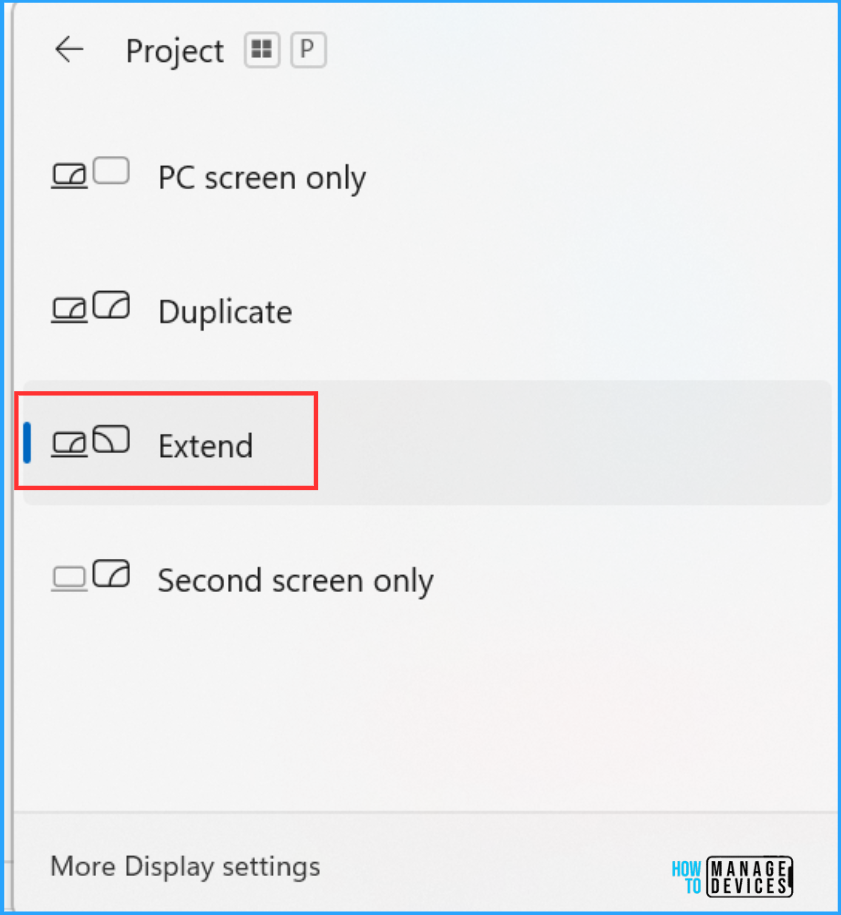
It’s time to check whether the newly added Configure Multiple Display Mode Policy worked. To check that, log in to one of the policy-targeted devices. Search for Projection settings. Or use shortcut Windows Key + P. We can see multiple Project modes and as per our Configuration settings. It’s by default selected as Extend option. So we can conclude our policy working as expected!
Need Further Assistance or Have Technical Questions?
Join the LinkedIn Page and Telegram group to get the latest step-by-step guides and news updates. Join our Meetup Page to participate in User group meetings. Also, Join the WhatsApp Community to get the latest news on Microsoft Technologies. We are there on Reddit as well.
Author
Vaishnav K has over 11 years of experience in SCCM, Device Management, and Automation Solutions. He writes and imparts knowledge about Microsoft Intune, Azure, PowerShell scripting, and automation. Check out his profile on LinkedIn.


I have devices on Windows 11 24H2 that get the intune configuration error 65000 with this config.
Any advice?
StaffHi Jeff,
Thanks for reading my article.
The Intune setting “Configure Multiple Display Mode” for Windows 11 24H2 allows you to set the default display arrangement to either clone or extend. This policy is applicable to devices running Windows Insider Preview and is available for Pro, Enterprise, Education, Windows SE, and IoT Enterprise editions.
So if you are not meeting these criteria you will get an error code of 6500.