






Let’s discuss the Overview of the New Windows Backup application. Windows Backup is a built-in utility Microsoft provides in the Windows operating system. It allows users to safeguard their valuable data and system settings conveniently.
This feature helps users create copies or backups of files, folders, and the entire system. Windows backup is very helpful in case of unexpected data loss, system failures, or other unforeseen events. This backup solution offers the convenience of data transfer and continuity.
We have 2 informative articles that help you to show the backing up and restoring Windows 365 Cloud PCs, showcasing the Point-in-time Restore Option. The second article explores Server File Volume Restore Solution Backup Restore Solution from Veeam, offering a reliable backup and restore solution.
At present, the Windows Backup application is primarily used for consumer-oriented devices. These devices allow users to log in with their personal Microsoft accounts, like those associated with *@outlook.com or *@live.com email addresses.

- Windows Backup & Restore Tool – Veeam Agent for Windows
- How to Recover a Laptop OS plus Data with Veeam Endpoint Backup
What is Windows Backup?
Windows Backup and Restore is a feature that helps you to create backups of your files and folders, such as documents, photos, music, and videos.
Is Windows Backup Available for All Users?
Windows Backup is only available for users who log in with an MSA account and not for Microsoft Entra ID (formerly known as Azure AD) or Active Directory (AD) users.
Why was Windows Backup Installed?
Windows Backup is a system component that helps you save important data in the cloud. Windows Backup becomes available through updates for Windows 10 and Windows 11 that were released on or after August 22, 2023.
Why Does Windows Backup Fail to Run and Display the Error “The Feature is not supported by your Organization”?
Windows Backup is unavailable for Microsoft Entra ID or Active Directory (AD) users. An error message stating “Your organization does not support this feature” will appear if attempted. Additionally, Windows Backup would not function if Group Policy restricts your MSA account.
Overview of Windows Backup Application in Windows
Your Windows computer has a feature called Windows Backup that helps you to back up many of the things that are most important to you. It even saves your apps and Wi-Fi details. It backs up your info in the Cloud and automatically keeps it current.
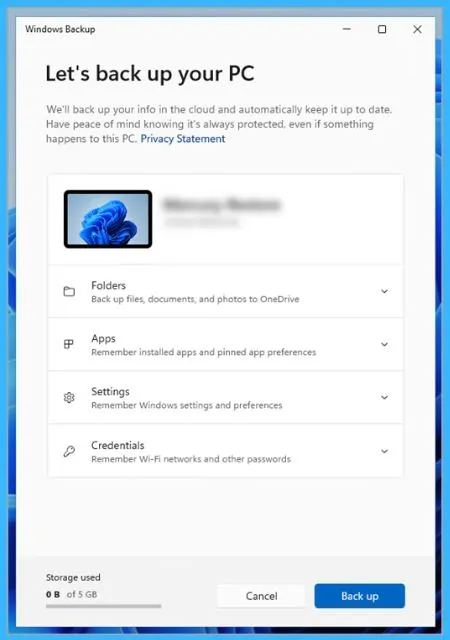
Back up your Windows PC
You will go through 4 simple steps to back up your Windows PC. First, you will log in with your Microsoft account. Then, you will save your important folders. After that, you will back up both your settings and folders. Detailed instructions for each step are provided in the following sections.
- Sign in with a Microsoft account
- Back up your folders
- Back up your settings
- Check and make sure everything is still backed up
1. Sign in with a Microsoft account
Your Microsoft account is like a key that helps you access Windows, Microsoft 365, OneDrive, Xbox, and more. Once you back up your information, it will be safely stored in your Microsoft account. When you switch to a new PC, you must effortlessly sign in to access your files and settings.
- Start > Settings > Account > Your info
| Local/Microsoft Account | Steps |
|---|---|
| local account | Sign in with a Microsoft account instead |
| Microsoft account | You are already using your Microsoft account |
2. Back up your Folders
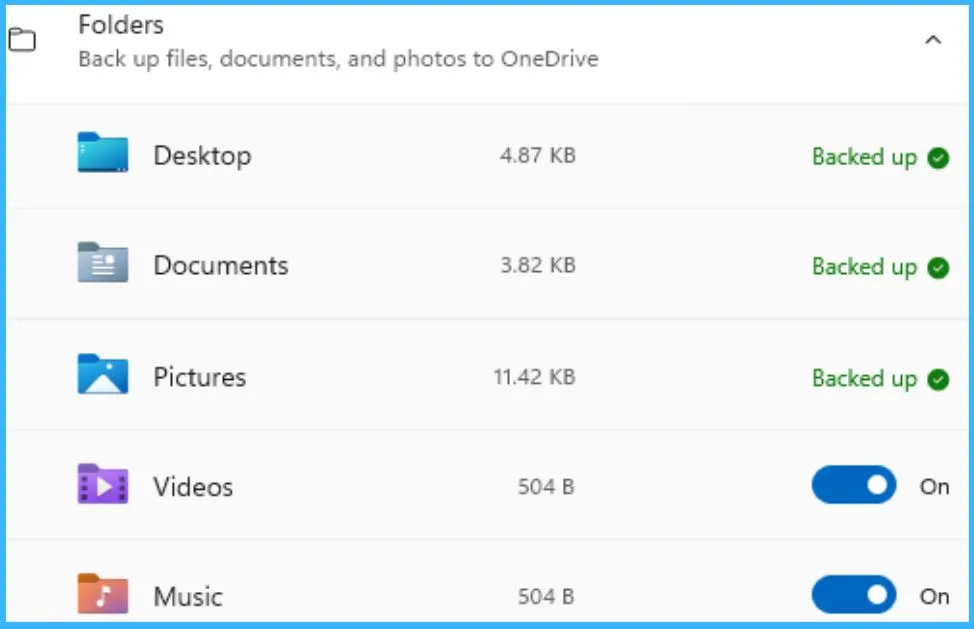
Windows Backup is a convenient solution for all your backup requirements. With your free Microsoft account, you get 5 GB of OneDrive cloud storage, which can be expanded if needed. When you back up your folders, they sync to your OneDrive, ensuring instant access from any computer linked to your Microsoft account. Your files will be readily available once you sign in to OneDrive on a new PC.
- Launch Windows Backup > Select Start> Click on Windows Backup
- Click on Folders to drop down the menu > Choose Folders to Back Up to OneDrive > Select the specific user folders you want to back up to OneDrive.
| Back up Folder | ON/OFF |
|---|---|
| Back up your Desktop, Documents, Pictures, Videos, and Music folders | Toggle the switch for each folder On or Off. |
3. Back up your Settings
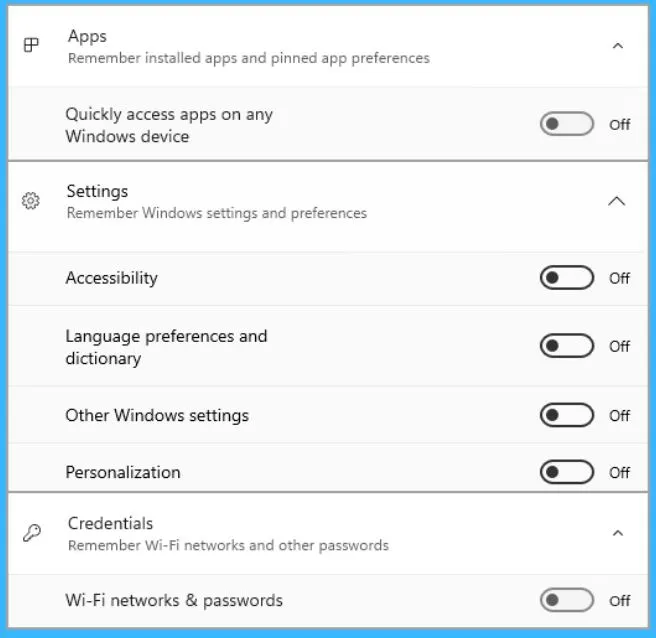
Windows Backup is designed to secure additional settings on your Windows system. This includes installed apps, your Wi-Fi network and password information, and other settings such as language preference or wallpaper settings.
Check and Make Sure everything is Still Backed Up
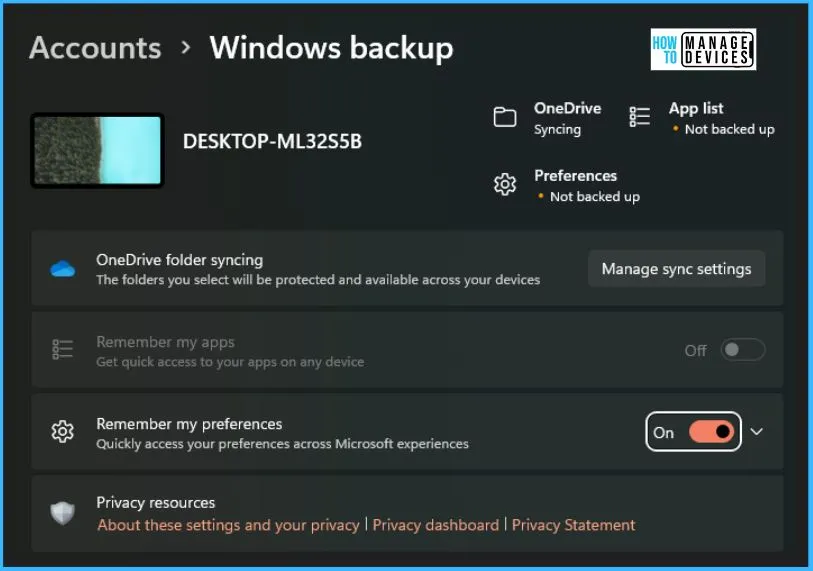
You can easily check and make sure everything is still backed up. You have 2 easy options. You can open the Windows Backup app to show your backup’s current status. Alternatively, you can go to the main Settings page by clicking on Start > Settings and look for the icon at the top to check the status of your OneDrive folder sync.”
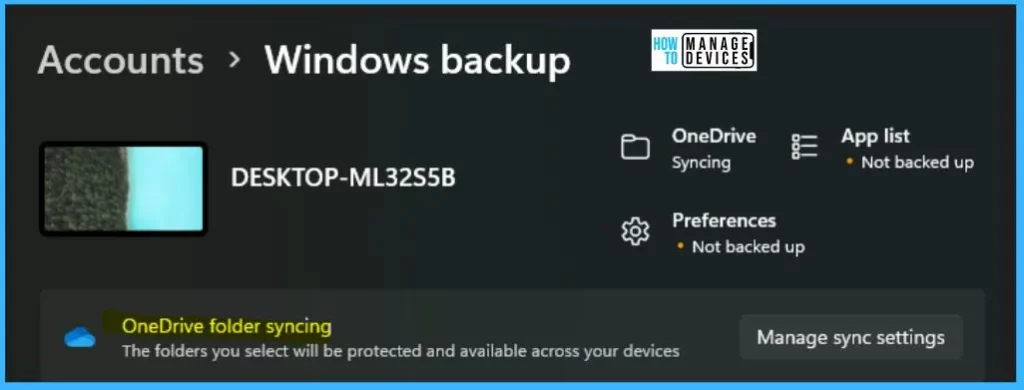
KB5032038: Overview of Windows Backup as installed in Windows 10 and Windows 11 – Microsoft Support
Author
About the Author – Vidya is a computer enthusiast. She is here to share quick tips and tricks with Windows 11 or Windows 10 users. She loves writing on Windows 11 and related technologies. She is also keen to find solutions and write about day-to-day tech problems.



and how do we restore from the saved backup ?