






Setup Notification Logo for Software Center in SCCM
You can set up the Notification logo for Software Center from SCCM 2111 version onwards. To enable this notification logo setting for Software Center, you will need to update the correct client settings. You can enable this setting to display a logo with notifications on devices running Windows 10 or Windows 11.
Microsoft introduced a new Notification Logo for Software Center Notifications. Both the dimensions of the logo should be the same. This means the width and height of the image must be the same for the Software Center notification logo.
Using different device-based client settings policies, you can have different Software Center notification logos for various entities or op-cos within SCCM. It’s easy to deploy and manage the similar way you manage different Software Center logos.
The Software Center notification logo is different from the Software Center logo. So, you will need to have two logos to complete the branding of Software Center. The Software center is the default application that gets installed as part o SCCM client installation, so you don’t need to perform any additional steps to get Software Center on Windows 11 or Windows 10 devices.

- Customize ConfigMgr Software Center | Best Branding Options
- Configure SCCM Software Center Custom Tab Setup
- SCCM Software Center Vs. Client Applet
- Custom Software Center User Notification For SCCM Task Sequence Deployment
- Software Center Vs Company Portal Differences
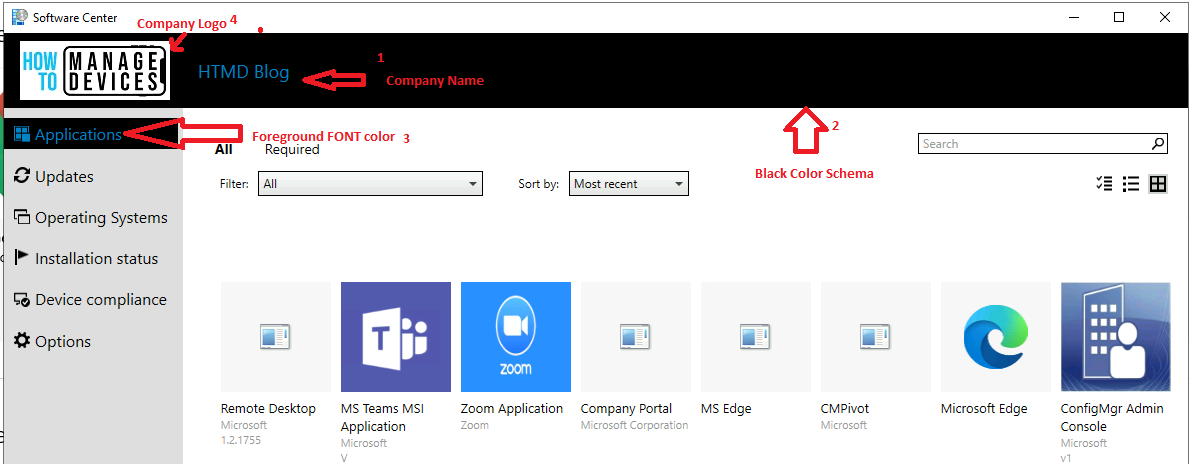
Prepare Software Center Notification Logo – What is this Logo for?
Let’s see how to prepare Software Center Notification Logo. Your organization’s logo helps users to trust these notifications. When you deploy software to a client, the user sees notifications with your logo, which helps build trust. The following are the requirements for notification logo:
A JPG, PNG, or BMP file.
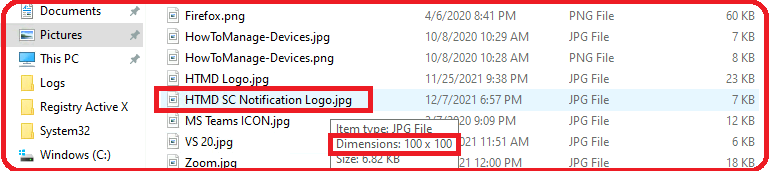
Square aspect ratio. For example, 100 x 100 pixels.
Maximum file size of 2 MB.
No spaces in the file name.
I prepared a separate HTMD Notification logo with the same width and height (square). The dimensions of Software Center Notification 100×100.
Configure Set up Software Center Notification Logo in SCCM
Let’s check how to Configure Notification Logo for Software Center in SCCM. You can set up the end-to-end branding of the SCCM software center from the previous blog post mentioned below. However, I will help you configure the notification logo for Software Center in this post.
ConfigMgr Software Center | Best Branding Options
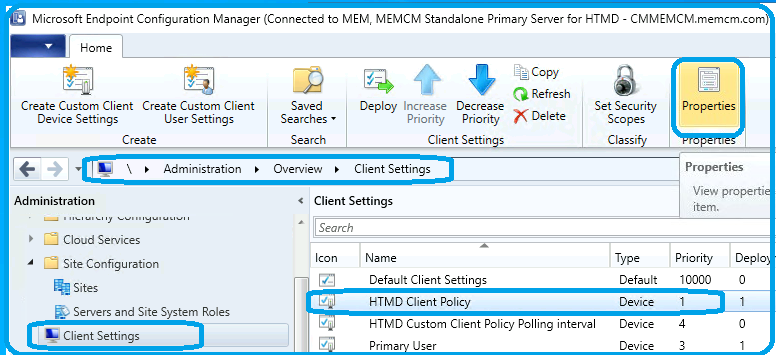
To set up Software Center Notification Logo in SCCM, you will need to navigate to \Administration\Overview\Client Settings. You can select the Client Settings in that you want to change the Software Center logo and click on Properties from the ribbon menu.
NOTE! – I have changed the Software Center logo from Default Client settings, but that didn’t give me the notification logo on Windows 10 or Windows 11 clients. So, you will need to make sure that you are changing the correct client settings policy.
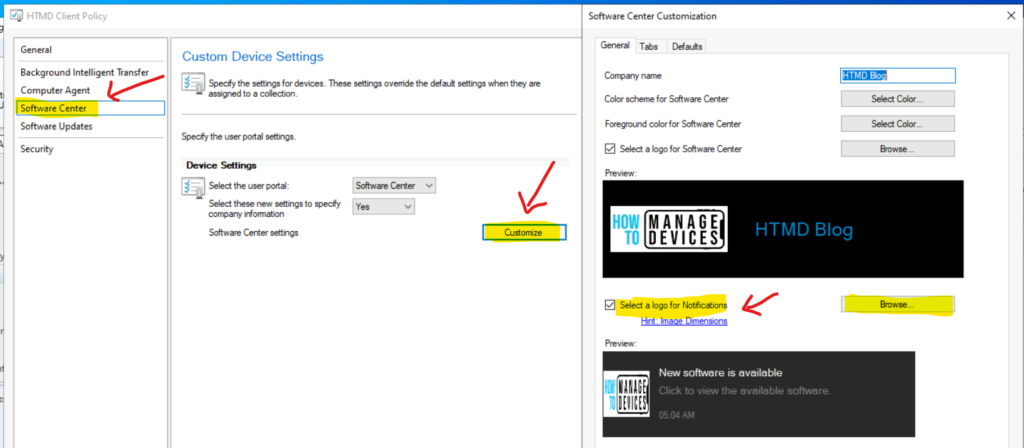
You will need to navigate to the Software Center tab from the Client Settings policy. Click on the Customize box to configure the notification logo for Software Center.
Click on the Select a Logo for notifications checkbox and click on the Browse button to upload the Software Center logo that we prepared in the above section.
You can click the OK button twice to save the notification logo for Software Center.
Switch ON the Notification from Deployment Settings
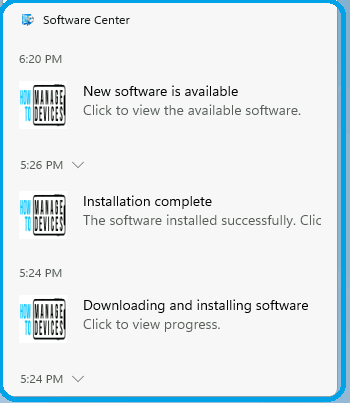
You might also need to switch ON the Notification from Deployment Settings to test the notification logo of Software Center.
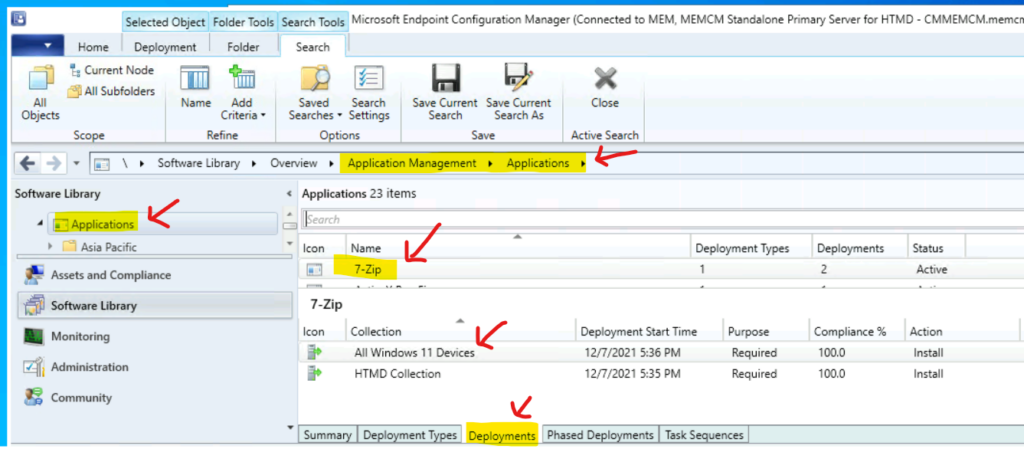
You will have to navigate to \Software Library\Overview\Application Management\Applications. And select an application called 7-zip as an example. Now, you will need to click on:
- The Deployments tab for the 7-zip application.
- Select the Deployment for Windows 11 devices and open the Properties.
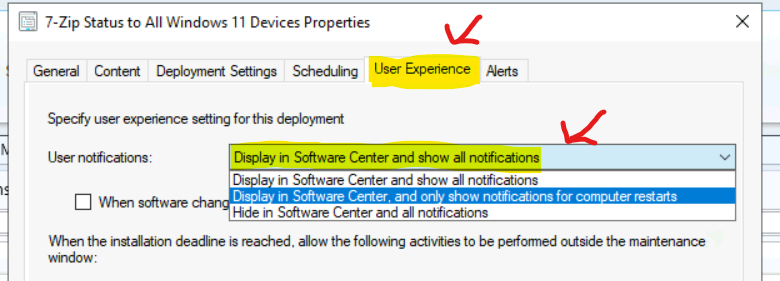
You can now make sure to select the Display in Software Center and Show All Notifications option from the drop-down menu from the User Experience tab. This setting will help you to test the logo notifications of the SCCM software center.
You can now click on the OK button to save the configuration.
Conclusion
You can now check into the conclusion section of this logo notification setting of Software Center in SCCM (aka Configuration Manager).
I have tested the logo notification setting for Windows 10 and Windows 11 PCs. This worked for both Windows 10 and Windows 11. It’s easy to implement through the custom client settings policy in SCCM.
The only catch during the testing is about the deployment notification settings and changing the correct client settings policy.




After we used this option, we where not able to delete that Client setting anymore. Also when adding new client settings afterwards, they all got the same priority. It looks something in the database was going very wrong after adding an logo for the notifications
StaffAh ok. I have noticed that yet. Did you raise the ticket with Microsoft?