






Fix SCCM PXE Issues with C Type Network Adapter Duplicate MACID
Let’s check how to Fix SCCM PXE issues with C Type Network adapter and Duplicate MACIDs. There is a common practice that I have seen within many organizations that the C Type (or USB) network adapter is used for OS deployment scenarios and PXE/Unknow computer scenarios.
I have received a question HTMD forum about How to PXE boot through C-Type Network Adapter for Dell latitude devices. I thought this would be a common scenario most of the ConfigMgr admins would be struggling with.
We have a lot of coverage related to OSD troubleshooting within HTMD community posts, but I don’t think the duplicate issues with the C Type network adapter are not covered yet.
You should not have two NICs with the same MAC address in an ideal world. But some scenarios could happen with modern devices which are only WiFi capable. I have a Surface Book, and I don’t have an inbuilt network for the device. Hence I might need to use a C-Type network adapter for OSD scenarios.

Let’s understand how to fix SCCM PXE boot issues when using the same USB network adapter for many Windows 10 or Windows 11 devices. There are two methods (Console and PowerShell)that you can use to avoid this duplicate MAC addresses situation using SCCM PXE boot.
- FIX: SCCM Task sequence has failed with the error code 0x80070057
- Easily FIX SCCM Task Sequence Unable to find a volume Error Code 0x80070490
- Deploy Microsoft Edge WebView2 Using SCCM ConfigMgr
Fix SCCM Duplicate Record Issues
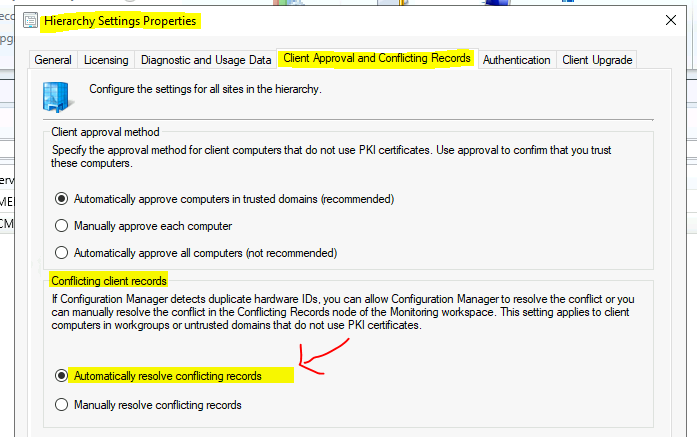
For all the supported versions of Configuration Manager CB, we can use an out of box option to avoid and fix the duplicate record issues with Windows 10 and Windows 11 devices. The following method helps to resolve duplicate records created for various reasons.
SCCM server can Automatically resolve conflicting records issues using the Conflict client records option available in hierarchy settings. The following option is not available for the client that uses PKI certificates to communicate with SCCM. If SCCM detects duplicate hardware ID, you have two options:
- You can allow SCCM to automatically resolve the duplicate or conflicting record issues.
- Manually resolve duplicate or conflicting record issues.
Fix SCCM PXE Issues with C Type Network Adapter Duplicate MACID
You also can fix SCCM PXE Issues with C Type Network Adapter Duplicate MACID. This option is helpful when the technicians use the same USB network adapter for building several machines.
You can get the MAC number of the C-Type network adapter and add the MACID details to the SCCM console to avoid any issues with PXE booting etc. Commonly, some hardware is known to have duplicate IDs. One of the examples is C-Type or USB network adapter.
With the following option, you can add them to the list for SCCM to ignore those hardware IDs or MAC IDs for PXE boot and client registration.
Let’s get the MAC ID details of all the C-Type network adapters that you want SCCM to ignore during client registration and PXE boot scenarios. Once you have the details, open the ConfigMgr Admin console and follow the steps mentioned below.
- Navigate to \Administration\Overview\Site Configuration\Sites
- Select the site – Standalone Primary server
- Click on Hierarchy settings from ribbon
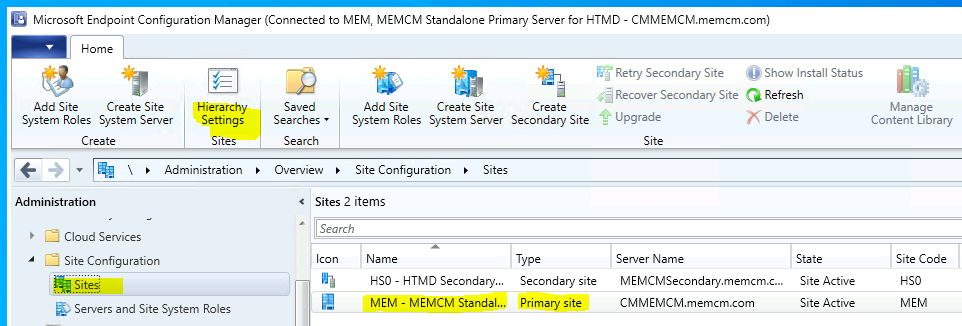
You will need to select the Client Approval and Conflicting Records tab. And to add new hardware identifiers, Select Add in the Duplicate hardware identifiers section.
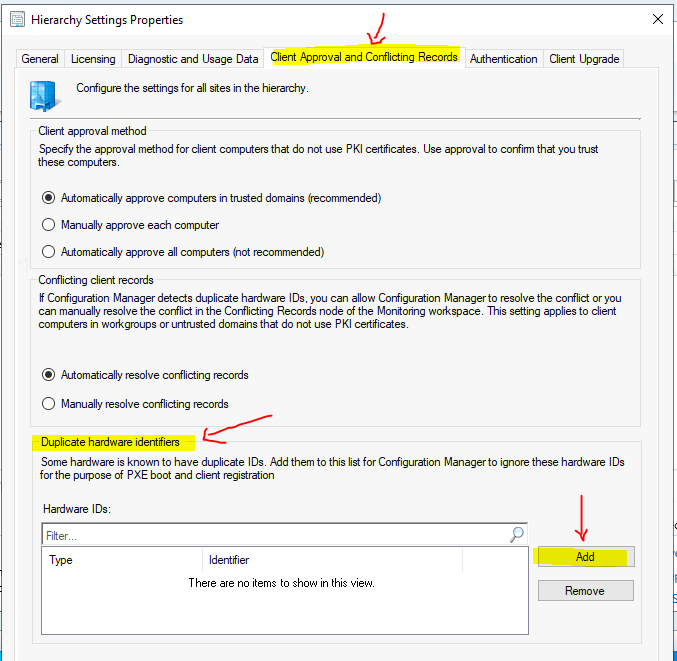
Now, you will need to enter MAC Addresses (12 hex characters) of all the C Type network cards and so that SCCM can ignore them during PXE boot and client registration scenarios.
NOTE! – You can also have an option to specify the SMBIOS GUID (32 hex characters) to avoid hardware ID conflicts.
Click OK to continue. You will need to continue the same process for all the MAC IDs you have collected for different C-Type or USB network adapters.
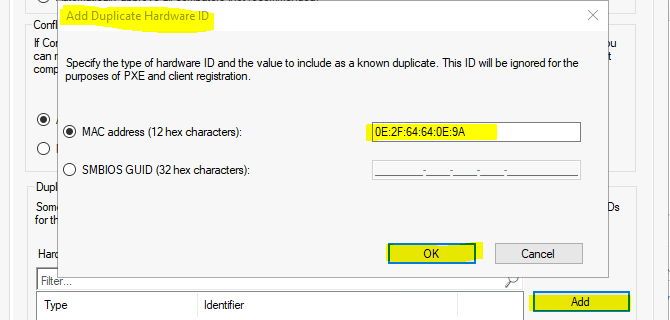
You will need to click OK to save the configurations on the Client Approval and Conflicting Records tab and close the hierarchy settings window.
PowerShell Method to Fix SCCM PXE Issues with USB Network Adapter Duplicate MACID
Microsoft released a PowerShell commandlet to help with the same process explained above. This PowerShell commandlet helps us fix SCCM PXE Issues with USB Network Adapter Duplicate MACID.
I have used the SCCM console to launch the PowerShell command for Configuration Manager. Click on the drop-down option from the console and select Connect via Windows PowerShell.
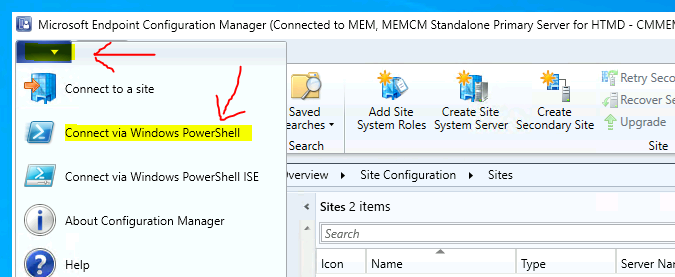
You can use the following PowerShell command to add a MAC ID to the Duplicate hardware identifiers option. The following paragraphs give you an idea about using different parameters of this command-line option from PowerShell.
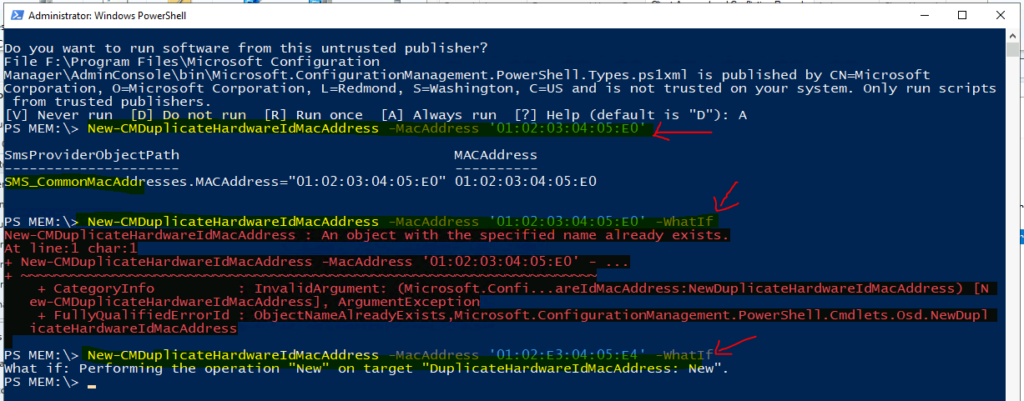
New-CMDuplicateHardwareIdMacAddress -MacAddress ’01:02:03:04:05:E0′
Do you want to run software from this untrusted publisher?
File F:\Program Files\Microsoft Configuration
Manager\AdminConsole\bin\Microsoft.ConfigurationManagement.PowerShell.Types.ps1xml is published by CN=Microsoft
Corporation, O=Microsoft Corporation, L=Redmond, S=Washington, C=US and is not trusted on your system. Only run scripts
from trusted publishers.
[V] Never run [D] Do not run [R] Run once [A] Always run [?] Help (default is “D”): A
PS MEM: New-CMDuplicateHardwareIdMacAddress -MacAddress ’01:02:03:04:05:E0′
This PowerShell command is very helpful to get the WMI class details of this function SMS_CommonMacAddresses. So you can use WMI Explorer or WBEMTEST to check this and make a script to automate the process of adding duplicate MAC IDs to SCCM.
SmsProviderObjectPath MACAddress
——————— ———-
SMS_CommonMacAddresses.MACAddress=”01:02:03:04:05:E0″ 01:02:03:04:05:E0
PS MEM: New-CMDuplicateHardwareIdMacAddress -MacAddress ’01:02:03:04:05:E0′ -WhatIf
New-CMDuplicateHardwareIdMacAddress : An object with the specified name already exists.
At line:1 char:1
PS MEM: New-CMDuplicateHardwareIdMacAddress -MacAddress ’01:02:E3:04:05:E4′ -WhatIf
What if: Performing the operation “New” on target “DuplicateHardwareIdMacAddress: New”.
PS MEM:




Hello Anoop,
Thanks for the explanation, but even after following the above settings the system still not receiving the Task Sequence. I logged into the device and can see smsts.log there I could see still ‘Network adapter MAC address is taken’ and for that it is saying ‘There are no task sequence available to this computer’
Please help me on this case.
Thanks,
Hari Prasad K N
Hi Hari, this issue is usually caused by an unsupported adapter / dongle or if the AD computer object has been created, it needs to be deleted before you can attempt re-imaging the machine. I have also seen that enabling MAC passthrough (from UEFI settings of machine) and verifying that the adapter / dongle you’re using also supports MAC passthrough may prevent future issues. One last thing to check is boundaries/boundary groups. If the issue still persists, I’d open a case with Microsoft.