






Fix Outlook Error the Browser or App may not be Secure when try to add Gmail Account
Let’s discuss the Fix Outlook Error the Browser or App may not be Secure when you try to add Gmail Account to Outlook profile. Outlook Teams recognized a Gmail Account sync and added an issue with Classic Outlook. This issue occurred when the user tried to add or sync to a Gmail Account to an Outlook Profile.
Do you know what is Microsoft Classic Outlook? Classic Outlook is the old version of the Outlook email application. The classic Outlook app includes many Microsoft 365 subscriptions, including desktop apps and Office versions, such as Office Home & Business.
Due to this issue, Outlook users get an error message and cannot complete the Gmail account syncing. Windows 365 users cannot add a Gmail Account to their Outlook Profile. There are some reasons behind these error messages on Outlook.
The issues mentioned above may be due to users not having IMAP enabled for their Gmail accounts. Google is removing that control, but it is still in account settings for some users. Outlook Teams is releasing a fix that is currently available to Office Insider in both Current Channel Preview and Office Insider.

Table of Contents
What is Enable IMAP Gmail?
Fix Outlook Error: The Browser or App may not be Secure when trying to Add a Gmail Account
As I mentioned above, Outlook users get errors when trying to sync their Gmail Accounts by adding or signing in. Users who do not have an enabled Gmail account may be affected by the mentioned issue. The following table shows the 2 error messages in Classic Outlook.
| Adding/Syncing Gmail Account | Error Message |
|---|---|
| Syncing Gmail Account in Classic Outlook Profile | “The browser or app may not be secure.” |
| Adding a Gmail Account in Classic Outlook Profile | We weren’t able to set up your Google account with IMAP. You may need to make changes to your Gmail settings.” |
- FIX MS Outlook Zero-Click RCE Flaw Executes as Email is Opened
- Unable to Join Teams Meetings Using Links from Outlook Because of ASR Rules
- Change to Classic or Modern Theme in Outlook for Windows 11
- How to Set Out of Office in Outlook
Issue in Syncing Gmail Account in Classic Outlook Profile
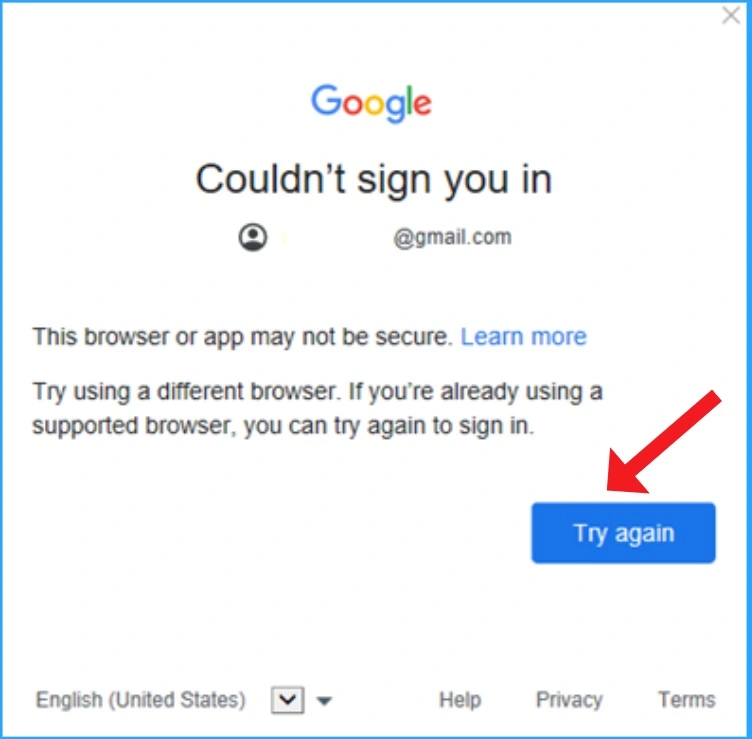
Users face issues with synchronizing accounts in Classic Outlook. The error message is “The browser or app may not be secure.” With this error message, sign-in cannot be completed in Classic Outlook. The below screenshot will show the details.
This browser or app may not be secure. Learn more: Try using a different browser. If you’re already using a
supported browser, you can try to sign in again.
The issue in Adding a Gmail Account to the Classic Outlook Profile
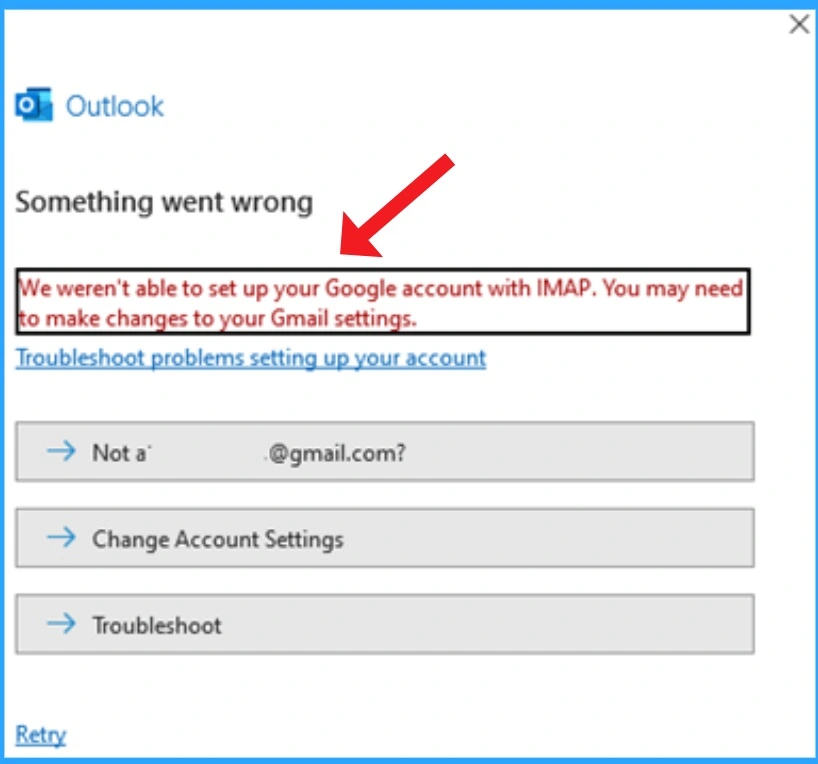
Error messages also occur when users try adding a Gmail Account to their Classic Outlook Profile. The error message is:
“We weren’t able to set up your Google account with IMAP. You may need to make changes to your Gmail settings.”
- Microsoft Office Security Warning for ICS Files in Outlook
- Outlook Desktop Blocks Printing to PDF if Mandatory Labeling is Enabled
- Install New Outlook for Windows with Microsoft Store App from Intune
- Easy Way to Repair Reset Outlook in Windows
Workaround
To fix this issue, you must remove Gmail access for Microsoft apps and services and sign in from Outlook again using the browser. Below are two steps to help you return to the browser sign-in, where you can check that check box.
Step 1: Remove Access for Microsoft Apps & Services in Gmail
- Sign in to your Google account on google.com.
- Select your profile picture in the top corner and click Manage your Google Account.
- Select Security from the left side menu.
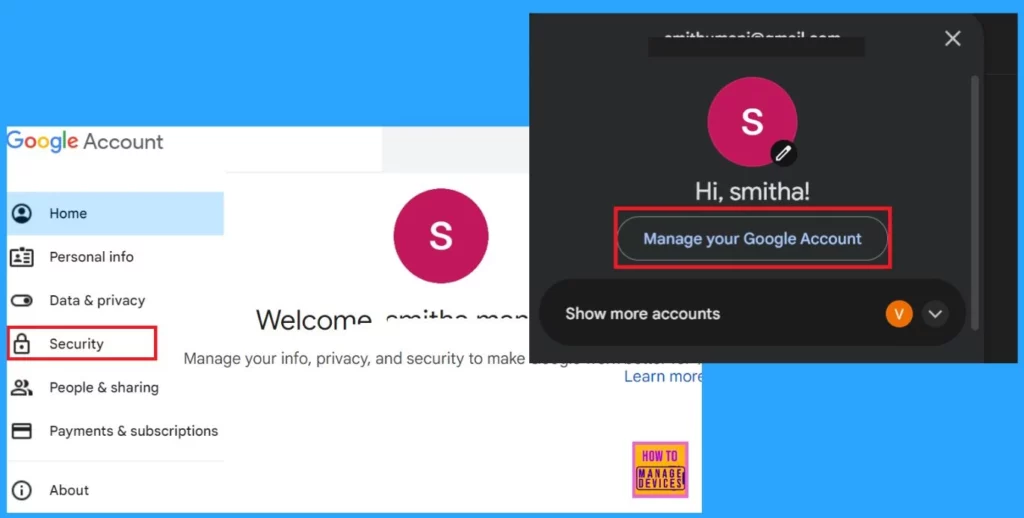
- Scroll down to Your connections to third-party apps & services and hit Microsoft apps & services.
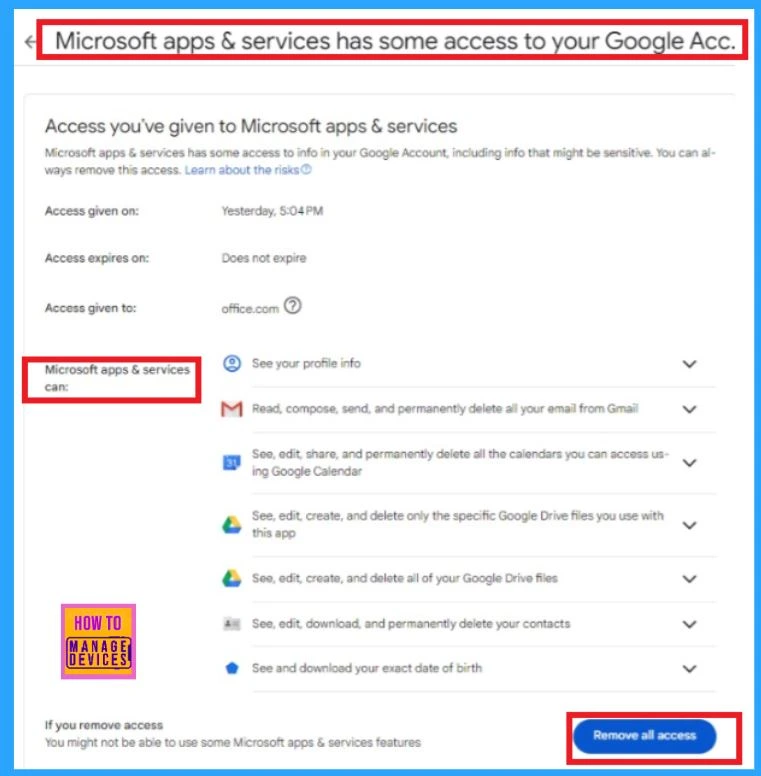
- Find Microsoft apps & services has some access to your Google Account and select See Details.
- Under Access you’ve given to Microsoft apps & services, select Remove all access.
- Select Confirm.
Step 2: Delete the Google IMAP Credentials from Windows Credential Manager
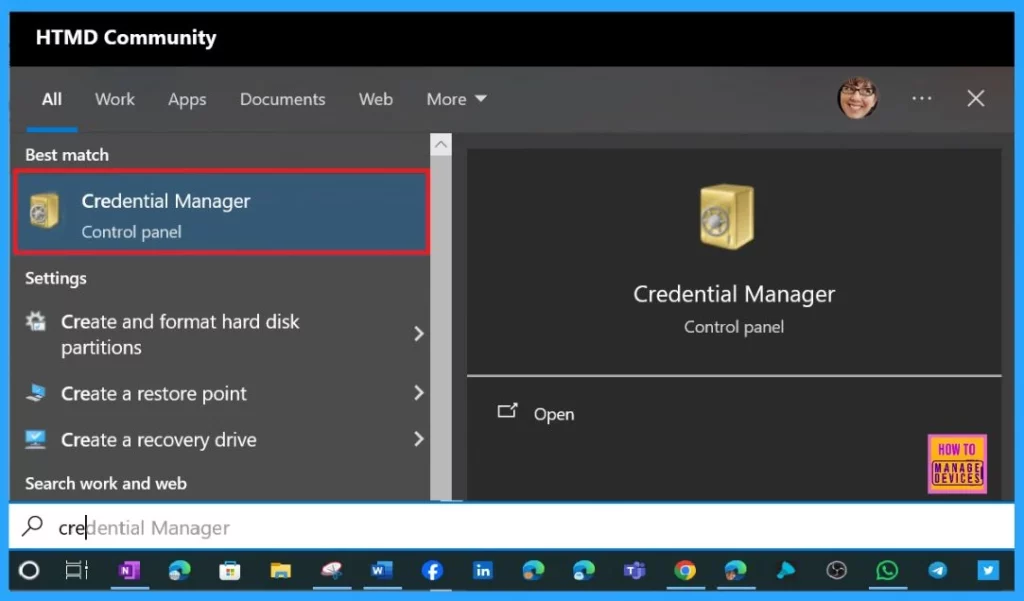
Search for Credential Manager from the Start Menu and Open it. (On Windows 10 you may need to open the Control Panel to access Credential Manager)
- Under Manage your credentials, select Windows Credentials.
- Scroll down to Generic credentials and locate those starting with MicrosoftOffice16_Data:OAUTH2.
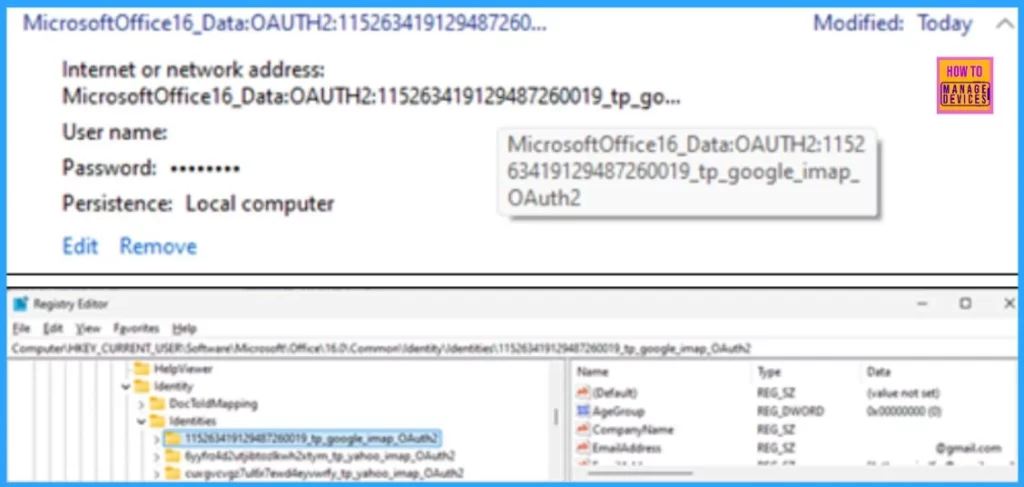
- Expand each of these and hover over MicrosoftOffice16_Data:OAUTH2 until it shows the full name, including the tp_google_imap_Oauth2. These are the Google credentials for your Gmail account.
- Select Remove for each of these with the MicrosoftOffice16_Data:OAUTH2. If you have multiple Gmail accounts, you must sign in to each of them again.
Other Fixes to Resolve Classic Outlook Issue
Outlook Teams fixes are available only on Office Insider in Current Channel Preview and Office Insider. So users can switch to Office Insider to get the fix. For this, you can choose to Set a registry key that enables a toggle backstage or Run a registry key that switches directly. There are different methods available in each switching method.
- Suppose you want to avoid removing Google IMAP credentials except for the specific affected account. You can map the credentials using the registry key below and compare them to the identities.
- Open Registry Editor and paste this path in the Address bar at the top: Computer\HKEY_CURRENT_USER\Software\Microsoft\Office\16.0\Common\Identity\Identities
- The subkeys to this registry key above include your Gmail identity. At the beginning of the identity registry key is a number that matches your Gmail credential in Credential Manager. See the examples below for reference.
After you have completed the steps above, you will be ready to sign in via Outlook. Open Outlook to the Outlook profile not syncing and select the Sign in via browser business bar. During browser sign-in, check the box for Microsoft apps and services.
If you removed the Gmail account from your Outlook profile, select File, Add account to add it back, and then repeat the browser sign-in process.
Resources
Join the LinkedIn Page and Telegram group to get the latest step-by-step guides and news updates. Join our Meetup Page to participate in User group meetings. Also, Join the WhatsApp Community to get the latest news on Microsoft Technologies. We are there on Reddit as well.
Author
Anoop C Nair has been Microsoft MVP from 2015 onwards for 10 consecutive years! He is a Workplace Solution Architect with more than 22+ years of experience in Workplace technologies. He is also a Blogger, Speaker, and Local User Group Community leader. His main focus is on Device Management technologies like SCCM and Intune. He writes about technologies like Intune, SCCM, Windows, Cloud PC, Windows, Entra, Microsoft Security, Career, etc.




Discussion