






Use the Quick Fix Tool to Resolve Multiple Accessibility Issues in MS Word for Windows
Let’s discuss the Quick Fix Tool to Resolve Multiple Accessibility Issues in Word for Windows. Microsoft introduced a quick fix to resolve multiple accessibility issues in MS Word.
Do you know what Accessibility Issues are in Word for Windows? Some common issues can be seen in Word Documents, such as missing alternative text (alt text), low-contrast colors, improper use of tables, etc. These issues affect users’ ability to read the documents easily.
With this quick fix, users can avoid the issues mentioned above. Microsoft already offers a Word Accessibility Assistant tool to fix the problems in MS Word. However, this tool can only resolve issues one by one. The Quick Fix is available to Microsoft 365 Insiders running Windows Beta Version 16.0.17726.10000 or later while writing this post.
Instead of Accessibility Assistant, users can now use the Quick Fix tool in MS Word to resolve accessibility issues. This blog post will help you learn more about Quick Fix Multiple Accessibility Issues.


Quick Fix Multiple Accessibility Issues in Word for Windows
The Quick Fix tool will help users fix issues with one click, making Word Document creation easier. Since MS Word is users’ first preference for creating documents, let’s look at how this tool will work on your Word document.
- New Approval Request Feature for MS Word
- Copilot is in All Microsoft 365 Apps
- Easy Steps to Convert Word Documents into PDF Format
- AI Powered Copilot in Word to Automate Creation of Complex Documents
How Quick Fix Tool Works on MS Word
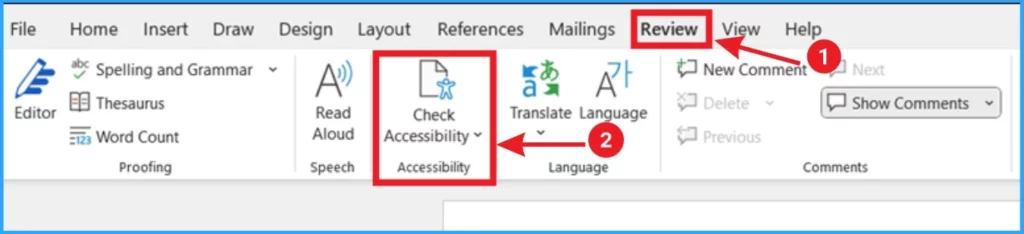
To explore the quick fix tool in Word, launch it on your PC. Remember that your document should contain considerable text, including images and text in different low-contrast colors. To access this new tool, click on the Review tab and select Check Accessibility.
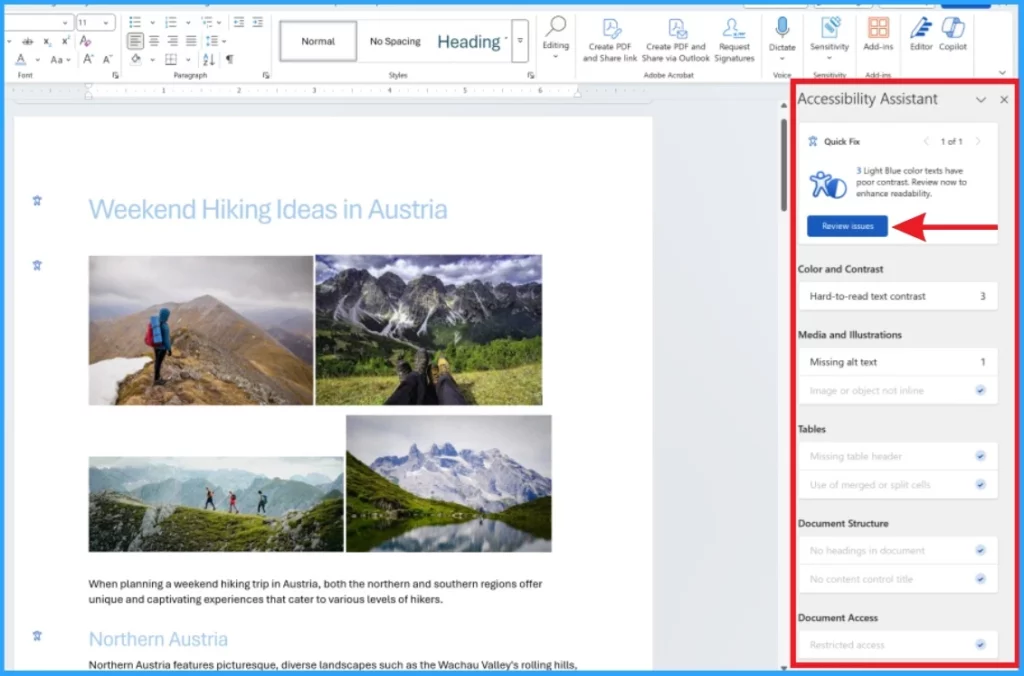
After that, you can see the Quick Fix tool on the right side of the Word document. This tool combines the abilities of Accessibility Assistant in one quick-fix card. If your document has multiple color violations (similar hues), they will be grouped into a Color and Contrast. Check the screenshot below for more clarity.
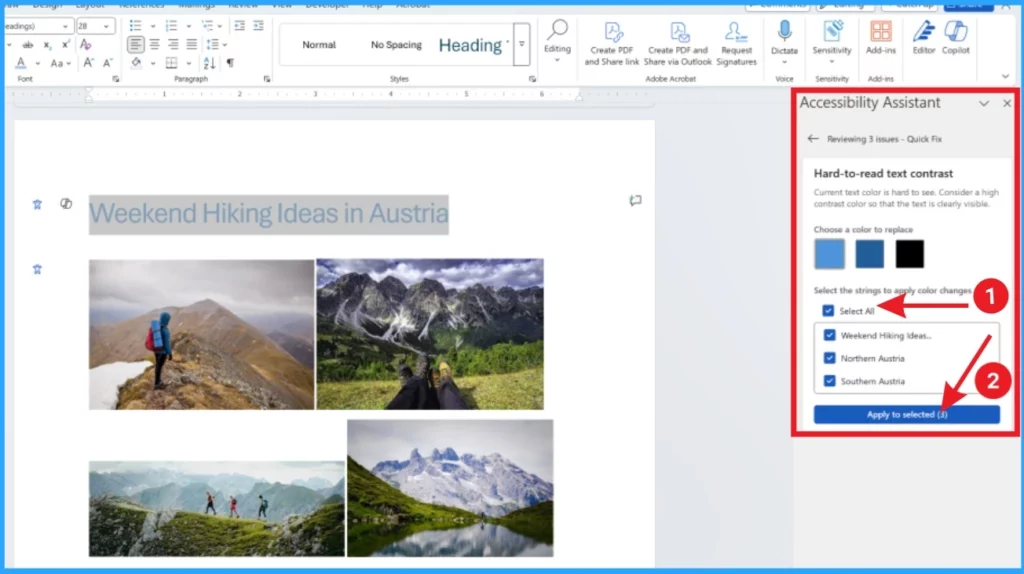
By selecting the Quick Fix card, users will receive higher-contrast color suggestions. In the Quick Fix card, you can see the Select All option. Click the Select All checkbox and then click Apply to select to fix these issues everywhere in the document at once.
- Copilot in Excel AI Integration to Automate Excel Tasks Coming Soon
- Copilot AI Integrated Outlook Coming Soon
Scenarios to Try Quick Fix
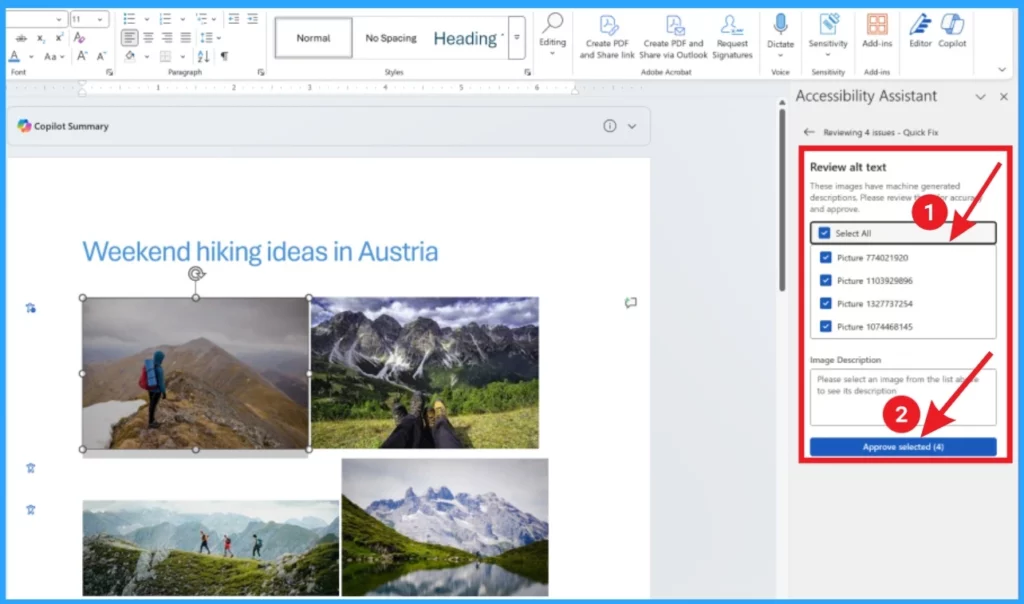
Users can review image alt text using this feature. You can review auto-generated alt text for all the images in the document at once by using the Review alt text Quick Fix card. After you are satisfied with the alt text for the images, check the boxes for each image (or Select All) and click Approve selected.
Availability
As mentioned above, this feature is available to Microsoft 365 Insiders running Windows Beta Version 16.0.17726.10000 or later. It is only available for more insiders after ensuring things work smoothly. So, the release will be slower, and sometimes, elements are removed to improve them further based on users’ feedback.
Best Practices for Making Word Documents Accessible
In this blog, we discussed fixes for accessibility issues in Microsoft Word. However, accessibility issues can be avoided by considering some points in Word. The table below shows best practices for making your document accessible.
| Best Practices |
|---|
| Avoid common issues such as missing alternative text (alt text) and low contrast colors |
| Avoid tables and present data in another way |
| Use a simple table if it is necessary |
| Specify column header information for tables |
| Use built-in headings and styles |
| Include alt text with all visuals |
| Ensure that color is not the only means of conveying information. |
| Use sufficient contrast for text and background colors |
| Avoid writing important information in the Header or Footer sections of the document. |
We are on WhatsApp now. To get the latest step-by-step guides, news, and updates, Join our Channel. Click here. HTMD WhatsApp.
Author
Anoop C Nair has been Microsoft MVP from 2015 onwards for 10 consecutive years! He is a Workplace Solution Architect with more than 22+ years of experience in Workplace technologies. He is also a Blogger, Speaker, and Local User Group Community leader. His primary focus is on Device Management technologies like SCCM and Intune. He writes about technologies like Intune, SCCM, Windows, Cloud PC, Windows, Entra, Microsoft Security, Career, etc.




Discussion