






Block Persistence through WMI Event Subscription using Intune
Key Takeaways:
- WMI Event Subscription Abuse Malware often leverages Windows Management Instrumentation
- Block this persistence method using Intune Policy
- The approach aligns with Microsoft Defender’s attack surface reduction
- Ensuring layered defense against advanced threats
Let’s discuss Block Persistence through WMI Event Subscription using Intune. This rule prevents malware from abusing WMI to attain persistence on a device. Fileless threats employ various tactics to stay hidden, to avoid being seen in the file system, and to gain periodic execution control. Some threats can abuse the WMI repository and event model to stay hidden.
Table of Contents
Table of Contents
Block Persistence through WMI Event Subscription using Intune
The “Block persistence through WMI event subscription” setting is a critical Attack Surface Reduction (ASR) rule within Microsoft Defender. It is designed to stop one of the most “invisible” methods hackers use to stay inside a network after an initial breach.
- Enable Disable Prevent Adding New Printers Policy using Intune
- How to Fix Printer Connection Printing Problems in Windows 11
- How to Prevent Mapping of Client Printers in Remote Desktop Services Sessions using Intune
How to Start Policy Creation
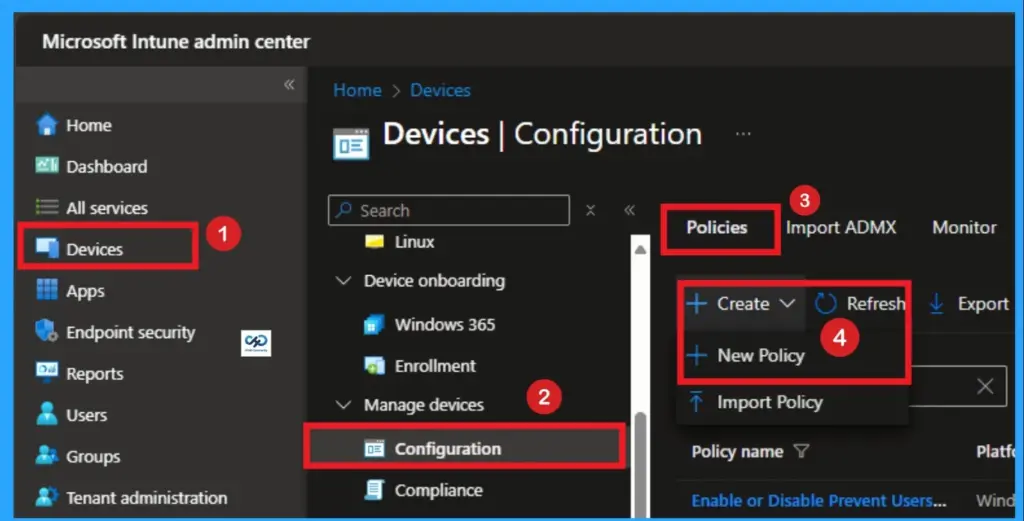
As an Admin, you can quickly configure this policy on your organisation. To start the Policy Creation, open the Microsoft Intune Admin center. Then go to Devices > Configuration >+ Create > +New Policy.
Profile Creation
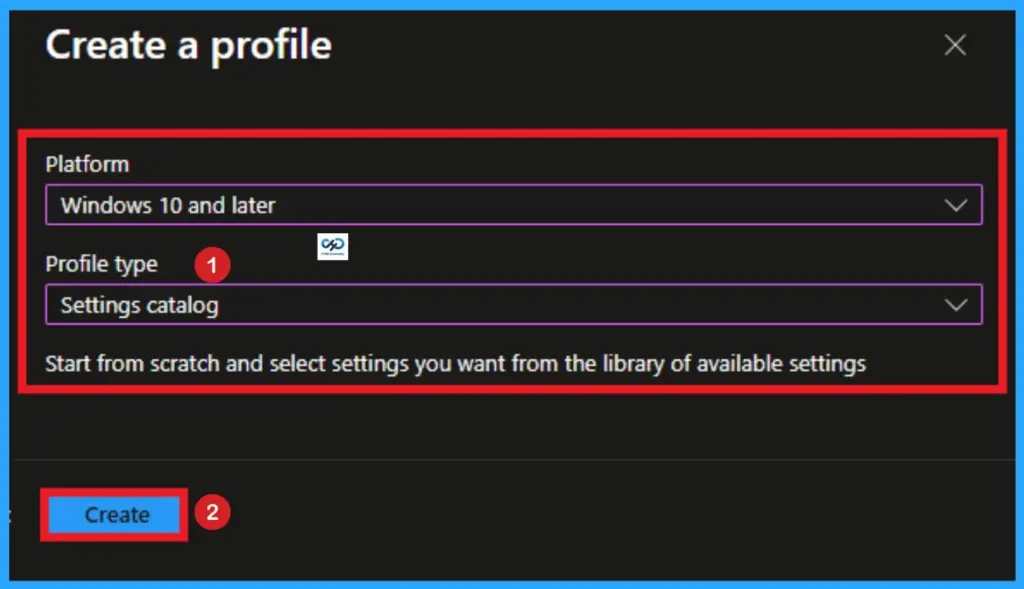
Profile creation is the necessary step that helps you to assign the policy to appropriate platform and Profile. Here I would like to configure the policy to Windows 10 and later platform and settings catalog profile. Then click on the Create button.

Filling the Basic Tab
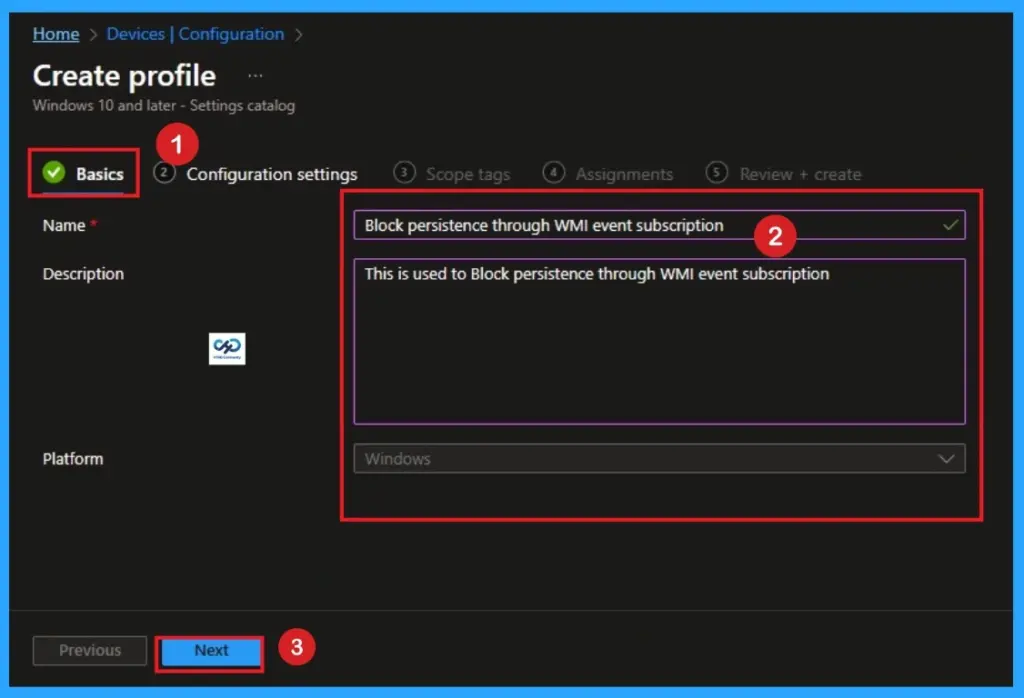
Naming the policy is the primary step that help admins to identify the policy later. This is important and necessary step that allows you to know the purpose of the policy. Here is Name is mandatory and description is optional. After adding this click on the Next button.
Configure Block Pistence through WMI Event Subscription
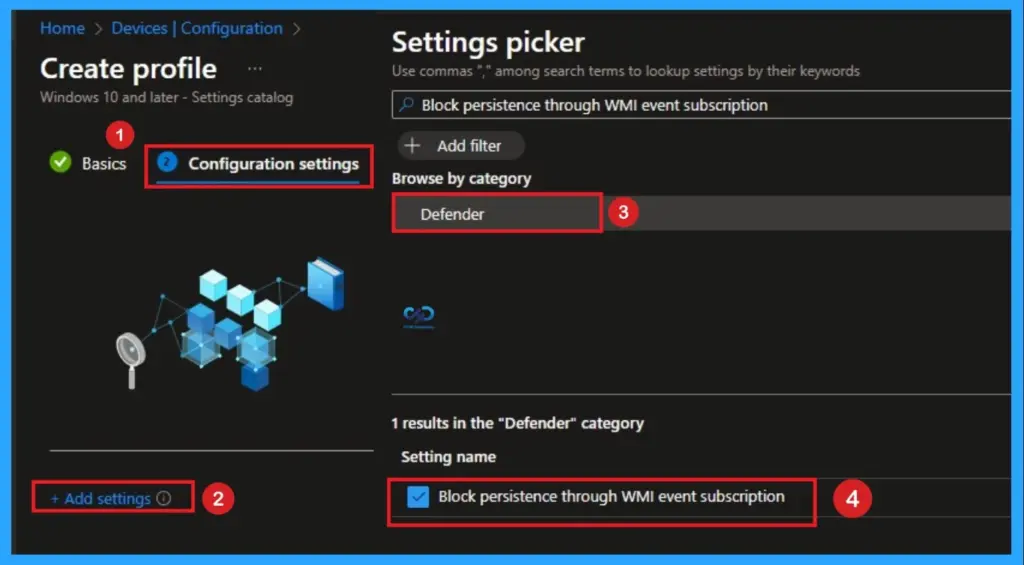
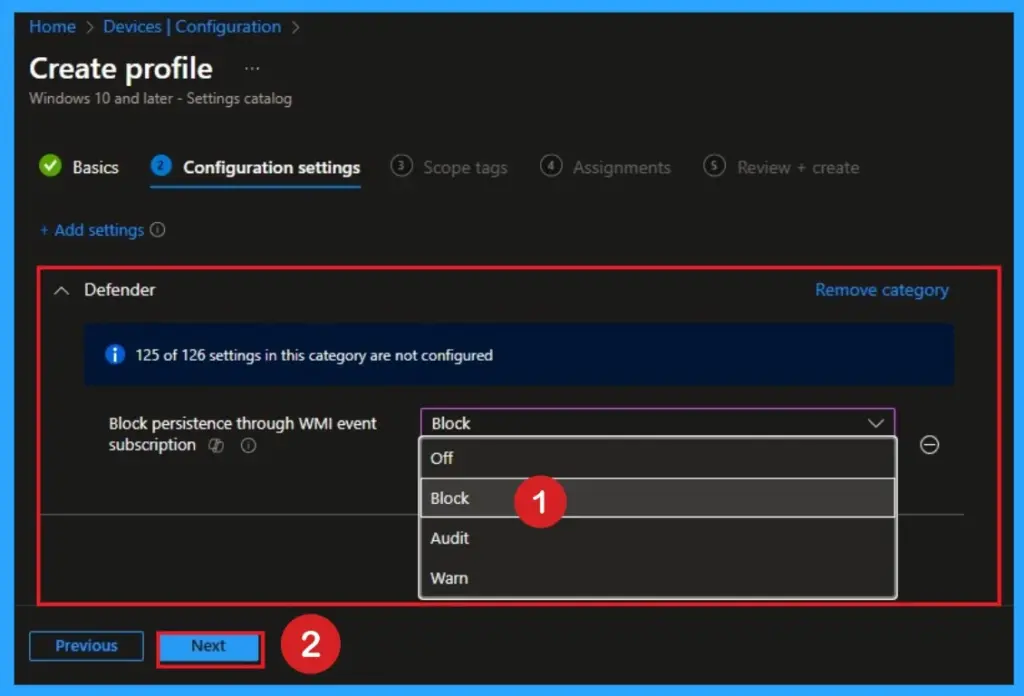
With Settings Picker, you can use the Configuration Settings Tab. On this tab, you can click on the +Add Settings hyperlink to get the Settings Picker. The settings picker shows huge number of settings. Here, I would like to select the settings by browsing by Category. I choose Defender > Block persistence through WMI event subscription.
Block Persistence through WMI Event Subscription
There are 4 values available for this policy. You can choose any of this value according to your preferences. Here i choose Block value for this policy. Look at the below table.
| Value | Technical Behaviour | Impact on Organization |
|---|---|---|
| Not Configured | The rule is effectively “Off.” Windows will not monitor or block any WMI event subscriptions related to this specific ASR ID. | High Risk. Attackers can use WMI to hide malicious scripts that run every time the computer boots without being detected by standard file scans. |
| Block | Defender actively prevents the creation of WMI event filters, consumers, or bindings that match suspicious patterns. | Maximum Security. This is the “Zero Trust” approach. It stops fileless malware in its tracks but may break legacy IT management scripts that rely on WMI. |
| Audit Mode | The rule does not block the action, but it creates an entry in the Windows Event Viewer and the Microsoft Defender portal. | Best for Testing. Organizations use this to “see what would have broken” before committing to a hard block. It allows you to identify legitimate IT tools that need exclusions. |
| Warn | The user sees a pop-up notification asking if they want to allow the action, but the action is blocked by default until approved. | Rarely Used. Since WMI subscriptions usually happen in the background (SYSTEM context), a standard user won’t know how to respond to the prompt, making this value impractical for this specific rule. |
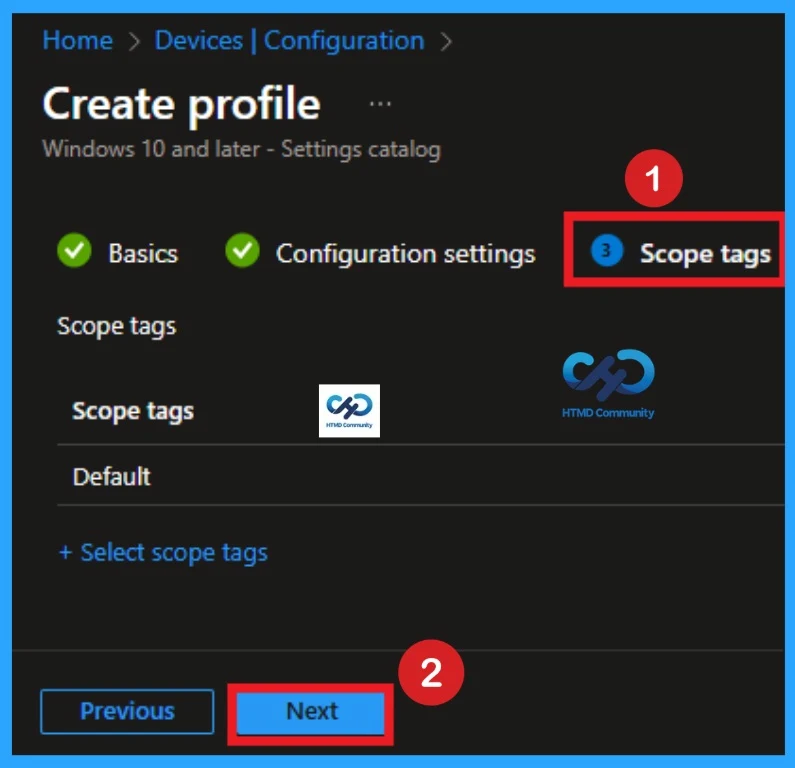
Scope Tags
With scope tags, you create a restriction to the visibility of the Block persistence through WMI event subscription. It helps to organise resources as well. Here, I would like to skip this section, because it is not mandatory. Click on the Next button.
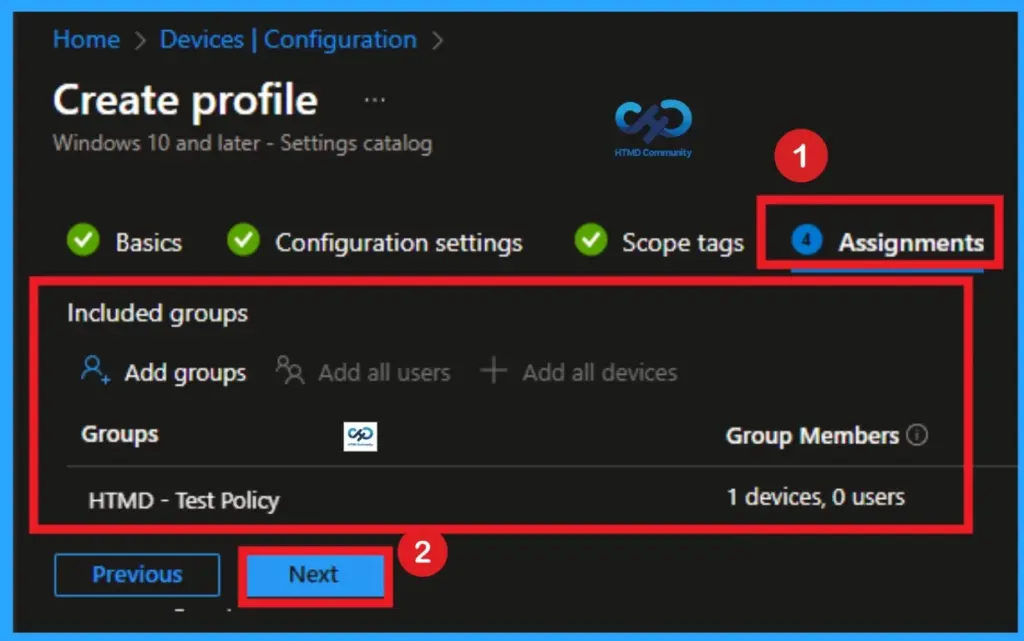
Assignments Tab for Selecting Group
To assign the policy to specific groups, you can use the Assignment Tab. Here I click, +Add groups option under Included groups. I choose a group from the list of groups and click on the Select button. Again, I click on the Select button to continue.
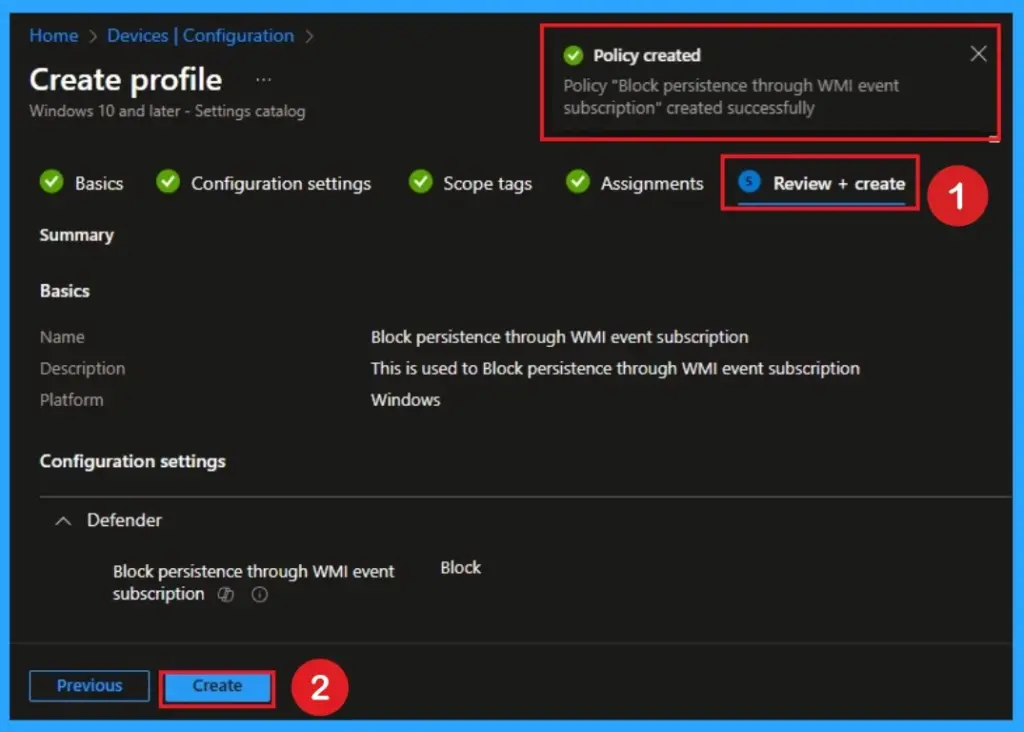
Review + Create Tab
Before completing the policy creation, you can review each tab to avoid misconfiguration or policy failure. After verifying all the details, click on the Create Button. After creating the policy, you will get a success message.
Monitoring Status
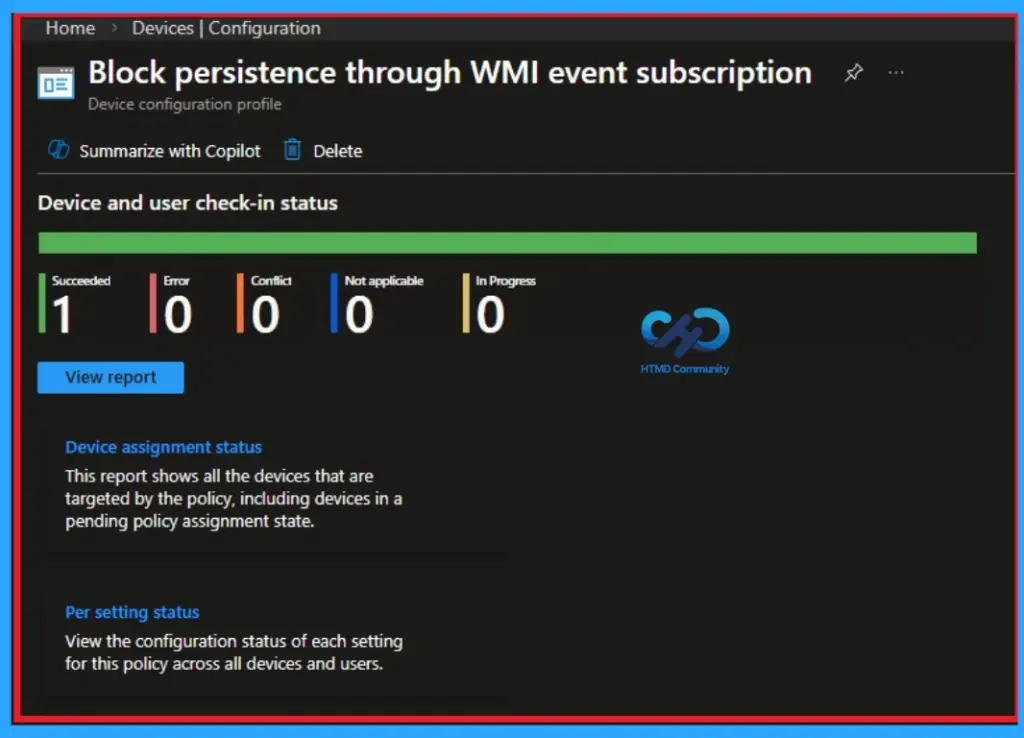
The Monitoring Status page shows whether the policy has succeeded or not. To quickly configure the policy and take advantage of the policy sync the assigned device on Company Portal. Open the Intune Portal. Go to Devices > Configuration > Search for the Policy. Here, the policy shows as successful.
Removing the Assigned Group from Persistence through WMI Event Subscription
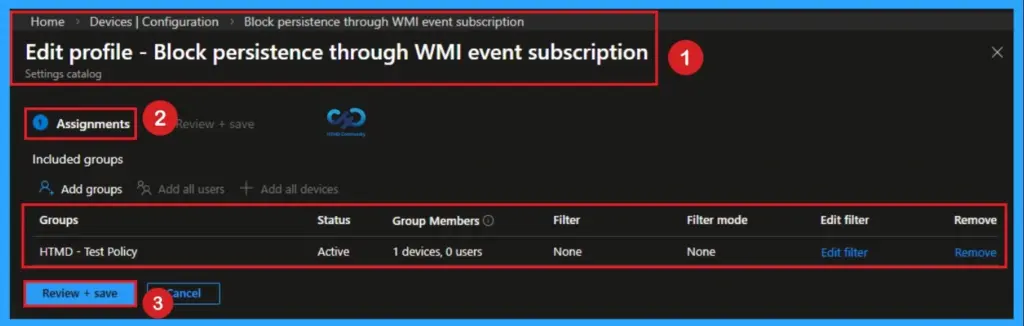
If you want to remove the Assigned group from the policy, it is possible from the Intune Portal. To do this, open the Policy on Intune Portal and edit the Assignments tab and the Remove Policy.
To get more detailed information, you can refer to our previous post – Learn How to Delete or Remove App Assignment from Intune using by Step-by-Step Guide.
How to Delete Persistence through WMI Event Subscription
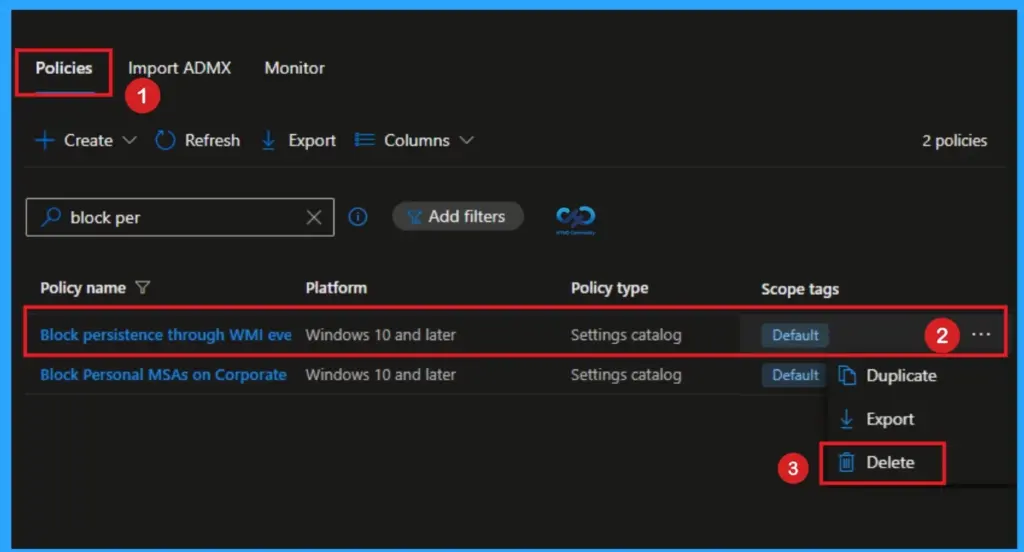
You can easily delete the Policy from the Intune Portal. From the Configuration section, you can delete the policy. It will completely remove it from the client devices.
For detailed information, you can refer to our previous post – How to Delete Allow Clipboard History Policy in Intune Step by Step Guide.
Need Further Assistance or Have Technical Questions?
Join the LinkedIn Page and Telegram group to get the latest step-by-step guides and news updates. Join our Meetup Page to participate in User group meetings. Also, join the WhatsApp Community and the WhatAapp channel to get the latest news on Microsoft Technologies. We are there on Reddit as well.
Author
Anoop C Nair is a Workplace Technology solution architect with 25+ years of experience. Microsoft Certified Trainer. Microsoft MVP from 2015 onwards for consecutive 11+ years! He is a blogger, Speaker, and Founder of HTMD Community and HTMD Conference. His main focus is on Device Management technologies like Intune, Windows, and Cloud PC. He writes about technologies like Intune, SCCM, Windows, Cloud PC, Entra, and Microsoft Security.


Discussion