






How to Fix Intune Error 0x87D1041C Application not Detected after Successful Installation
Let’s discuss how to Fix Intune Error 0x87D1041C Application not Detected after Successful Installation. When deploying Win32 applications using Microsoft Intune the admin may sometimes see the error code 0x87D1041C.
This means that the app installer ran without issues, but Intune couldn’t confirm that the app is present on the device. After installing an app, Intune needs a way to check the app was installed properly by looking for signs that the app is on the device like a certain file, a setting in the registry, or a unique app ID.
If it doesn’t find these signs, Intune thinks the app didn’t install, even if the installation actually finished. successfully. The error 0x87D1041C means the app installed successfully, but Intune couldn’t find it using the detection rules, so it marked the installation as failed.
In this post, you will find everything you need to know about how to fix Intune error 0x87D1041C, which occurs when an application is not detected after a successful installation. We’ll cover the cause of the issue, explain how Intune uses detection rules, and guide you through the steps to troubleshoot and resolve the error effectively.

Table of Contents
Fix Intune Error 0x87D1041C Application not Detected After Successful Installation – Workaround
Let’s go over some key troubleshooting steps to help resolve Intune Error 0x87D1041C, which occurs when an application is not detected after a successful installation. In the following section, we’ll walk through each step in detail to help you identify the root cause of the issue.
- How to Fix Intune Error 65000 when Deploying Intune Policy using Settings Catalog
- Fix Intune Enrollment Errors 0x80180014 80180003 Unknown Win32
- Troubleshoot MDM Enrollment Error Code 80180004
- FIX Intune Error 0x80180013
- How to Start Troubleshooting Intune Issues | Fix Intune Issues with Easy Steps MEM
Confirm the App Is Actually Installed
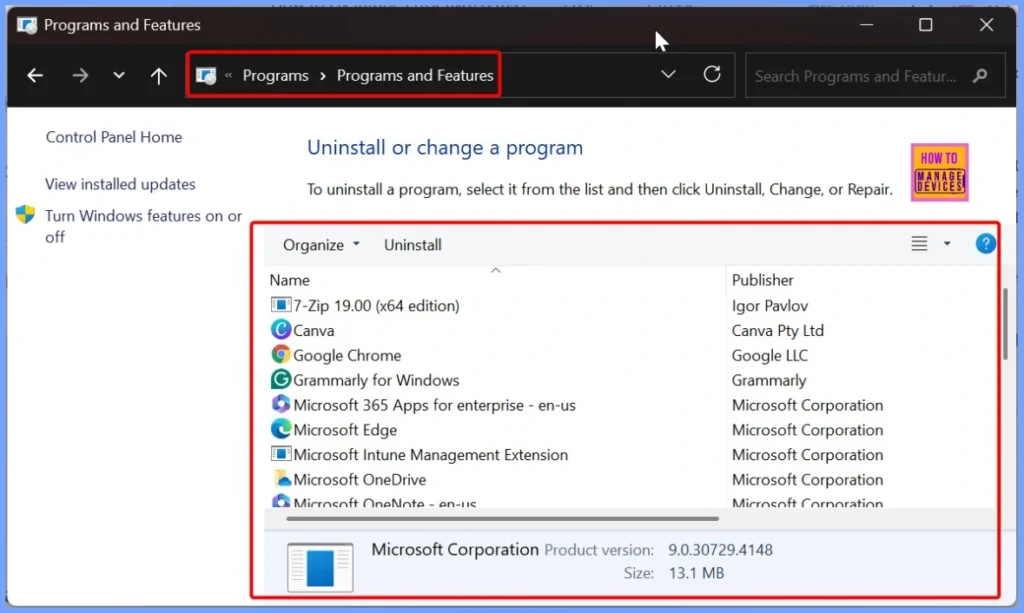
This is the first step here you should need to check on a test device where the application was deployed, the first step is to confirm whether the installation was successful. To do this, open Control Panel > Programs and Features or go to Settings > Apps, and look for Notepad++ in the list of installed programs.
- If Notepad++ appears in the list, it means the installation itself was successful, and the issue lies with Intune not detecting it.
Identify the Actual Installation Path
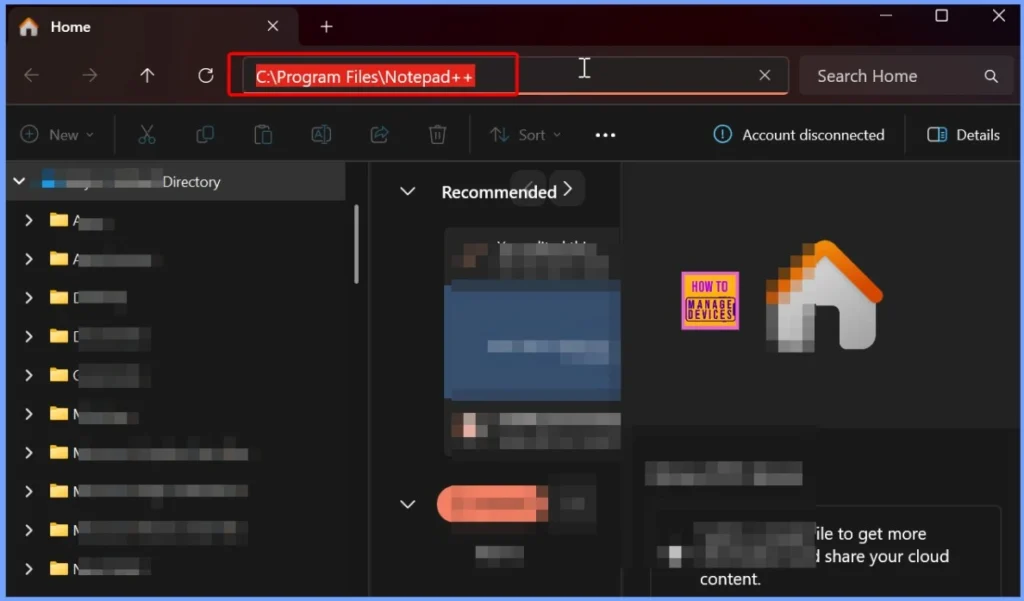
Next, on the same test device, open File Explorer and navigate to the typical installation directories to verify where Notepad++ was actually installed. Check both C:\Program Files\Notepad++ and C:\Program Files (x86)\Notepad++, as the location may vary depending on whether the app is 32-bit or 64-bit.
Choose the Correct Detection Rule Type
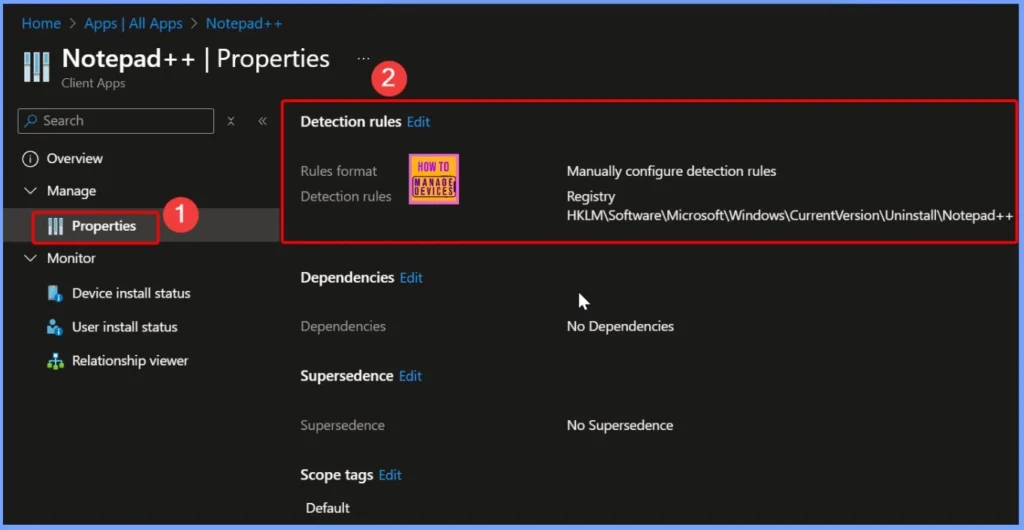
You can easily choose either a file-based or registry-based detection rule for troubleshooting Intune Error 0x87D1041C Application not Detected After Successful Installation. The below table helps you to show more details.
| Detection Method | Configuration Step | Details |
|---|---|---|
| File-based | Go to Intune > Apps > Your Win32 App > Properties > Detection Rules | Path: C:\Program Files (x86)\Notepad++ File or folder: notepad++.exe Detection method: File exists |
| Registry-based | On the target device, open Regedit and go to: HKEY_LOCAL_MACHINE\SOFTWARE\Microsoft\Windows\CurrentVersion\Uninstall\Notepad++ | Value name: DisplayName Value data (optional): Notepad++ |
Check Operating System Architecture
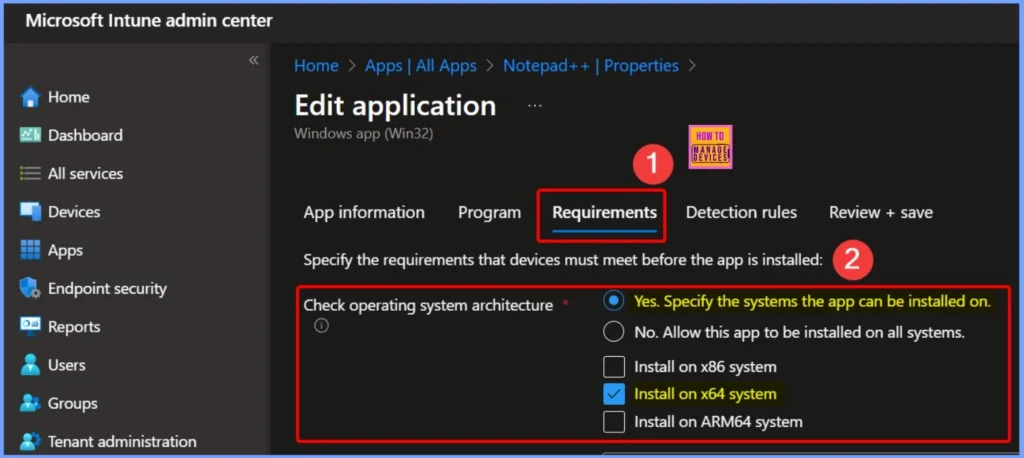
If you’re using a 32-bit app like Notepad++, and it installs in the Program Files (x86) folder, make sure Intune checks it the right way. In the Requirements settings, turn on the option “Check Operating System Architecture” and set it to Yes. This helps Intune look in the correct folder during detection. If the app installs in Program Files (for 64-bit apps), you don’t need to change this setting.
Retest Deployment
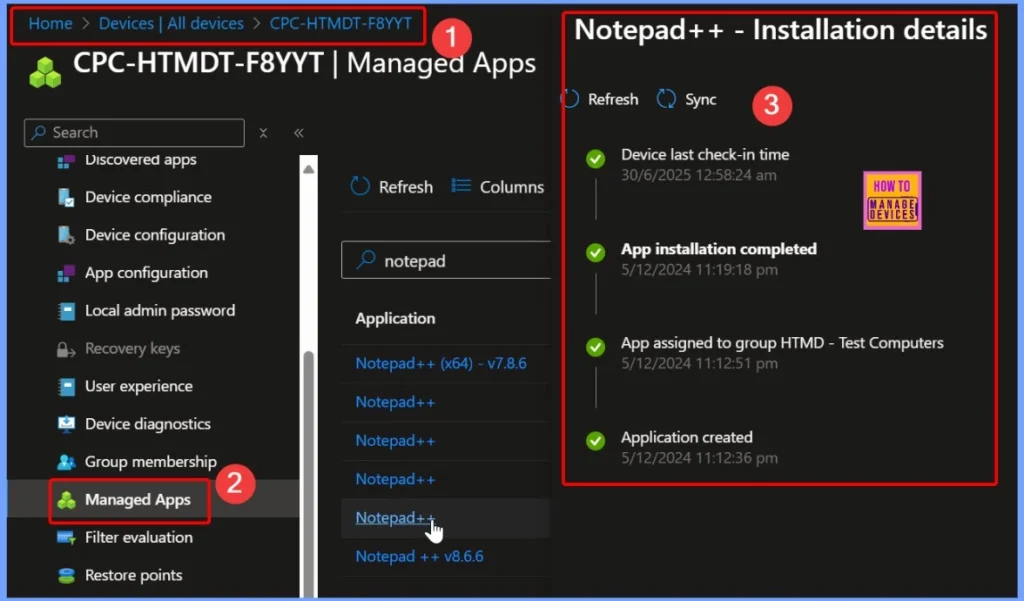
Once you have updated the detection rules, assign the app to a test group in Intune to verify the changes. After deployment, go to Intune > Devices > select the device > Managed Apps to monitor the installation status. If everything is configured correctly, you should see the app listed as Installed without any error messages, confirming that Intune has successfully detected the application.
Need Further Assistance or Have Technical Questions?
Join the LinkedIn Page and Telegram group to get the latest step-by-step guides and news updates. Join our Meetup Page to participate in User group meetings. Also, join the WhatsApp Community to get the latest news on Microsoft Technologies. We are there on Reddit as well. You can see these details have been discussed in Reddit and other social media forums.
Author
Anoop C Nair has been Microsoft MVP for 10 consecutive years from 2015 onwards. He is a Workplace Solution Architect with more than 22+ years of experience in Workplace technologies. He is a Blogger, Speaker, and Local User Group Community leader. His primary focus is on Device Management technologies like SCCM and Intune. He writes about technologies like Intune, SCCM, Windows, Cloud PC, Windows, Entra, Microsoft Security, Career, etc.


Discussion