






Exciting News! Pin or Unpin Copilot Side Pane on Desktop in Windows 11. The Copilot is the best AI service created by Microsoft. Currently, Copilot is growing their performance for users like students, IT professionals, or entrepreneurs, which can significantly impact your productivity and overall well-being.
Copilot is like a helpful digital friend for all of us, like an intelligent chatbot that can assist you. Copilot is a language model that generates text, images, and videos. You can do tasks like complex questions and data analysis, and it acts like your writing assistant. Now, Copilot will also be available on all iOS and Android devices.
Copilot’s new features are helpful for Microsoft 365. Also, with this, Copilot assists with data-related tasks in Excel. Elevate your PowerPoint presentations with Copilot’s input. Also, Copilot can summarize lengthy emails, saving you time and effort.
The new feature of Pin or Unpin Copilot Side Pane on Desktop in Windows 11 is the best way to control your Copilot. With this new feature, you can work on your PC with the presence of Copilot. In this article, I will show you how this new feature works.

- 16 New Copilot Actions Released by Microsoft
- Use Microsoft Copilot with any App on Android and iOS Devices
- Copilot is in All Microsoft 365 Apps
Pin or Unpin Copilot Side Pane on Desktop in Windows 11
Microsoft is experimenting with a new feature that lets you adjust Windows Copilot more easily. Now you can able to pin or unpin the copilot side pane. The Copilot Side Pane in Windows 11 is like having a helpful digital companion. It’s an AI-powered feature that provides assistance and support as you navigate your tasks.
| New Pin/ Unpin features | Benefits |
|---|---|
| Pinning the Copilot | When using Copilot by pinning, Copilot has its own space to assist you without causing any problems. Also using Copilot, your app windows won’t get in the way, it won’t overlap with them. |
| Unpin the Copilot | By Unpinning, you are allowing it to appear above or below other apps. You can use Copilot at any time without causing inconvenience or disturbance. |
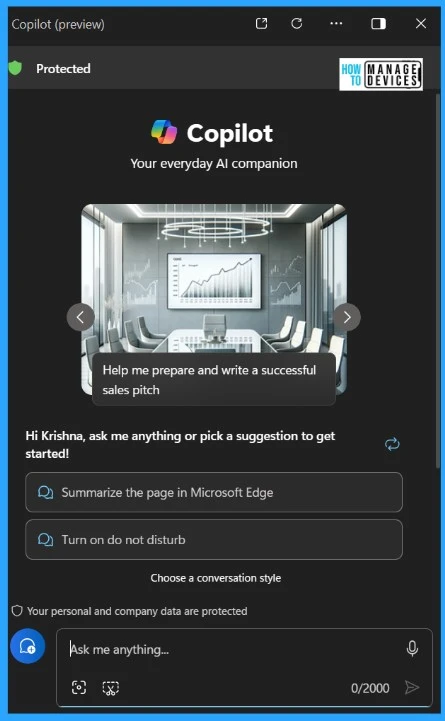
Pin Copilot Side Pane on Desktop in Windows 11
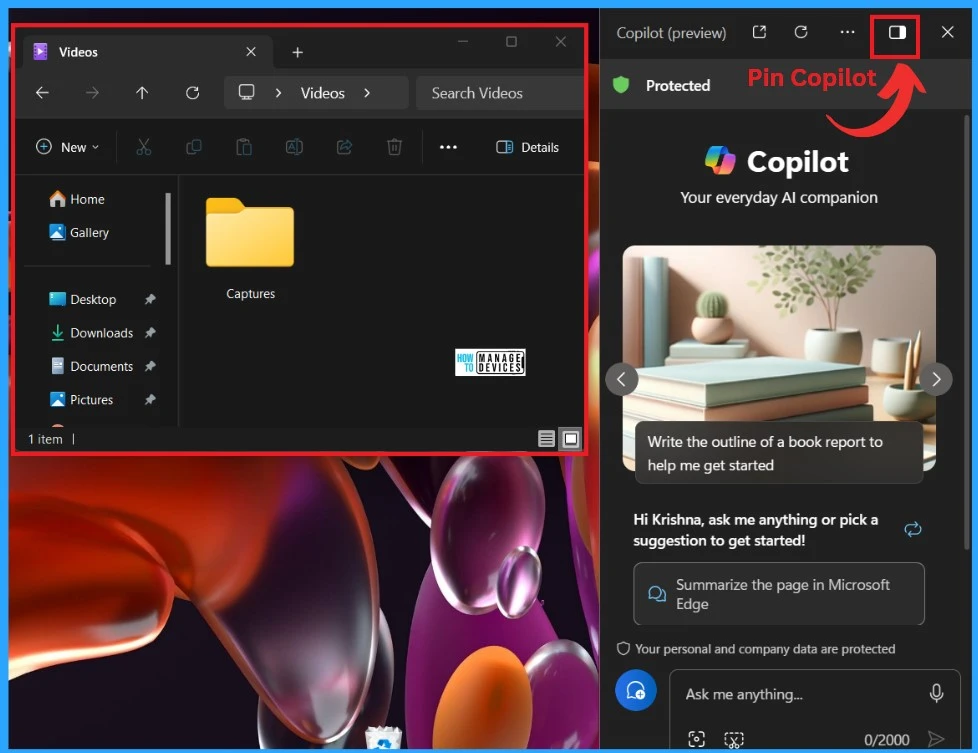
When you pin the Copilot Side Pane, it stays fixed on the right side of your desktop. This will always be visible on your desktop while working on other apps. When you maximize the other apps window, the copilot window will still be visible on the right side of your desktop.
- For Pinning Copilot, open the Copilot first by clicking Win+C or open Copilot through Taskbar
- Click/Tap the Pinning Button in the Copilot sidebar
- You can now use other apps on your desktop; Copilot will always be visible while working.
- New 3 Top Features Included in Windows Autopatch
- Microsoft Integrates Notepad with Copilot on Windows 11
- New Copilot Feature in Windows 11 to Connect Plugin
Unpin Copilot Side Pane on Desktop in Windows 11
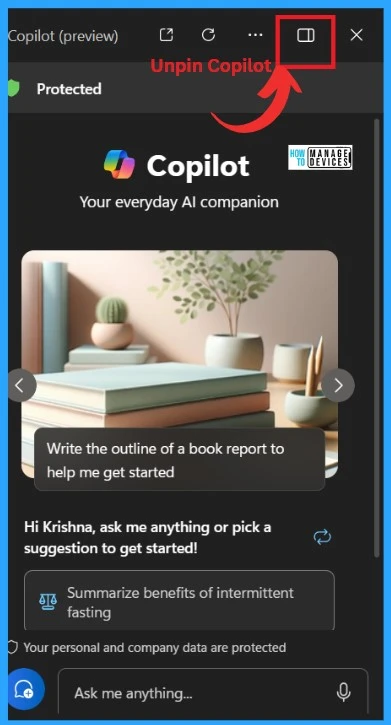
When you unpin Copilot, it is not visible all the time. When you use Copilot in unpin mode, you can use any app without any interruption from Copilot. When you maximize the app, it can appear above or below other apps on your screen.
- For Unpinning, Open Copilot (Win+C)
- Click/tap the Unpin button in the side pane.
We are on WhatsApp now. To get the latest step-by-step guides, news, and updates, Join our Channel. Click here. HTMD WhatsApp.
Author
Krishna. R is a computer enthusiast. She loves writing about Windows 11 and Intune-related technologies and sharing her knowledge, quick tips, and tricks about Windows 11 or 10 with the community.




Discussion