






Let’s discuss the Recall Message Functionality Failure in Outlook Desktop. After the security updates in February 2024, the feature in Outlook Desktop that lets you recall messages suddenly stops working.
If you send an email and realize you made a mistake or want to return it, you won’t be able to do so as usual. It is like losing a useful tool you depend on for managing your emails effectively.
Since around January 23, 2024, users have been experiencing issues connecting to Microsoft Outlook.com. This problem has affected various email applications, including Microsoft Outlook, Thunderbird, and Apple Mail.
In a recent update, Microsoft’s Outlook platform announced a significant change: discontinuing the cloud attachment option for email links. This means the users could no longer attach files to their emails using cloud services.

- Fix Outlook Desktop Crashes Issue when sending Emails
- FIX Spoofing Vulnerability with Outlook Image Blocking and Read-Only Meeting Body
- FIX Restricted Access to FQDN and IP Hyperlinks Issues in Outlook
- How to Set Out of Office in Outlook
- How to Search Emails in Outlook
- Easy Way to Repair Reset Outlook in Windows
Why has the Recall Message Feature in Outlook Desktop Stopped Working after the February 2024 Security Updates?
After the February 2024 security updates, some users have reported that the Recall Message functionality in Outlook Desktop has stopped working. This issue appears to be linked to the recent security patches.
Recall Message Functionality Failure in Outlook Desktop
When someone sends a message and tries to take it back, called recalling, the person who got the message might receive a notification saying it’s been recalled. But if they click on that notification, they might see an error message that says,
“The custom form cannot be opened. Outlook will use an Outlook form instead.”
- The person who tried to recall the message might not be notified if it didn’t work.
- The recipient gets both emails – The person who received the original email also gets another email trying to recall it.
- If the recipient tries to open the recall email by double-clicking it, they see an error saying, “The custom form cannot be opened. Outlook will use an Outlook form instead.”
- Even after the recall attempt, the recipient still sees the original and recall emails in their inbox.
- The person who tried to recall the message doesn’t receive any notification or update about whether the recall was successful.
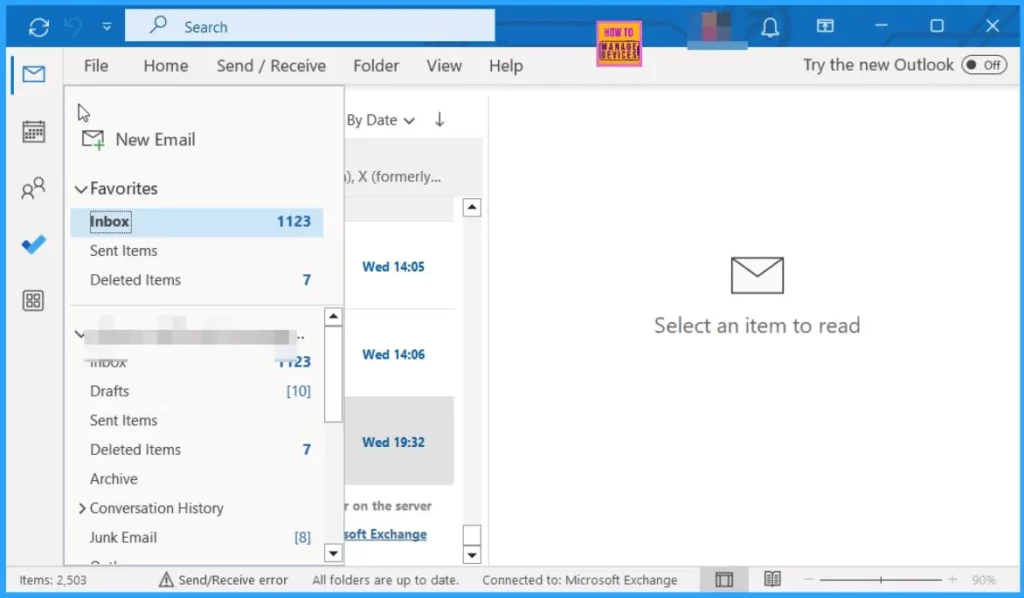
Issue Cause – Disabling of Cloud-Based Message Recall
When Cloud-based Message Recall is disabled, Outlook Desktop client reverts to using the legacy Recall Message functionality. This legacy method may lead to a problem where the recall notification fails to function as expected. Consequently, recipients may see both the original email and the recall email, with the latter displaying an error when attempting to open it.
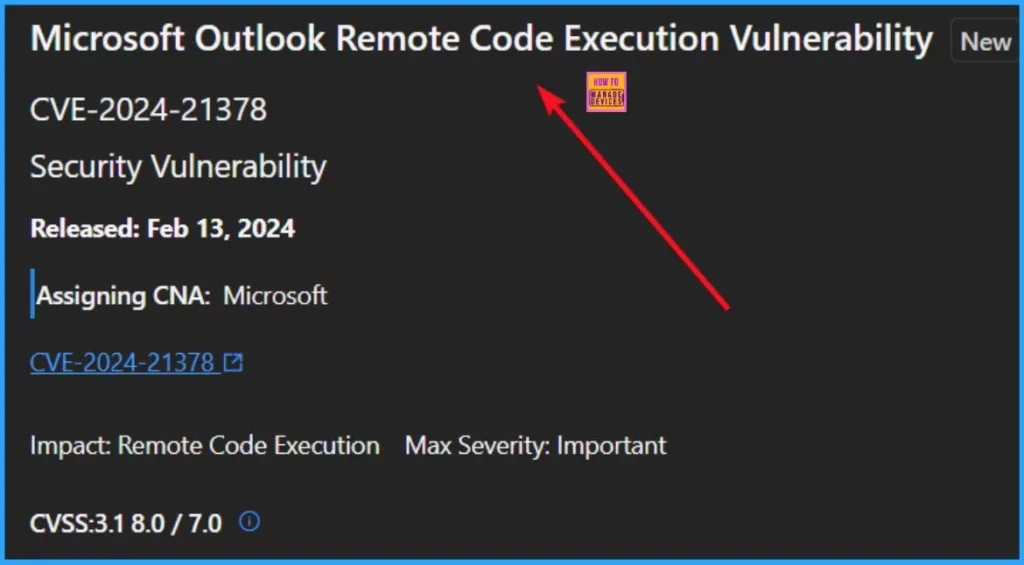
CVE-2024-21378 Security Update on Outlook Desktop
After installing the February security updates, specifically CVE-2024-21378, users of Outlook Desktop may experience bad effects. This vulnerability, identified as a Microsoft Outlook Remote Code Execution Vulnerability, shows a risk to the security of Outlook Desktop installations.
- As a result, users may encounter issues with various functionalities within Outlook, including the Recall Message feature.
| Vulnerability | Details |
|---|---|
| CVE Details | CVE-2024-21378 |
| Vulnerability Name | Microsoft Outlook Remote Code Execution |
| Released Date | Feb 13 2024 |
| Assigning CNA | Microsoft |
| Impact | Remote Code Execution |
| Max Severity | Important |
Current Status of the Recall Message Functionality Issue
The Outlook Team is currently investigating the reported issue. Microsoft working to resolve the issue and will provide updates on the progress as soon as possible. To mitigate the impact of this issue, you can use one of the following workarounds.
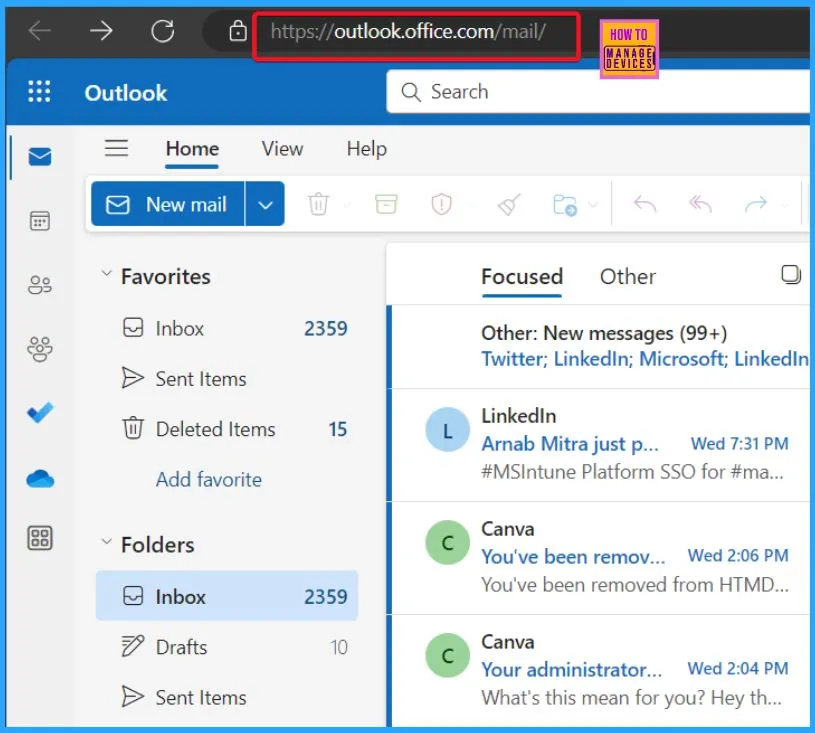
1. Recall Message from OWA (Outlook Web Access)
If you have access to Outlook Web Access, utilize the recall message feature from there. The below screenshot helps you to show Outlook Web Access.
2. Use New Outlook
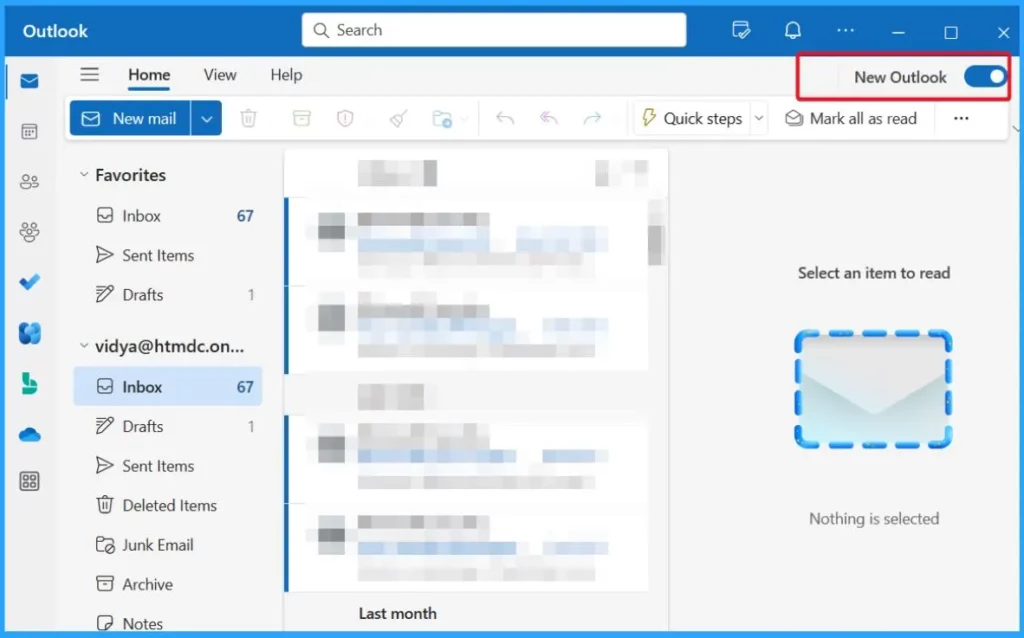
Consider using the New Outlook experience, if available, as it may offer alternative functionalities. The below screenshot helps you to show the New Outlook for Windows 11 PCs.
3. Recall or Replace an Email Message in Outlook for Windows
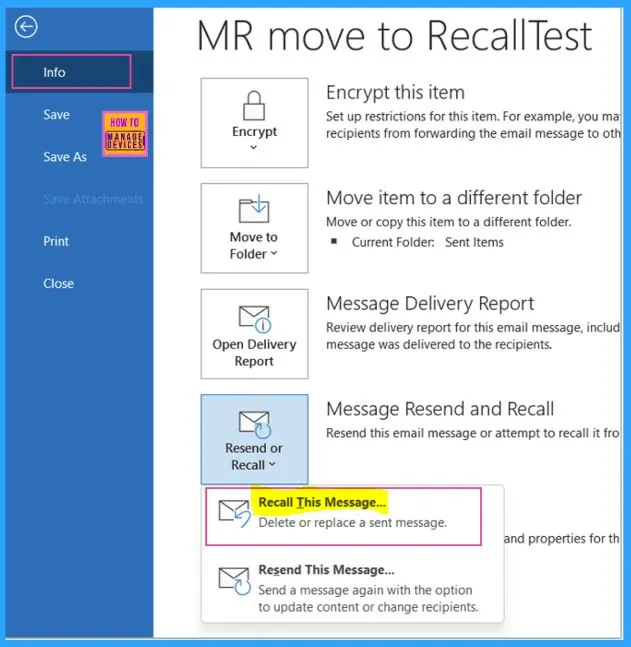
If you have sent an email that needs correction or recall, you can follow these steps in Outlook for Windows. Go to your Sent Items folder. Open the email you wish to recall or replace. Select the “Actions” dropdown menu from the ribbon.
- Choose either “Recall This Message” or “Replace” depending on your need and follow the prompts accordingly.
We are on WhatsApp now. To get the latest step-by-step guides, news, and updates, Join our Channel. Click here. HTMD WhatsApp.
Author
About the Author – Vidya is a computer enthusiast. She is here to share quick tips and tricks with Windows 11 or Windows 10 users. She loves writing on Windows 11 and related technologies. She is also keen to find solutions and write about day-to-day tech problems.

Discussion