






Windows Autopilot Block Only Selected Apps and Continue if Other Applications Fail to Install
Let’s discuss Windows Autopilot Block only Selected Apps and Continue if Other Applications Fail to Install. These Autopilot enhancements introduced with february update help users to balance between optimizing for productivity and security.
This feature is a part of Microsoft Intune Service release 2402, There are many new features included in Windows Autopilot in this release. ESP setting to install required apps during Windows Autopilot pre-provisioning is one of the important features.
This enhancement in Autopilot is a user-friendly setting for end users. It gives flexibility to admins to install critical applications and get their users to be productive as soon as possible. This feature is available for users in Microsoft Intune.
Users can access this setting only in the ESP(Enrollment Status Page) profile. The new setting allows administrators to block only selected apps and continue if other applications fail to install during the technician phase.

- Install Required Apps In Windows Autopilot Enrollment Status Page
- Windows Autopilot Internal Errors 819 Device Duplicated and 808 Device Assigned to other Tenant
Windows Autopilot Block Only Selected Apps and Continue if Other Applications Fail to Install
Before this update required applications could be installed under one of two conditions. Block for all apps, where any application install failures during the technician phase would cause the entire deployment to fail, or block for some apps, which would only install specified apps during the technician phase and leave the rest for the user phase.
After this new settings allow administrators to block only selected apps and continue if other applications fail to install during the technician phase. For those non-blocking applications, the installation will be tried again when the user signs in for the first time.
| Steps for Accessing Block Only Selected Apps and Continue if Other Applications Fail to Install |
|---|
| Sign in to the Microsoft Intune admin center |
| Under Devices, select Windows Platform |
| Select Windows enrollment and select Enrollment |
| Status Page under Windows Autopilot |
| Click on the + Create option |
| Enter the appropriate Name and Description for your profile |
| Then click on the Next Button |
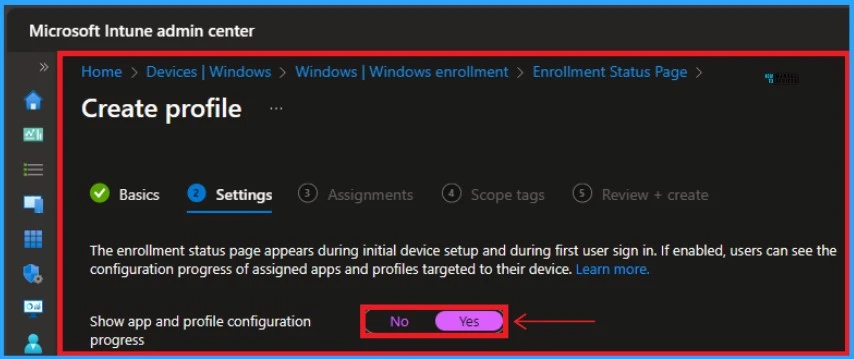
| Enable the Show app and profile configuration progress option |
- Don’t miss MMS 2024 Flamingo Edition the Premium Conference for Intune Admins
- Windows 365 Frontline Concurrency Report Details to Save Money
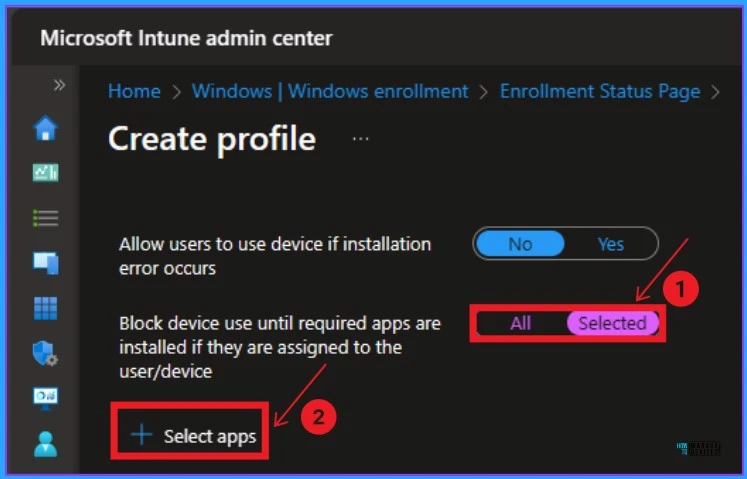
After that, you can see many options related to this policy. Enable the “Block device use until required apps are installed if they are assigned to the user/device”. Then you can see a + Select apps option and click on that option.
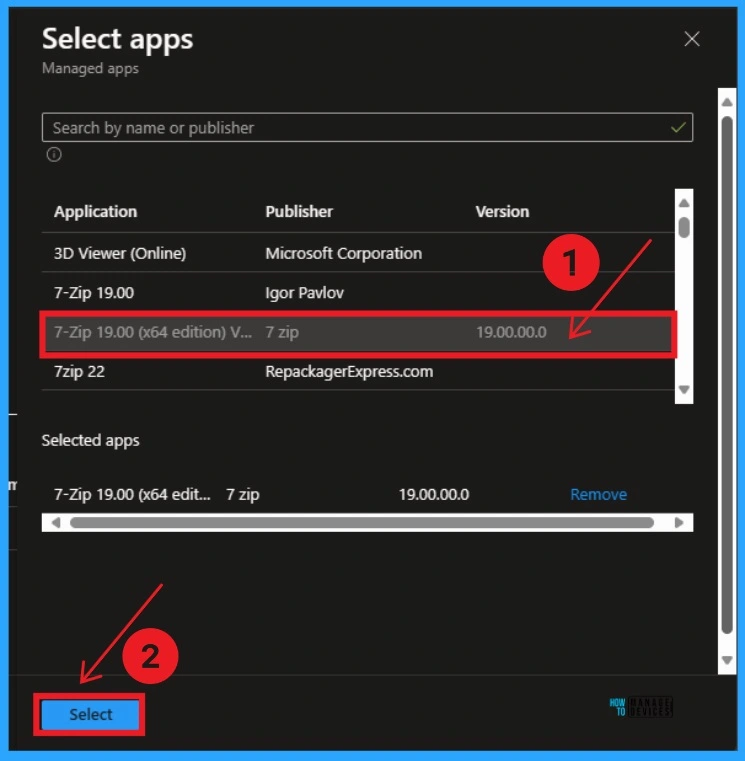
After clicking on the + Select apps option you get a new window for selecting apps. You can select a specific app by searching by name or publisher or simply select an app that is shown on the Intune Portal. Here I select 7-Zip 19.00 app. Then click on the Select button.
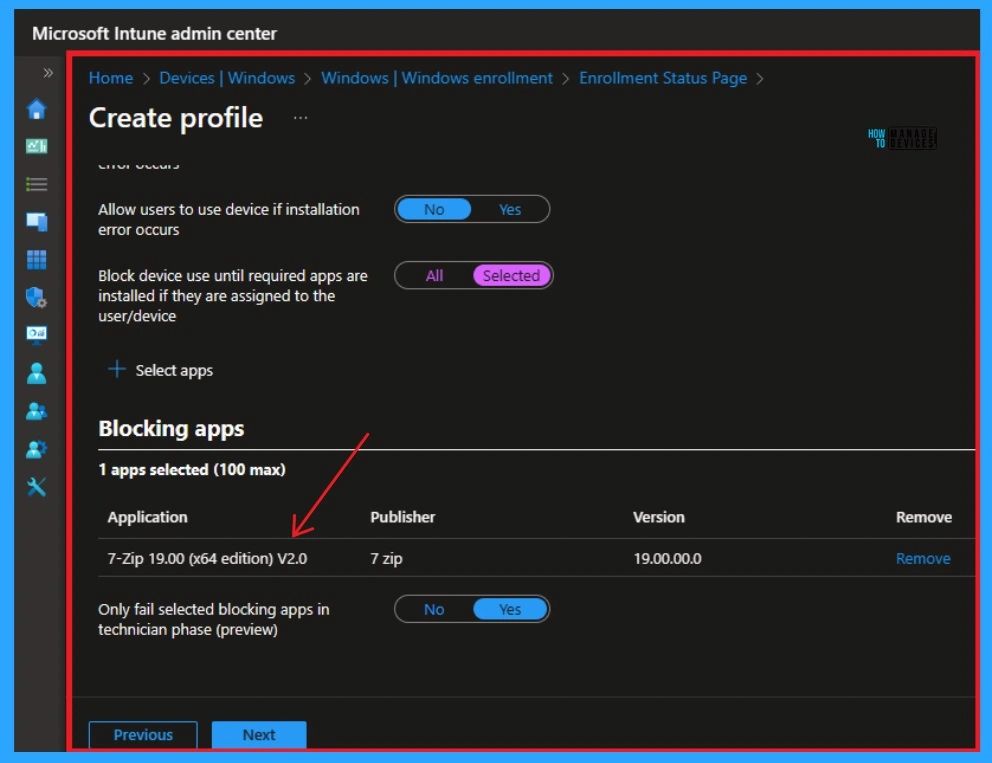
After selecting the app, it will shown in the Blocking app section. Here you can see the application name, publisher, and version. You can easily remove this application by clicking on the remove option near the selected app.
- Block Use of Copied or Impersonated System Tools using Defender ASR Rules
- Microsoft Defender ASR Rules to Block Rebooting Machine in Safe Mode
Reference
What’s New in Microsoft Intune February 2024 | Microsoft Intune blog
We are on WhatsApp. To get the latest step-by-step guides and news updates, Join our Channel. Click here –HTMD WhatsApp.
Author
Gopika S Nair is a computer enthusiast. She loves writing on Windows 11 and related technologies. She is here to share quick tips and tricks with Windows 11 or Windows 10 users. She is Post Graduate Diploma Holder in Computer Science.


Discussion