






How to Remove and Replace Background using Windows Photos
Let’s learn about the new improvements in Windows Photos, like how to Remove and Replace Background. Windows is launching new updates that, among other things, help remove, replace, and find photos. These new improvements enhance Windows Photos.
Windows has released several new features to help users. This remove-and-replace background background feature is more effective and attractive. In addition to these features, Filmstrip, Timeline Scrollbar, and Share individual photos with Onedrive were also launched in Windows Photos Update.
Through this feature, Windows introduced the ability to quickly remove the background in a photo or replace it with a different colour. You can get this feature with a single click. This feature will be available on Windows PC by updating your Photos app to version 2023.11110.8002.0 or higher.
This feature is straightforward to learn and understand. This blog post will help you to understand the improvements in Windows Photos. Microsoft added several improvements along with this update.

What are the Advantages of New Improvements in Windows Photos?
1. It helps to back up your photos with OneDrive easily.
2. It allows you to import and manage your photos from external sources
3. It helps you to show the photos from a different view
4. It offers a delightful “Memories” experience
5. It helps to organize digital photos in its gallery into albums
New Improvements in Windows Photos
Windows often introduces new features or updates to help solve users’ small or big problems. This article highlights 4 further improvements.
| Features | It used to |
|---|---|
| Background remove and replace | It helps you to remove the background and replace it with other colours |
| Filmstrip | It uses you to view quick or multiple view options |
| Timeline Scrollbar | It allows you to find the photo easily |
| Share Individual Photos with OneDrive | It helps you to save or share the picture |
1. Remove and Replace Background
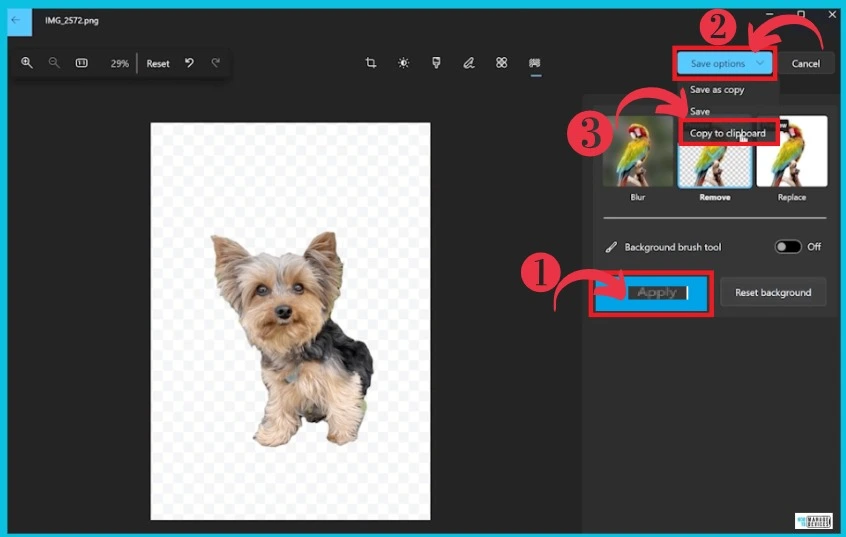
This essential feature in Windows helps you remove the background from any photo. First, open the photo in Windows Photos and click the Apply button. Then click the down arrow next to the save option and select Save to clipboard from the three options. The screenshot below provides details.
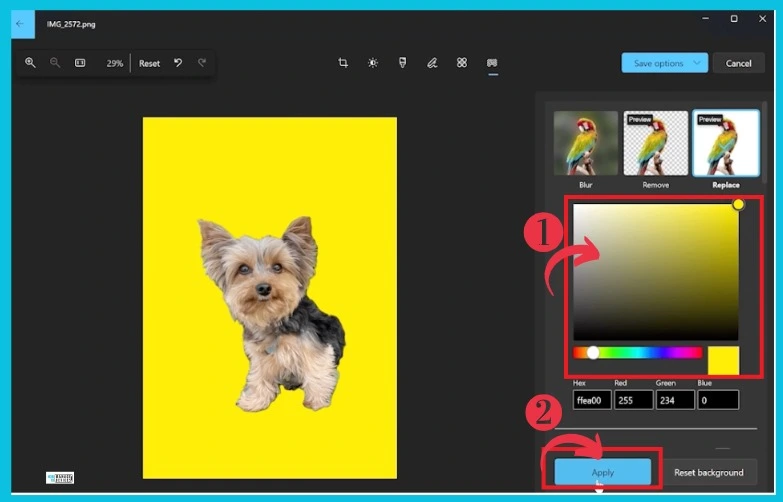
After removing the background, you can easily replace it with different colours. This can be done with a single click. You can easily customize any colour on these windows, and it can be applied to Windows Photos Background.
- Steps Recorder App will be removed from Windows Soon
- Windows 11 Photos App Background Blur and Latest Features Explained
2. Filmstrip
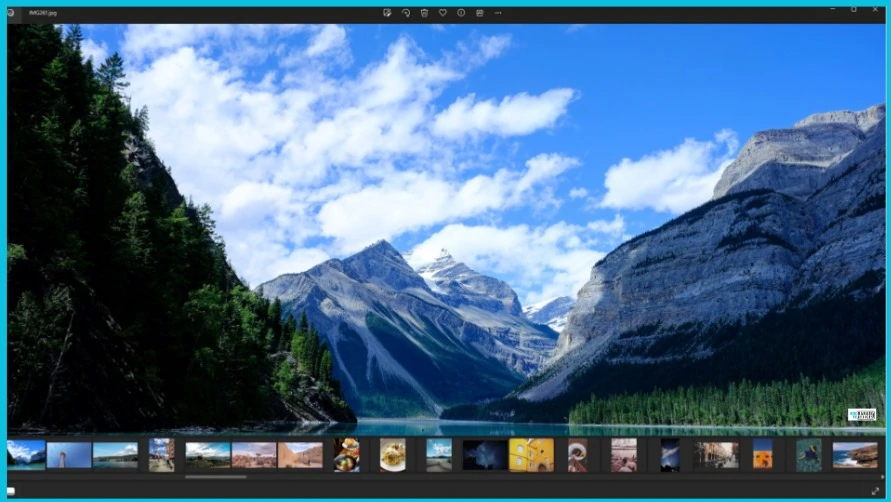
The Filmstrip feature helps you to find and select photos and videos quickly. All photos and videos are designed at the bottom of the page. This window allows you to see multiple videos and photos side by side in the same window with multi-view mode by selecting items from the filmstrip.
3. Timeline Scrollbar
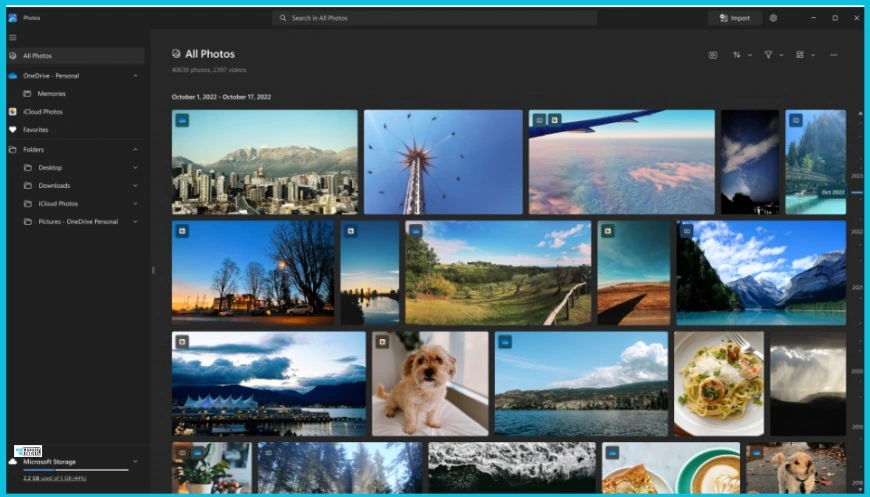
The Timeline Scrollbar also helps you find your photos easily. All folders added the Timeline Scrollbar, which is dynamic and based on the time range of your photo collection, so you can quickly locate the photo you’re looking for. The screenshot gives the details.
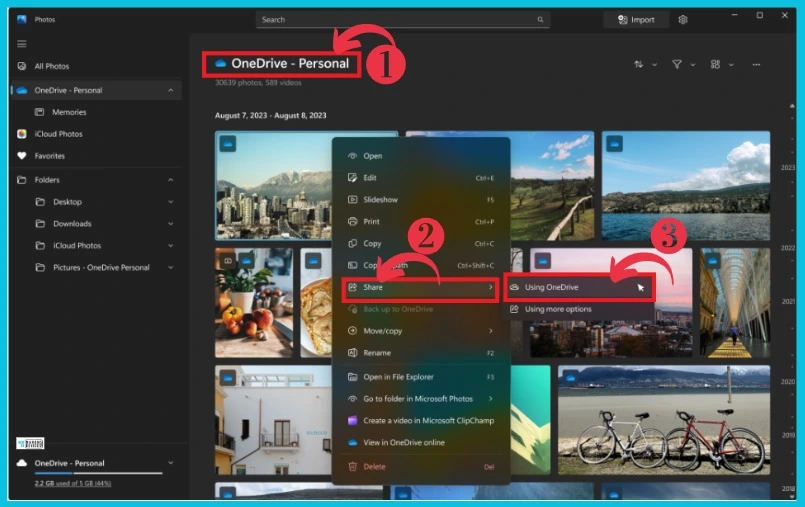
4. Share Individual Photos with OneDrive
Share Individual Photos with OneDrive feature allows you to share a photo backed up on OneDrive. You can easily share the backup photo by clicking an image and selecting OneDrive. It also allows you to send the link via email or copy it to a clipboard.
- Bing Chat Enterprise is Copilot Now | Data Protection for organizations
- MS Paint Background Removal Feature
Other Improvements
Besides these improvements, Windows added a printing feature that makes it easier than ever to print your photos. When viewing a single image, the Print button is now on the top command bar, and the Resize tool offers a 7:5 aspect ratio.
Various performance and stability updates to improve the Slideshow feature, navigation between tabs, and opening images.
Reference
Windows Photos gets background remove and replace, along with other improvements
We are on WhatsApp. To get the latest step-by-step guides and news updates, Join our Channel. Click here HTMD WhatsApp
Author
Sumitha was introduced to the world of computers when she was very young. She loves to help users with their Windows 11 and related queries. She is here to share quick news, tips and tricks with Windows security.




Discussion