






Fix SCCM Application Installation Error 0x87D01109
Let’s understand how you can FIX SCCM Application Installation Failed 0x87D01109. The error 0x87D01109 (-2016407287) prompts when you attempt to install an application from the SCCM software center.
Application deployment in SCCM can fail due to several reasons. It could be different based on the details you get into logs. In most scenarios, either the application install command is incorrect or fails to download the content on the client machines.
If you encounter an error code, the first step is to use CMTrace to translate SCCM Error Codes To Error Messages. You also have multiple SCCM log viewer options to check different types of log files .log or .lo_ file extensions.
The error 0x87D01109 Translate SCCM Error Codes to Error Messages “Failed to verify that the given file is a valid installation package.”

Application Model is used these days extensively for Software Distribution from SCCM. However, troubleshooting Application deployment using this model is not easy due to the number of components involved. The client-side flow for application deployment post will help you to perform troubleshooting.
- Deep Dive SCCM Application Model Troubleshooting – Client End
- Fix the SCCM Software Center cannot be loaded Issue with ConfigMgr
- Fix Unable to Download Software Change Returned Error Code 0x87D00669
Issue Summary – SCCM Application Installation Failed 0x87D01109
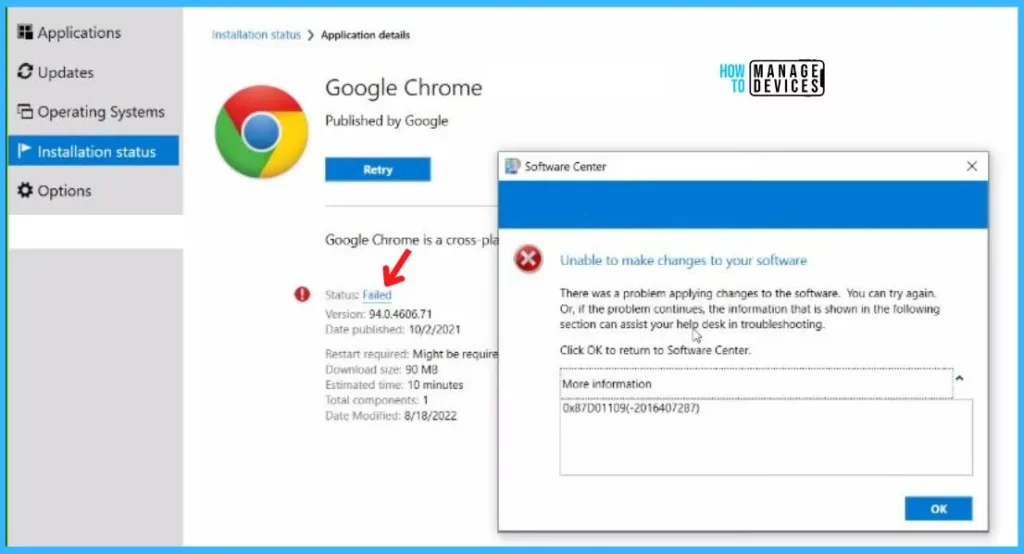
The error Application Installation Failed 0x87D01109 (-2016407287) was received while installing an application from Software Center. The application appeared with the status Failed, Click on the hyperlink to get more information.
It indicates there was a problem applying changes to the software from SCCM. You can try starting the installation again, or if the problem continues, the information shown in the section below can assist your helpdesk in troubleshooting 0x87D01109 (-2016407287).
I have checked AppEnforce.log from C:\Windows\CCM\Logs to understand the issue with the installation. After reviewing the AppEnforce.log to track the installation, You might see that the application is unable to locate or validate the MSI package, and the application installation is not completed successfully.
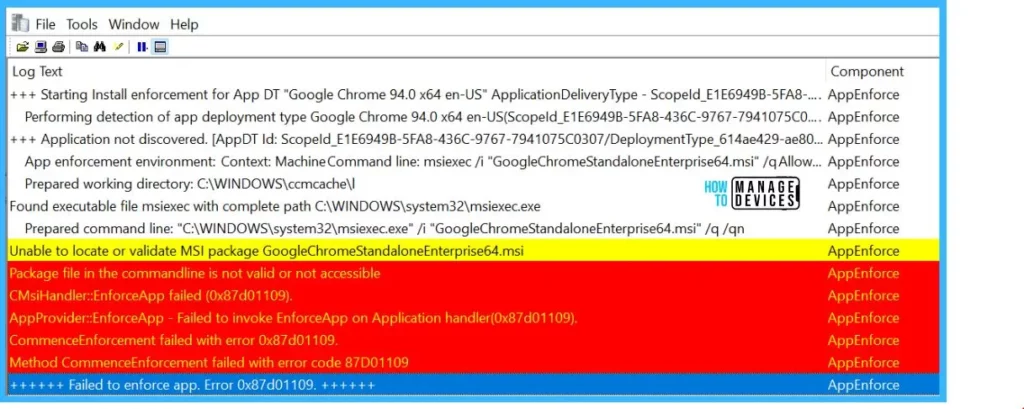
The below highlighted details show SCCM application installation error 0x87D01109. The complete error description is as follows.
Unable to locate or validate MSI package GoogleChromeStandaloneEnterprise64.msi	AppEnforce
Package file in the commandline is not valid or not accessible	AppEnforce
CMsiHandler::EnforceApp failed (0x87d01109).	AppEnforce
AppProvider::EnforceApp - Failed to invoke EnforceApp on Application handler(0x87d01109).	AppEnforce
CommenceEnforcement failed with error 0x87d01109.	AppEnforce
Method CommenceEnforcement failed with error code 87D01109	AppEnforce
++++++ Failed to enforce app. Error 0x87d01109. ++++++	AppEnforce
Fix SCCM Application Installation Failed 0x87D01109
Let’s understand why you experienced the error 0x87D01109. The application installation triggers the available package or installer files. If the files got corrupted while downloading on the client machine, the application failed to install, resulting in error 0x87D01109.
Ensure the application file downloaded to a client device is manually installed without any issue, As sometimes it has been seen the application is invalid or corrupt. In such cases, you must download the installer again.
Since there is no issue with the installation command line as the application was installed successfully on all devices, Cleaning the SCCM Cache and reinitiating the download application content helps to install without any issues.
To speed up the process, you can clear the cache from the client machine and trigger the action cycle. Initiate the Machine Policy Request & Evaluation Cycle to speed up the inventory, SCCM client action Machine Policy Request & Evaluation Cycle trigger the re-evaluation of the machine policy process from the client.
Application Deployment Evaluation Cycle, This SCCM client action Application Deployment Evaluation Cycle “immediately” triggers the application deployment evaluation process.
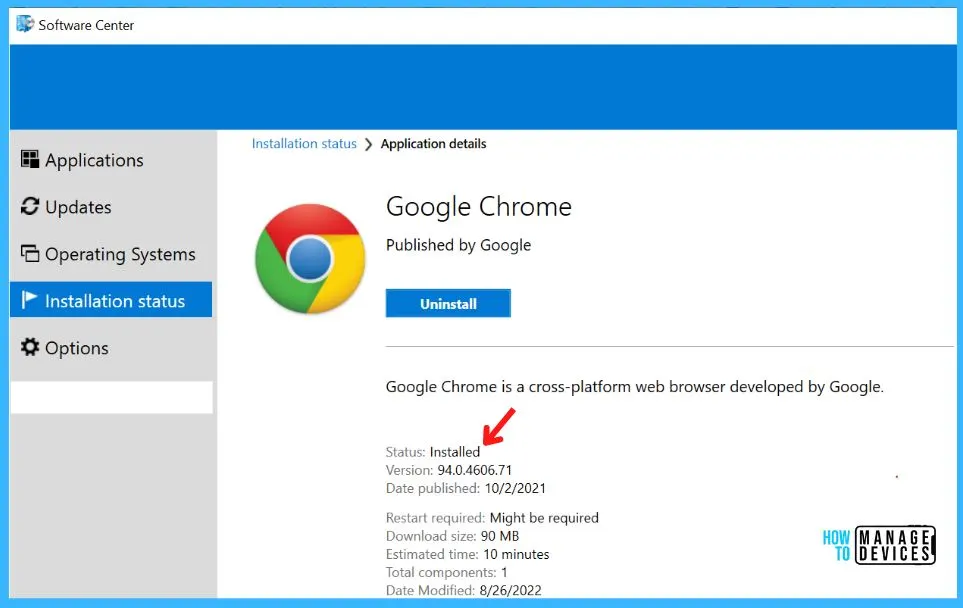
When you launch the Software Center, click on Application and select the action “Install or Uninstall.” You may notice the application started downloading the content. As soon as the content is available, It will start the next process. Here you can see the status Installed.
I hope this post helps you fix the SCCM application deployment error 0x87D01109. Let us know your experience in resolving this issue in the comments section.




Thank you very much, cleaning the cache helped a lot. Does SCCM still not have an option to clean the cache daily? Without telling it how big the cache can grow?
Just delete cache daily or weekly as a Task?