






Change SCCM Collection Incremental Updates Schedule Interval
Let’s find out how to quickly change SCCM collection incremental updates schedule interval. There are different types of collection evaluation in SCCM. The incremental evaluation of collection is also called express evaluation because it does the evaluation very quickly.
You can use the incremental updates option to periodically scan and update only new or changed resources from the previous collection evaluation. This process is independent of a full collection evaluation. So, this is less resource-intensive than full collection evaluation.
You can check the collection evaluation status from the console itself from the latest versions of the SCCM current branch. The newest version includes a Full evaluation and an Incremental evaluation summary.
It’s not recommended to have incremental updates enabled for more than 200 collections in an SCCM environment. This is because the frequent incremental updates of many collections could cause performance issues with SCCM infrastructure.

- ConfigMgr Collection Full Incremental Evaluation Status Summary From Console
- Best way to find the collection ID from the SCCM console
- SCCM Query All Active Directory Security Groups Dynamic Collection
- SCCM Collection Evaluation Viewer Tool
What is Incremental Updates in SCCM?
Let’s check what incremental updates in SCCM is? You can enable incremental updates for user and device collections. The incremental evaluation process uses a collection evaluation graph to evaluate and update dependent collections if an update to the incremental collection membership changes.
An incremental update periodically evaluates new resources and then adds resources that qualify to a collection. This option doesn’t require you to schedule a full update for this collection.
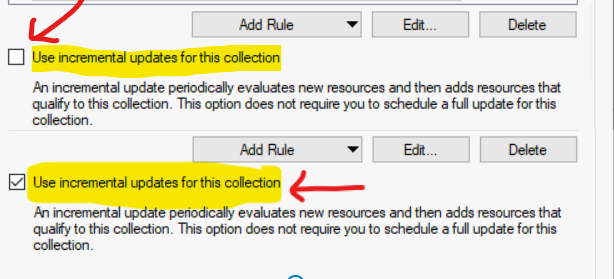
How to Enable Incremental Updates for the Collection
Let’s see how to enable the incremental updates schedule for the collection. As mentioned above, it’s not recommended to enable incremental updates for all the device collections.
But, if you want to enable incremental updates, you can follow the steps mentioned below:
- Navigate to \Assets and Compliance\Overview\Device Collections or \Assets and Compliance\Overview\User Collections
- Select either a device collection or a user collection. Right-click on the collection and go to properties from right-click menu.
- Click on Membership Rules tab and click on the box near “Use Incremental Updates for this collection“
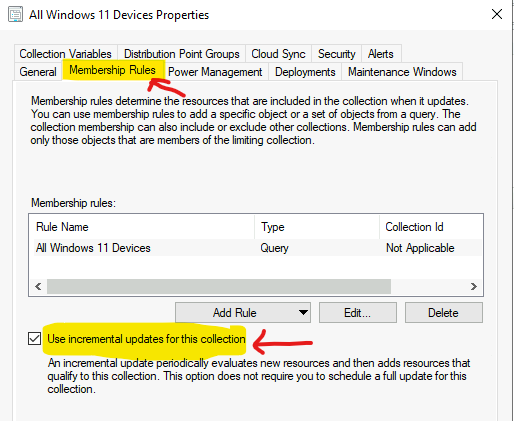
How to Disable SCCM Collection Incremental Updates
Let’s learn How to Disable SCCM Collection Incremental Updates. It would help if you tried to disable the incremental updates for most of the collections. This would allow you to optimize the performance of the SCCM environment.
You can disable SCCM collection incremental updates using the following step. Click on the Membership Rules tab and click on the box near “Use Incremental Updates for this collection“ to remove the checkmark.
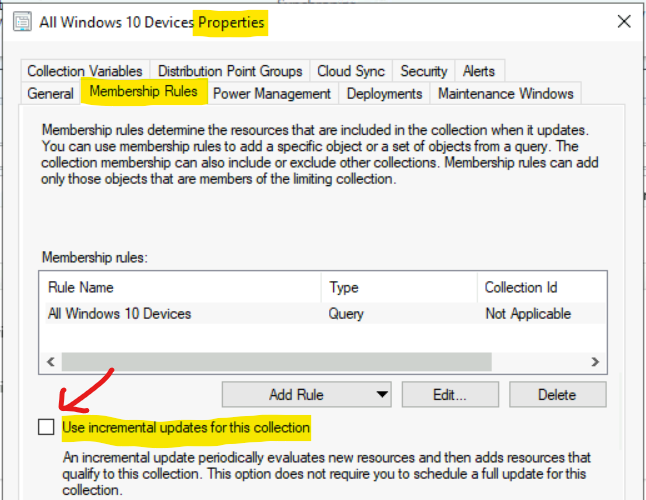
Change SCCM Collection Incremental Updates Schedule Interval
Learn How to change SCCM collection incremental updates schedule interval? You don’t have the option to change the incremental updates schedule of individual collections.
NOTE! – The default incremental updates schedule is 5 minutes. This schedule is a global configuration. Once you change the schedule interval, the change will apply to all the collections in your SCCM environment.
Now, let’s see how to change SCCM collection incremental updates schedule. You will need to follow the steps mentioned below.
- Navigate to \Administration\Overview\Site Configuration\Sites
- Select the primary server and from Configure Site Components – Collection Membership Evaluation.
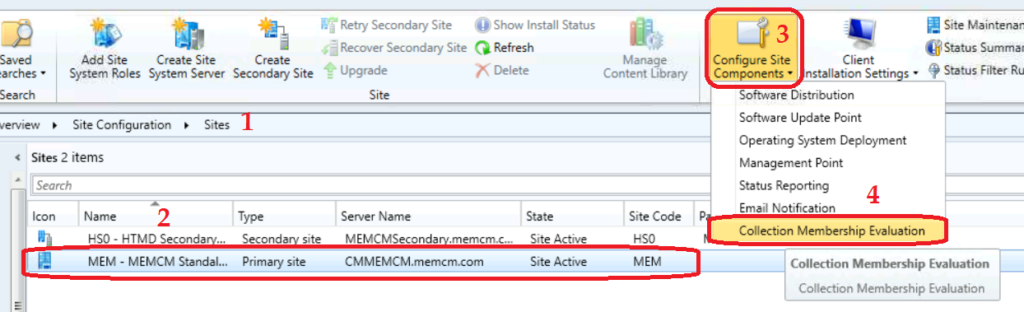
You can check the Collection Membership Evaluation component properties windows and change the global configuration Interval (minutes) to 5.
Five minutes is the default collection membership evaluation interval for the incremental update tasks. You can change the interval schedule of the ConfigMgr collection incremental updates schedule.
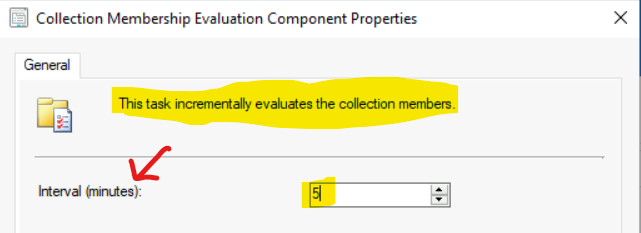
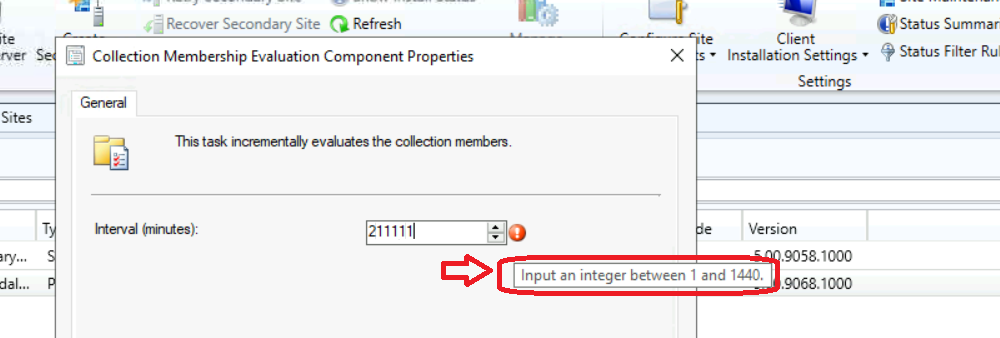
The minimum and maximum value you can keep per the SCCM admin console UI is between 1 and 1440 minutes for the incremental collection update schedule.
Do NOT change the default interval schedule to evaluate the collection members incrementally. The best practice is to keep it like 5 minutes.




Discussion