






FIX Windows Upgrade Failed Error 0xC1900208
Let’s check how to Fix Windows Upgrade Failed Error 0xC1900208. When deploying Windows Feature Update using SCCM, you may encounter Error 0xC1900208 while executing the upgrade installation from Software Center to the client computer.
The error 0xC1900208 – Indicates that an incompatible app installed on your PC during the upgrade process setup found an actionable compat issue, such as an incompatible app, That might be blocking the upgrade process.
We received a question at the HTMD forum about Feature Upgrade Windows 10 Enterprise – 20H2 – Failing at Step: Update Operating System Check where a community member could not perform the upgrade OS.
The first step is to locate the log file to find details, and Here you will get more details of log files for Windows 10 Windows 11 Upgrade Process. Depending on the deployment or failure scenarios, the Windows upgrade troubleshooting logs are located in different folders.

- FIX Windows Upgrade Failed Error Code 0x4005(16389)
- FIX Windows 11 Upgrade Error Code 0xC190010E
- Fix Windows 11 Upgrade Error 0xc11900130
Issue Descriptions – Windows Upgrade Failed Error 0xC1900208
You may also experience the issue when you run the setup file manually. In this scenario, you notice the following issues when you examine Setuperr.log files on an affected device –
Windows Setup returns the error MOSETUP_E_COMPAT_INSTALLREQ_BLOCK. The system does not pass the compat scan to install the update. This may be more related to the windows issues.
| Result code | Description |
| 0xC1900208 – 0x4000C | This could indicate that an incompatible app installed on your PC is blocking the upgrade process from completing. Check to make sure that any incompatible apps are uninstalled, and then try upgrading again. |
Several log files are created during each phase of the upgrade process. These log files for Windows 10 or Windows 11 Upgrade Process are essential for troubleshooting upgrade problems before proceeding to the next step.
Note – By default, the folders that contain these log files are hidden on the upgrade target computer. To view the log files, configure Windows Explorer to view hidden items.
- Locate to C:\$WINDOWS.~BT\Sources\Panther\CompatData[date-time].xml. Here you might see many Compatdata.xml files, Refer to the file which is recently created based on date and time.
- Search for CompatibilityInfo BlockingType=”Hard”. You will be able to find all the incompatible apps installed on the computer <Programs><Program Name =”Application Name” Id =””>.
- Similarly, you can locate the incompatible drivers, by looking under “DriverPackages” for the lines that include:BlockMigration=”True”. These drivers are incompatible with the Windows upgrade.

The Smsts.log file may also contain the following details, and You may notice the following highlighted part when you examine Smsts.log files on an affected device –
Command line of Windows setup upgrade: ‘”C:windowsccmcache1pSETUP.EXE” /ImageIndex 3 /auto Upgrade /quiet /noreboot /DynamicUpdate Disable /compat IgnoreWarning /compat ScanOnly ‘
Failed to delete previous value SetupProgress of reg key SYSTEMSetupMoSetupVolatile

Could not read Windows Setup progress regkey value ‘SetupProgress’ at ‘HKLMSYSTEMSetupMoSetupVolatile’. Stopping UI progress. (0x800703fa)

Windows upgrade progress: 14%

Windows setup completed with exit code hexadecimal 0xC1900208 (decimal 3247440392)

Windows Setup in ‘scanOnly’ mode returned exit code hexadecimal 0xC1900208 ( decimal 3247440392). Failing task sequence step.

Failed to run the action: Upgrade Operating System – Check. Error -2147467259
FIX Windows Upgrade Failed Error 0xC1900208
Let’s check the possible solutions to FIX Windows Upgrade Failed Error 0xC1900208. It could be different based on the details you get into logs –
Uninstall Incompatible Apps
Once you are able to get the app name that is incompatible with your device, Uninstall the application from the affected device and proceed to perform the upgrade.
Uninstall Problemtic Drivers
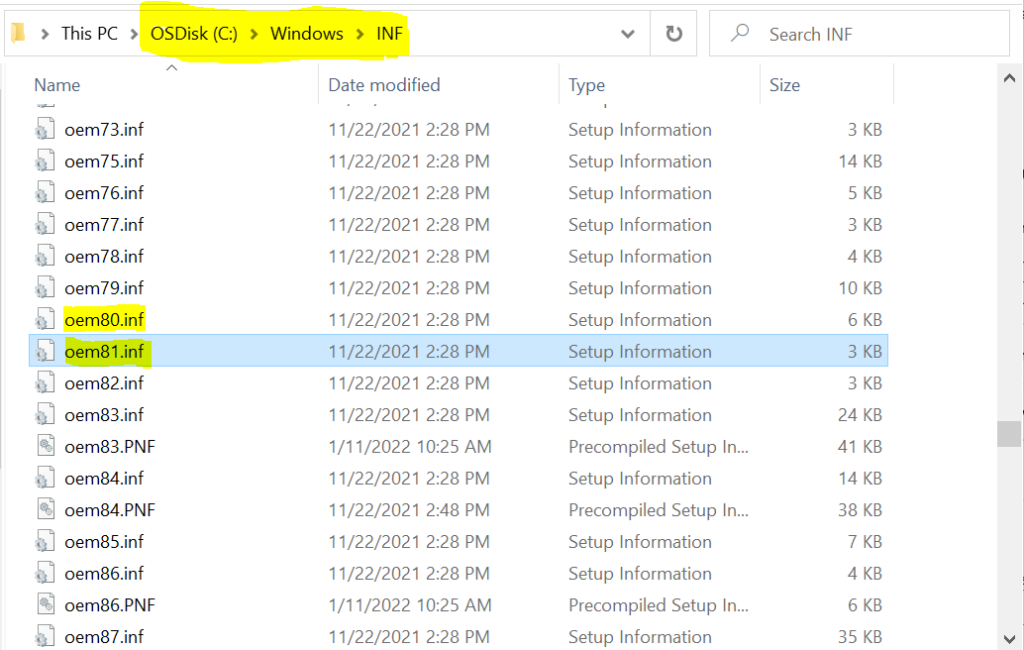
To match a driver in an INF file, You need to locate the INF files from (C:\Windows\INF) mentioned in the CompatData log. and then we need to open the INF file by notepad to see the details of it.
In the above-demonstrated scenarios, the oem80.inf and oem81.inf were the problematic driver’s files. Search for the files named oem80.inf and oem81.inf.
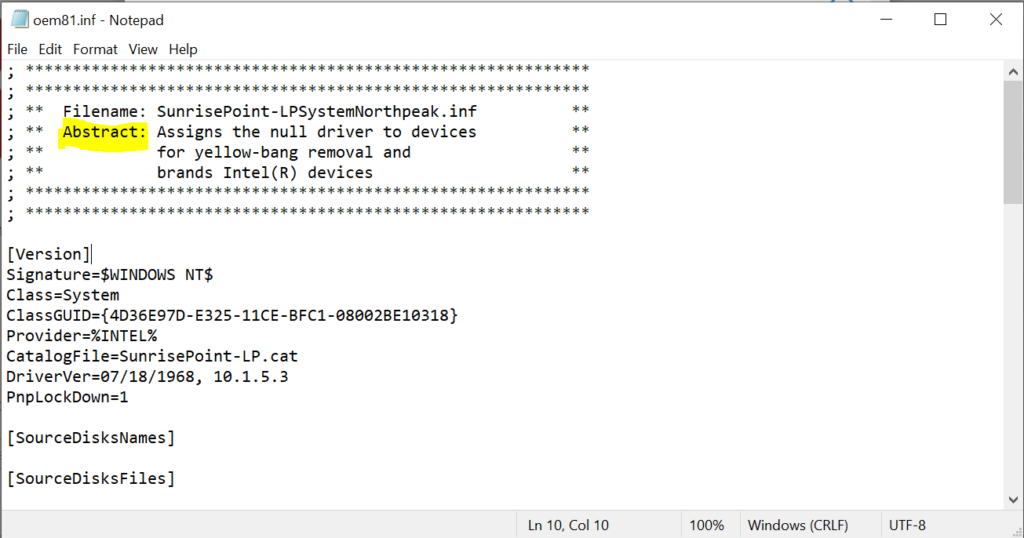
Next, Double click on the selected file, and it will be opened in Notepad as follows, looking at Abstract “Assigns the null driver to devices for yellow-bang removal and brands Intel(R) devices”
You will get to know the purpose of the drivers accordingly carefully you need to proceed to remove from the system.
Reset Windows Update Components
- Remove the directory C:\$WINDOWS.~BT, The $WINDOWS.~BT is a hidden folder created by a Windows Upgrade.
- To Stop the BITS, Windows Update Services, Cryptographic, MSI Installer services.
- Open Command Prompt, Run as Administrator. Type the following commands at a command prompt. Press the ENTER key after you type each command –
net stop bits
net stop wuauserv
net stop cryptSvc
net stop msiserver
Note – SoftwareDistribution and catroot2 folders are most important in the Windows update process. When you run Windows Update, the catroot2 folder stores the signatures of the Windows Update package and the installation of the package.
- Rename the SoftwareDistribution and Catroot2 folder. You can do this by typing the following commands in the Command Prompt. Press the ENTER key after you type each command –
ren C:\Windows\SoftwareDistribution SoftwareDistribution.old
ren C:\Windows\System32\catroot2 Catroot2.old- Now, let’s restart the BITS, Windows Update Services, Cryptographic, MSI Installer services. Type the following commands in the Command Prompt for this. Press the ENTER key after you type each command.
net start bits
net start wuauserv
net start cryptSvc
net start msiserver
- Once completed all steps, close Command Prompt and then restart the computer.
- After restarting the computer, now retry to install Update.
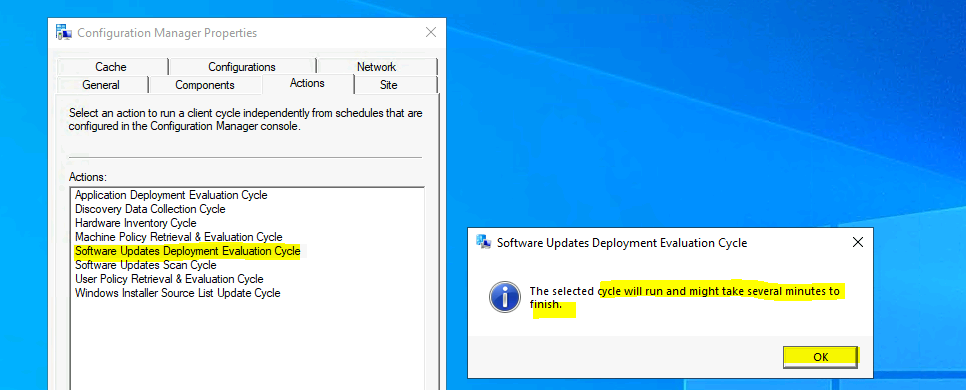
The users/admins can initiate the Software Update Scan and deployment evaluation cycle to speed up. The client actions are available with ConfigMgr Client App in the control panel.




Discussion