






Windows 11 Intune Enrollment Process using Company Portal Application Settings App
Let’s try to understand Windows 11 Intune enrollment process. This post will help you to learn more about how to enroll Windows 11 PCs into Intune using a manual method. This method can be used to test some Windows 11 + Intune scenarios from personal PCs.
There are different methods to enroll Windows 11 PCs to Intune (a.k.a Microsoft Endpoint Manager). You can use MDM auto-enrollment option from Azure AD to automatically enroll Azure AD joined Windows 11 PCs. You can also use Intune Group policy to enroll Hybrid Azure AD joined devices to Intune automatically.
The Windows 11 Intune enrollment workflow is similar to that of Windows 10. However, there are UI-related changes in the Settings apps and Account tab. I felt the new changes are clearer in Azure AD join/only device management, etc. More details are available below section.
- Create Windows 11 Filter Rule In Intune
- How To Install SCCM Client On Windows 11 PC
- Upgrade To Windows 11 Using Intune Feature Update Deployment Policy
I have also added an additional method to Enroll Windows 11 Devices in Intune using Company Portal Application. Hope this method would easy and straightforward for most end-users without any technical knowledge.

Windows 11 Intune Enrollment Prerequisites
You will need to make sure all the prerequisites are in place before you enroll Windows 11 devices into Intune. The network connectivity is important here. The Windows 11 endpoint should be able to reach Microsoft cloud services related to Intune, Windows Update for Business, etc.
You need to enroll the Windows 11 PCs into Intune for centralized device management. I have a post that explains the details of firewall ports and proxy requirements for Windows endpoints. More details are available Intune Firewall Proxy Requirements Modern Windows 10 Deployment.
- Intune License (EMS E3/M365 E3 or above) should be assigned to user.
- Windows 11 (Home, S, Pro, Education, and Enterprise editions).
- Make sure Endpoint Connectivity requirements are met as mentioned Intune Firewall Proxy Requirements Modern Windows 10 Deployment
- Ensure that there is no device restriction policies are in place to restrict enrolling Azure AD registered devices (this is not same as Hybrid Azure AD).
- Windows 11 PCs must periodically connect to the Internet to ensure PCs receive the updates and content from Intune.
- Windows 11 Intune Firewall requirements for Delivery Optimization. *.do.dsp.mp.microsoft.com, *.dl.delivery.mp.microsoft.com, and *.emdl.ws.microsoft.com.
Intune Known Issue with Windows 11
Windows 11 comes with limited support for customizing the start and Taskbar using Intune. There are Management capabilities to deliver customized Start and Taskbar experiences that are currently limited.
Windows 11 Multi-app kiosk mode isn’t currently available using Intune or any other MDM. Windows 11 only supports the use of a single app in kiosk mode.
Intune Enrollment Process for Windows 11 PCs
Let’s see how to enroll Windows 11 devices into Intune (MEM). This is the manual method to enroll the Windows 11 personal PCs. As I mentioned above, Microsoft will support other automated ways of Intune enrollment.
NOTE! – Windows 11 is part of the insider preview release while writing this post. Hence, all these supported scenarios might be only available after Windows 11 production release.
- Click on Start or Search option from Windows 11 Taskbar to launch Settings application.
- Navigate to Accounts tab from Settings app.
- Click on Access work or School option on the right side page.
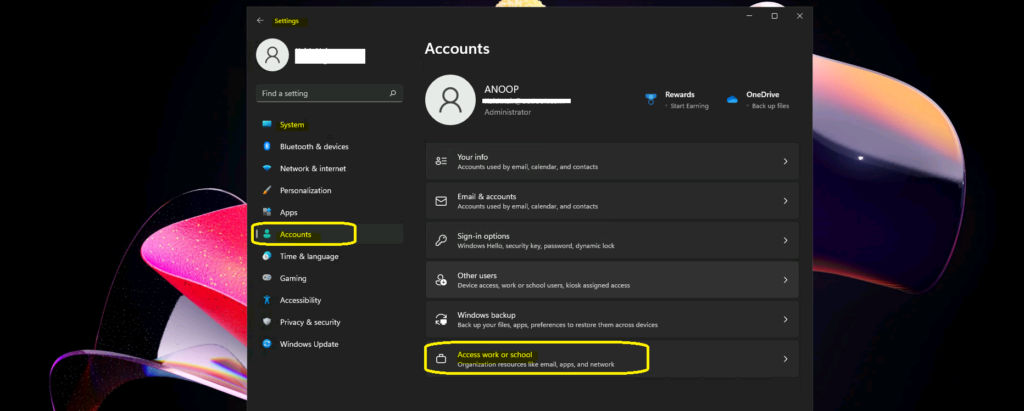
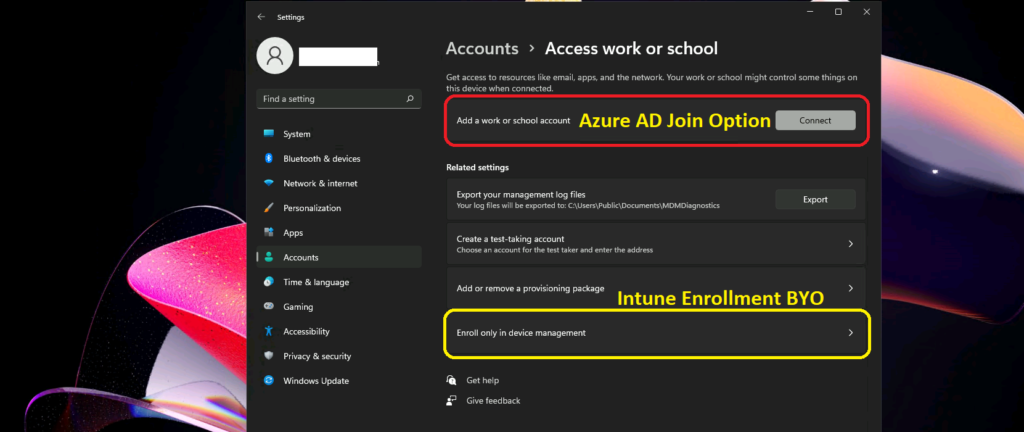
You can now see the various options, and you can get confused if you are not familiar with the manual Intune enrollment process. If you want to use your personal account (BYO-Personal device scenario), you will have to enroll only in the device management option.
However, there are options to perform Azure AD join scenarios from this Access Work or School page. If you perform an Azure AD join scenario, you will have to use the Azure AD login credential to login to Windows 11 PC. In this post, I will cover Enroll only in the Device Management scenario for personal Windows 11 PCs.
- Click on the last option in this page called – Enroll only in device management.
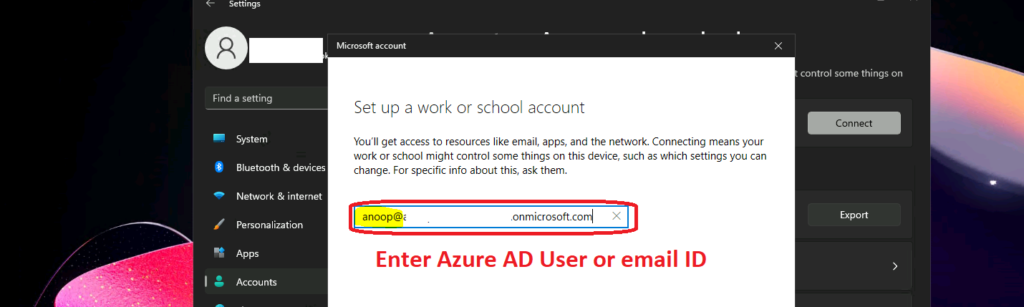
I have seen scenarios where you will have a different ID for Azure AD and email. In that scenario, you will have to use the Azure AD user name. In the following example, I’m using onmicrosoft.com ID. However, I can use any other Azure AD user ID (custom domain HTMD.com) as well.
- You will have to enter the Azure AD ID or email ID.
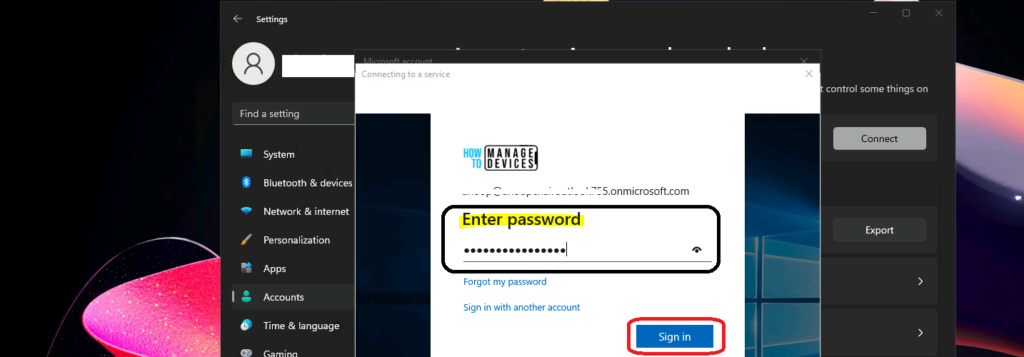
Enter the password for the Azure AD user name and click on Sign in to start the Intune enrollment. There could be scenarios like you might need to provide additional security verification because of Multi-Factor Authentication (MFA) scenarios.
This is the screen where all the magic happens. Windows 11 PC is trying to contact Intune servers and register the Windows 11 PC into Azure AD and then enroll the PC into Intune device management. I have seen some organizations restrict/block personal device enrollment. If that policy is in place for your organization, you won’t proceed further.
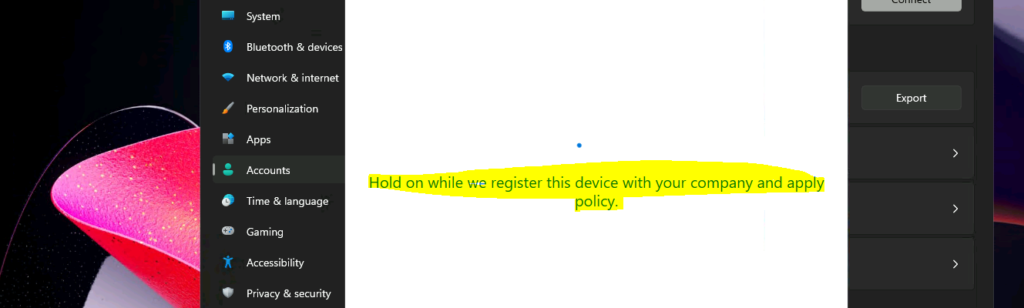
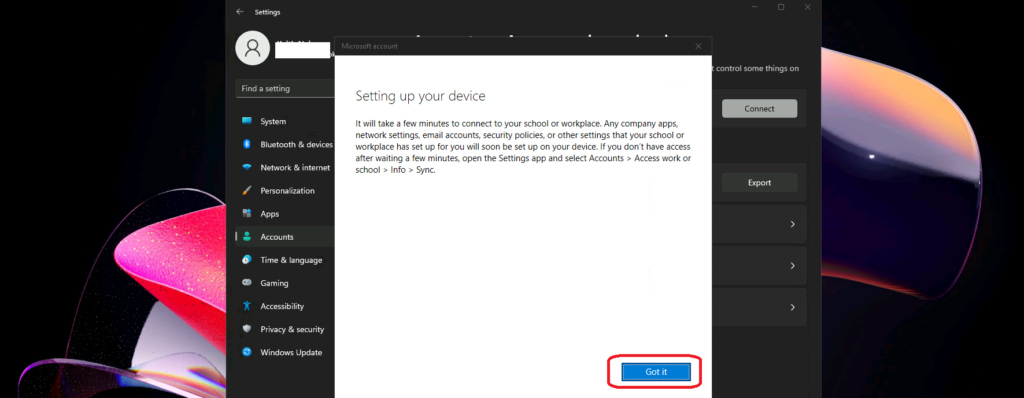
The following screen gives us the good news that the Intune enrollment of Windows 11 PC is completed successfully. And now you can manage this device from Intune or MEM. You can also access the corporate email, chat, etc…
It will take a few minutes to connect to your school or workplace. Any company apps, network settings, email accounts, security policies, or other settings your school or workplace has set up for you will soon be set up on your device. After waiting a few minutes, open the Settings app and select Account > Access work or School > Info > Sync if you don’t have access after waiting a few minutes.
Enroll Windows 11 Devices in Intune using Company Portal Application
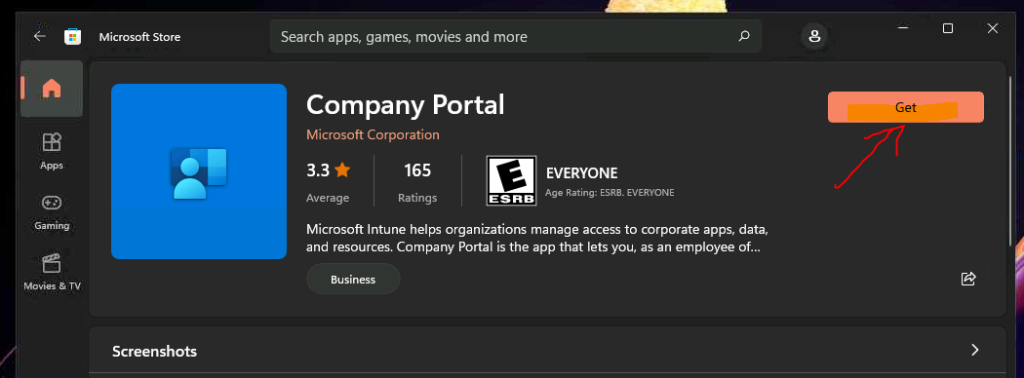
You can enroll Windows 11 devices in Intune using the Company portal application available in the Microsoft store. You will need to search for the company portal app from the store.
Click on the GET button to start the download and installation of the company portal application. This installation will take you through the Windows 11 Intune enrollment process.
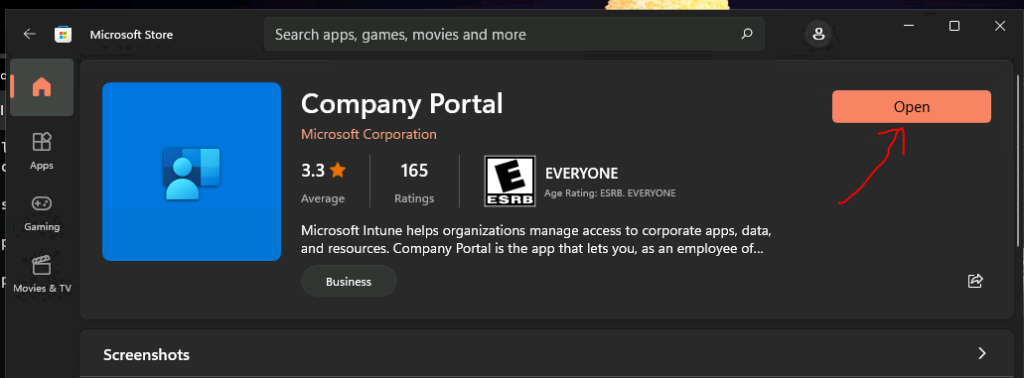
Now. let’s launch the company portal application by clicking on the OPEN button. After that, you will need to go through the actual Enroll Windows 11 in Intune process.
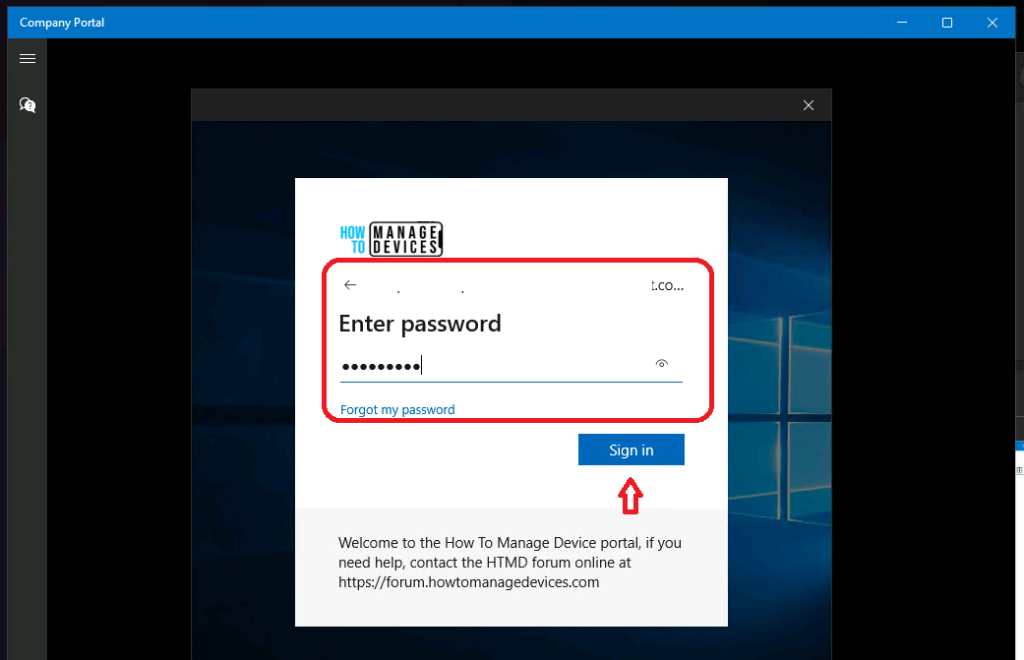
You will need to log in with your corporate login ID and password to continue with the Windows 11 Intune Enrollment process. Click on the Sign-in button to start the enrollment process.
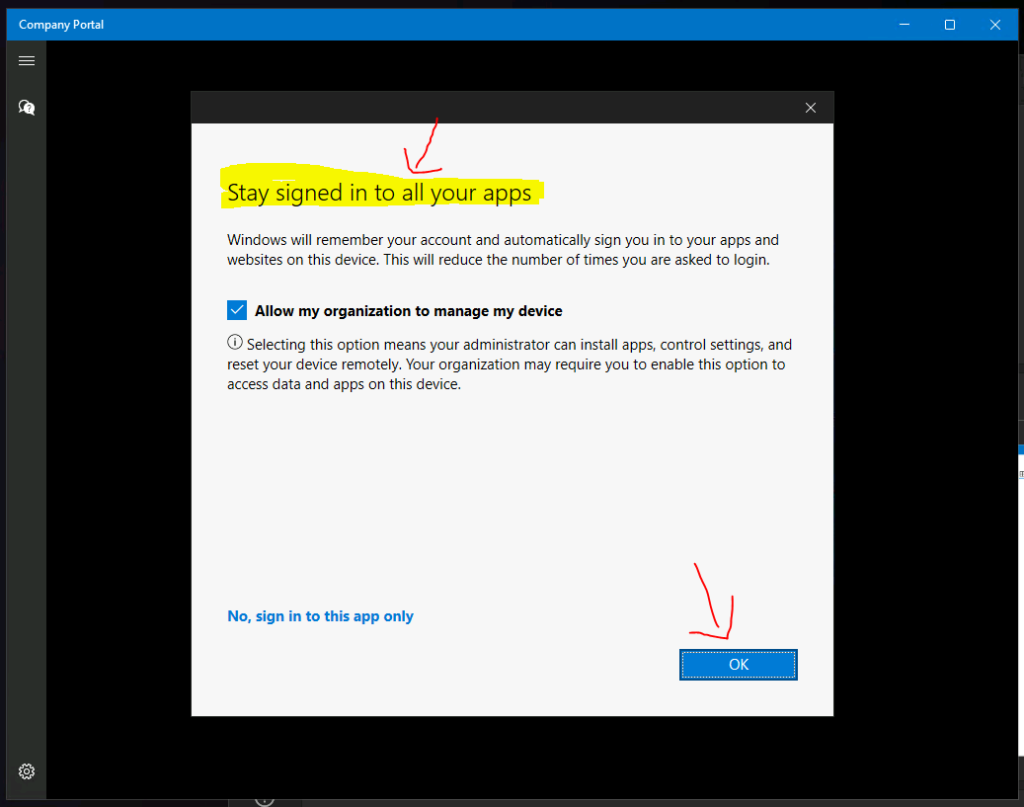
Click on the OK button to continue from Stay Signed in to all your apps popup window.
With these popup screen settings, Windows will remember your account and automatically sign you in to your apps and websites on this device. This will reduce the number of times you are asked to login.
Allow my Organization to manage my device option should be checked.
Selecting this option means your administrator can install apps, control settings, and reset your device remotely. Your organization may require you to enable this option to access data and apps on this device.
This is the actual start of the Intune enrollment process for Windows 11 personal devices.
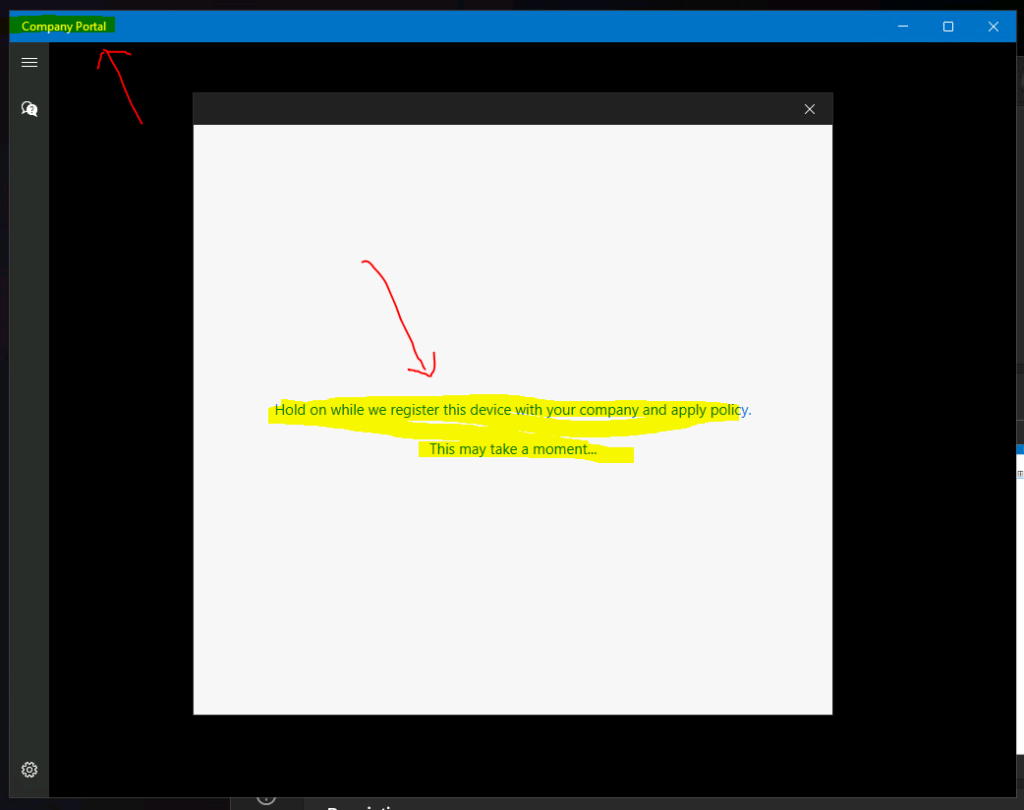
The enrollment process using Intune company portal on Windows 11 devices normally takes less than a minute as per my experience.
Hold on while we register this device with your company and apply the policy. This may take a moment
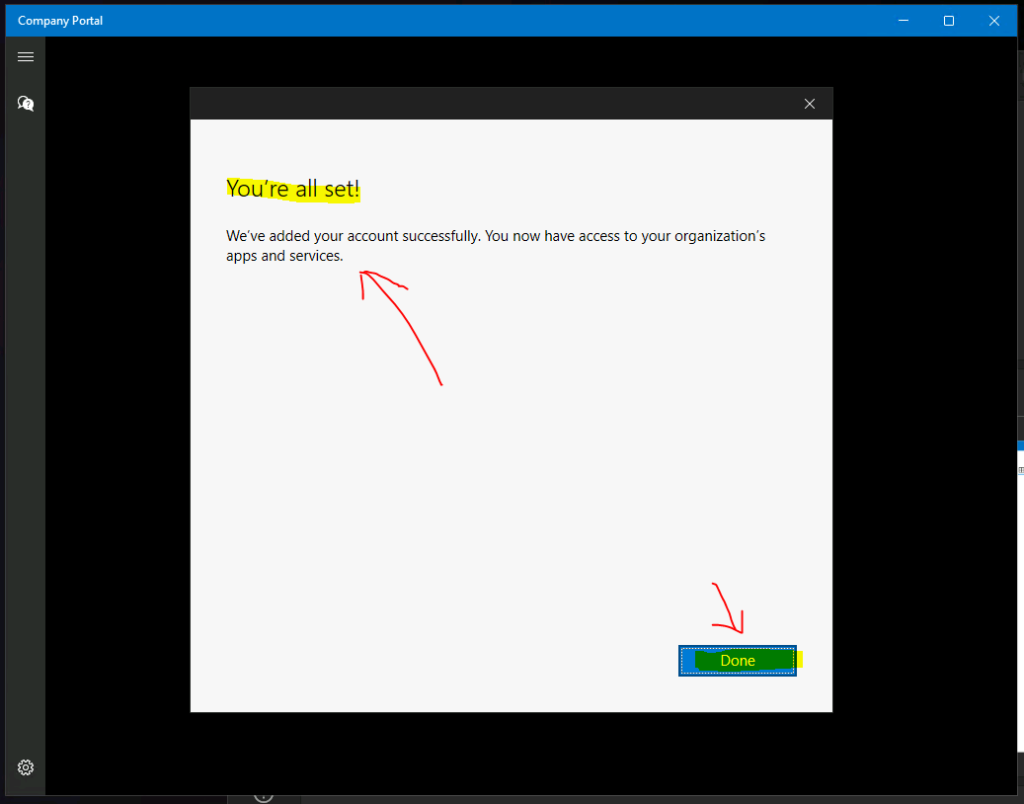
All set and the Intune enrollment and Azure AD registration process are now completed for Windows 11 PC. Click on the DONE button to continue.
Now, you would be able to access all the corporate data such as email, chat, SharePoint, etc…
You will be able to install the app from the company portal. And you will be able to initiate manual sync from the company portal application now.
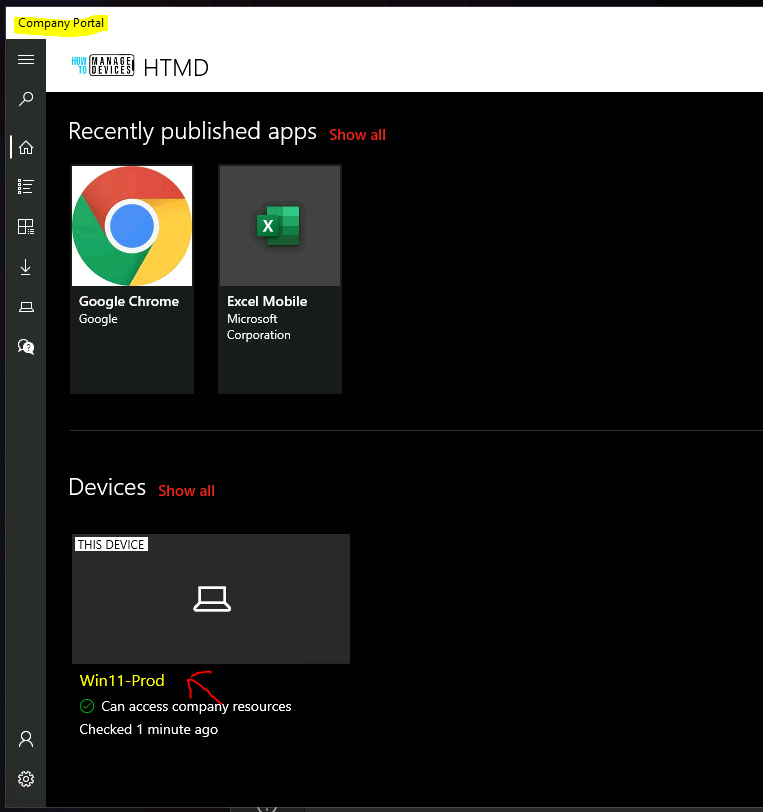
How to Initiate a Manual Intune Policy Sync from Windows 11 PCs
You can initiate a manual Intune (MEM) policy sync from Windows 11 PCs. This manual sync triggers immediate sync between Intune service and Windows 11 PC. You will need to follow the steps mentioned below to initiate a manual Intune policy sync.
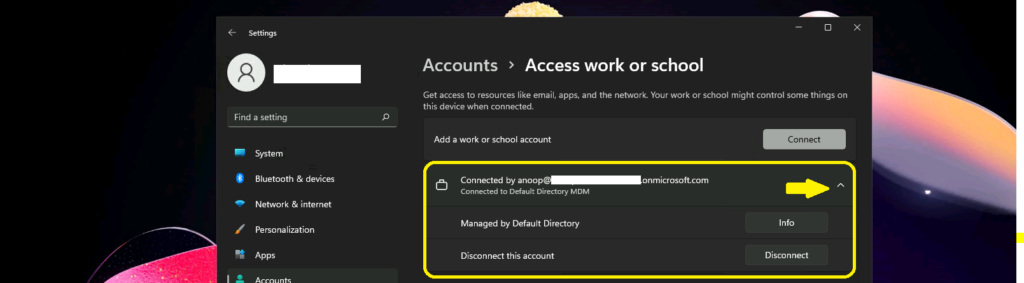
- Naviage to Settings app -> Accounts -> Access work or scholl.
- Click on the drop down button on option called – Connected by Anoop@xxxx.onmicrosoft.com connected to Default Directory MDM.
- You can now see an Info button.
- Click on Info button to open the a new Settings app page.
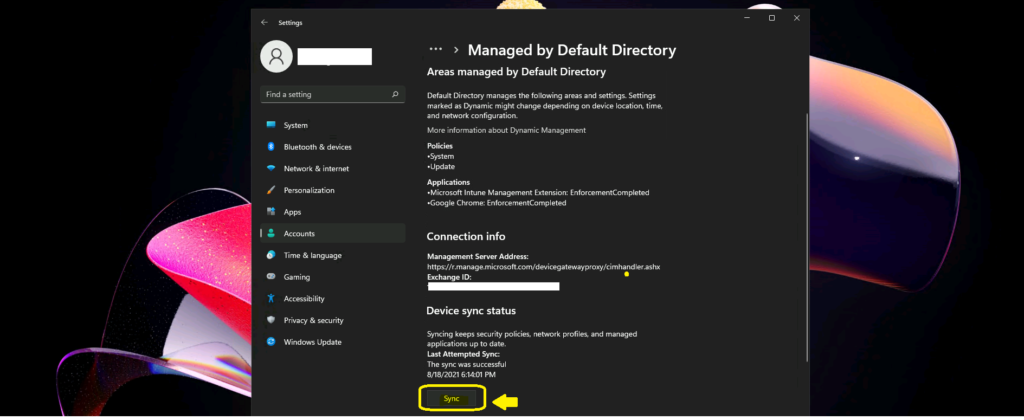
Once you are there on the Info page, you can scroll down until you see a SYNC button. The sync button is the one that triggers and initiates the manual sync between Intune service and Windows 11 MDM client.
- Click on SYNC button to immedietly initiate Intune policy sync.
- The Intune sync can take several minutes, wait for Sync to complete.
- Check whether you have received new policies or applications after the sync.
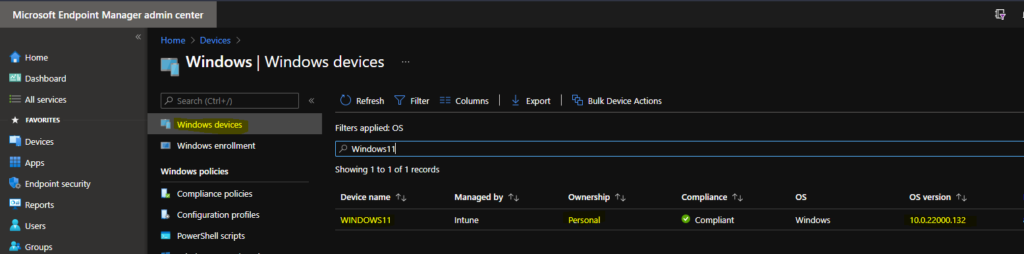
Results
You can check the server-side (Intune- Microsoft Endpoint Manager admin center) portal to check whether the newly enrolled Windows 11 device is available there or not. You can also confirm the Windows 11 build numbers from the Devices node in the admin center portal for MEM/Intune.


Good article in simple presentation, I’m now able to understand this. It was very knowledgeable for me.