






ConfigMgr SCCM How to Import Pre-Configured Applications
ConfigMgr SCCM How to Import Pre-Configured Applications. Learn to Import Pre-Configured Applications to the ConfigMgr (Configuration Manager) 2012 console and become an expert in the New Application Model.
It will take only 10 minutes to import 11 applications with all the configurations, such as global conditions, Dependent Applications, and Supersedence Applications. You can play around with 11 applications in no time.
This import will also create 14 different deployment types with Install and UN-install command lines for all these applications.
The details of all the deployment types and command lines are given at the bottom of this post.

Table of Contents
ConfigMgr SCCM How to Import Pre-Configured Applications
Where can we get this Pre-Configured Application?
No worries—it’s part of the ConfigMgr 2012 SDK. If you haven’t downloaded it yet, you can do so HERE.
The ConfigMgr 2012 SDK contains all the XML files required for the import process. However, the source files of these applications are not included in the ZIP file. We need to download those files separately. The document “Application Model Kit.docx,” which is included in the SDK, provides more details.
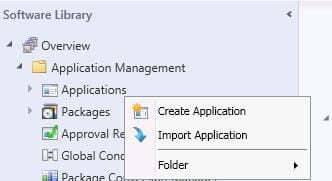
Once you install SDK, you can go to CM 2012 console “\Software Library\Overview\Application Management\Applications” and right-click on the “Applications” node and select “Import Application”.
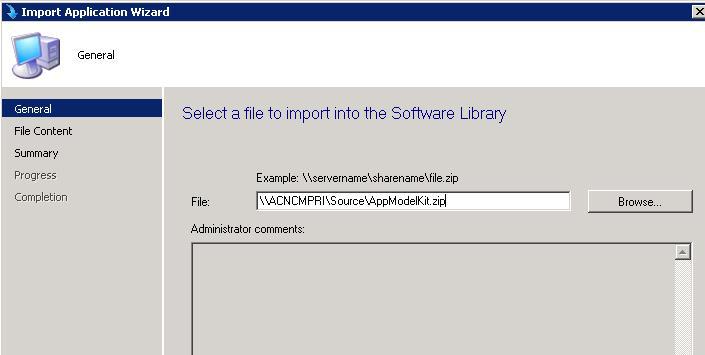
Copy the file “AppModelKit.zip” located in the “C:\Program Files\Microsoft System Center 2012 Configuration Manager SDK\Samples\Application Model” folder to your application source folder (I hope the application “source” folder is already shared and it has a UNC path).
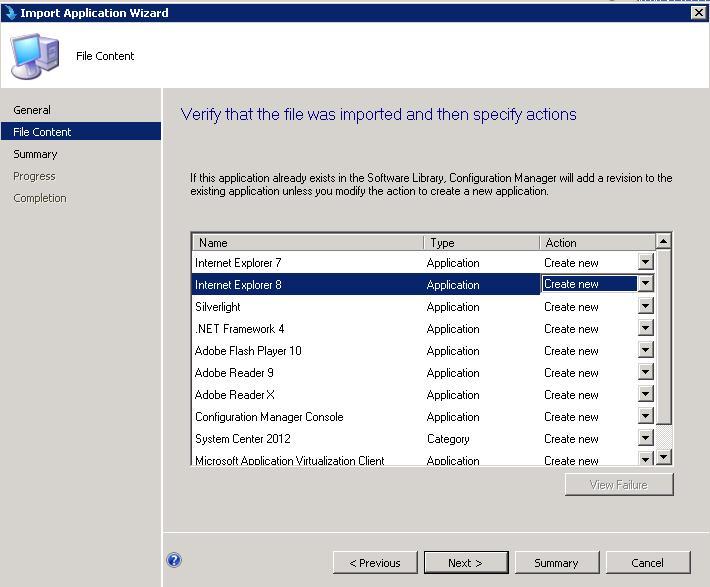
The wizard will validate the XML files to verify that the file was imported and then specify the actions.
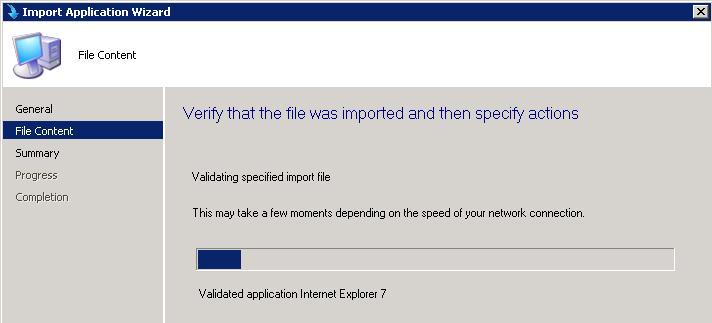
This part of the wizard will check whether these applications already exist in the software library or not. If so, ConfigMgr will add a revision to the existing application unless you modify the action to create a new application.
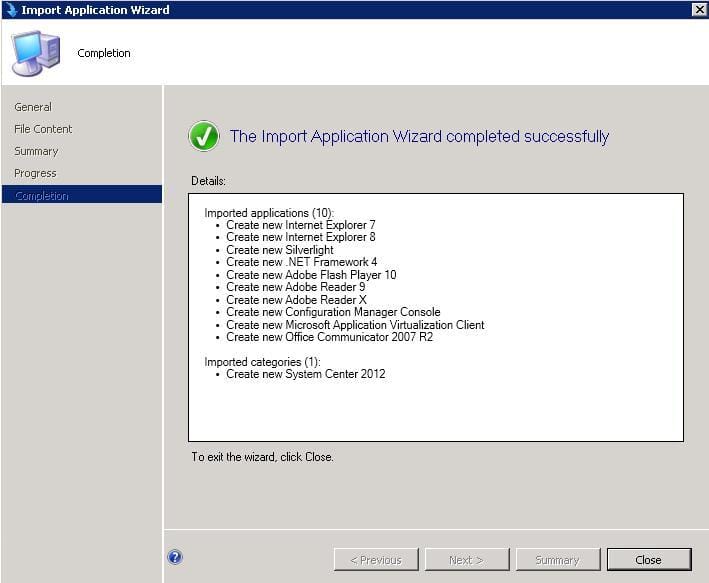
The summary of the applications that we’re importing to CM 2012 as part of ConfigMgr SDK AppModelKit.zip.
Imported applications (10):
- Create a new Internet Explorer 7
- Create a new Internet Explorer 8
- Create a new Silverlight
- Create a new .NET Framework 4
- Create a new Adobe Flash Player 10
- Create a new Adobe Reader 9
- Create a new Adobe Reader X
- Create new Configuration Manager Console
- Create a new Microsoft Application Virtualization Client
- Create a new Office Communicator 2007 R2
Imported categories (1):
- Create a new System Center 2012
The “Import Application Wizard” shows the progress of the process in the below wizard.
The Import Application wizard was Completed successfully.
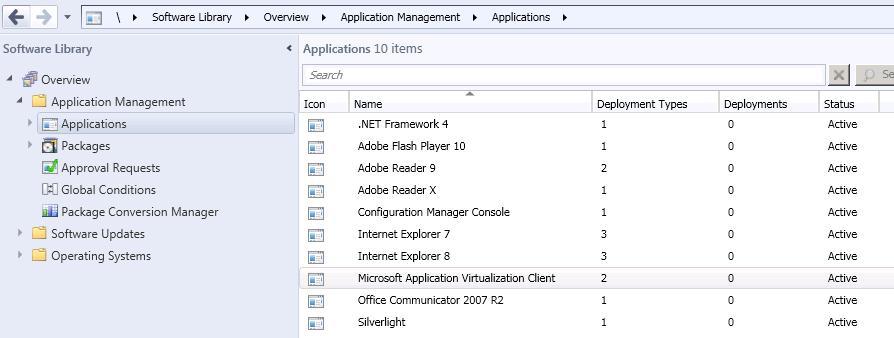
Have a look at the console “Applications” node. All settings, such as deployment types, dependencies, and supersedence, are configured automatically. Great work by Microsoft!
1. (x86) Application Virtualization Desktop Client
- “setup.exe” /S /v/qn
- msiexec /x {A17803B8-2EDF-4DA2-AE1E-7B1368CF82D3} /q
Return Codes
- 0 Success (no reboot)
- 1707 Success (no reboot)
- 3010 Soft Reboot
- 1641 Hard Reboot
- 1618 Fast Retry
2. (x64) Application Virtualization Desktop Client
- “setup.exe” /S /v/qn
- msiexec /x {D7843CFB-CE69-4352-BDF0-1DE5D1452A16} /q
3. .NET Framework 4 – Standalone Installer
- “dotNetFx40_Full_x86_x64.exe” /q /norestart
4. Adobe Flash Player 10 ActiveX Installer
- msiexec /i “install_flash_player_10_active_x.msi” /q
5. (ENU) Adobe Reader 9.3
- msiexec /i “AcroRead.msi” /q
- msiexec /x {AC76BA86-7AD7-1033-7B44-A93000000001} /q
6. (DEU) Adobe Reader 9.3
- msiexec /i “AcroRead.msi” /q
- msiexec /x {AC76BA86-7AD7-1031-7B44-A93000000001} /q
7. (ENU) Adobe Reader X
- msiexec /i “AdbeRdr1000_en_US.msi” /qn REBOOT=REALLYSUPRESS EULA_ACCEPT=”YES” INSTALLLEVEL=101
- msiexec /x {AC76BA86-7AD7-1033-7B44-AA0000000001} /q
8. Configuration Manager Console Installer
- ConsoleSetup.exe EnableSQM=1
- ConsoleSetup.exe /uninstall
- {0597AAD0-6FD9-4035-B39E-B1B6BA6670A1}
9. Internet Explorer 7 (Windows XP x86)
- “IE7-WindowsXP-x86-enu.exe” /quiet /norestart
- 10. Internet Explorer 7 (Windows XP and Server 2003 x64)
- “IE7-WindowsServer2003-x64-enu.exe” /quiet /norestart
11. Internet Explorer 7 (Windows Server 2003 x86)
- “IE7-WindowsServer2003-x86-enu.exe” /quiet /norestart
12. Internet Explorer 8 (Windows XP x86)
- “x86 for XP\IE8-WindowsXP-x86-ENU.exe” /quiet /norestart
13. Internet Explorer 8 (Windows Vista x86)
- “IE8-WindowsVista-x86-ENU.exe” /quiet /norestart
14. Internet Explorer 8 (Windows Vista and Server 2008 x64
- “IE8-WindowsVista-x64-ENU.exe” /quiet /norestart
15. Office Communicator 2007 R2
- msiexec /i “CommunicatorEval.msi” /q
16. Silverlight (Self-extracting cabinet .exe)
- “Silverlight.exe” /q
- “Silverlight.exe” /qu
We are on WhatsApp. To get the latest step-by-step guides and news updates, Join our Channel. Click here –HTMD WhatsApp.
Author
Anoop C Nair has been Microsoft MVP from 2015 onwards for 10 consecutive years! He is a Workplace Solution Architect with more than 22+ years of experience in Workplace technologies. He is also a Blogger, Speaker, and leader of the Local User Group Community. His main focus is on Device Management technologies like SCCM and Intune. He writes about technologies like Intune, SCCM, Windows, Cloud PC, Windows, Entra, Microsoft Security, Career, etc..




I am trying to import appmodelkit.zip file. Getting this error “The specified file does not contain a configuration manager application. Select a file that contains an application that was exported from Configuration Manager and try again”.
I have copied applicationmodelkit.zip file to \\sccm2012\software folder that is shared with full access to the folder. Yet, I cannot import sdk. What is the issue I have no clue. Look forward to your help.
Hi Ram ! – Even I had same issue when I tried to import it from Primary server. Then I tried from CAS and it worked perfectly. Are you in same situation?
I don’t have CAS. Just primary site. Can, I contact you offline (require your contact info). Need some help with USMT tool with CM2012 for xp to 7 migration work.
Hi,
I run with the same issue. To solve, you have to extract the zip wich contain the zip to import.
After that, it work like a charm!
enjoy
Hi
when trying to import I have the following error
Imported Categories (1):
Create new System Center 2012
Error: Provider Exception: Referenced configuration items are not available
Hi,
While importinng package through SCCM 12 m getting folloing erroe “one or more dependent application could not be located” even though ther are no dependent application.