






SCCM OneTrace Log Viewer to Replace CMTrace
Let’s explore the new SCCM log viewer, Onetrace, to assess its potential as a replacement for CMTrace.
Discover the user experience of Onetrace in this post. More in-depth information about SCCM Onetrace can be found in the section below.
Microsoft announced a new log reader tool for SCCM admins with the SCCM 1906 production release. This OneTrace tool is still under development and is released as a preview version with SCCM 1906.
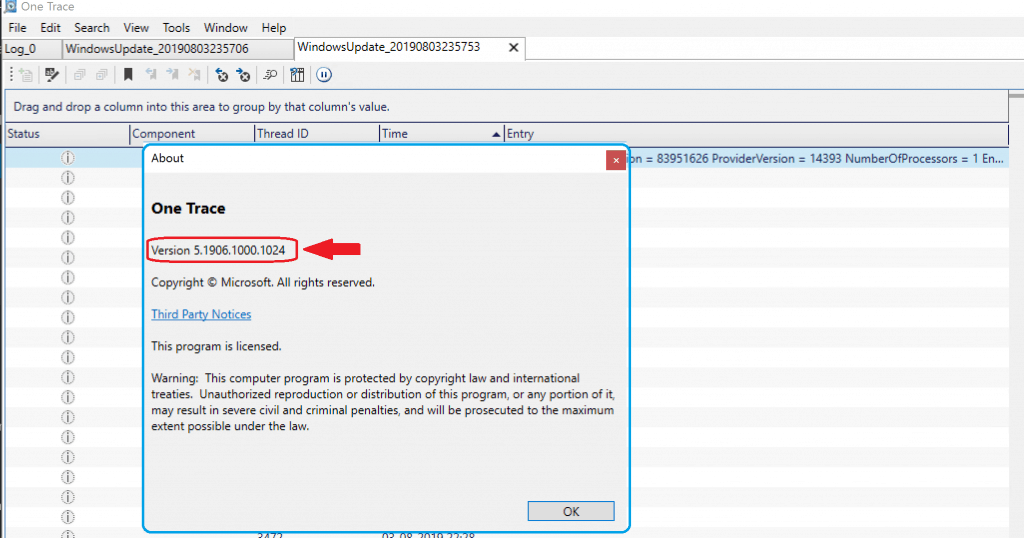
Microsoft claims that OneTrace’s performance is better than CMTrace. The new OneTrace log reader tool offers performance improvements and modern GUI features. Let’s explore this further in the sections below.

At this point, OneTrace is NOT a standalone tool like CMTrace. You need to install the Support Center toolset to access OneTrace.
How to Install SCCM OneTrace?
As mentioned above, the SCCM OneTrace tool is not standalone like CMTrace. But it can become an independent tool in the future. I wouldn’t say I like installing MSI to access a log file reader like Onetrace.
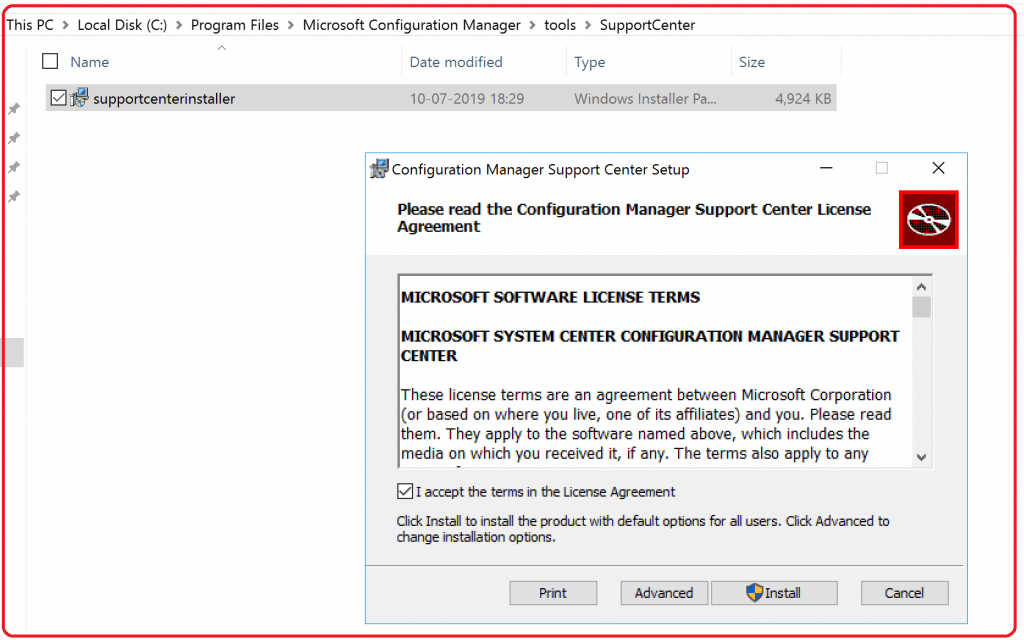
You can get the OneTrace source files from the site server “C:\Program Files\Microsoft Configuration Manager\tools\SupportCenter/supportcenterinstaller.msi.”
NOTE! – Prerequisite for Support Center OneTrace is .NET Framework version 4.6 or later.
Let’s go through the installation wizard and select all the default options to install the Support Center tool kit.
If you want to know about the other tools available in the SCCM Support Center tool kit, you can read my previous post, “SCCM Troubleshooting Tool -Support Center ConfigMgrSupportCenter.exe.”
Launch SCCM Support Center OneTrace
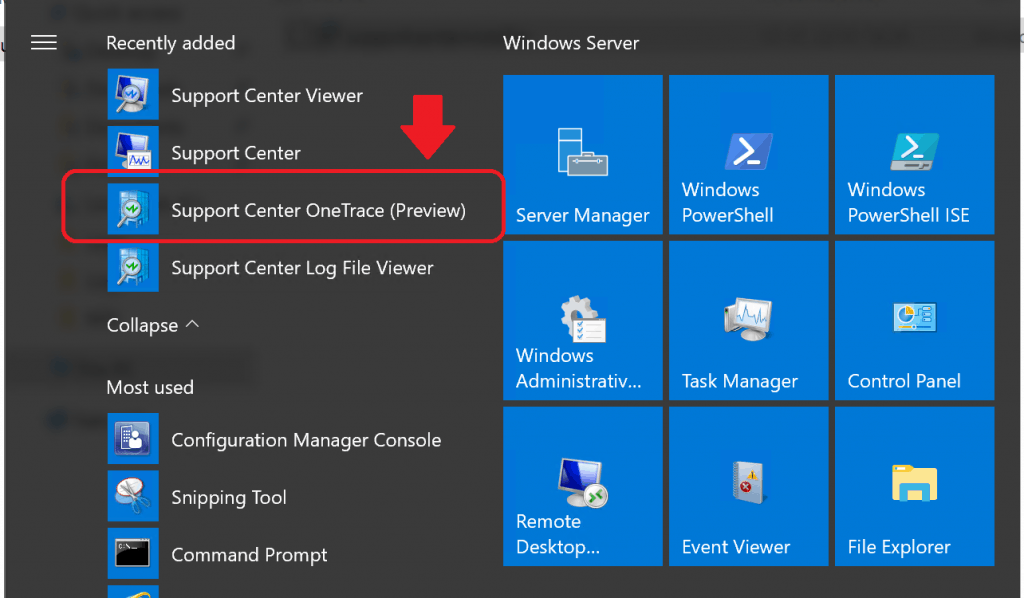
The above MSI installation will create four shortcuts in the start menu. And the shortcut for the OneTrace tool is “Support Center OneTrace (Preview).”. Try to launch it and enjoy!
If you install the MSI mentioned above using the default settings, the EXE files will be available in the following folder “C:\Program Files (x86)\Configuration Manager Support Center.”
Checkout the EXEes called:
- CMLogViewer.exe (this is the OLD one, and don’t get confused.
- CMPowerLogViewer.exe (SCCM OneTrace tool preview version released with SCCM 1906)
OneTrace Log Reader – Float Option
One of the exciting features of the SCCM Support Center OneTrace log file reader is its flexibility with the modern UI. You can follow the below steps to get the OneTrace float view:
- Open OneTrace Log Reader
- Click on File – Open in NEW TAB
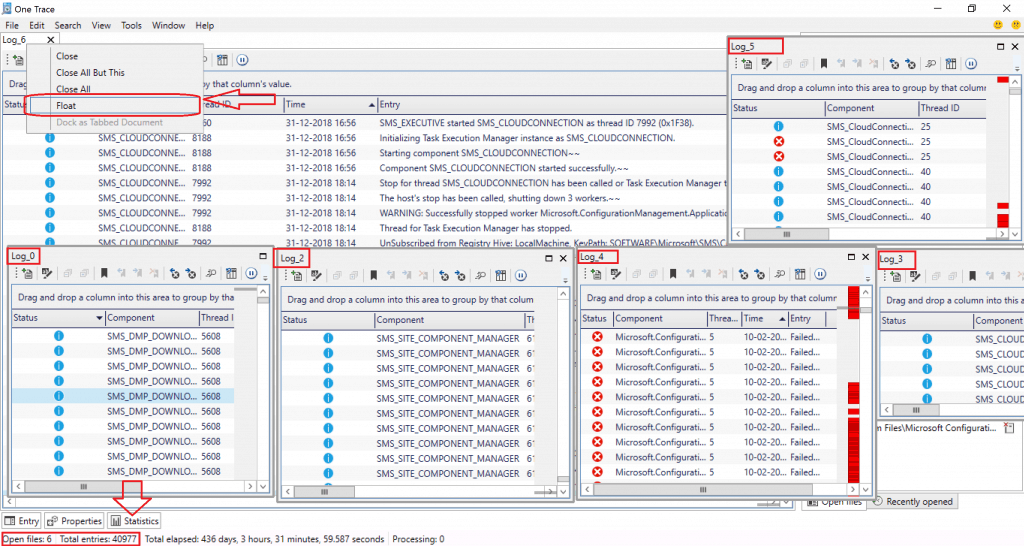
- Once the LOG file is opened, Right-click on the log file Window and select the Float option to make the log file float around the entire OneTrace UI!!
NOTE1 – It can take you some time to walk through all these options and understand them. It felt like a modern browser (edge, chrome, etc..) UI with close all, Close all but this, and Float tabs options! Yes, there is a bit of a learning curve. But for SCCM admins, it’s straightforward
NOTE 2 – When you right-click on an individual log (log1, as you can see below), Dock as Tabbed Document gives you the default view of log files.
The FLOAT option is the perfect example of flexibility with modern UI. As you can see in the screenshot below, there are 6 log files (look at the bottom of the screenshot).
I can easily adjust each window according to my needs. It’s super useful.
+ Open New Log Option
Opening a new log option in the OneTrace log will allow you to open multiple records within the same tab. This open new log option is useful in many SCCM real-time troubleshooting scenarios.
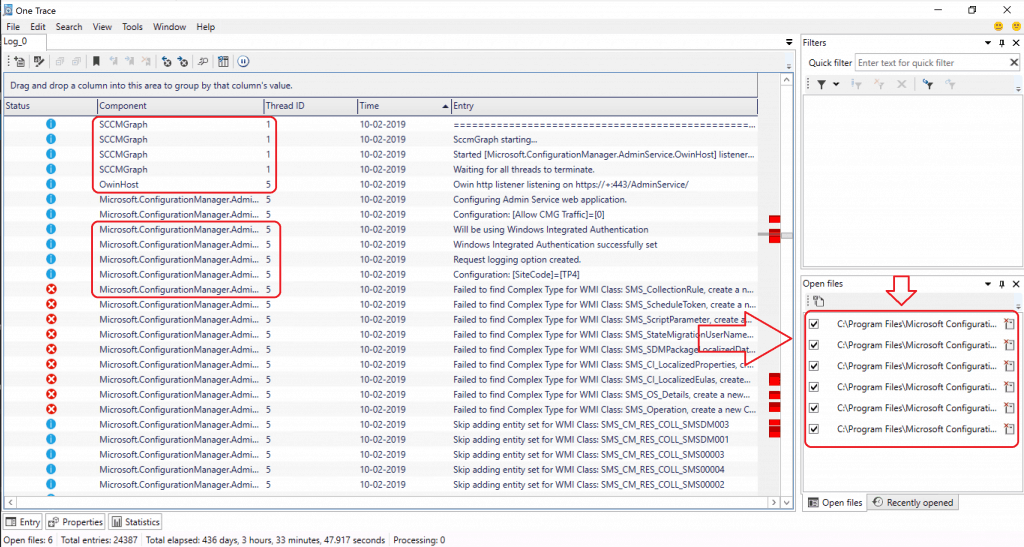
As you can see in the picture below (right side—Open Files tab), six (6) log files are opened within one account.
You can filter the different log files with all the column options available. In the below picture, I filtered based on “Time.” You can also see the component names as mentioned below:
- SCCMGraph
- OwinHost
- Microsoft.ConfigurationManager.AdminService
When you click on a particular log entry, you can have abundant manageability options like:
- Copy log text
- Copy unformatted log entry
- Columns
- Quick Filter Entry
- Annotate Log Entry
- Clear Selected log entry
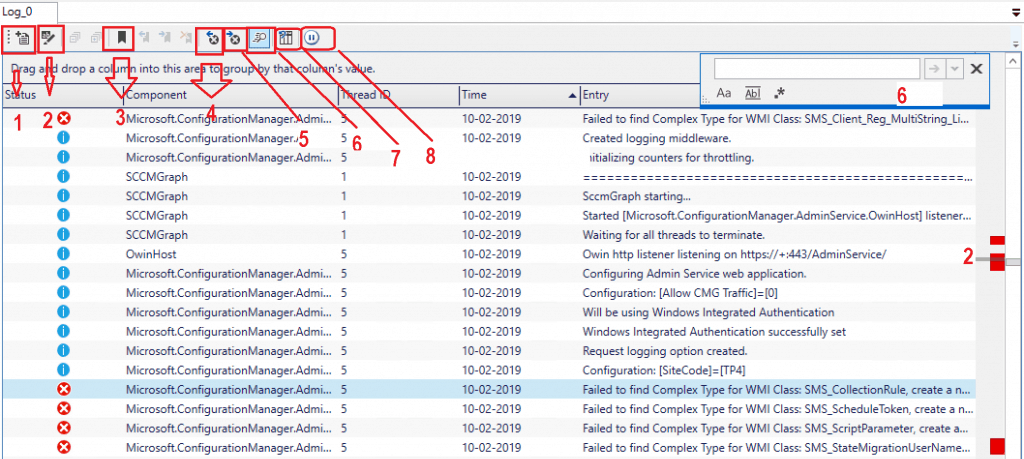
OneTrace Log File Window Options
Following are some of the useful options available in the SCCM Onetrace log reader (preview) version.
- Open File
- Toggle Hints
- Bookmark Entry
- Previous Error
- Next Error
- Find Entry
- Reset Columns
- Pause
How to Deploy OneTrace to Windows Device?
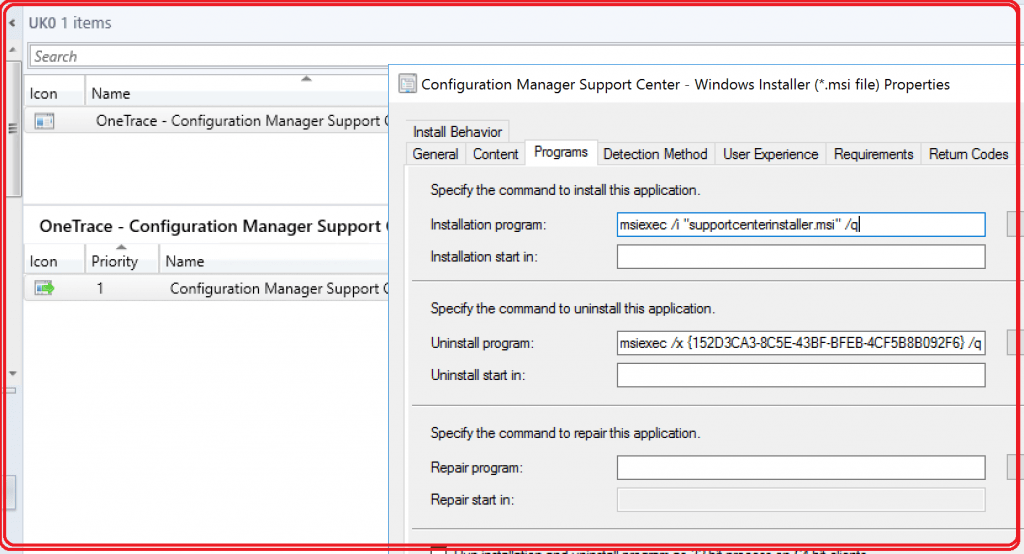
Well, that is a good question. You need to deploy the latest version of supportcenterinstaller.msi through SCCM to all Windows devices.
- Use the following command line “msiexec /i “supportcenterinstaller.msi” /q” to Install the Support Center app.
- Use the following command to uninstall the app – msiexec /x {152D3CA3-8C5E-43BF-BFEB-4CF5B8B092F6} /q
- The product code of the Support Center version with SCCM 1906 is: {152D3CA3-8C5E-43BF-BFEB-4CF5B8B092F6}
NOTE! – SCCM Support Center OneTrace won’t work without all the dependent files in the installation folder with this preview version. Unlike CMTrace, OneTrace is NOT a standalone EXE tool.
Replace CMTrace with OneTrace
Can I replace CMTrace with OneTrace? I don’t think. Because:
- OneTrace is in Preview, so still under development
- OneTrace is not a Standalone EXE like CMTrace. You can’t just copy the OneTrace.exe to a machine and start using it. Not you need to have all the dependent files for that to work.
- OneTrace is not supported in WinPE scenarios yet (because of WPF dependency).
Resource
- SCCM Troubleshooting Tool -Support Center ConfigMgrSupportCenter.exe
- SCCM Support Center OneTrace (Preview)
- https://www.anoopcnair.com/sccm-status-message-viewer-tool/(opens in a new tab)
We are on WhatsApp. To get the latest step-by-step guides and news updates, Join our Channel. Click here –HTMD WhatsApp.
Author
Anoop C Nair is Microsoft MVP! He is a Device Management Admin with more than 20 years of experience (calculation done in 2021) in IT. He is a Blogger, Speaker, and Local User Group HTMD Community leader. His main focus is on Device Management technologies like SCCM 2012, Current Branch, and Intune. He writes about ConfigMgr, Windows 11, Windows 10, Azure AD, Microsoft Intune, Windows 365, AVD, etc




I will keep using CMTrace until they make OneTrace standalone. As usual, stupid decision on the part of MS
looks promising Sir. Will give it a try. As you said its still under construction so will share the details if any bug found.