






SCCM OSD Computer Name Prompt In Task Sequence Deployment ConfigMgr
Let’s learn how to display the SCCM OSD Computer Name Prompt in Task Sequence Deployment. We will use the OSDComputerName variable during deployment to change the computer name in the new OS.
There are many methods for prompting the computer name during operating system deployment with the SCCM Task sequence.
I will focus on how to use the Built-in task sequence OSDComputerName variable to populate the computer name prompt in the new OS.
If you are using MDT with Configuration Manager Integrated environment, you can visit this post to improve user experience to prompt for computer name –

- Part 1 Configure User-Driven Installation UDI Using ConfigMgr | SCCM
- Part 2 Customizing UDI Wizard with UDI Designer Using SCCM | ConfigMgr
Table of Contents
Add Task sequence Variable within a Computer Collections
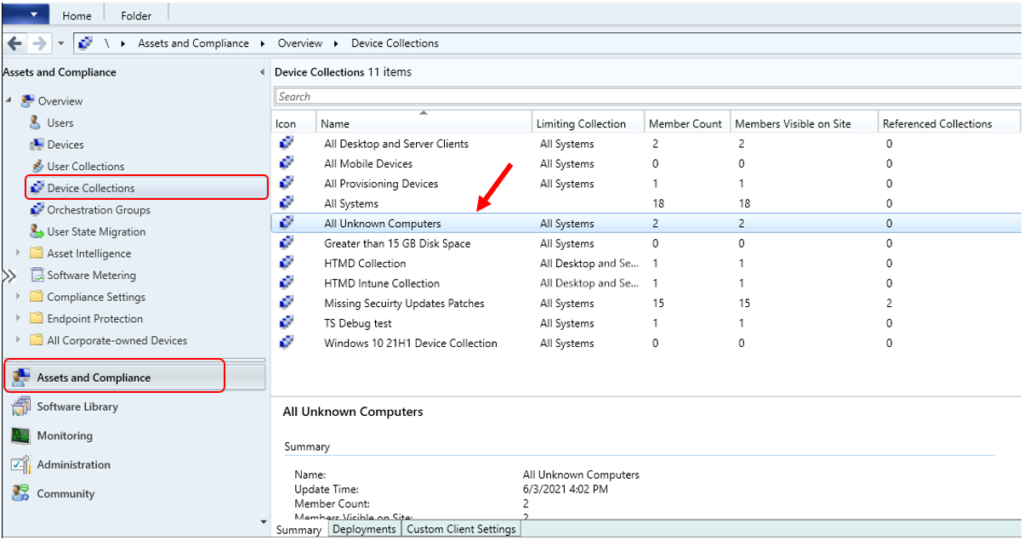
In the Configuration Manager console, navigate to Assets and Compliance > Device Collections. Find the collection of all unknown computer devices since we generally use this collection to target bare metal deployment. If you have any other collection, you can use the same. Right-click and choose Properties.
All Unknown Computers are computers that are not managed by Configuration Manager or imported into Configuration Manager.
- FIX SCCM OSD Machine Domain Join Issue ldap_add_s failed: 0x35 0x216d
- SCCM OSD Troubleshooting Using SMSTS Log With Vishal | ConfigMgr
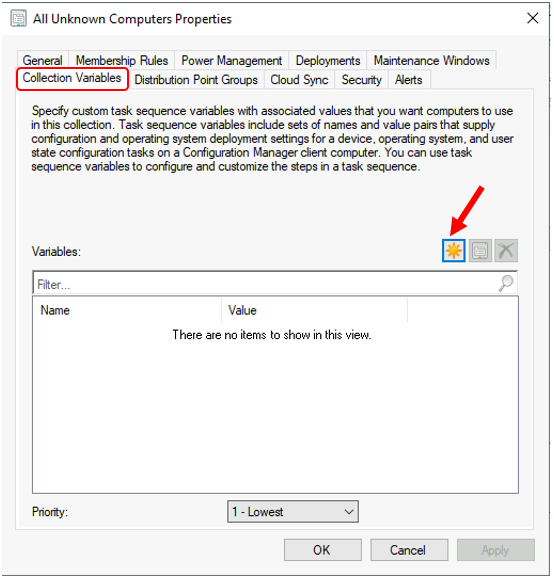
In the All Unknown Computers collection Properties. Move to the Collection Variables tab. Click the Yellow Star icon to specify the task sequence variable.
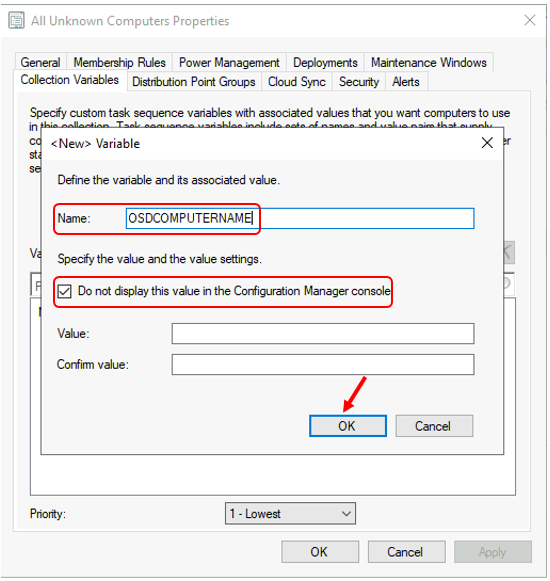
Input the variable name OSDComputerName, Do not specify anything for Value and Confirm the value. Click OK.
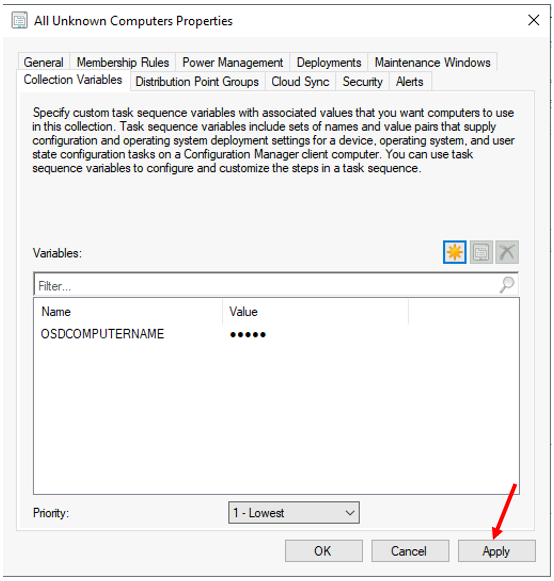
Confirm the variable Name, click Apply, and OK. Close the collection properties window.
Once you are done with all steps, Validate that task sequence deployed to the Unknown Computers device collection.
Reference Post: If you’re looking to deploy Windows 10 21H1 using SCCM Task Sequence, Follow the post Deploy Windows 10 21H1 Using SCCM Task Sequence | ConfigMgr | Step by Step Guide
Results – Run the Task Sequence
Different hardware models have different experiences for PXE. To boot to the network – UEFI-based devices typically use the Enter key and BIOS-based devices use the F12 key.
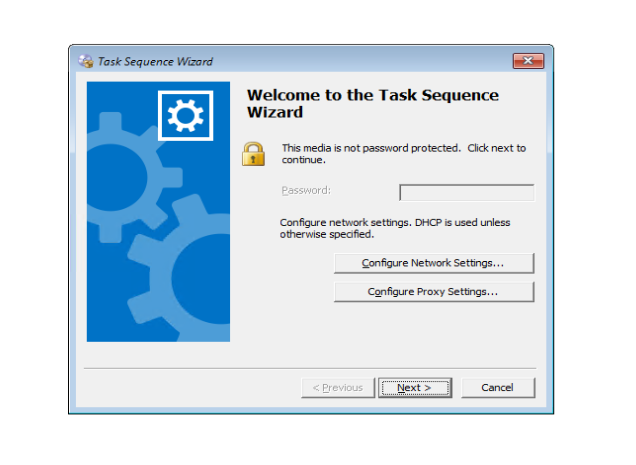
After the device successfully boots via PXE, the task sequence wizard appears. If you password-protect the media, the user has to enter the password on this welcome page. Click Next.
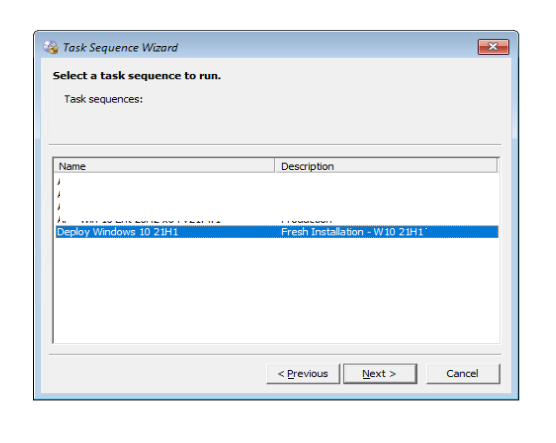
Select a task sequence to run: If you deploy more than one task sequence to the device, you see this page to select a task sequence.
Use a name and description for your task sequence that users can understand. Complete the Task Sequence Wizard by selecting the deployed task sequence. Click Next.
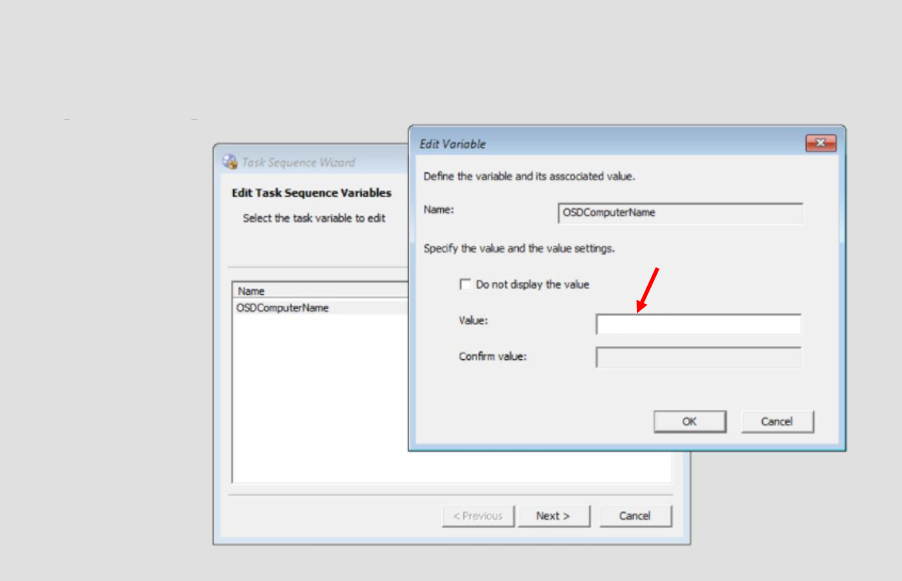
You will get a prompt, Under Edit Task Sequence Variables select the task variable to provide Computer Name and click Edit to add Value.
Here, you can input the custom computer name in the Value text box and click OK. Once completed, Click Next to allow the task sequence to run. It will display the Installation progress window.
Note: If you click Next without providing a value, the task sequence will proceed with a random computer name.
When the deployment process is complete, Sign in to the device and check the Computer Name. It should be displayed as the value that you provided.
Resources
- https://docs.microsoft.com/en-us/mem/configmgr/osd/understand/task-sequence-variables
- Easiest Option to Upgrade to Latest Version of Windows 10 21H1
- Easy Guide to Deploy Windows 10 21H1 Using SCCM Task Sequence | ConfigMgr | Step by Step
We are on WhatsApp. To get the latest step-by-step guides and news updates, Join our Channel. Click here –HTMD WhatsApp.
Author
Jitesh Kumar, Microsoft MVP, has over six years of working experience in the IT Industry. He writes and shares his experiences related to Microsoft device management technologies and IT Infrastructure management. His primary focus is Windows 10/11 Deployment solution with Configuration Manager, Microsoft Deployment Toolkit (MDT), and Microsoft Intune.




Love the process, but how or what is in place to avoid computer name duplication? Tech inputs a computer name, does it quickly check to see if that name already exists so you can try a different name or would it accept that then fail down the line? It would be nice if there was a built-in process whereby one could define some form of naming convention and a tech would only need to append some numbers or letters, but be assured it won’t be duplicated.
Hi ,
I have followed the same process.
It gives me prompt do computer name. I have given name and device gets built with random name only. Not sure where is the issue. I tried with unattend answer file and without it also