






Enable SCCM Resource Explorer from Intune Portal | ConfigMgr
You can now check SCCM resource explorer from Intune Portal (a.k.a. Microsoft Endpoint Manager admin centre). Let’s check out the new tenant attached Resource Explorer feature made available with the release of ConfigMgr 2006.
Let’s revise the details about the resource explorer from the ConfigMgr console. At the bottom of this post, we will see more information about how to check it from the Intune portal.
The Microsoft Intune family provides an integrated solution for managing all your devices through the Microsoft Intune admin centre. Using Resource Explorer, you can view the hardware inventory for uploaded Configuration Manager devices.
Also, let’s quickly check the prerequisites for enabling resource explorer access from the Intune portal.

| Index |
|---|
| Prerequisite |
| What is Resource Explorer? |
| SCCM Resource Explorer |
| Intune – How to Open Resource Explorer |
| Results |
- WMI Explorer Details For Configuration Manager SCCM Post 1
- How To Enable New Software Center In SCCM ConfigMgr Configuration Manager
- Total Number of SCCM Managed Non-Cloud Connected Windows Devices
- Best Intune Guide to Enable Developer Mode in Windows Machines
- Monitoring Defender Updates using Intune Portal
- New Appearance for Intune Company Portal App for Windows
Prerequisite
Complete the following prerequisites to Enable ConfigMgr Resource Explorer from the Intune Portal feature.
- All the prerequisites for Tenant attachment should be in place.
- The minimum supported version of ConfigMgr is 2006.
- All sites in the hierarchy must meet the minimum ConfigMgr version (2006 +) requirement.
- ConfigMgr clients must be running the latest version of the client. Check whether your client version is the latest, as noted in the GA of ConfigMgr 2006.
- You should have appropriate access to run the Resource Explorer from SCCM and Intune.
- The Read permission for the device’s Collection.
- Read Resource permission for the device’s Collection.
- Admin User role for the Configuration Manager Microservice application in Azure AD.
NOTE! The permissions for the tenant attached have been updated. You don’t need to give permissions to Configuration Manager Microservice https://docs.microsoft.com/en-us/mem/configmgr/tenant-attach/client-details#permissions
What is Resource Explorer?
The Resource Explorer tool in Configuration Manager (a.k.a. SCCM) allows users to view the hardware inventory information from collected managed devices.
- Hardware
- Hardware History
- Software
- Diagnostic files
NOTE! – Resource Explorer doesn’t display any data until the SCCM client sends the first hardware inventory details
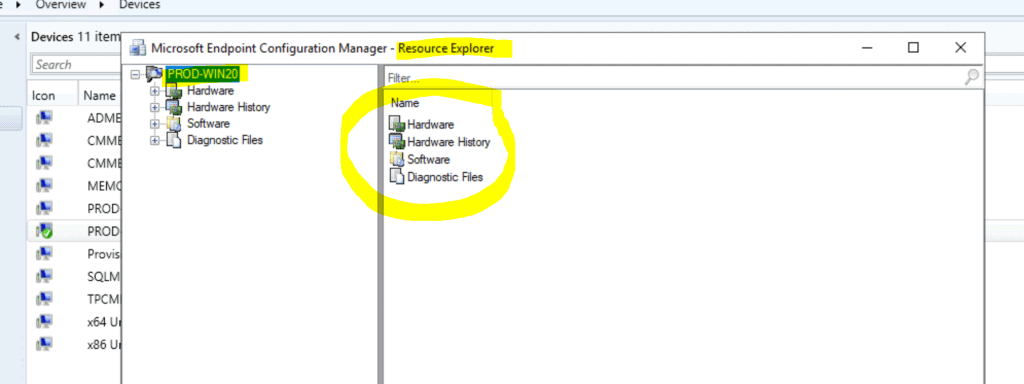
SCCM Resource Explorer
Let’s learn how to open a resource explorer from the ConfigMgr console.
- Open the SCCM console.
- Navigate to the Assets and Compliance workspace.
- Select the Devices node.
- Or Select any collection in the Device Collections node.
- Select a device that you want to check for Resource Explorer.
- Right-click on the device and select Start – select Resource Explorer.
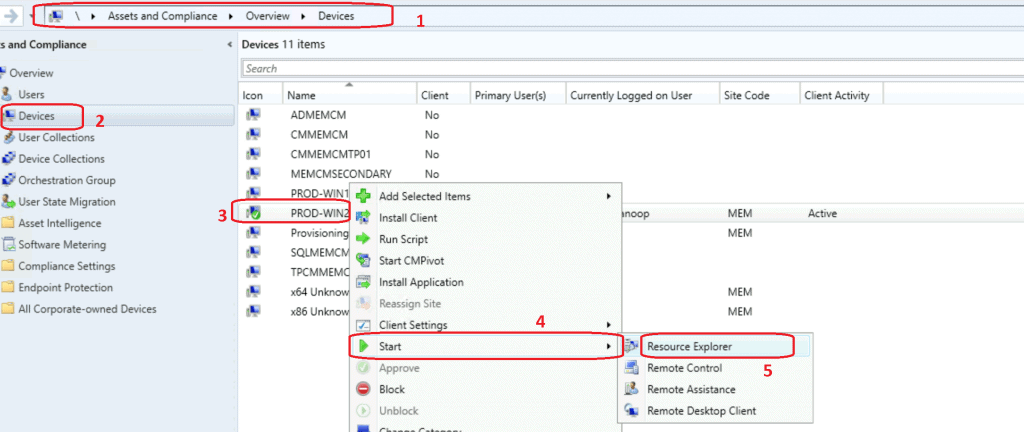
Intune – How to Open Resource Explorer
Let’s learn how to open a resource explorer from Intune Portal. Once you have completed all the prerequisites of the Tenant attachment, you will be able to see all the SCCM-managed devices in the Intune portal.
- Open Admin Center – Intune Portal – https://endpoint.microsoft.com/
- Select the Devices node, then click on All Devices.
- Click on Windows.
- Select the device that is synced from SCCM via tenant attachment.
- Use the Search option to find the device.
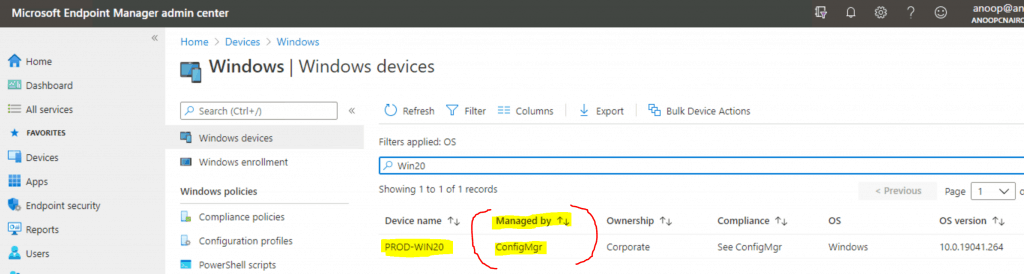
Click on the devices with the following option – Managed By ConfigMgr.
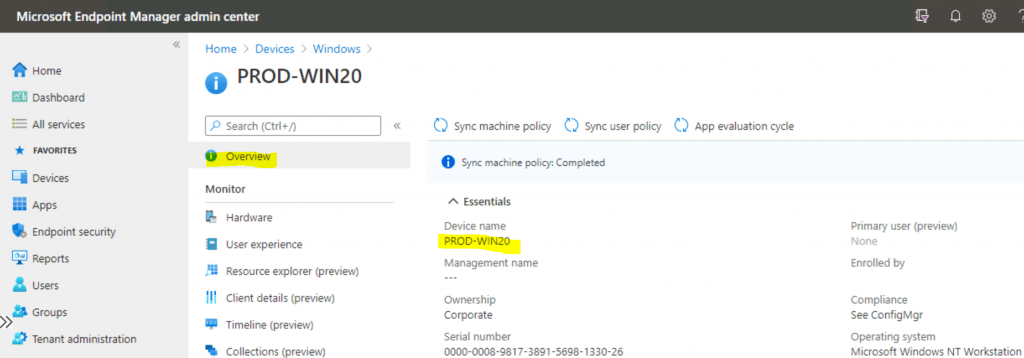
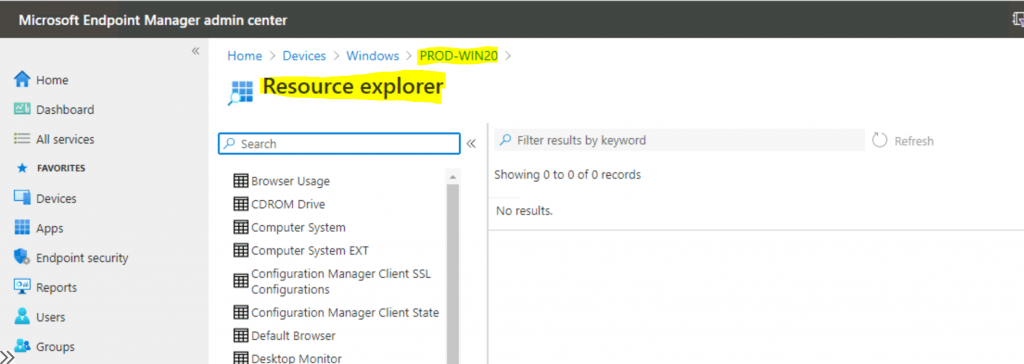
Select Resource Explorer (preview) from the Intune portal to view hardware inventory. Use the Search option to find the specific hardware inventory details.
Results
You can check the results of Resource Explorer from the Intune portal.
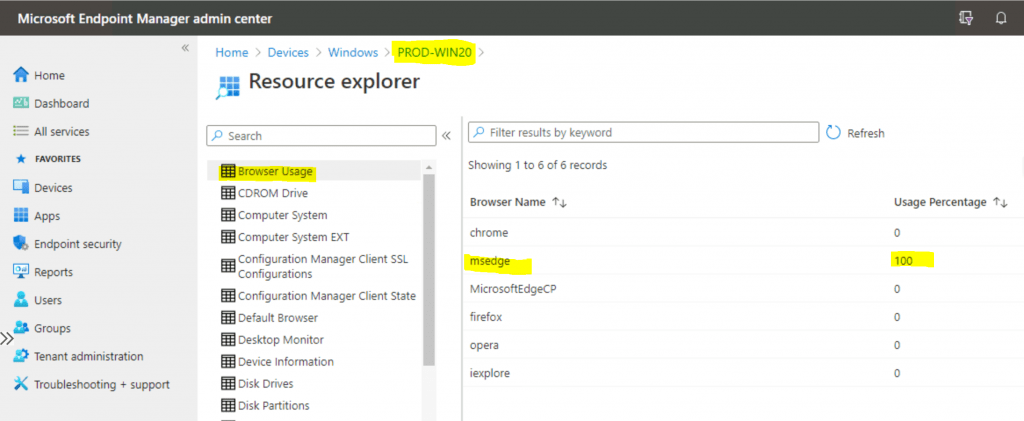
Click on the Browser Usage tab to check the browser usage details of that device. Edge Chromium is the most used browser on that device.
Troubleshooting
If you have trouble viewing Resource Explorer from the Intune portal (admin centre), check the following post about fixing Error 401 403 | Missing Configuration.
Fix ConfigMgr Tenant Attach Error 401 403 | Missing Config| SCCM
We are on WhatsApp. To get the latest step-by-step guides and news updates, Join our Channel. Click here –HTMD WhatsApp.
Author
Anoop C Nair is Microsoft MVP! He is a Device Management Admin with more than 20 years of experience (calculation done in 2021) in IT. He is a Blogger, Speaker, and Local User Group HTMD Community leader. His primary focus is Device Management technologies like SCCM 2012, Current Branch, and Intune. He writes about ConfigMgr, Windows 11, Windows 10, Azure AD, Microsoft Intune, Windows 365, AVD, etc.




Discussion