






Recover Secondary Site Fix SCCM Secondary Server Recovery Failed Issue | ConfigMgr
Let’s check how to fix the SCCM secondary server recovery failed issue (a.k.a. Recover Secondary Site). I got this issue while installing a hotfix on the configuration manager’s secondary site server. You can check the Show Install Status wizard, which shows that the replication between the secondary and primary is not active.
Secondary sites are designed to utilize a subset of the information stored in the database, effectively reducing the data volume being replicated between the primary and secondary sites by SQL Server. Additionally, secondary sites can efficiently route file-based content to other secondary sites linked to a typical primary site.
Run a Configuration Manager site recovery after a site failure or data loss in the site database. Repairing and resynchronizing data are essential to prevent operational interruptions. To avoid conflicts during site recovery, you should ensure no existing configurations on the site server are necessary.
In this blog post, I will provide detailed guidance on recovering the secondary site in SCCM and fixing the issue of a failed secondary server recovery in ConfigMgr. I will walk you through the necessary steps and troubleshooting methods to help you resolve this issue effectively. Let’s start.

- SCCM Secondary Site Upgrade Issue FIX
- Latest SCCM Secondary Server Upgrade Guide | ConfigMgr | Configuration Manager
- SCCM Replication Issue – SQL Based Issues
| Index |
|---|
| Secondary Server Recovery Failed |
| Link State is Degraded |
| Troubleshooting |
| Logs File |
| Database Replication – Save Diagnostic File |
| Replication Link Analyzer |
| Failed Replication |
| Fix? |
Secondary Server Recovery Failed
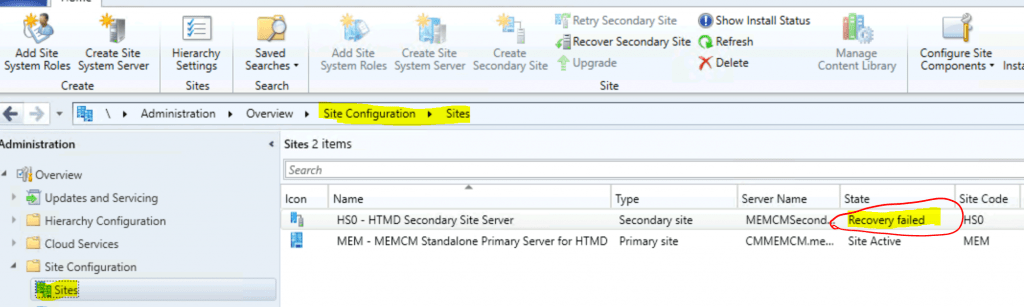
The secondary site hotfix installation (recovery failed). And when I checked the console to get more details about the issue. You can follow the steps mentioned below to get more information about the installation:
- Administration – Site Configuration – Sites.
- Select the secondary server.
- It shows Recovery Failed as the state of the secondary server.
- Right-click and click on Show Install Status.
[Passed]:Waiting for Database Replication Link State to be active.
I waited for many hours and restarted the secondary server. However, the link between secondary and primary links didn’t come up.
Link State is Degraded
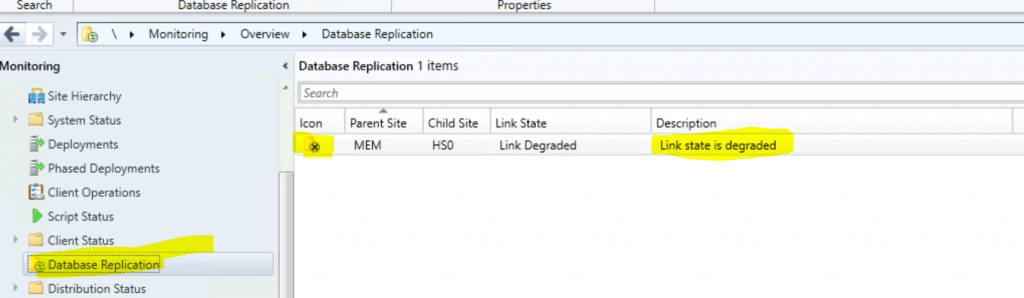
Now, let’s check the Replication Link from the monitoring workspace.
- Navigate to \Monitoring\Overview\Database Replication
- Check the Link State
- The link-state = Link Degraded
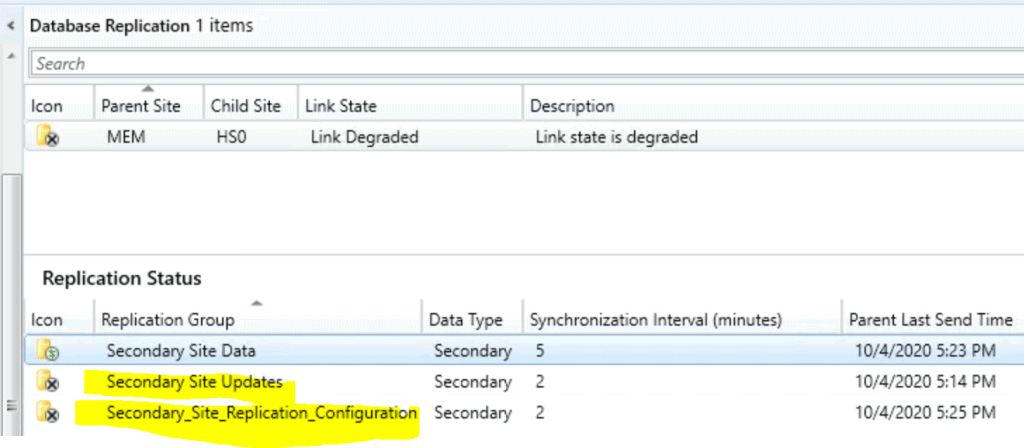
If you examine the details of the replication link, you will see that the two replication groups failed to replicate between the secondary and primary servers.
- Secondary Site Data – Successful
- Secondary Site Updates – Failed
- Secondary_Site_Replication_Configuration – Failed
Troubleshooting
Check the following steps to troubleshoot the secondary server recovery issue.
Logs File
Check the logs on the ConfigMgr.log file that failed to recover on the ConfigMgr secondary server. I could see two errors, but I don’t think registry error 0x80070002 is significant.
However, the error related to sending state messages to the primary server failed is a significant error of 0x00060002.
INFO: Failed to open registry key SOFTWARE\Microsoft\ConfigMgrBootStrap\BootStrap\SecInstallmsg\ (LastError=0x80070002)
INFO: Failed to send message 0x00060002 to parent.
INFO: Removing byte order marker after reading from file (C:\Program Files\Microsoft Configuration Manager\bin\X64\secondarysiteupdatepackage.xml)
Successfully update secondary site update pacakge status from file C:\Program Files\Microsoft Configuration Manager\bin\X64\secondarysiteupdatepackage.xml
INFO: Successfully begin Automatic Updates detection task
Not recovery mode or not top level site. Skip restoring client piloting packages.
~~===================== Completed Configuration Manager Server Setup =====================
Database Replication – Save Diagnostic File
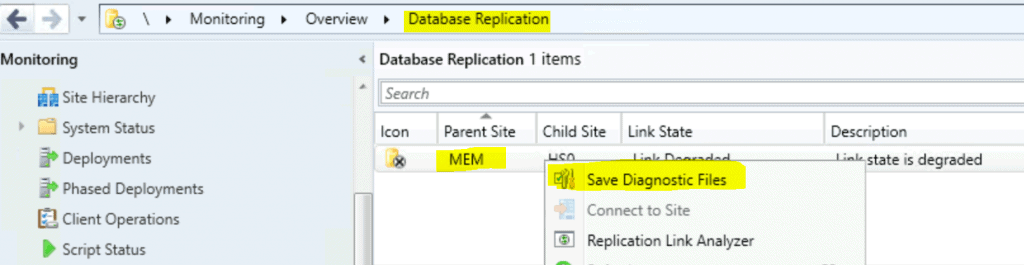
Let’s check diagnostic files using the database replication option.
- Navigate to Monitoring – Database Replication
- Right-click on database replication between the secondary and primary server
- Select Save Diagnostic Files
- Save the file in CSV format.
Details of Save Diagnostic Files of the Secondary server is given below:
Summary
MEM <-> HS0
Parent Site = MEM
Parent Site State = Replication Active
Child Site = HS0
Child Site State = Replication Active
Parent Site to Child Site Global State = Link Degraded
Parent Site to Child Site Global Synchronization Time = 10/4/2020 5:14:11 PM
Child Site to Parent Site Global State = Link Active
Last Synchronization Time = 10/4/2020 5:24:47 PM
Child Site to Parent Site State = Not Applicable
Child Site to Parent Site Synchronization Time = 1/1/1900 12:00:00 AM
Child Site (HS0)Child Site Configuration
State,Monitored Item,Current Configuration,Description
Unknown,"Machine certificate","cn=MEMCMSecondary.memcm.com
Expires: 2120-07-09","Certificate is still valid for MEMCMSecondary.memcm.com."
Unknown,"SQL Server certificate","cn=SSB Transport Security Certificate
Expires: 2040-08-02","Service Broker certificate is still valid for MEMCMSecondary.memcm.com."
Unknown,"SQL Server port","1433","Port 1433 still valid for MEMCMSecondary.memcm.com."
Unknown,"SQL Server service broker port","4022","Service Broker MEMCMSecondary.memcm.com Port 4022 still valid."
Unknown,"Database file location","C:\Program Files\Microsoft SQL Server\MSSQL12.MSSQLSERVER\MSSQL\DATA\CM_HS0.mdf
C:\Program Files\Microsoft SQL Server\MSSQL12.MSSQLSERVER\MSSQL\DATA\CM_HS0_log.ldf","Configuration Manager Database file location is still valid."
Unknown,"Database file disk free space","C:\ 97GB","No alerts configured. Use Site System properties to configure alerts."
Unknown,"Computer account","memcm.com\MEMCMSecondary$","Configuration Manager Site Server Account MEMCMSecondary.memcm.com still valid."
Unknown,"SQL Server role","smsdbrole_MP, smsdbrole_MCS, smsdbrole_DMP, smsdbrole_siteprovider, smsdbrole_siteserver, smsdbrole_AMTSP, smsdbrole_AIUS, smsdbrole_AITool, smsdbrole_extract, smsdbrole_WebPortal, smsdbrole_MPUserSvc, smsdbrole_MPMBAM, smsdbrole_AUDITMBAM, smsdbrole_EnrollSvr, smsdbrole_DViewAccess, smsdbrole_SUP, smsdbrole_CRP, smsdbrole_DWSS, smsdbrole_CRPPfx, smsschm_users, smsdbrole_DmpConnector, smsdbrole_HMSUser","All Configuration Manager SQL Roles still valid."
Unknown,"Firewall ports","1433, 4022","Configuration Manager SQL Server ports 1433, 4022 still active on Firewall exception."
Unknown,"SQL Server secondary replica",,"_103"
Unknown,"SQL Server availability group failover",,"_103"
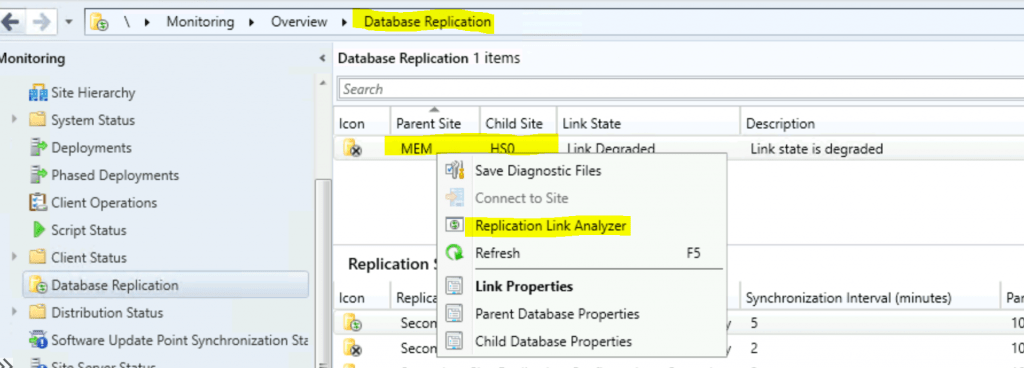
Replication Link Analyzer
Let’s analyze the SQL-based replication link between secondary and primary servers.
- Navigate to Monitoring – Database Replication
- Right-click on database replication between the secondary and primary server
- Select Replication Link Analyzer
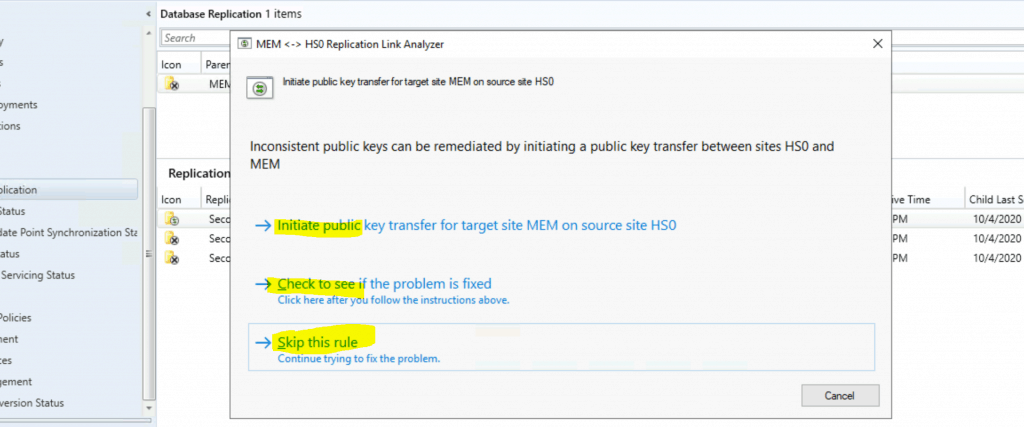
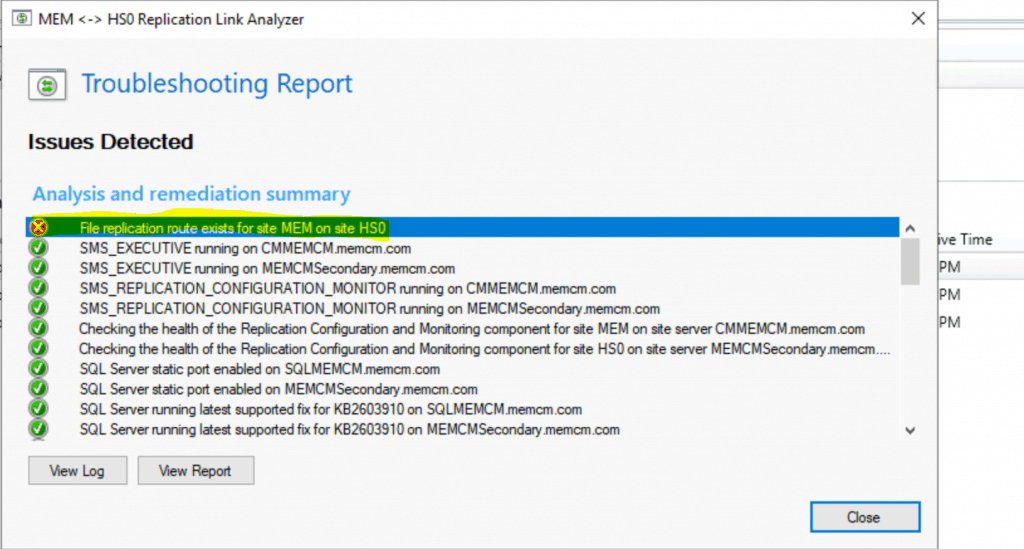
The replication link analysis shows that Inconsistent public keys can be remediated by initiating a public key transfer between the sites’ HSO and MEM.
The actions recommended for fixing the issue.
- Initiate public essential transfer for target site MEM on source site HSO.
- Check to see if the problem is fixed.
- Skip this rule
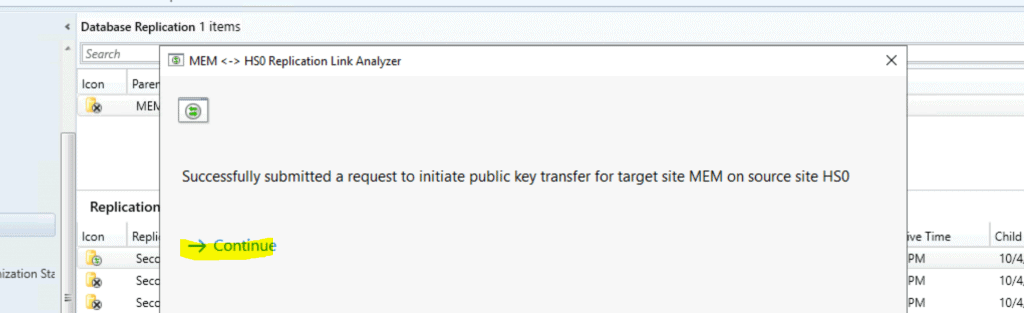
I successfully submitted a request to initiate the critical transfer for target site MEM on source site HSO.
- Click on Continue
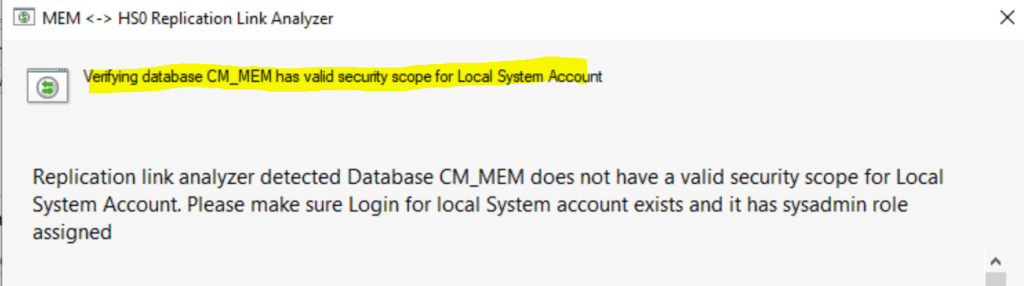
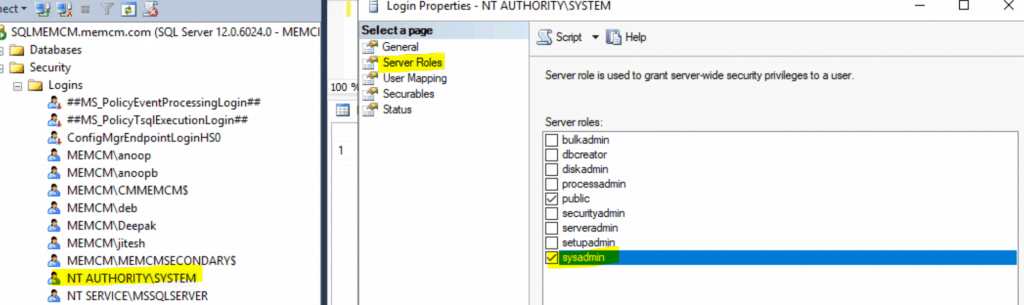
Verify that the database CM_MEM has a valid security scope for the local system account. The replication link analyzer detected Database CM_MEM does not have a valid security scope for the local system account.
- Please ensure login for the local system account exists and it has a sysadmin role assigned.
I added NT Authority/System to the SysAdmin role in the primary server SQL database.
- Click OK to save.
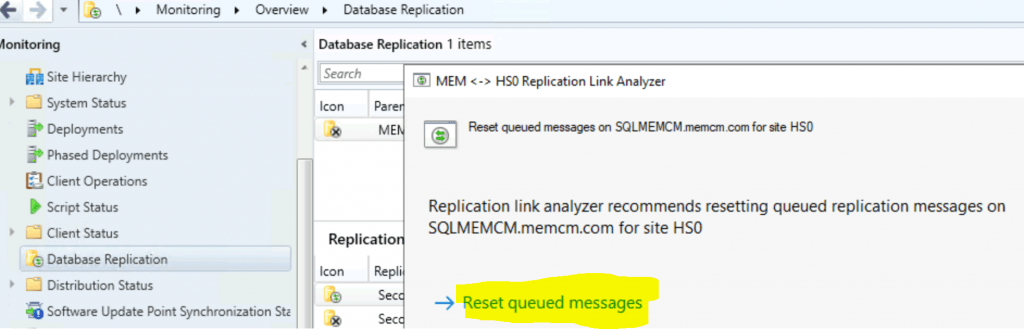
It seems you need to Reset queued messages on SQLMEMCM.memcm.com for site HSO. The replication link analyzer recommends resetting queued replication messages on SQLMEMCM.memcm.com for site HSO.
- Click on Reset Queued Messages.
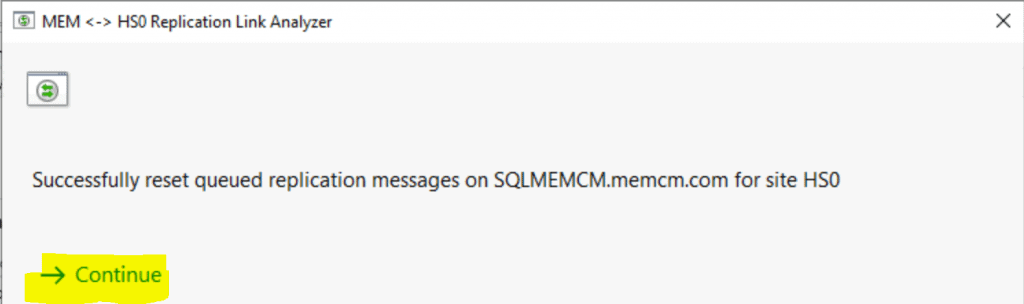
Successfully reset queued replication messages on the primary SQL server for the secondary server.
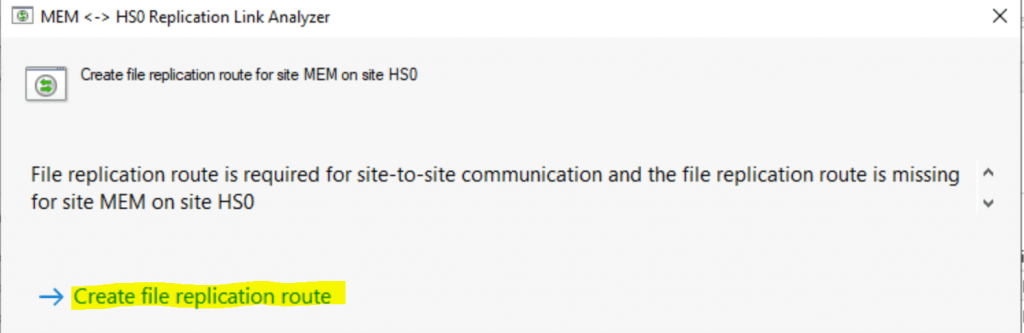
Create file replication route for site MEM on-site HSO.
- The file replication route is required for site-to-site communication, but the file replication route is missing for site MEM on-site HSO.
- Select the Create file replication route option.
The file Replication route exists for MEM on-site HS0.
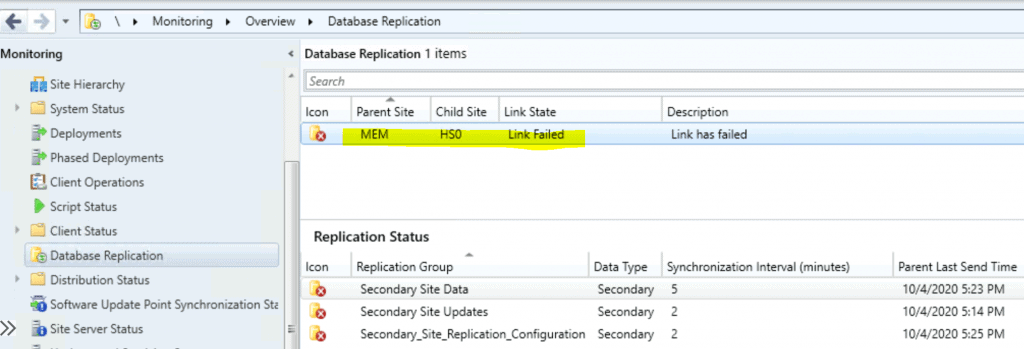
Failed Replication
The link failed after the replication link analyzer check.
Fix?
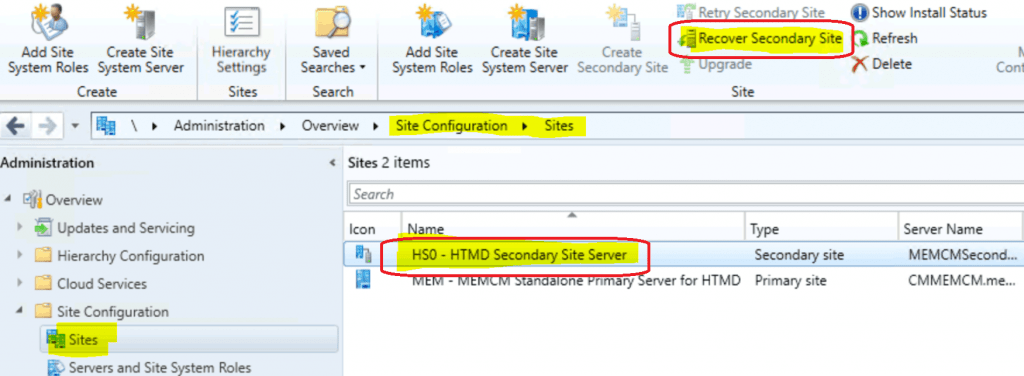
Let’s check what you can do to fix the issue. The only option left for me is to recover the secondary site again. Go through the following steps to confirm the same:
- Launch SCCM console
- Navigate to \Administration\Overview\Site Configuration\Sites
- Click secondary server and click on Recover Secondary Site from the ribbon menu
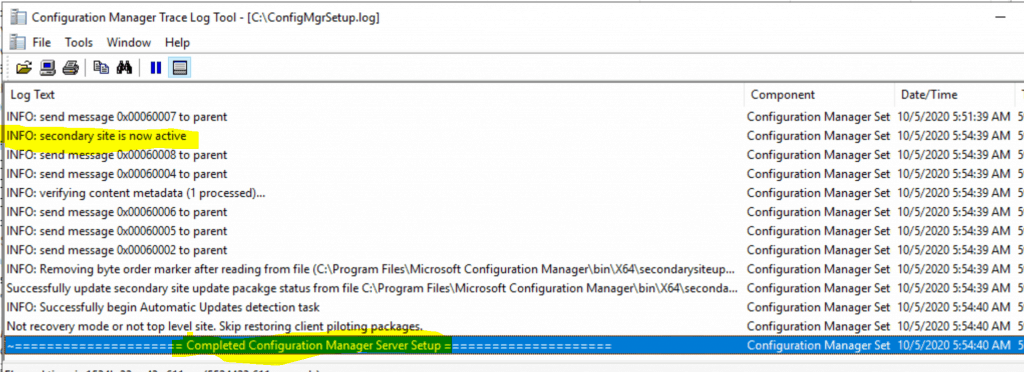
Check the ConfigMgrSetup.log file to confirm
- INFO: The secondary Site is now active
- INFO: send message 0x00060007 to parent
- INFO: send message 0x00060008 to parent
- INFO: verifying content metadata (1 processed)…
- Completed Configuration Manager Server Setup
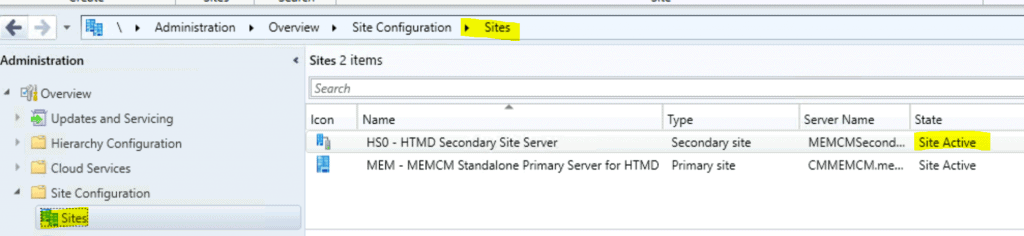
Check the console to confirm whether the site is active:
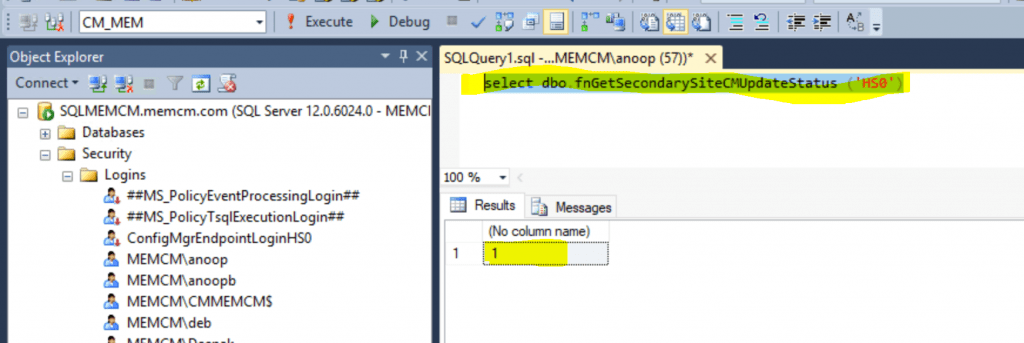
SQL query to verify whether the secondary is installed with updates or not.
- If the return value is 1, the hotfix is installed successfully.
Resources
- SCCM Secondary Server Installation Failed Error | ConfigMgr | Fix
- List of prerequisite checks for Configuration Manager
- Install a secondary site
- Add SCCM Server Computer Account to SQL Login Sys Admin Access
Author
Anoop C Nair is Microsoft MVP! He is a Device Management Admin with more than 20 years of experience (calculation done in 2021) in IT. He is a Blogger, Speaker, and Local User Group HTMD Community leader. His primary focus is Device Management technologies like SCCM 2012, Current Branch, and Intune. He writes about ConfigMgr, Windows 11, Windows 10, Azure AD, Microsoft Intune, Windows 365, AVD, etc.




Discussion