






SCCM Server OS Upgrade WSUS SUP Notes from Real World
Let’s discuss the SCCM Server OS Upgrade WSUS SUP Notes from the Real World. SCCM server OS upgrade (in place) is fully supported if your SCCM server is running SCCM CB 1606 version and above. However, with SCCM CB 1702, we have a hard requirement for an operating system version of SCCM servers.
The minimum requirement for SCCM CB 1702 is to have Server 2012 and above. In my previous post, “Step by Step Video Tutorial of SCCM CB 1702 Baseline version Installation“. In this post, we will see some of the notes/experiences from the field (real world) during the in-place OS upgrade.
The post “SCCM CB 1702 Upgrade of CAS and Primary Sites: A Real-world Experience” provides more details about the SCCM Server OS Upgrade Checklist.
Introduction—SCCM Server OS Upgrade WSUS SUP—The Microsoft SCCM team has documented the steps you need to perform before the SCCM server in-place OS upgrade. In addition to the pre-checks and actions, there are also some cautions in that document.

- SCCM Server In-place OS Upgrade to Server 2022 Guide
- New Features in SCCM Technical Preview 2401
- New Key Features of SCCM 2309 | Top Improvements
- Download SCCM 2309 Early Ring Version using PowerShell Script
- SCCM Versions Build Numbers Client Console Site
- End of Support Dates for SCCM CB Current Branch | ConfigMgr | SCCM End of Life
- SCCM Unsupported Deprecated or Removed Features
Table of Contents
SCCM Server OS Upgrade WSUS SUP Notes from Real World
Most of those cautions are pointing towards IIS configuration/reconfigurations. If you have some custom/out-of-box configurations in your IIS settings, you need to research the IIS setting before the in-place OS upgrades.
In my experience of upgrading 2 different SCCM CB hierarchies, when you have not done any custom configuration in your IIS, you will be OK after the upgrade of the server OS.
Otherwise, you may need to reconfigure those custom settings again in IIS (most probably). I have a post here that explains the default settings of IIS for SCCM servers.
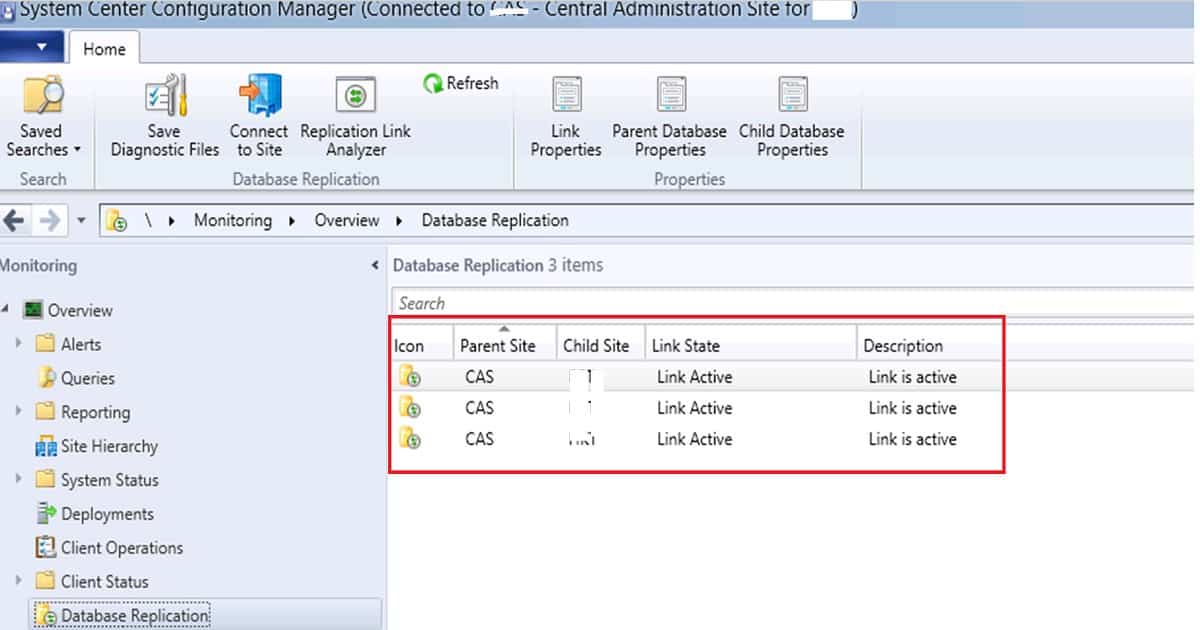
Pre SCCM Server In-place OS Upgrade – Remove/Uninstall WSUS Services
We removed the WSUS console from the primary server and CAS and then removed WSUS components from the remote SUP server before the SCCM Server placed the OS upgrade. Note that you don’t have (instead should NOT remove) to remove WSUS data, Logs, and DB references while removing WSUS from SCCM SUP/Primary servers.
You must remove/uninstall only the WSUS console and the core component, such as “Windows Server Update Service.” Ensure that you removed the disservice and wsuscertserver services from the SCCM server—there is no need to remove the SUP role.
Post-SCCM Server In-place OS Upgrade – Install WSUS Console
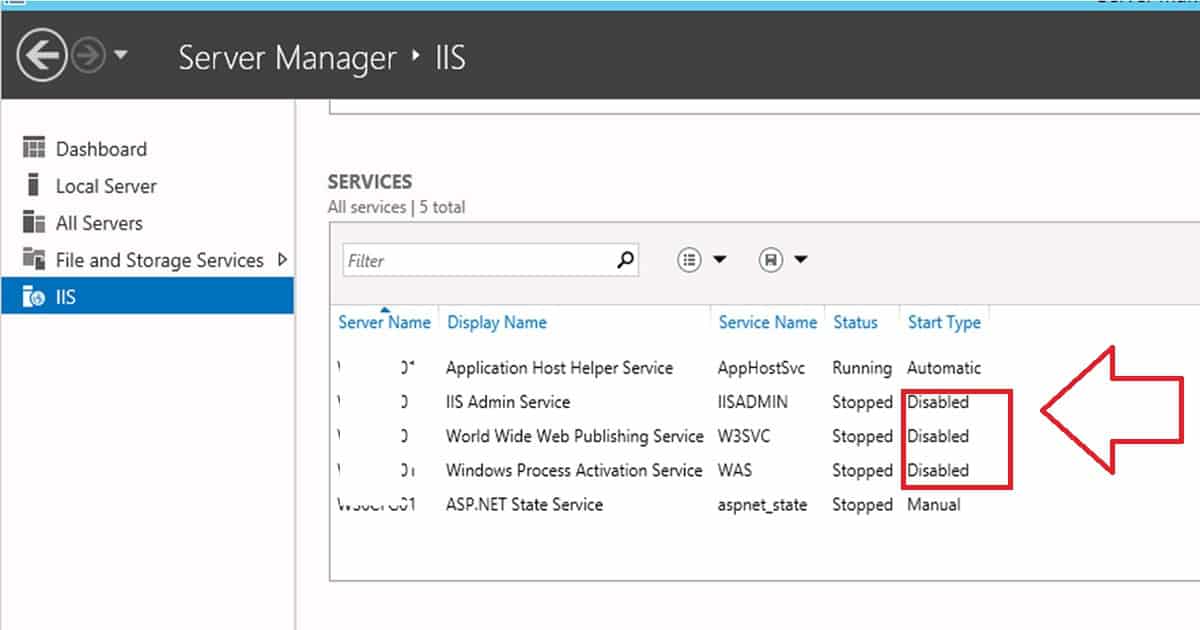
Post-SCCM Server in-place OS upgrade, I noticed that IIS-related services were stopped and disabled. If that is the situation in your case, you need to make sure that all these IIS-related services are not disabled. Ensure that IIS is working before you try to install WSUS 6.0 (for server 2012 R2) on the server.
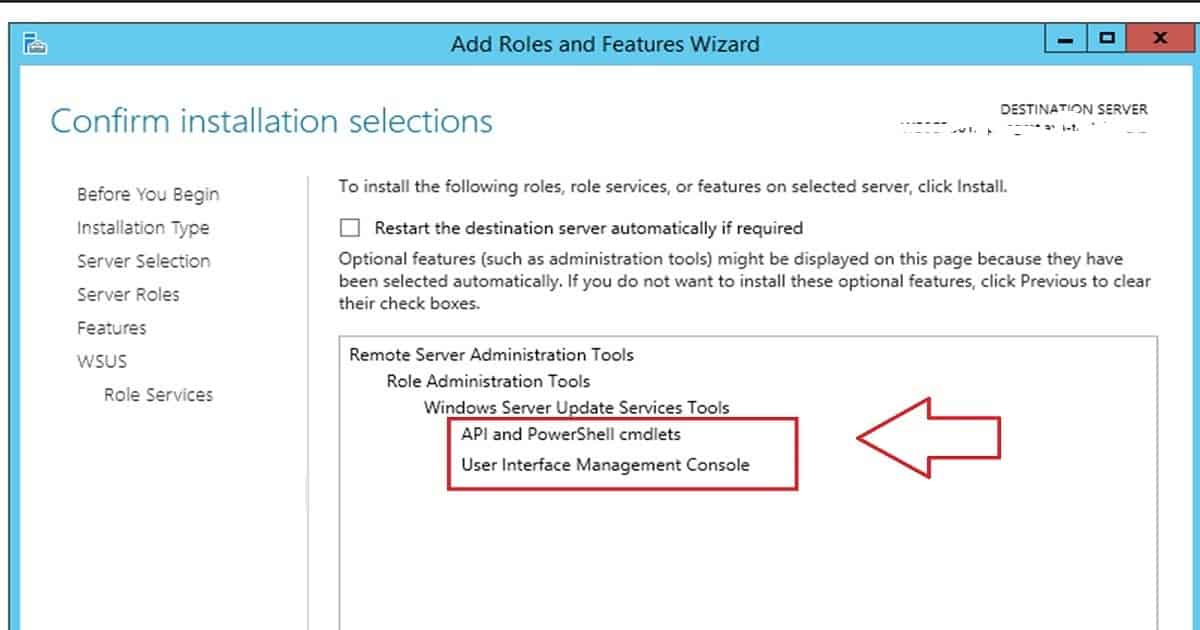
Install the WSUS console (via the Add Roles and Features wizard in Server 2012) on the SCCM Primary/CAS server if you have a remote SUP server. There is no need to install DB and other services related to WSUS on primary and CAS servers if you are hosting the SUP role on a remote server. Make sure you install only the following roles from “Add roles and features wizard“:-
Remote Server Administration Tools – Role Administration Tools – Windows Server Update Services Tools:-
– API and PowerShell cmdlets
– User Interface Management Console
| Remote Server Administration Tools |
|---|
| API and PowerShell cmdlets |
| User Interface Management Console |
Post-SCCM Server In-place OS Upgrade – Install WSUS Services
Once we install the WSUS console on the SCCM primary/CAS server, we can install WSUS core services on your remote SUP SCCM site system server. Launch the Add Roles and Features wizard, and select the following components, as seen in the pic below.
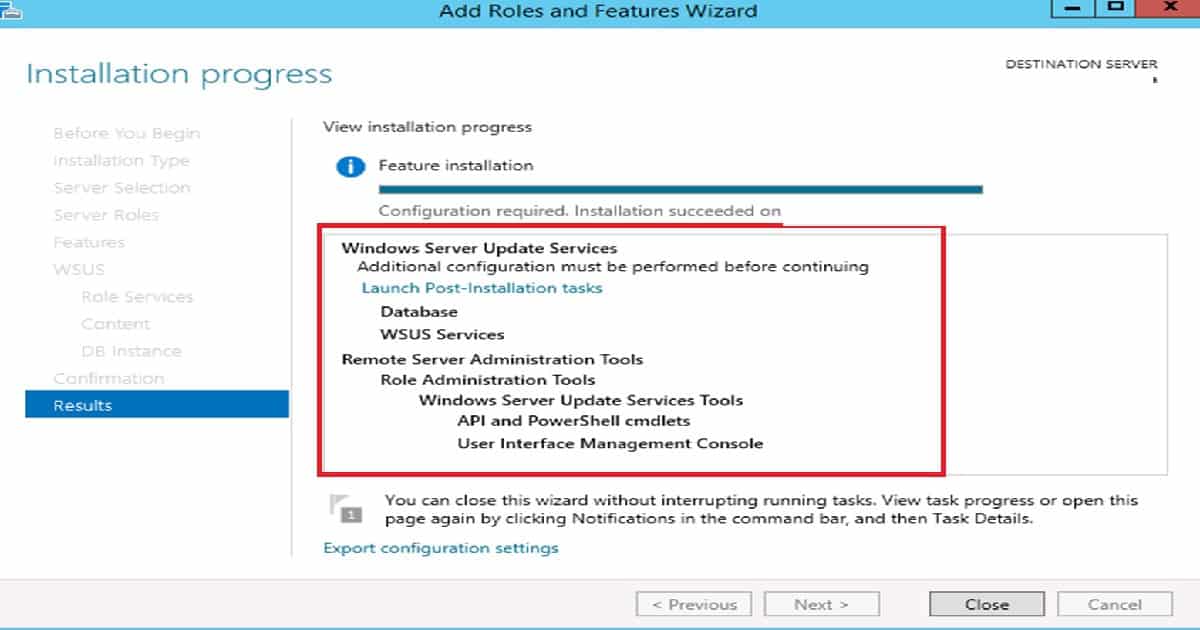
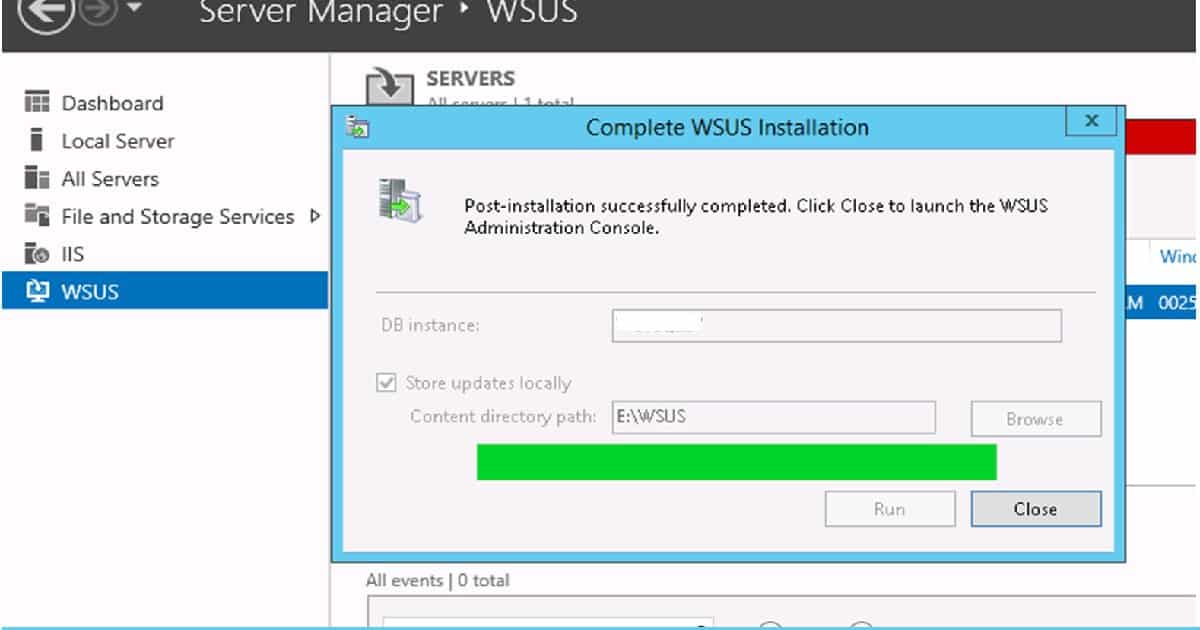
For the WSUS installation, we must complete two specific configurations: 1. Specify the updated store location, and 2. Specify an existing database server setting. In the SCCM In-place OS upgrade scenario, we must use the exact store location and Database name.
Another important point is that we don’t have to click on “Launch Post-installation tasks.” Instead, we can launch the WSUS console and click on the RUN button to complete the WSUS installation process.
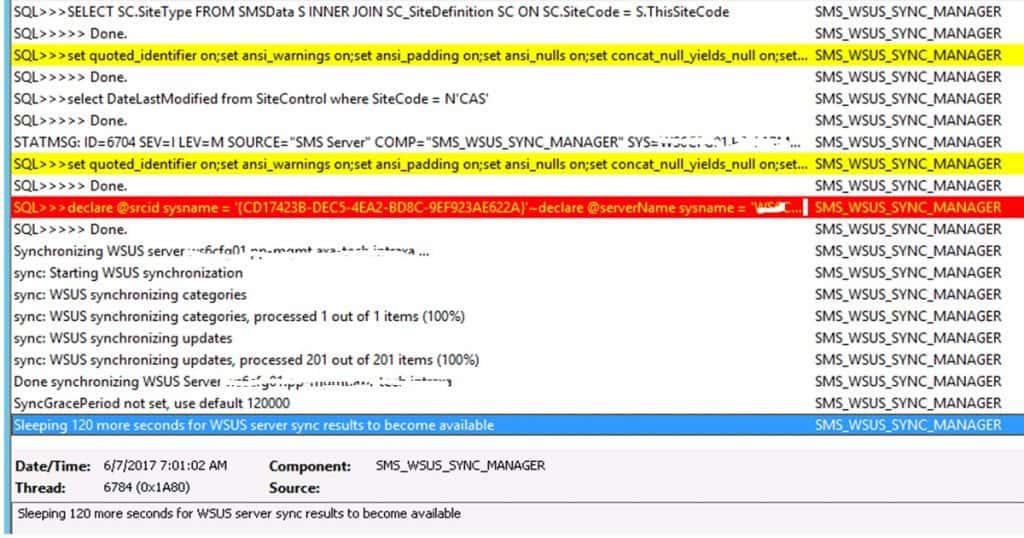
The Result SUP Sync Works Perfectly after Server OS in Place Upgrade
This post-SCCM OS upgrade activity results in WSUS SYNC working fine with all the existing settings and configurations. There is no need to reconfigure and re-download anything, as per my experience.
We are on WhatsApp now. To get the latest step-by-step guides, news, and updates, Join our Channel. Click here. HTMD WhatsApp.
Author
Anoop C Nair is Microsoft MVP! He is a Device Management Admin with more than 20 years of experience (calculation done in 2021) in IT. He is a Blogger, Speaker, and Local User Group HTMD Community leader. His primary focus is Device Management technologies like SCCM 2012, Current Branch, and Intune. He writes about ConfigMgr, Windows 11, Windows 10, Azure AD, Microsoft Intune, Windows 365, AVD, etc.




We recently went from 2012 latest to 1702 on a 2008r2 box.
Upgrade was fine. Then we went o/s 2008r2 – 2012r2 – 2016. All good.
Note though. Have an external sup running on 2012r2 with heaps of issues. We eventually gave up and built a new 2016 box for sup. Works great!
We also threw in a sql upgrade from 2012 to 2016!
A whole lot of fun!
StaffI have one where we forgot to uninstall/remove WSUS from server 2008 R2 and after upgrade to server 2012 R2 it decided stay there for ever 🙁
We’ve removed the presence of the old WSUS version using MSI clean etc…. and registry entries also cleaned up.
We were successfully able to install WSUS on server 2012 R2 via Add Roles and Features Wizard but the configuration stuff is not successful yet 🙁
So the removal is very critical.
Probably I will advice to remove WSUS whenever you do in place upgrade (may be for Server 2012 to 2016 as well ). We never know 😉
Hi Anoop, thanks for the wonderful post.
Can you please also share the link of OS upgrade steps on SCCM servers from 2008R2 to 2012R2 or Server 2016.
Thanks!
Does this work going from 2012 R2 to 2016?
Thanks Anoop buddy for the Post.
Hi Anoop,
Currently we are running on SCCM 2012 R2 SP1 with SQL 2008 R2 SP3. We are planning to upgrade SCCM server OS from 2008R2 to 2012. Is SCCM 2012 R2 SP1 will support Windows 2012 OS in place upgrade? Can you please tell me process to upgrade like from First primary then secondary and MP,DP’s etc like that or DP’s, MP,SS and Primary. Which way is best?
Thanks,
Sirish Kumar K
Did you get this to work?
Hopefully someone still sees this post. I followed this guide exactly and after completing the step “launch WSUS console and click on RUN button to complete the WSUS installation process” I went home. I came in next day and it completed successfully BUT – every device in our environment was now getting windows updates (including a Windows Upgrade to Windows 10 202H) straight from WSUS. I know its coming straight from Windows Updates because 1. we dont have the 202H version downloaded or deployed anywhere and 2. some hosts are also getting other driver updates etc that we don’t push via sccm at all. Does anyone know what happened here? I have checked all group policy settings and they are correct and they also did not change prior to the upgrade. I simply cannot find a reason why all these updates are getting deployed to all clients suddenly.
StaffThose might be your existing deployments? Have you checked the log files mentioned in the following forum to troubleshoot the issue further https://forum.howtomanagedevices.com/endpointmanager/configuration-manager/we-are-using-ibcm-in-our-environmentwe-are-not-planning-to-update-to-cmg-for-now-and-facing-software-update-installation-issue-for-vpn-workstations/