






FIX: SCCM Task sequence failed with error code 0x80220005
In this post, you will learn to FIX SCCM Task sequence failed with error code 0x80220005. The task sequence error prompt during operating system deployment with Configuration Manager when it’s failed to execute step added to rename the device. The error 0x80220005 Translate SCCM Error Codes to Error Messages No result in CMTrace Error lookup.
This task sequence failed with error code 0x80220005 often seen when automating the computer name by defining variables inside the task sequence, scripts, or prompting the wizard to specify the computer name to users at the time of deployment, and the computer exceeds the 15 characters limit. In case you’re auto-generating the computer name, You may experience deployment failure in the virtual machines as the serial number of the VM is too long.
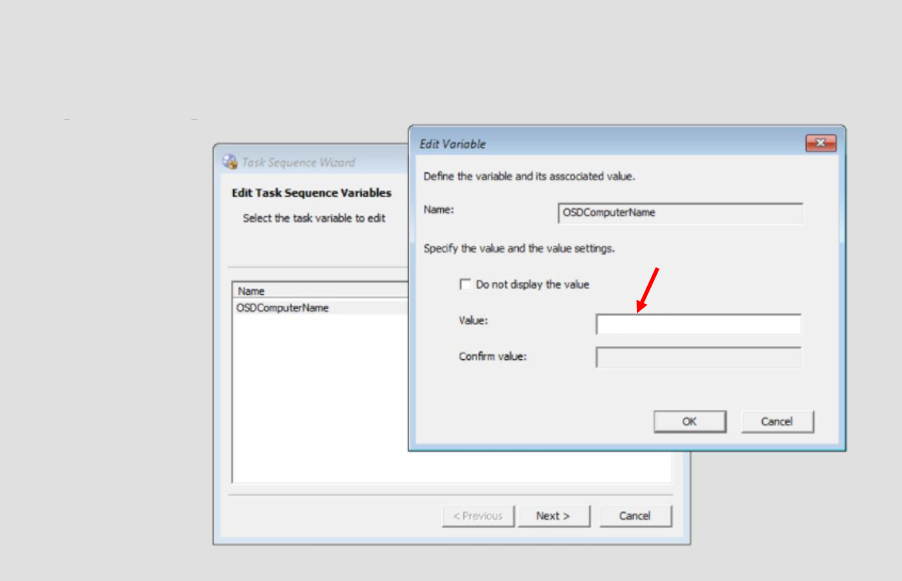
Let’s learn how to display SCCM OSD Computer Name Prompt in Task Sequence Deployment. To change the computer name in the new OS, we will use the OSDComputerName variable during deployment SCCM OSD Computer Name Prompt In Task Sequence Deployment ConfigMgr
Issue Summary
This error appears at the initial stage when you have started the deployment. For example, if you’re providing a prompt to the user to enter the computer name, after providing the custom computer name with more than 15 characters in the Value text box, click OK to allow the task sequence to run.

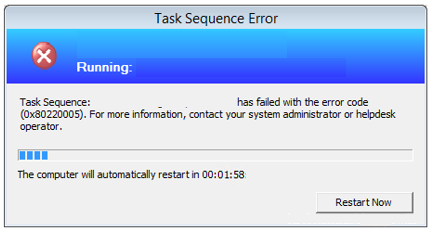
Task Sequence fails with the following error message – Task Sequence: Deploy Windows 10 has failed with the error code (0x80220005). For more information, please contact your system administrator or help-desk operator.
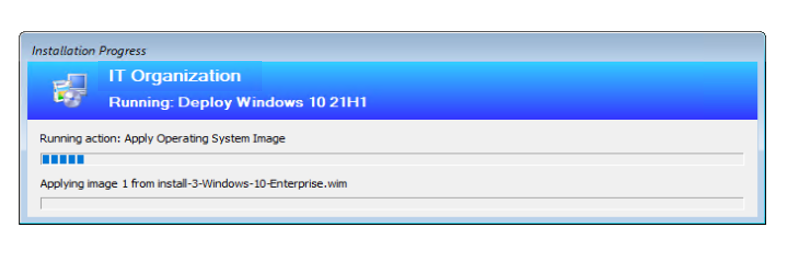
In this scenario, Task Sequence terminated after the installation of the operating system. You will collect the logs at WinPE X:\Windows\temp\smstslog\smsts.log. To get the command prompt window, you have to press the F8 key and locate the location to Open the log.
Here’s the highlight from the SMSTS.log –
Failed to open the Task Sequencing Environment. Code 0x80220005. Please ensure you are running this executable inside a properly configured OS Deployment task sequence.
Exiting with return Code Unknown error 0x80220005
Process completed with exit code 2149711877
Failed to run the action: Apply Windows Settings, Unknown error (Error: 80220005; Source: Unknown) Task sequence failed with error code 0x80220005
FIX – SCCM Task sequence failed with error code 0x80220005
Let’s check the solution to fix this task sequence error code 0x80220005 –
When renaming a device, the new name must be 15 characters or less. If you’re taking inputs from the user, Make sure the computer name does not exceed the characters limit. Based on the above scenario, we asked the user to appropriate the device name and perform the deployment. If you had automated with scripts, do some modification, especially if you defined the serial number and prefix.
Let us know your experience with the issue and steps taken to resolve it in Comment Section.
About Author -> Jitesh has over 5 years of working experience in the IT Industry. He writes and shares his experiences related to Microsoft device management technologies and IT Infrastructure management. His primary focus area is Windows 10 Deployment solution with Configuration Manager, Microsoft Deployment Toolkit (MDT), and Microsoft Intune.
Resources
- SCCM OSD Task Sequence Troubleshooting Steps by Step Ultimate Guide SMSTS.log.
- SCCM OSD SMSTS Log File Reading Tips | ConfigMgr | MEMCM
- HTMD Blog #2 SCCM Archive




Hi I am issues setting the Syntax for variable osdcomputername within the SCCM task sequence .
My laptop test works fine but I am having issues with the syntax for VM
For laptop I am using
W-L-%serialnumberer%
For the VM its w-vm-%serialnumber%
Pls advise
StaffHi, The VM serial number exceeds 15 Characters. Ensure you trimmed the serial number for using inside Virtual machines during the deployment and check your experience.
How can you trim the @serialnumber% variable to only use the first or last 7 characters of the serial number? This way it stays within the 15 character limit?
Hi guys, we use %SITE%-%DEVICE%-%SERIALNUMBER% and I have checked that we have the gather step before the OSDComputerName variable. The output for this particular device is 13 characters only yet we are getting the same exact error.
The computer name output if the OSD was successful should be like this DOT-L-xxxxxxx. Here are the error logs, any advised please?
11/07/2023 4:47 PM,47,Apply Windows Settings,Install Operating System,The task sequence execution engine failed executing an action,11135,-2,145,255,419,… ue( SetupPassValue[eSetupPass], pszComponentName, pszPath, pszValue ), HRESULT=80220005 (C:\__w\1\s\src\Framework\OSDCore\xmlanswerfile.cpp,787)
this->SetValue( Specialize, XML::Shell::ComponentName, XML::Shell::ComputerName::Element, pszComputerName), HRESULT=80220005 (C:\__w\1\s\src\Framework\OSDCore\xmlanswerfile.cpp,903)
m_pImpl->SetComputerNameW(pszComputerName), HRESULT=80220005 (C:\__w\1\s\src\Framework\OSDCore\xmlanswerfile.cpp,2373)
pAnswerFile->SetComputerNameW(sValue), HRESULT=80220005(C:\__w\1\s\src\client\OsDeployment\OSDWinSettings\osdwinsettings.cpp,375)
ConfigureWinSettings(), HRESULT=80220005 (C:\__w\1\s\src\client\OsDeployment\OSDWinSettings\osdwinsettings.cpp,707)
Could not find CCM install folder. Don’t use ccmerrors.dll
Exiting with return code 0x80220005
Failed to open the Task Sequencing Environment. Code 0x80220005. Please ensure you are running this executable inside a properly configured OS Deployment task sequence.
Unknown error (Error: 80220005; Source: Unknown)